
1. Introducció
This manual provides detailed instructions for the installation, operation, and maintenance of your AZDOME GS63H 4K WiIFi Dash Cam. Please read this manual thoroughly before using the device to ensure proper function and safety.

Image 1.1: AZDOME GS63H Dash Cam, showing the device, its suction mount, a smartphone displaying the companion app, and the included 128GB SD card.
2. Contingut del paquet
Verifiqueu que tots els elements que s'enumeren a continuació siguin presents al vostre paquet:
- AZDOME GS63H Dash Cam
- Suport de succió
- Targeta de memòria de 128 GB
- Cable d'alimentació (carregador de cotxe)
- Cable de dades USB
- Manual d'usuari

Image 2.1: The included 128GB SD card, designed for fast data transfer speeds, compatible with the AZDOME GS63H dash cam.
3. Producte acabatview i Característiques
The AZDOME GS63H is a 4K WiIFi Dash Cam designed to record driving footage. Key features include:
- 4K UHD Recording: Captures video at 2880x2160P resolution for detailed footage.
- WiFi integrat: Allows connection to a smartphone via the AZDOME app for video management.
- GPS integrat: Records driving speed, route, latitude, and longitude data.
- Supervisió nocturna: Equipped with WDR (Wide Dynamic Range) and a SONY IMX335 sensor for clear recording in low-light conditions.
- Enregistrament en bucle: Sobreescriu automàticament el més antic files quan la targeta de memòria està plena.
- Sensor G: Detects sudden movements or collisions and locks the current video file per evitar la sobreescriptura.
- Monitor d'aparcament: Records automatically when motion or impact is detected while parked (requires hard-wire kit, sold separately).
- Detecció de moviment: Initiates recording when movement is detected in front of the camera.

Image 3.1: Visual representation of the AZDOME GS63H dash cam's core features, including 4K Ultra HD video, WiFi connectivity, GPS, and various recording modes.
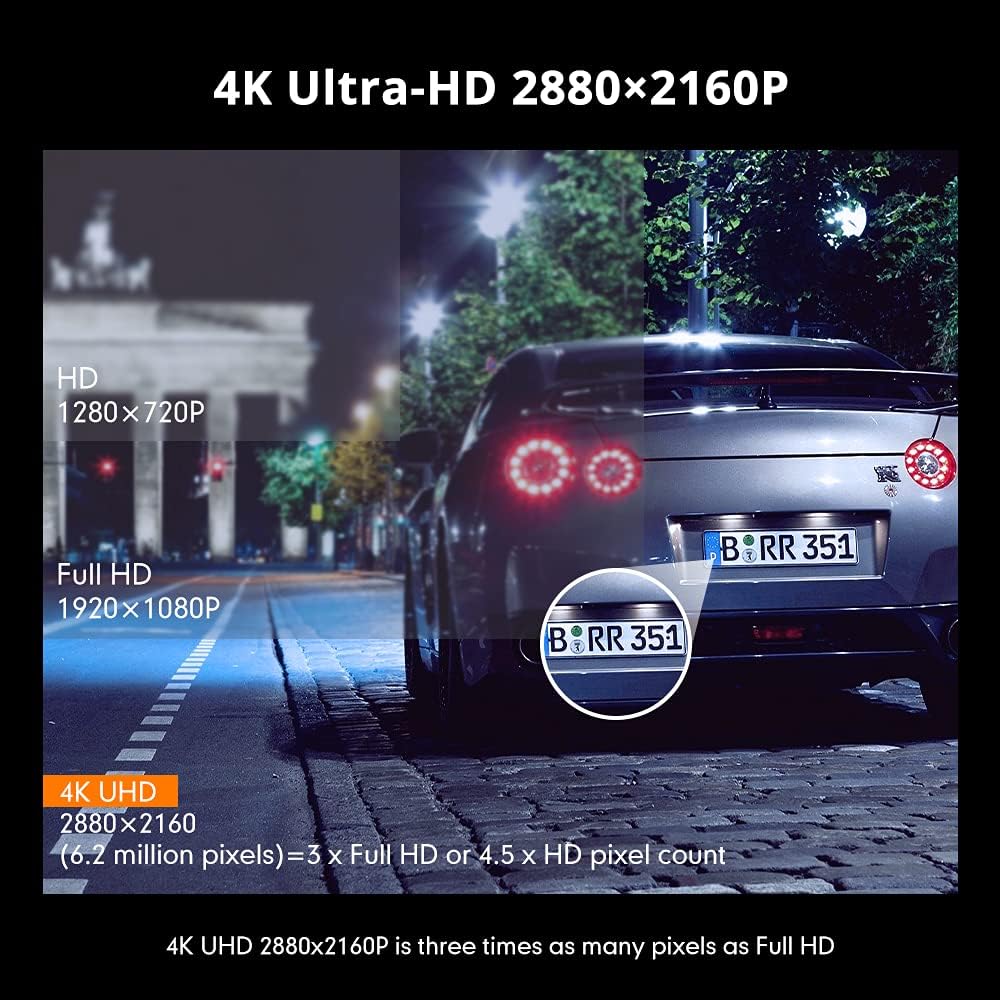
Image 3.2: Comparison illustrating the higher detail of 4K Ultra-HD (2880x2160P) resolution compared to Full HD (1920x1080P) and HD (1280x720P).
4. Configuració
4.1. Muntatge de la Dash Cam
- Netegeu la zona del parabrisa on voleu muntar la càmera del salpicader.
- Attach the suction bracket to the dash cam.
- Premeu la ventosa fermament contra el parabrisa i gireu la palanca per fixar-la.
- Ajusta l'angle de la càmera per garantir una visió clara view de la carretera.
4.2. Inserció de la targeta SD
- Assegureu-vos que la càmera del salpicader estigui apagada.
- Localitza la ranura per a la targeta SD al lateral de la càmera del salpicader.
- Insert the 128GB SD card with the gold contacts facing the back of the camera until it clicks into place.
- Per treure-la, premeu suaument la targeta fins que surti.
4.3. Potència de connexió
- Connecteu el carregador del cotxe al port d'entrada d'alimentació de la càmera del salpicader.
- Connecteu l'altre extrem del carregador de cotxe a la presa de corrent de 12 V del vostre vehicle (endoll de l'encenedor de cigarrets).
- La càmera del salpicader s'encendrà automàticament i començarà a gravar quan s'activi el contacte del vehicle.
5. Instruccions de funcionament
5.1. Enregistrament bàsic
Once powered on, the dash cam will automatically start recording. The recording indicator light will flash. Videos are saved in segments (loop recording) to the SD card.
5.2. Navegació del menú
Use the physical buttons on the dash cam to navigate through the menu options. Refer to the on-screen icons for specific functions such as video playback, settings, and mode switching.
5.3. WiFi Connection and AZDOME App
The built-in WiFi allows you to connect your smartphone to the dash cam for live view, video playback, download, and settings adjustment.
- Download the 'AZDOME' app from the Apple App Store or Google Play Store.
- On the dash cam, enable WiFi mode (refer to the dash cam's display for the WiFi icon).
- On your smartphone, go to WiFi settings and connect to the AZDOME dash cam's WiFi network (SSID and password will be displayed on the dash cam screen).
- Open the AZDOME app to access the dash cam's functions.

Image 5.1: Illustration of the built-in WiFi functionality, showing the AZDOME app on a smartphone connected to the dash cam for video management.
5.4. Seguiment GPS
The integrated GPS module records your driving route, speed, and coordinates. This data can be viewed using the dedicated AZDOME GPS Player software on a computer.
- Download the AZDOME GPS Player from the official AZDOME weblloc.
- Transfer recorded video files de la targeta SD a l'ordinador.
- Obre el vídeo files using the AZDOME GPS Player to view synchronized video and GPS data (route map, speed, etc.).

Image 5.2: A laptop screen displaying the AZDOME GPS Player interface, showing a recorded video alongside a map with the tracked driving route and speed information.
5.5. Advanced Recording Modes
- Sensor G: When a sudden impact or collision is detected, the G-Sensor automatically locks the current video file, evitant que es sobreescrigui amb l'enregistrament en bucle.
- Monitor d'aparcament: If connected to a hard-wire kit (sold separately), the dash cam can detect motion or impact while the vehicle is parked and automatically start recording for a short duration.
- Detecció de moviment: When enabled, the camera will start recording if it detects movement in its field of view while stationary.
- WDR (ampli rang dinàmic): This feature enhances video quality in challenging lighting conditions by balancing bright and dark areas of the image.

Image 5.3: Visual explanation of the dash cam's multifunctional capabilities, including Motion Detection, WDR for balanced exposure, G-Sensor for impact detection, and Parking Monitor.
6. Manteniment
6.1. Formatació de la targeta SD
It is recommended to format the SD card regularly (e.g., once a month) to ensure optimal performance and prevent data corruption. Formatting can be done through the dash cam's menu settings.
6.2. Neteja del dispositiu
Feu servir un drap suau i sec per netejar la lent i el cos de la càmera del salpicader. Eviteu utilitzar productes de neteja abrasius o dissolvents que puguin danyar el dispositiu.
7. Solució De Problemes
- La càmera del salpicader no s'encén: Assegureu-vos que el cable d'alimentació estigui connectat correctament tant a la càmera del salpicader com a la presa de corrent de 12 V del vehicle. Comproveu si la presa de corrent del vehicle funciona.
- La gravació s'atura de manera inesperada: Format the SD card. Ensure the SD card is a high-speed card (Class 10 or higher).
- La qualitat del vídeo és deficient: Clean the camera lens. Ensure the protective film has been removed from the lens. Check video resolution settings.
- Problemes de connexió Wi-Fi: Ensure the dash cam's WiFi is enabled. Keep the smartphone within 9 feet (3 meters) of the dash cam.
- GPS data not recording: Assegureu-vos que la càmera del salpicader tingui una visió clara view of the sky for GPS signal reception.
8. Especificacions
| Característica | Especificació |
|---|---|
| Marca | AZDOME |
| Nom del model | GS63H |
| Resolució de captura de vídeo | 2160p (4K UHD) |
| Tecnologia de connectivitat | Wi-Fi |
| Tipus de memòria flash | SD (Supports up to 128GB) |
| Tipus de muntatge | Muntatge de succió |
| Mètode de control | App |
| Tipus de servei del vehicle | Cotxe |
| Components inclosos | Memory Card, Suction Bracket |
9. Garantia i Suport
For warranty information and technical support, please refer to the official AZDOME website or contact AZDOME customer service directly. Keep your purchase receipt as proof of purchase.