
1. Introducció
This manual provides detailed instructions for the installation, operation, and maintenance of your GAMEON Emperor Artic Series Mid Tower PC Gaming Case. Please read this manual thoroughly before beginning assembly to ensure proper setup and safe usage. Retain this manual for future reference.

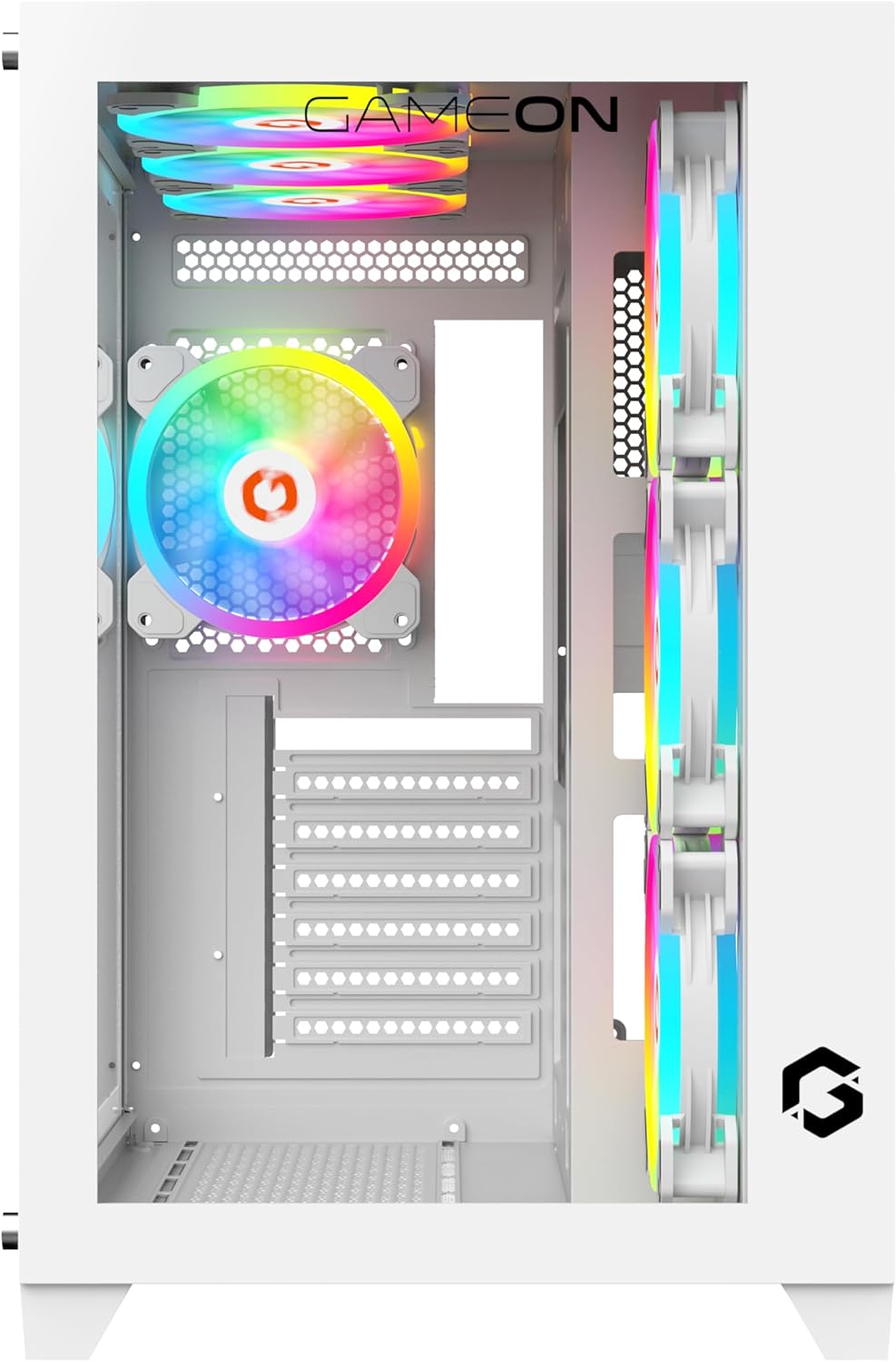
Imatge 1: Frontal esquerre view of the GAMEON Emperor Artic Series PC Gaming Case, showcasing its tempered glass panels and illuminated internal components.
2. Informació de seguretat
- Desconnecteu sempre la font d'alimentació de la presa de corrent abans d'instal·lar o fer el manteniment de qualsevol component de l'interior de la carcassa de l'ordinador.
- Handle tempered glass panels with care. They are fragile and can break if dropped or subjected to impact.
- Wear anti-static gloves or use an anti-static wrist strap when handling internal components to prevent electrostatic discharge (ESD) damage.
- Keep small parts and accessories out of reach of children.
- Assegureu-vos que hi hagi una ventilació adequada al voltant de la carcassa de l'ordinador per evitar el sobreescalfament.
3. Contingut del paquet
Verifiqueu que tots els elements siguin presents al paquet:
- GAMEON Emperor Artic Series Mid Tower PC Gaming Case
- Pre-installed 7 x 120mm ARGB+PWM Fans
- Accessory Kit (screws, standoffs, cable ties, etc.)
- Manual d'usuari (aquest document)
4. Característiques del producte
The GAMEON Emperor Artic Series PC Gaming Case is designed for optimal performance and aesthetics:
- Panells de vidre temperat: Features 0.7mm tempered glass panels on the front and side for a clear view de components interns.
- Refrigeració avançada: Comes with 7 pre-installed 120mm ARGB+PWM fans for efficient airflow and customizable lighting. Supports extensive fan and radiator configurations.
- Compatibilitat de la placa base: Supports ATX and M-ATX motherboard form factors.
- Interior espaiós: Accommodates GPUs up to 410mm in length and CPU coolers up to 165mm in height.
- Opcions d'emmagatzematge flexibles: Supports up to 2 HDDs and 1 SSD, or 1 HDD and 2 SSDs.
- Ports d'E/S pràctics: Includes 1x USB 3.0, 1x USB 2.0, 1x Type-C, HD Audio, and Reset/Power buttons.
- Construcció duradora: Made from high-quality SPCC materials.
- Filtres de pols: Equipped with dust filters for improved system longevity and reduced maintenance.

Image 2: Illustration of ARGB+PWM fan capabilities and the included remote control for lighting and fan speed adjustments.

Imatge 3: Detallada view of the accessible I/O ports located on the top panel of the case.
5. Guia de configuració
5.1. Preparació del cas
- Col·loqueu la caixa sobre una superfície plana i estable.
- Carefully remove the side tempered glass panel by unscrewing the thumb screws (if present) or releasing the latch mechanism. Set the panel aside on a soft, non-abrasive surface to prevent scratches.
- Remove the front tempered glass panel if necessary for installation or access.
Imatge 4: Interna view of the case, illustrating the layout for component installation.
5.2. Instal·lació de la placa base
- Instal·leu la protecció d'E/S a l'obertura de la safata de la placa base des de l'interior de la carcassa.
- Align your ATX or M-ATX motherboard with the pre-installed standoffs. Ensure the screw holes on the motherboard match the standoffs.
- Secure the motherboard with the provided screws from the accessory kit.
5.3. Instal·lació de la font d'alimentació (PSU)
- Locate the PSU mounting area, typically at the bottom rear of the case.
- Slide your PSU (maximum length 200mm) into the designated bay.
- Secure the PSU with screws from the outside rear of the case.
5.4. Instal·lació d'unitats d'emmagatzematge (HDD/SSD)
The case supports up to 2 HDDs and 1 SSD, or 1 HDD and 2 SSDs.
- Identify the drive bays or mounting brackets for 3.5" HDDs and 2.5" SSDs.
- Mount your drives using the appropriate screws. Some bays may feature tool-less designs.
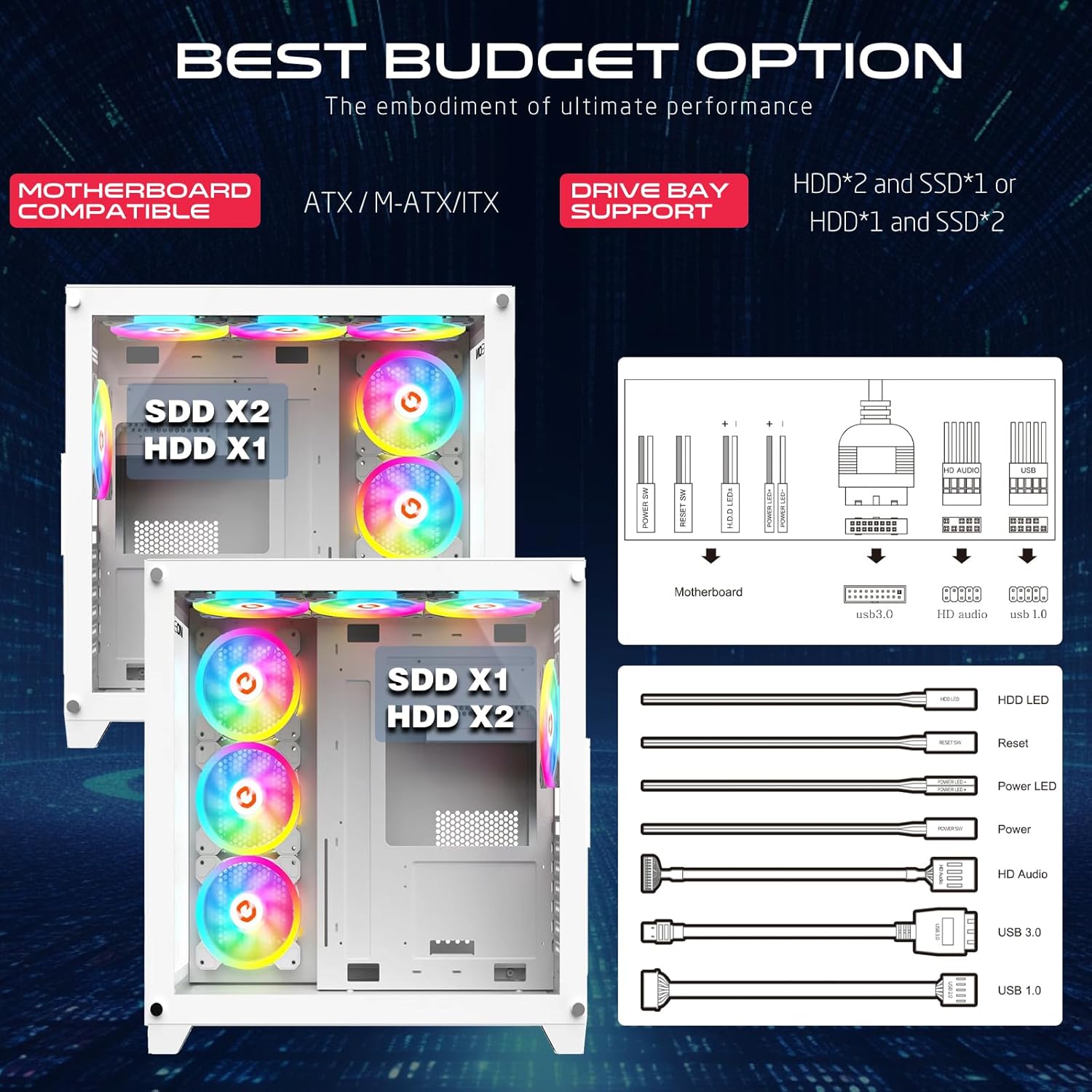
Image 5: Drive bay support configurations and front panel connector details.
5.5. Instal·lació de la targeta gràfica (GPU)
- Traieu les cobertes de les ranures d'expansió necessàries a la part posterior de la carcassa.
- Insert your GPU (maximum length 410mm) into the PCIe slot on the motherboard.
- Fixeu la GPU amb cargols.
5.6. Gestió de cables
Aprofita els retalls de cables i els punts d'amarratge que hi ha darrere de la safata de la placa base per organitzar els cables. Això millora la circulació del flux i l'estètica.
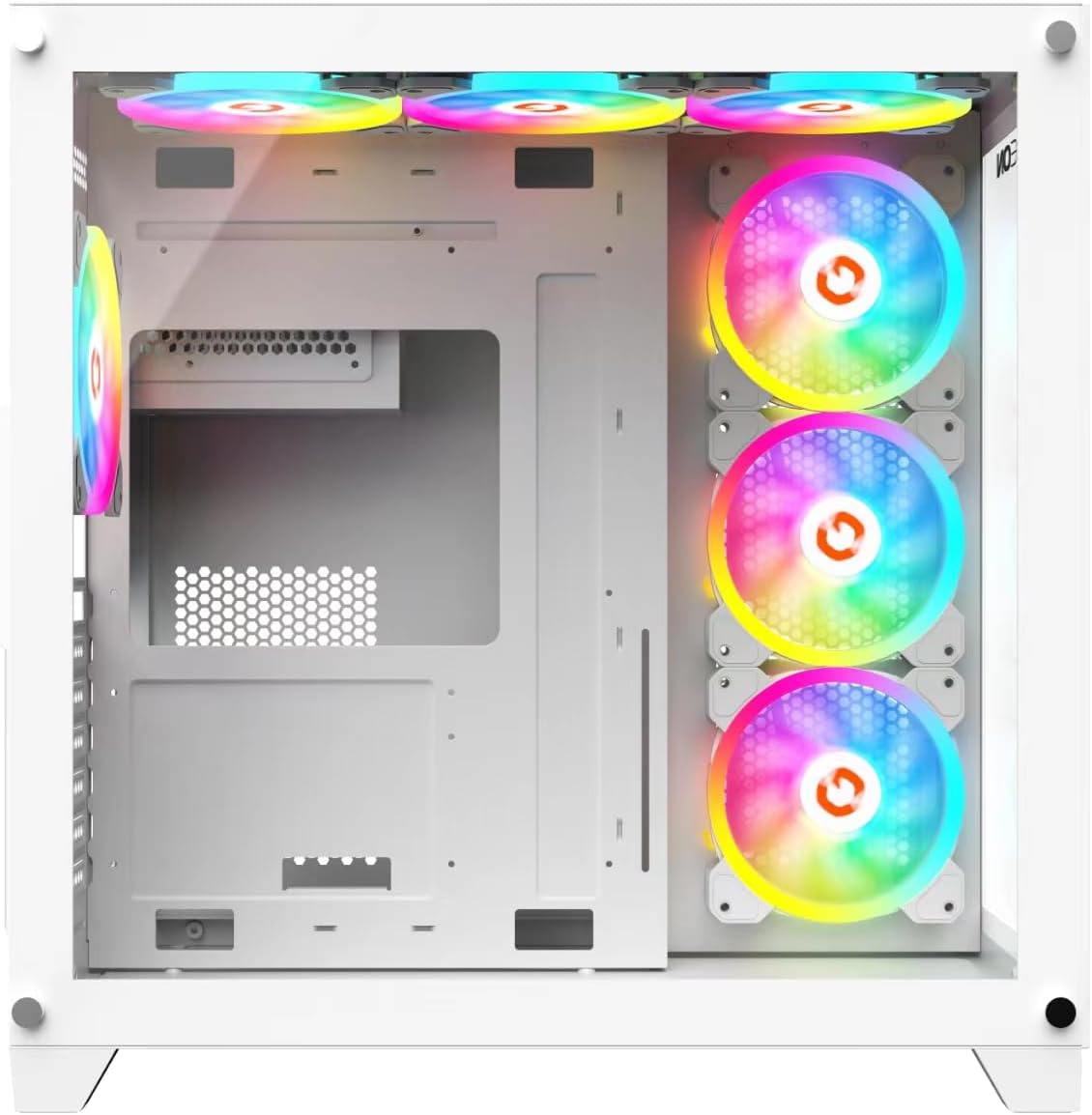
Image 6: Rear internal view, highlighting cable management options.
5.7. Connecting I/O Panel Cables
Connect the front panel cables (USB 3.0, USB 2.0, Type-C, HD Audio, Power SW, Reset SW, Power LED, HDD LED) to their corresponding headers on your motherboard. Refer to your motherboard manual for exact pin configurations.
5.8. Fan and Cooling System Configuration
The pre-installed ARGB+PWM fans are connected to a controller. Connect the controller to your motherboard's ARGB (3-pin 5V) and PWM (4-pin) headers for software control, or use the included remote for manual control.

Image 7: Optimized cooling solution diagram, showing airflow and dust filter locations.
6. Instruccions de funcionament
6.1. Encès
After all components are installed and cables connected, replace the side panels. Connect your monitor, keyboard, mouse, and power cable. Press the power button on the top I/O panel to start your system.
6.2. Control d'il·luminació ARGB
- Control de programari de la placa base: If the ARGB controller is connected to your motherboard's ARGB header, you can control lighting effects and synchronization using your motherboard's RGB software (e.g., ASUS Aura Sync, MSI Mystic Light Sync, GIGABYTE RGB Fusion, ASRock Polychrome Sync).
- Comandament a distància: Use the included remote control to cycle through various lighting modes, adjust brightness, change colors, and modify fan speeds.
6.3. Control de velocitat del ventilador
- Control de programari de la placa base: If the PWM controller is connected to your motherboard's PWM header, fan speeds can be adjusted via your motherboard's fan control software or BIOS settings.
- Comandament a distància: The remote control also allows for manual adjustment of fan speeds.
7. Manteniment
7.1. Neteja dels filtres de pols
Regularly clean the dust filters to maintain optimal airflow and cooling performance. The top panel features a dust filter net.
- Power off your PC and disconnect it from the power source.
- Carefully remove the dust filters (e.g., from the top panel).
- Clean the filters using compressed air, a soft brush, or by rinsing with water (ensure they are completely dry before reinstallation).
- Reinstall the dust filters.
7.2. Neteja general
Utilitzeu un suau, damp cloth to wipe down the exterior of the case. Avoid abrasive cleaners or solvents. For internal cleaning, use compressed air to remove dust from components and fans.
8. Solució De Problemes
- L'ordinador no s'encén:
- Assegureu-vos que la font d'alimentació estigui engegada i connectada a una presa de corrent que funcioni.
- Verify all power cables (24-pin ATX, 8-pin CPU, GPU power) are securely connected to the motherboard and components.
- Comproveu que el cable de l'interruptor d'alimentació del panell frontal estigui connectat correctament a la placa base.
- Els ventiladors no giren / L'ARGB no s'il·lumina:
- Ensure the fan controller is receiving power from the PSU.
- Verify the ARGB and PWM cables from the controller are correctly connected to the motherboard or that the remote control has working batteries.
- Check connections between fans and the controller.
- Sense sortida de pantalla:
- Ensure your monitor is connected to the graphics card (GPU) and not the motherboard's integrated graphics ports.
- Torneu a col·locar la targeta gràfica a la ranura PCIe.
- Comproveu totes les connexions d'alimentació a la targeta gràfica.
- Problemes de sobreescalfament:
- Ensure all fans are spinning correctly and are oriented for proper airflow (intake/exhaust).
- Netegeu els filtres de pols i els components interns regularment.
- Verify CPU cooler and GPU cooler are properly installed.
9. Especificacions
| Característica | Detall |
|---|---|
| Número de model | GO-EMPEROR-A |
| Tipus de cas | Torre mitja |
| Compatibilitat amb la placa base | ATX, M-ATX |
| Materials | SPCC, 0.7mm Tempered Glass |
| Ventiladors preinstal·lats | 7 x 120mm ARGB+PWM Fans |
| Suport del ventilador (màx.) |
|
| Suport del radiador | Top: Up to 360mm, Front: Up to 360mm |
| Límit de longitud de la GPU | 410 mm |
| Límit d'alçada del refrigerador de la CPU | 165 mm |
| Límit de longitud de la font d'alimentació | 200 mm |
| Drive Bays | 2 x HDD, 1 x SSD (or 1 x HDD, 2 x SSD) |
| Ranures d'expansió | 7 |
| Ports d'E/S | 1 x USB 3.0, 1 x USB 2.0, 1 x Type-C, HD Audio, Power, Reset |
| Dimensions del producte (L x A x A) | 425 mm x 280 mm x 420 mm |
| Pes net | 5.8 KG |
10. Garantia i Suport
GAMEON products are manufactured to high-quality standards. For warranty information, technical support, or service inquiries, please refer to the warranty card included with your product or visit the official GAMEON weblloc web. Si us plau, conserveu el comprovant de compra per a reclamacions de garantia.
Per obtenir més ajuda, podeu visitar el GAMEON Store on Amazon.