
1. Producte acabatview
The OMOTON Bluetooth Magnetic Keyboard Case is designed to enhance the functionality of your iPad Pro 13-inch (M4, 2024), transforming it into a versatile laptop-like device. It features a QWERTZ DE layout keyboard with adjustable backlighting, a multi-touch trackpad, and a magnetic floating stand for optimal viewangles d'ajust.

Image 1.1: OMOTON Bluetooth Magnetic Keyboard Case in use with an iPad Pro.
2. Contingut del paquet
- OMOTON Bluetooth Magnetic Keyboard Case
- Cable de càrrega USB-C (1 metre)
- Manual d'usuari (aquest document)
3. Configuració
3.1 Comprovació de compatibilitat
This keyboard case is specifically designed for the iPad Pro 13-inch (M4, 2024). To verify your iPad model, navigate to Settings > General > About > Model Name on your iPad. Compatible models include A2925, A2926, and A3007.

Image 3.1: Verifying iPad Pro 13-inch model compatibility.
3.2 Connectar el vostre iPad
The keyboard case features strong magnets to securely hold your iPad. Align your iPad Pro 13-inch with the magnetic back panel of the case. The magnets will automatically snap the iPad into place, creating a stable connection.

Image 3.2: Magnetic attachment mechanism.
3.3 Vinculació Bluetooth
- Ensure the keyboard is charged (refer to Section 3.4).
- Turn on the keyboard by pressing the power button (usually located on the side or top edge of the keyboard). The indicator light will flash.
- Al teu iPad, vés a Configuració > Bluetooth i activa el Bluetooth.
- Locate "OMOTON Keyboard" or a similar device name in the "Other Devices" list and tap to connect.
- Once paired, the indicator light on the keyboard will stop flashing and remain solid, or turn off, indicating a successful connection.
3.4 Càrrega del teclat
The keyboard has a built-in 800mAh Lithium-ion battery. Connect the provided USB-C charging cable to the keyboard's USB-C port and the other end to a power source (e.g., a USB wall adapter or computer USB port). A full charge takes approximately 3 hours. The charging indicator light will show charging status.

Image 3.3: USB-C charging port and battery life indicators.
4. Instruccions de funcionament
4.1 Control de retroiluminació del teclat
The keyboard features 12 backlight modes and 4 brightness levels. Use the dedicated backlight key (often represented by a light bulb icon or similar) to cycle through modes and adjust brightness. This allows for comfortable typing in various lighting conditions.

Image 4.1: Keyboard backlight options.
4.2 Trackpad Functionality
The integrated trackpad supports multi-touch gestures and the iPadOS cursor, providing a laptop-like navigation experience. It offers tactile feedback for precise control. Refer to iPadOS settings for detailed gesture customization.

Image 4.2: Seamless multi-touch trackpad.
4.3 Tecles de funció
The keyboard includes a full range of 14 function keys for quick access to common iPadOS features, such as screen brightness adjustment, volume control, and media playback. These keys enhance workflow efficiency.
4.4 Ajust Viewangle ing
The floating cantilever design allows for continuous adjustment of the viewing angle. Gently tilt the iPad screen to achieve your desired position for comfortable viewescrivint i escrivint.

Image 4.3: Adjustable viewangle de ing.
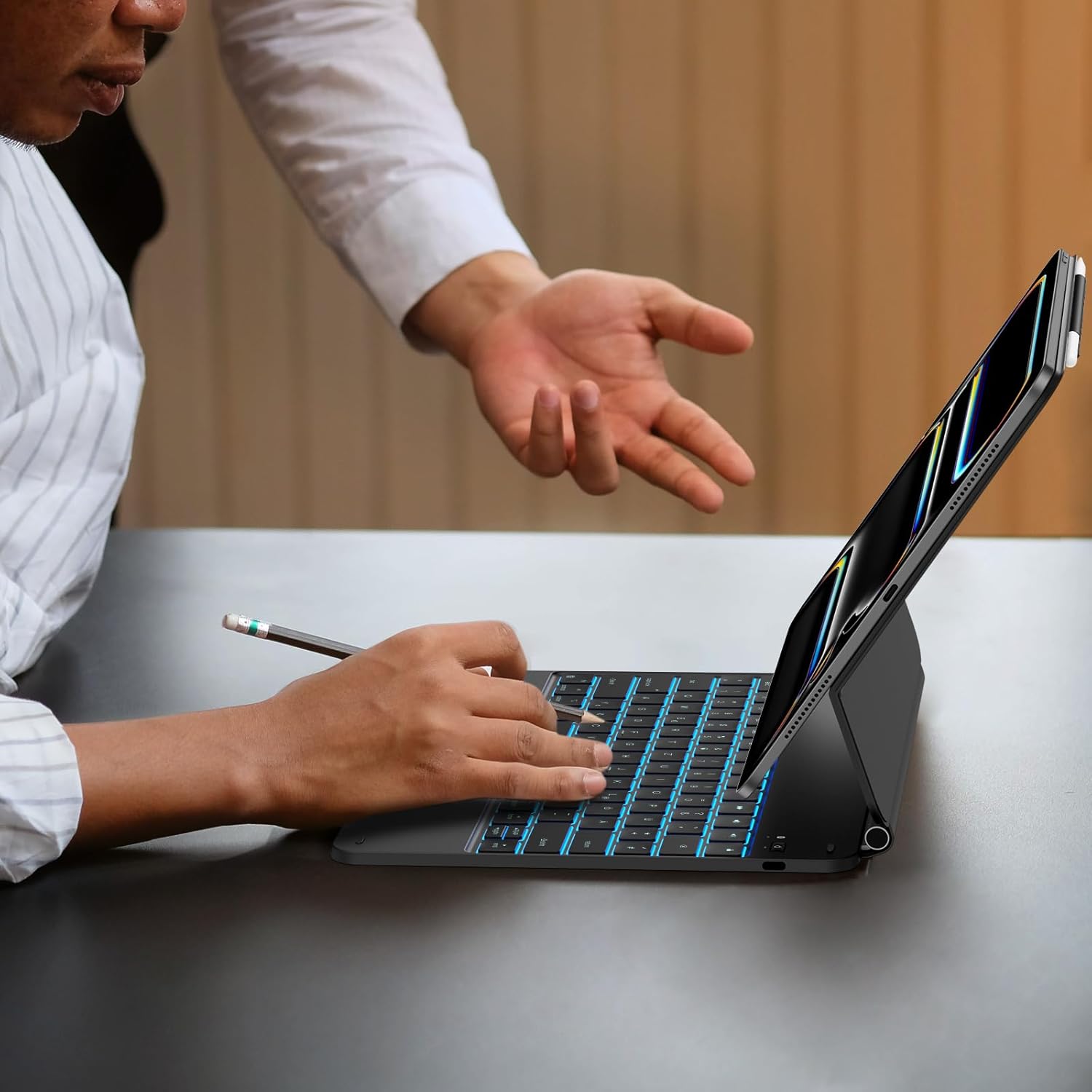
Image 4.4: Keyboard case in use.
5. Manteniment
5.1 Neteja
To clean the keyboard case, gently wipe surfaces with a soft, damp, lint-free cloth. Avoid using harsh chemicals, abrasive cleaners, or excessive moisture, as these can damage the electronic components or finish.
5.2 Cura de la bateria
To prolong battery life, avoid fully discharging the keyboard frequently. Charge the keyboard regularly, especially if it will not be used for an extended period. Store the device in a cool, dry place.
6. Solució De Problemes
- El teclat no es connecta per Bluetooth:
- Assegureu-vos que el teclat estigui encès i carregat.
- Turn off and on Bluetooth on your iPad.
- Forget the device in iPad Bluetooth settings and attempt to re-pair.
- Reinicieu tant l'iPad com el teclat.
- La retroiluminació no funciona:
- Ensure the keyboard is sufficiently charged.
- Press the backlight key to cycle through modes and brightness levels.
- El trackpad no respon:
- Assegureu-vos que el teclat estigui connectat mitjançant Bluetooth.
- Check iPadOS settings for trackpad functionality and gesture settings.
- Clean the trackpad surface to remove any debris.
- Les tecles no responen:
- Ensure the keyboard is connected and charged.
- Reinicieu el teclat i l'iPad.
- The keyboard uses a scissor structure for responsive typing. Ensure no debris is lodged under the keys.
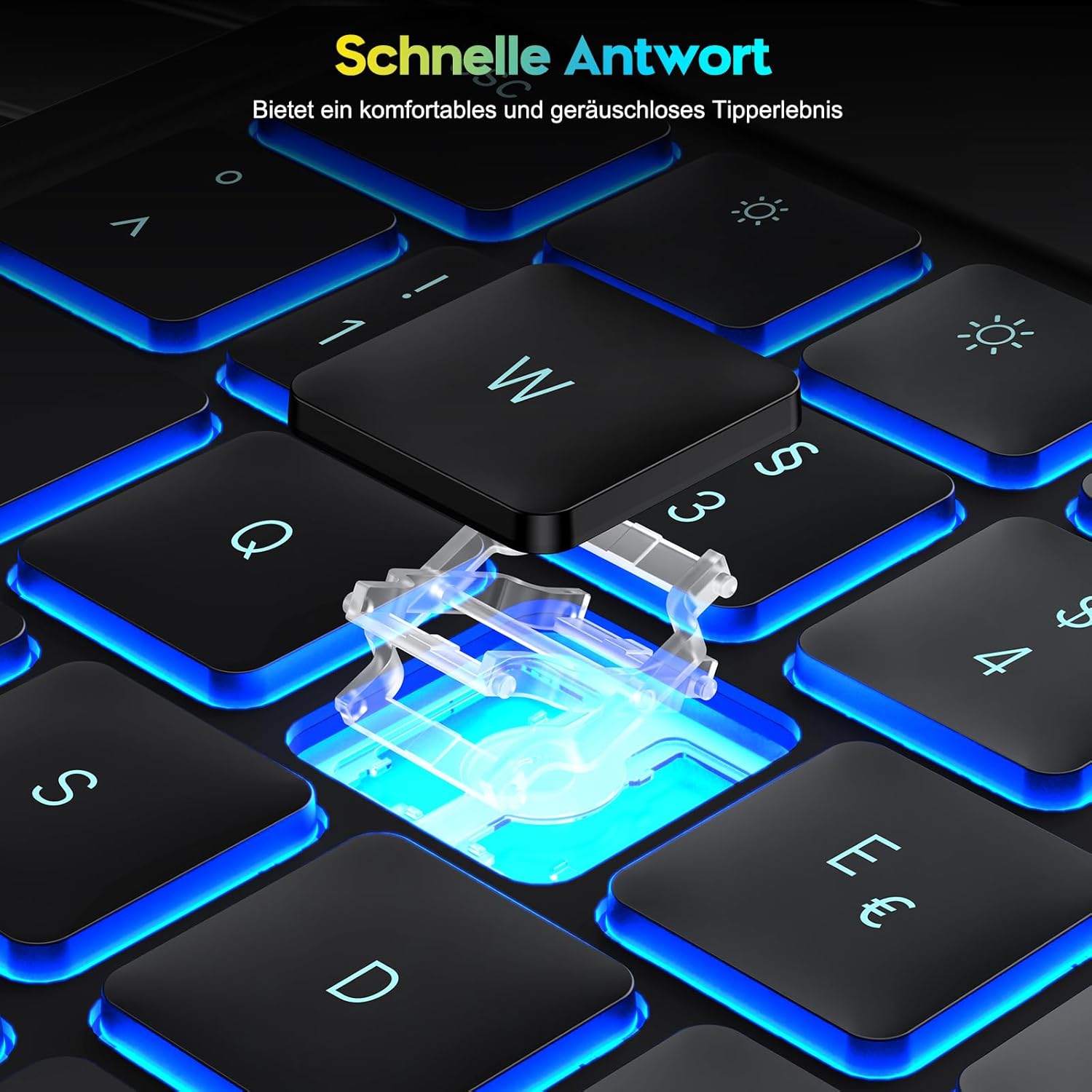
Image 6.1: Scissor-switch key mechanism for responsive typing.
7. Especificacions
| Característica | Detall |
|---|---|
| Marca | OMOTON |
| Número de model | KC011 |
| Compatibilitat | iPad Pro 13-inch (M4, 2024) |
| Tecnologia de connectivitat | Bluetooth |
| Descripció del teclat | Multi-functional, QWERTZ DE Layout |
| Característiques especials | Trackpad, Shortcut & Multimedia Keys, Rechargeable, Backlit |
| Color | Negre |
| Material | Plàstic |
| Tipus de bateria | Ió de liti |
| Capacitat de la bateria | 800 mAh |
| Port de càrrega | USB-C |
| Modes de retroil·luminació | 12 |
| Backlight Brightness Levels | 4 |
| Estimated Battery Life (no backlight) | Fins a 260 hores |
| Estimated Battery Life (with backlight) | Fins a 9 hores |
8. Garantia i Suport
Information regarding product warranty and specific support contacts is not available in the provided product data. Please refer to the retailer or manufacturer's official website for warranty details and customer support options.