
Introducció
Thank you for choosing the Wipro NS9200 B22D 9W Wi-Fi Smart LED Bulb. This smart bulb offers advanced lighting control, including 16 million colors, dimming capabilities, and integration with smart home assistants like Amazon Alexa and Google Assistant. This manual provides essential information for the safe and efficient use of your smart bulb.
Característiques principals:
- Easy Connect: Frustration-free setup for automatic and hassle-free pairing.
- Qualitat Premium: Engineered with LM80-tested LED chips for durability and longevity.
- Funció de sincronització de música: Inbuilt music synchronization with color-changing lights that respond to music rhythm.
- 16 milions de colors: Choose from a vast spectrum of colors to create various ambiances.
- Regulable: Adjust brightness from 10% to 100% to suit your needs and save energy.
- Control des de qualsevol lloc: Manage your smart bulb remotely using the Wipro Next Smart Home App.
Guia de configuració
1. Instal·lació inicial
Before proceeding with the smart features, ensure the bulb is physically installed correctly.
- Apagar: Ensure the power supply to the light fixture is turned off before installation.
- Insereix la bombeta: Carefully screw the Wipro Smart LED Bulb into a standard B22D bulb holder.
- Encès: Turn on the power supply to the light fixture. The bulb should light up.

Image: The Wipro NS9200 B22D 9W Wi-Fi Smart LED Bulb alongside its product packaging.
2. App Pairing (Wipro Next Smart Home App)
Follow these steps to connect your smart bulb to the Wipro Next Smart Home App:
- Descarregar l'aplicació: Install and open the Wipro Next Smart Home app on your mobile device. Ensure your device is in pairing mode.
- Registra't/Inici de sessió: Register with your email ID and follow the on-screen instructions to log in.
- Afegeix un dispositiu: Tap on "Add Device" or the "+" icon (top right corner) and then select "Add Device".
- Detecció automàtica: The device will automatically be detected. Select the appropriate device from the options available.
- Confirm Addition: Tap on "Add" and then on the "+" icon beside the device name.
- Configuració completa: Your Smart Device is now added. Tap "Done" to open the Smart world of Wipro.
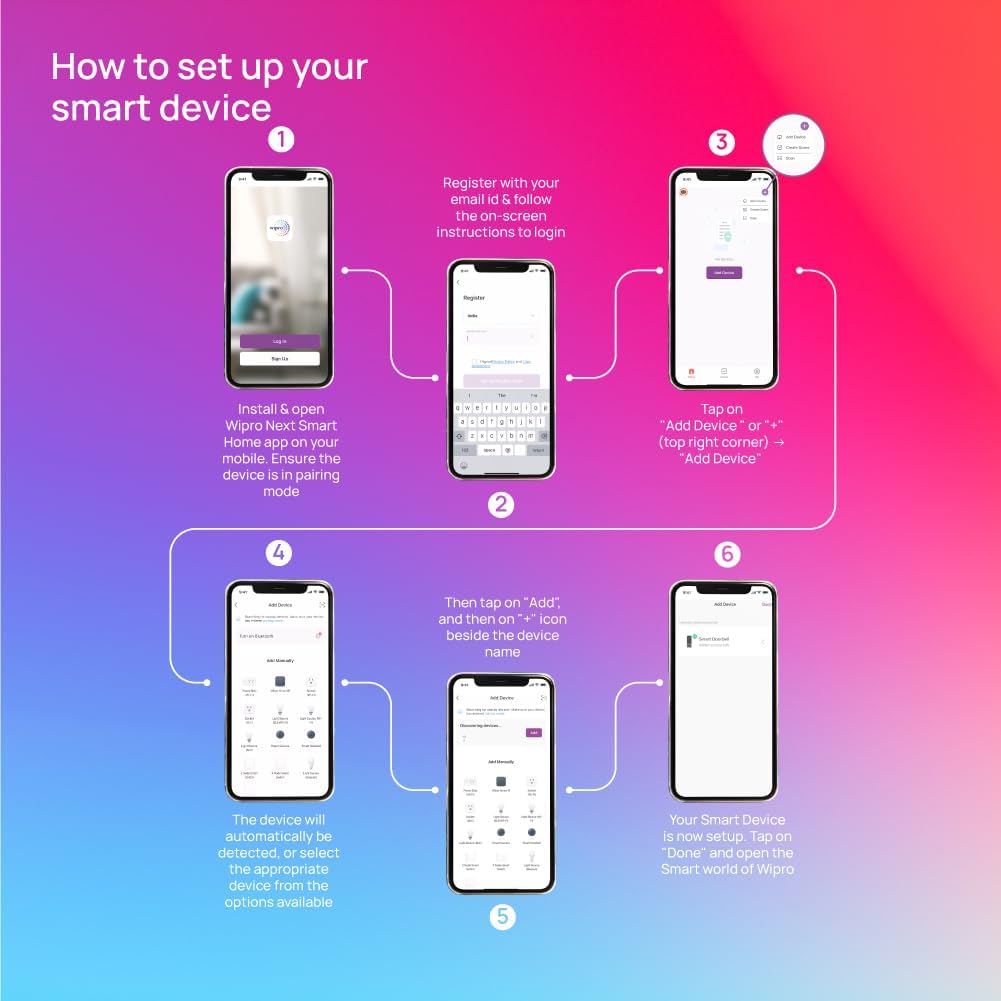
Image: Visual guide illustrating the six steps to set up your Wipro smart device via the mobile application.
3. Integració de l'assistent de veu (Alexa/Assistent de Google)
To control your smart bulb with voice commands, integrate it with Amazon Alexa or Google Assistant:
- Bulb Flashing: Power on the bulb and check if it is flashing. If not, switch the bulb on and off 3 times to initiate flashing mode.
- Connecta't a l'assistent de veu: Wait for 60-120 seconds for the bulb to get connected. The device will appear in the "Devices" section of your Alexa or Google Home app post 90 seconds. It will be successfully connected to the internet and can be controlled with your voice assistant device.
- Manual Setup (if not discovered): If the device is not discovered by your voice assistant, download the Wipro Next Smart Home App from your app store and complete registration. Then, follow the steps mentioned in the user manual for linking the Wipro app with your voice assistant.
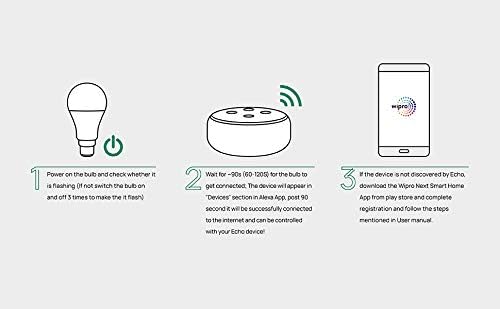
Image: A visual representation of connecting the Wipro smart bulb to an Amazon Echo device via the Wipro app.
Instruccions de funcionament
Once set up, you can control your Wipro Smart LED Bulb using the Wipro Next Smart Home App or voice commands.
1. Controls bàsics (encesa/apagada, regulació de la intensitat)
- On/Off: Tap the power icon in the app or say "Alexa, turn on/off the light" or "Hey Google, turn on/off the light."
- Dimecres: Use the brightness slider in the app to adjust intensity from 10% to 100%. Voice command example: "Alexa, set the light to 50% brightness."
2. Control de color
- Selecció de color: In the app, navigate to the color palette to choose from 16 million colors.
- Comandament de veu: "Alexa, change the light to blue" or "Hey Google, make the light red."
3. Sincronització de música
- Activar: Within the Wipro Next Smart Home App, select the Music Sync feature. The bulb will change colors in rhythm with music played through your device.
4. Programació i temporitzadors
- Establir horaris: Use the app to create custom schedules for your bulb to turn on/off or change settings at specific times.
- Temporitzadors: Set countdown timers for the bulb to switch off automatically.
Manteniment
To ensure optimal performance and longevity of your Wipro Smart LED Bulb, follow these maintenance guidelines:
- Neteja: Ensure the bulb is switched off and cool before cleaning. Use a soft, dry cloth to wipe the surface. Do not use liquid cleaners or abrasive materials.
- Medi ambient: Use the bulb in dry, indoor environments. Avoid exposure to water, high humidity, or extreme temperatures.
- Manipulació: Handle the bulb with care. Avoid dropping or subjecting it to physical shock.
Resolució de problemes
If you encounter issues with your Wipro Smart LED Bulb, refer to the table below for common problems and solutions.
| Problema | Causa possible | Solució |
|---|---|---|
| La bombeta no s'encén. | No power supply; Bulb not screwed in properly; Bulb is faulty. | Check power switch and circuit breaker. Ensure bulb is securely screwed into the holder. Test bulb in another fixture. |
| No es pot connectar a la Wi-Fi / aplicació. | Incorrect Wi-Fi password; Bulb too far from router; Wi-Fi signal interference; Bulb not in pairing mode. | Ensure correct 2.4GHz Wi-Fi password. Move bulb closer to router. Restart router. Reset bulb to pairing mode (turn on/off 3 times). |
| El control per veu no funciona. | Bulb not linked to voice assistant; Incorrect voice commands; Internet connectivity issues. | Verify Wipro app is linked to Alexa/Google Assistant. Use precise commands. Check internet connection. |
| Bulb flickers or responds erratically. | Unstable power supply; Software glitch; Connectivity issues. | Check power source stability. Restart the bulb by turning it off and on. Re-pair the bulb if issues persist. |
Especificacions
Detailed technical specifications for the Wipro NS9200 B22D 9W Wi-Fi Smart LED Bulb:
| Característica | Detall |
|---|---|
| Marca | Wipro |
| Nom del model | Wi Fi Enabled Smart Bulb |
| Número de model de l'article | NS9200_3 |
| Tipus de llum | LED |
| Característica especial | Colour Changing, Dimmable |
| Base del bulb | B22D |
| Color clar | Multicolor |
| Temperatura de color | 6500 Kelvin |
| Consum d'energia | 9 watts |
| Acceptat Voltage Freqüència | 220 a 240 volts i 50 hertz |
| Mètode de control | Aplicació, veu |
| Ús interior/exterior | Interior |
| Forma | Globus (G) |
| Dimensions del producte | 14.2 d'amplada x 6.5 d'alçada centímetres |
| Pes de l'article | 300 grams |
| País d'origen | Índia |
Garantia i Suport
Wipro products are designed for reliability and performance. For warranty information and technical support, please contact Wipro customer service.
- Fabricant: Wipro Enterprises Private Ltd
- Número de contacte: 1-800-425-1969
- Adreça: Bangaluru-560 035, India
Si us plau, conserveu el rebut de compra com a comprovant de compra per a qualsevol reclamació de garantia.