
Tobenone B0D9433D55
TobenONE USB C Docking Station Dual Monitor User Manual
Model: B0D9433D55
1. Introducció
Thank you for choosing the TobenONE USB C Docking Station. This device is designed to expand the connectivity and display capabilities of your MacBook Pro/Air, providing dual 4K monitor support, high-speed data transfer, and 100W power delivery through a single USB-C connection. This manual provides detailed instructions for setup, operation, maintenance, and troubleshooting to ensure optimal performance.
2. Contingut del paquet
Si us plau, verifiqueu que tots els elements siguin presents al vostre paquet:
- TobenONE USB C Docking Station
- Adaptador de potència de 100W
- Cable USB-C a USB-C (per a connexió d'amfitrió)
- Manual d'usuari

Image 1: TobenONE USB C Docking Station with included power adapter and a MacBook in the stand.
3. Producte acabatview i disseny del port
The TobenONE docking station features a comprehensive array of ports to enhance your workstation. Familiarize yourself with the port layout for proper connection.
- Host 1 / Host 2 USB-C Ports: Connect to your MacBook Pro/Air.
- USB-C PD 3.0 Input: Connect the 100W power adapter for charging the docking station and your laptop.
- HDMI 1 (4K@60Hz/30Hz): Connect to an external monitor.
- HDMI 2 (4K a 30 Hz): Connect to a second external monitor.
- VGA: Connect to a third external monitor (HDMI 2 and VGA will display the same content).
- RJ45 Gigabit Ethernet: Per a connexió de xarxa amb cable (10/100/1000 Mbps).
- Ports USB 3.0 (2x): For high-speed data transfer up to 5Gbps.
- Ports USB 2.0 (2x): For connecting wireless devices like mouse/keyboard.
- Port de dades USB-C: For data transfer up to 5Gbps.
- SD/Micro SD Card Slots: Supports simultaneous reading and writing (480Mbps).
- Conector d'àudio de 3.5 mm: Per a auriculars o altaveus.

Imatge 2: acabatview of the docking station ports with examples of connected peripherals.
4. Compatibilitat
This docking station is specifically designed for MacBook Pro/Air models. Please review la informació de compatibilitat següent:
4.1 Supported Dual Monitor Models (MacBook Pro/Air)
- MacBook Pro (14-inch, 2023) M3 Pro or M3 Max chip
- MacBook Pro (16-inch, 2023) M3 Pro or M3 Max chip
- MacBook Pro (14-inch, 2023) Apple M2 Pro chip
- MacBook Pro (16-inch, 2023) Apple M2 Pro chip
- MacBook Pro (14-inch, 2021) Apple M1 Pro chip
- MacBook Pro (16-inch, 2021) Apple M1 Pro chip
- MacBook Pro (13 polzades, 2020, dos ports Thunderbolt 3)
- MacBook Pro (13 polzades, 2019, dos ports Thunderbolt 3)
- MacBook Pro (13 polzades, 2018, quatre ports Thunderbolt 3)
- MacBook Pro (15 polzades, 2019, quatre ports Thunderbolt 3)
- MacBook Pro (15 polzades, 2018)
- MacBook Pro (15 polzades, 2017)
- MacBook Pro (15 polzades, 2016)
- MacBook Air (Retina, 13 polzades, 2020)
- MacBook Air (Retina, 13 polzades, 2019)
- MacBook Air (Retina, 13 polzades, 2018)
4.2 Single Monitor Support Models (MacBook Pro/Air with M1/M2/M3 Chip)
MacBook models equipped with the standard M1, M2, or M3 chip (not Pro or Max variants) will only support one external monitor. If the lid is closed on your MacBook Air with an M3 chip, you can connect up to two external displays.
- MacBook Pro (14 polzades, M3, 2023)
- MacBook Pro (13 polzades, M2, 2022)
- MacBook Pro (13 polzades, M1, 2020)
- MacBook Air (13-inch, M3)
- MacBook Air (15-inch, M3)
- MacBook Air (15 polzades, M2, 2023)
- MacBook Air (M2, 2022)
- MacBook Air (M1, 2020)
4.3 Dispositius incompatibles
This docking station is not compatible with:
- All Mac mini models
- All iMac models
- All Mac Studio models
- All Mac Pro models
- All Windows laptops
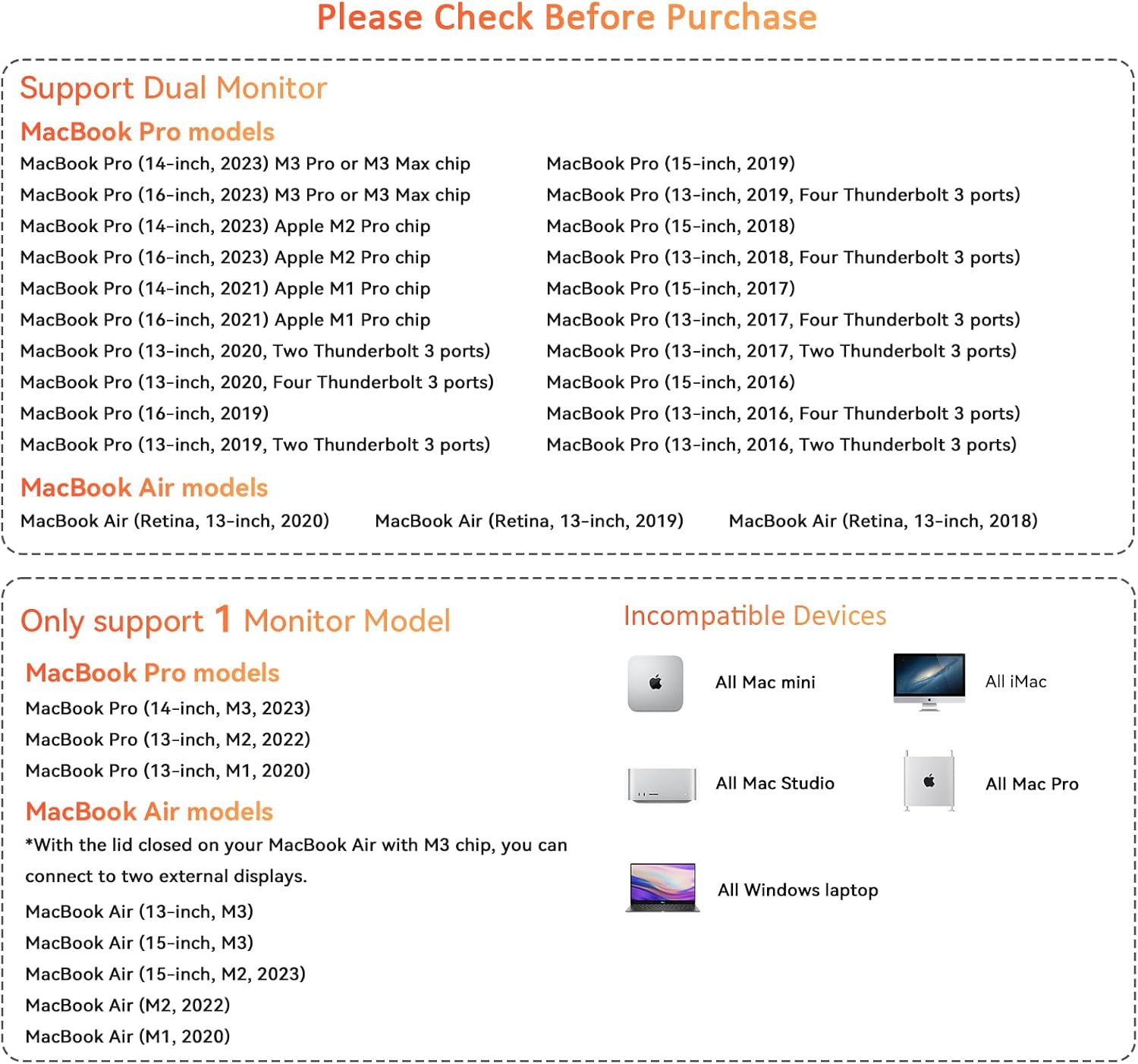
Image 3: Detailed compatibility chart for MacBook Pro/Air models.
5. Instruccions de configuració
Follow these steps to set up your TobenONE USB C Docking Station:
- Connectar l'alimentació: Plug the 100W power adapter into the USB-C PD 3.0 input port on the docking station, then connect the adapter to a wall outlet.
- Connect to MacBook: Use the provided USB-C to USB-C cable to connect the docking station's Host 1 and/or Host 2 ports to the Thunderbolt/USB-C ports on your MacBook Pro/Air. For optimal performance and dual display support, ensure both host cables are connected if your MacBook model supports it.
- Connectar monitors:
- For a single external monitor, connect it to either HDMI 1 or HDMI 2.
- For dual external monitors, connect the first monitor to HDMI 1 and the second to HDMI 2.
- If using a third monitor via VGA, note that it will mirror the display of HDMI 2.
- Connecteu els perifèrics: Plug in your USB devices (keyboard, mouse, external hard drives), Ethernet cable, SD/Micro SD cards, and audio devices into the corresponding ports on the docking station.
- Reconeixement del sistema: Your MacBook should automatically detect the docking station and connected devices. No additional drivers are typically required for macOS.

Imatge 4: Ex.ample setup showing a MacBook connected to the docking station with dual external monitors.
6. Instruccions de funcionament
6.1 Configuració de la pantalla
After connecting your monitors, you can configure their arrangement and display mode in macOS System Settings:
- Vés a Configuració del sistema (or System Preferences on older macOS versions).
- Seleccioneu Displays.
- Aquí pots:
- Arrange Displays: Drag and drop the display icons to match your physical setup.
- Displays de mirall: Check this option to duplicate your MacBook's screen on external monitors.
- Extend Displays: Uncheck "Mirror Displays" to use external monitors as separate workspaces.
- Resolució: Adjust the resolution for each monitor. The docking station supports up to 4K@60Hz on HDMI 1 and 4K@30Hz on HDMI 2.
Note on M1/M2/M3 Chip MacBooks: Standard M1, M2, or M3 chip MacBooks (non-Pro/Max) only support one external display in extended mode. If you connect two monitors, they will mirror each other or one will remain inactive. M1/M2/M3 Pro/Max chip MacBooks support dual extended displays.
6.2 Power Delivery (100W Charging)
The docking station's 100W power adapter provides efficient charging for your connected MacBook. Ensure the power adapter is connected to the docking station's PD input port and a wall outlet. Your MacBook will begin charging automatically.

Image 5: The 100W USB C power adapter connected to a MacBook for high-speed charging.
6.3 Transferència de dades
- USB 3.0 & USB-C Data Ports: Connect external hard drives, USB flash drives, or other high-speed peripherals for data transfer up to 5Gbps.
- Ports USB 2.0: Ideal for connecting wireless mouse/keyboard receivers or other low-bandwidth devices without lag.
- SD/Micro SD Card Slots: Insert your memory cards for quick file transfers. Both slots can be used simultaneously.
6.4 Connexió Ethernet
Plug an Ethernet cable into the RJ45 port for a stable and fast wired network connection up to 1000Mbps (Gigabit Ethernet).
6.5 Sortida d'àudio
Connect headphones or speakers to the 3.5mm audio jack for audio output. You may need to select the docking station as the audio output device in macOS Sound Settings.
7. Manteniment
Per garantir la longevitat i el rendiment òptim de la vostra estació d'acoblament:
- Mantingueu el dispositiu net i lliure de pols. Feu servir un drap suau i sec per netejar-lo.
- Avoid exposing the docking station to extreme temperatures, humidity, or direct sunlight.
- No intenteu desmuntar ni reparar el dispositiu vosaltres mateixos. Això anul·larà la garantia.
- Disconnect the power adapter and all cables when not in use for extended periods.
8. Solució De Problemes
Si teniu problemes amb la vostra estació d'acoblament, consulteu les solucions habituals següents:
8.1 Sense sortida de pantalla
- Ensure all HDMI/VGA cables are securely connected to both the docking station and the monitors.
- Verify that the docking station is properly connected to your MacBook via the host USB-C cables.
- Check your MacBook's display settings (System Settings > Displays) to ensure external monitors are detected and configured correctly (extended or mirrored).
- Confirm your MacBook model's display compatibility, especially for M1/M2/M3 chip models (refer to Section 4).
- Try restarting your MacBook.
- Test with different HDMI/VGA cables or monitors if possible.
8.2 MacBook Not Charging
- Ensure the 100W power adapter is firmly connected to the docking station's PD input and a working wall outlet.
- Verify that the host USB-C cable(s) connecting the docking station to your MacBook are secure.
- Check your MacBook's battery status to confirm it's not charging.
8.3 Peripherals Not Recognized
- Ensure the peripheral is properly plugged into the correct USB port on the docking station.
- Try connecting the peripheral to a different USB port on the docking station or directly to your MacBook to isolate the issue.
- For SD/Micro SD cards, ensure they are fully inserted into the correct slot.
8.4 Network (Ethernet) Issues
- Verifiqueu que el cable Ethernet estigui connectat correctament tant a l'estació d'acoblament com al vostre encaminador/mòdem.
- Check your MacBook's Network settings to ensure the Ethernet connection is active.
- Si és possible, proveu el cable Ethernet amb un altre dispositiu.
8.5 Sobreescalfament
The docking station is designed with multiple safety protections, including overcharge, over-voltage, over-heating, and short-circuit protection. If the device feels warm during heavy use, this is normal. However, if it becomes excessively hot, disconnect it immediately and contact support.
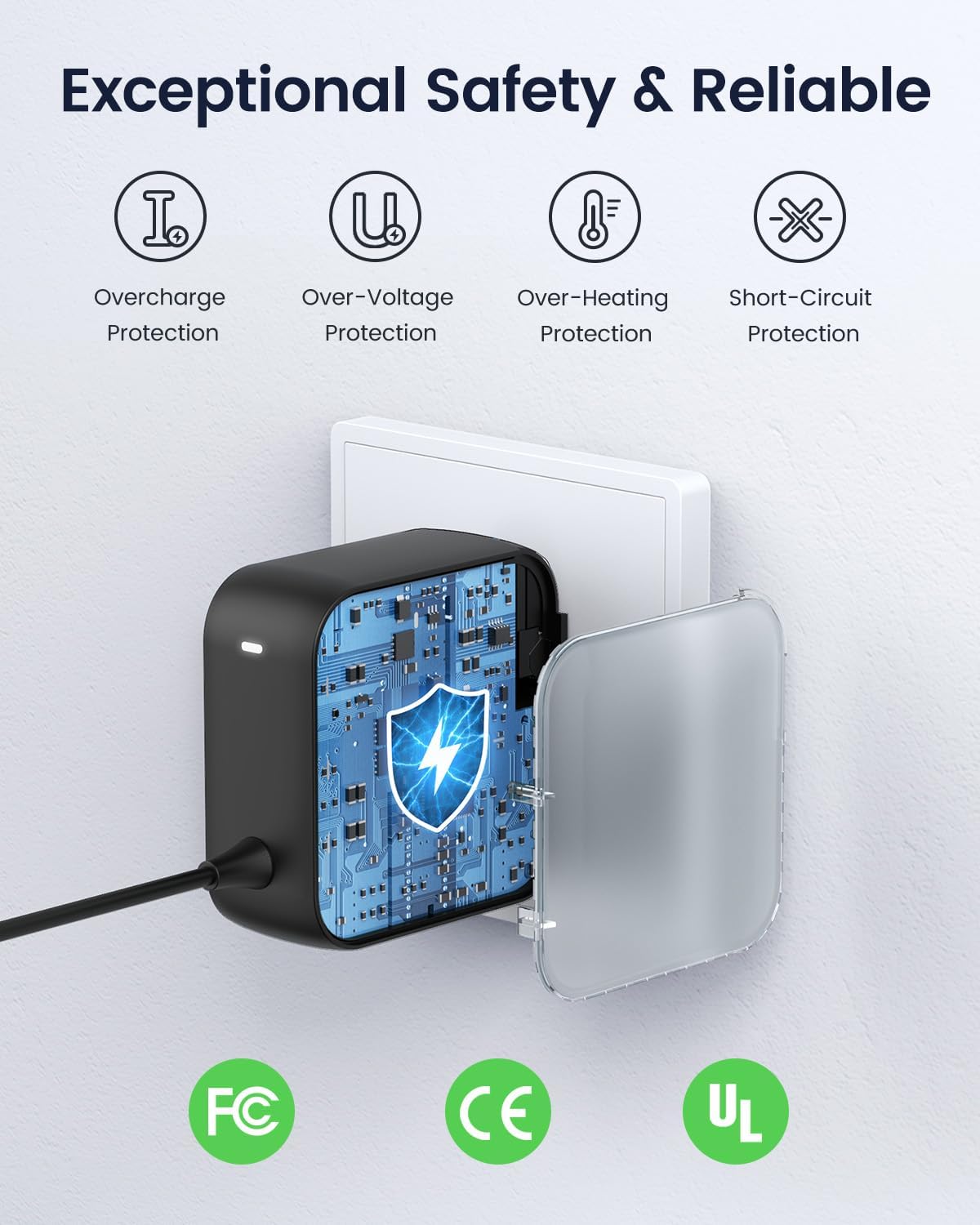
Image 6: Safety features of the TobenONE power adapter.
9. Especificacions
| Característica | Especificació |
|---|---|
| Model | B0D9433D55 |
| Connexió de l’amfitrió | 2 x USB-C (connects to MacBook) |
| Sortida de vídeo | 2 x HDMI (HDMI1: 4K@60Hz/30Hz, HDMI2: 4K@30Hz), 1 x VGA (mirrors HDMI2) |
| Entrada de subministrament d'energia | USB-C PD 3.0 (supports max 100W input) |
| Ports de dades USB | 1 x USB-C (5Gbps), 2 x USB 3.0 (5Gbps), 2 x USB 2.0 |
| Lector de targetes | SD/Micro SD (simultaneous read/write, 480Mbps) |
| Ethernet | RJ45 Gigabit Ethernet (10/100/1000 Mbps) |
| Àudio | 3.5mm Àudio Jack |
| Dispositius compatibles | MacBook Pro 2016-2021, MacBook Air 2018-2020 (refer to Section 4 for M1/M2/M3 chip specifics) |
| Característiques especials | High-Speed Charging, Superspeed Data Transfer, Ergonomic Design |
10. Garantia i Suport
TobenONE products come with a limited warranty. For detailed warranty information, please refer to the warranty card included in your package or visit our official website. If you require technical assistance or have any questions, please contact our customer support team:
- Weblloc: TobenONE Official Store
- Correu electrònic: [Inseriu aquí el correu electrònic d'atenció al client, si n'hi ha]
- Telèfon: [Inseriu aquí el número de telèfon d'atenció al client, si n'hi ha]
Please have your product model number (B0D9433D55) and purchase information ready when contacting support.
Documents relacionatsB0D9433D55


Ask a question about this manual
Ask about setup, troubleshooting, compatibility, parts, safety, or missing instructions. Manuals+ will review the question and use this page’s manual context to help answer it.