
1. Introducció
Thank you for choosing the InUnion Magic Keyboard. This magnetic keyboard case is designed to enhance your iPad experience, transforming it into a versatile laptop-like device. It features a multi-touch trackpad, backlit keys, and a magnetic floating cantilever design for optimal viewing i productivitat.
1.1 Compatibilitat
This keyboard case is specifically designed for the following iPad models:
- iPad Air 13-inch (M4 2026, M3 2025, M2 2024)
- iPad Pro 12.9-inch (6th, 5th, 4th, and 3rd generation)
Please verify your iPad model before use. You can find your model number on the back of your iPad or by navigating to Settings > General > About > Model Number on your iPad.
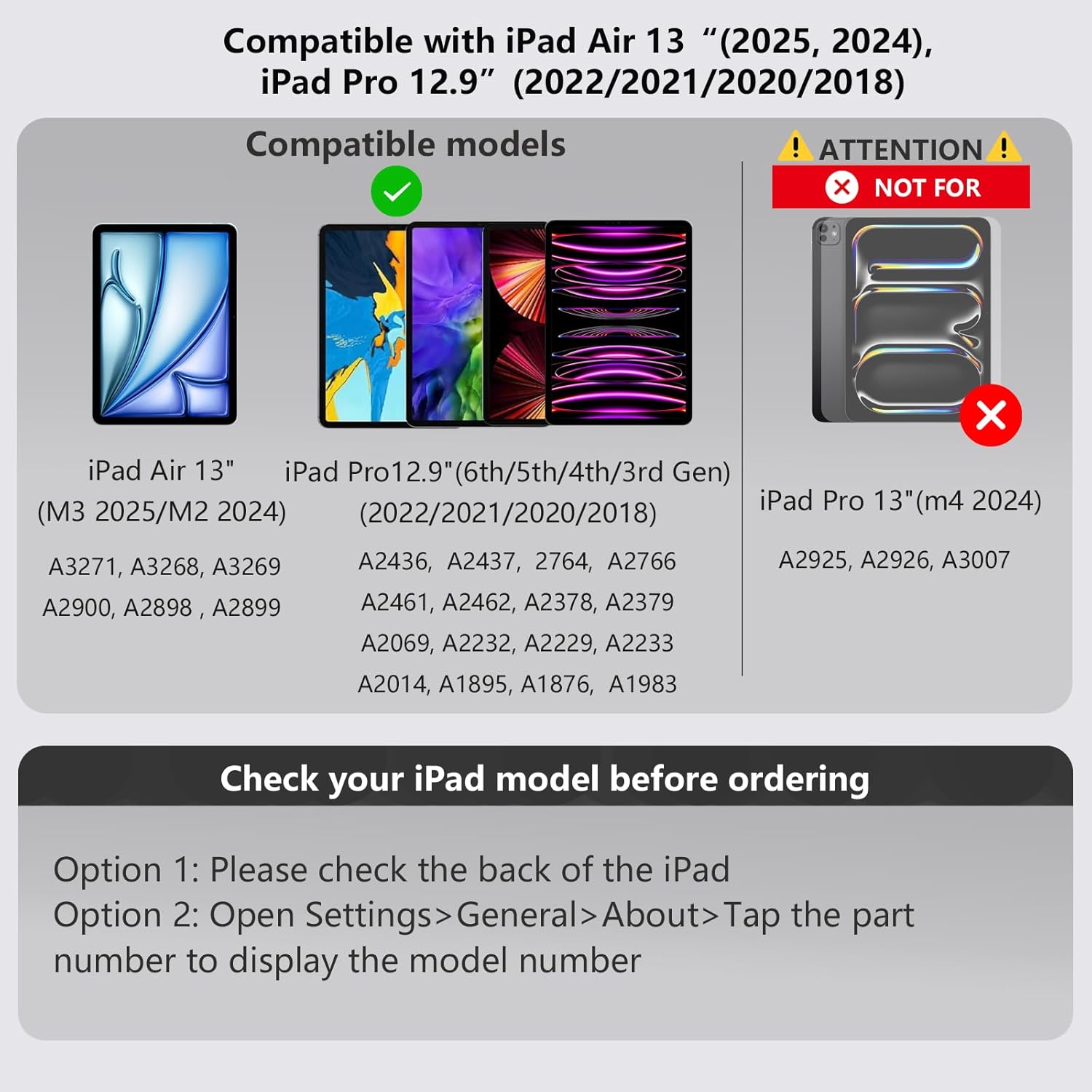
Image: Compatibility chart for InUnion Magic Keyboard showing supported iPad Air 13 and iPad Pro 12.9 models. This image displays the compatible iPad models for the InUnion Magic Keyboard, including iPad Air 13-inch (M3 2025/M2 2024) and iPad Pro 12.9-inch (6th/5th/4th/3rd Gen). It also explicitly states that iPad Pro 13-inch (M4 2024) is NOT compatible. Instructions are provided to check your iPad model.
1.2 Contingut del paquet
El paquet inclou:
- InUnion Magic Keyboard Case
- Cable de càrrega USB-C
- Manual d'usuari
2. Instruccions de configuració
2.1 Connectar el vostre iPad
- Open the InUnion Magic Keyboard case.
- Align your compatible iPad with the magnetic back cover of the case.
- The iPad will magnetically snap into place, securing it firmly.
- Ajusta l'iPad al teu gust viewing angle using the floating cantilever stand.

Image: Hands attaching an iPad to the InUnion Magic Keyboard case using its magnetic snap-on system. This image demonstrates the quick magnetic snap-on system, showing an iPad being easily attached to the keyboard case, highlighting the strong magnetic connection.

Imatge: Múltiple views of the InUnion Magic Keyboard's floating cantilever stand, showing the iPad at a 130-degree viewing angle. This image demonstrates the flexible floating cantilever stand design, allowing for a comfortable 130-degree adjustable viewing angle for the iPad.
2.2 Connexió Bluetooth
To connect your InUnion Magic Keyboard to your iPad via Bluetooth:
- Assegureu-vos que el teclat estigui carregat.
- Locate the power switch on the keyboard and slide it to the 'ON' position.
- Press the 'Connect' button (usually indicated by a Bluetooth icon) on the keyboard. The Bluetooth indicator light will start blinking.
- Al teu iPad, vés a Configuració > Bluetooth.
- Toggle Bluetooth 'On' if it's not already enabled.
- In the 'Other Devices' list, select 'Bluetooth keyboard' (or a similar name) to pair.
- Once paired, the Bluetooth indicator light on the keyboard will stop blinking.
Video: How to connect the InUnion Magic Keyboard to Bluetooth. This video guides users through the process of connecting the InUnion Magic Keyboard to an iPad via Bluetooth 5.0, showing how to power on the keyboard, activate Bluetooth, and pair the devices.
3. Instruccions de funcionament
3.1 Multi-Touch Trackpad
The integrated multi-touch trackpad supports various iPadOS gestures, allowing for precise navigation and control. Common gestures include:
- Desplaçament: Use two fingers to scroll up, down, left, or right.
- Lliscament: Use three or four fingers to swipe between apps or access the App Switcher.
- Pessigant: Feu servir dos dits per ampliar o reduir la imatge.
- Feu clic amb el botó dret: Tap with two fingers for contextual menus.
The trackpad also features shortcuts for quick access to functions like adjusting brightness, volume, or music playback.

Image: A finger interacting with the multi-touch trackpad of the InUnion Magic Keyboard, showing blue circles indicating touch points. This image illustrates the multi-touch trackpad in action, emphasizing the 'Real laptop experience' with features like iOS/iPadOS shortcuts, multi-touch gestures, and 3-level brightness adjustment.
3.2 Funció de retroiluminació
The keyboard features a backlight with 3 adjustable brightness levels. This allows you to type comfortably in various lighting conditions, day or night. Use the dedicated backlight keys (usually indicated by sun icons) to cycle through brightness levels or turn the backlight off.

Image: A close-up of the InUnion Magic Keyboard being charged via a USB-C cable, with icons indicating battery life and charging speed. This image highlights the keyboard's long-lasting battery and USB-C charging port, with details on its 400mAh lithium battery, 2 weeks of work time, and 2.5 hours quick charge.
3.3 iPad Pen Charging Compatibility
The InUnion Magic Keyboard case is designed to allow for convenient charging of your Apple Pencil (2nd generation) while it is magnetically attached to your iPad. Simply place your Apple Pencil on the designated magnetic charging area on your iPad's side, and the case will not interfere with the charging process.
Vídeo: Acabatview of the InUnion Magic Keyboard. This video provides an overview of the InUnion Magic Keyboard, demonstrating its magnetic attachment, multi-touch trackpad, adjustable stand, and compatibility with Apple Pencil charging.
4. Manteniment
To ensure the longevity and optimal performance of your InUnion Magic Keyboard, follow these maintenance guidelines:
- Neteja: Utilitzeu un suau, damp, lint-free cloth to wipe the exterior of the keyboard case. Avoid using harsh chemicals, abrasive cleaners, or excessive moisture.
- Emmagatzematge: When not in use, keep the keyboard case closed to protect both the keyboard and your iPad from dust and scratches. Store in a cool, dry place away from direct sunlight.
- Càrrega: Always use the provided USB-C cable or a certified equivalent for charging. Avoid overcharging or completely draining the battery frequently.
- Manipulació: Avoid dropping the keyboard or exposing it to extreme temperatures or liquids.
5. Solució De Problemes
If you encounter issues with your InUnion Magic Keyboard, refer to the following common solutions:
- El teclat no es connecta per Bluetooth:
- Assegureu-vos que el teclat estigui encès i carregat.
- Press the 'Connect' button on the keyboard to activate pairing mode.
- On your iPad, turn Bluetooth off and then on again.
- Oblida't del dispositiu a la configuració de Bluetooth de l'iPad i intenta tornar-lo a emparellar.
- Reinicieu tant l'iPad com el teclat.
- El trackpad no respon:
- Assegureu-vos que el teclat estigui connectat correctament mitjançant Bluetooth.
- Revisa la configuració de l'iPadOS per veure si funciona el trackpad.
- Clean the trackpad surface to remove any debris.
- La retroiluminació no funciona:
- Assegureu-vos que el teclat estigui encès.
- Press the backlight adjustment keys to cycle through brightness levels.
- Check battery level; low battery might disable backlight.
- Les tecles no responen:
- Verifica la connexió Bluetooth.
- Assegureu-vos que el teclat estigui carregat.
- Reinicieu el teclat i l'iPad.
If these steps do not resolve the issue, please contact InUnion customer support for further assistance.
6. Especificacions
| Característica | Detall |
|---|---|
| Marca | InUnion |
| Dispositius compatibles | iPad Pro 12.9 (6th, 5th, 4th, 3rd Gen) and iPad Air 13 (M3 2025 / M2 2024) |
| Tecnologia de connectivitat | USB-C (for charging) |
| Descripció del teclat | Multi Funcional |
| Usos recomanats | Ús diari |
| Característica especial | Trackpad, Backlight |
| Color | negre |
| Suport de color de retroil·luminació del teclat | Color únic |
| Estil | Contemporània |
| Material | Plàstic |
| Font d'alimentació | Funciona amb bateria |
| Disposició del teclat | QWERTY |
| Nombre de claus | 84 |
| Sistema operatiu mínim requerit | iPadOS 16 |
7. Garantia i Suport
The InUnion Magic Keyboard comes with a 24-month warranty from the date of purchase. This warranty covers manufacturing defects and ensures reliable operation under normal use conditions.
For warranty claims, technical support, or any inquiries, please contact InUnion customer support. Our team is committed to providing friendly support with quick 8-hour response times.
Si us plau, conserveu el comprovant de compra per validar la garantia.