
Introducció
This manual provides detailed instructions for the installation, operation, and troubleshooting of your QGOO AC1300Mbps USB 3.0 Dual Band Wireless WiFi Adapter. This device is designed to upgrade your PC or laptop to 802.11ac wireless standards, offering enhanced speed and stable connectivity.
Producte acabatview
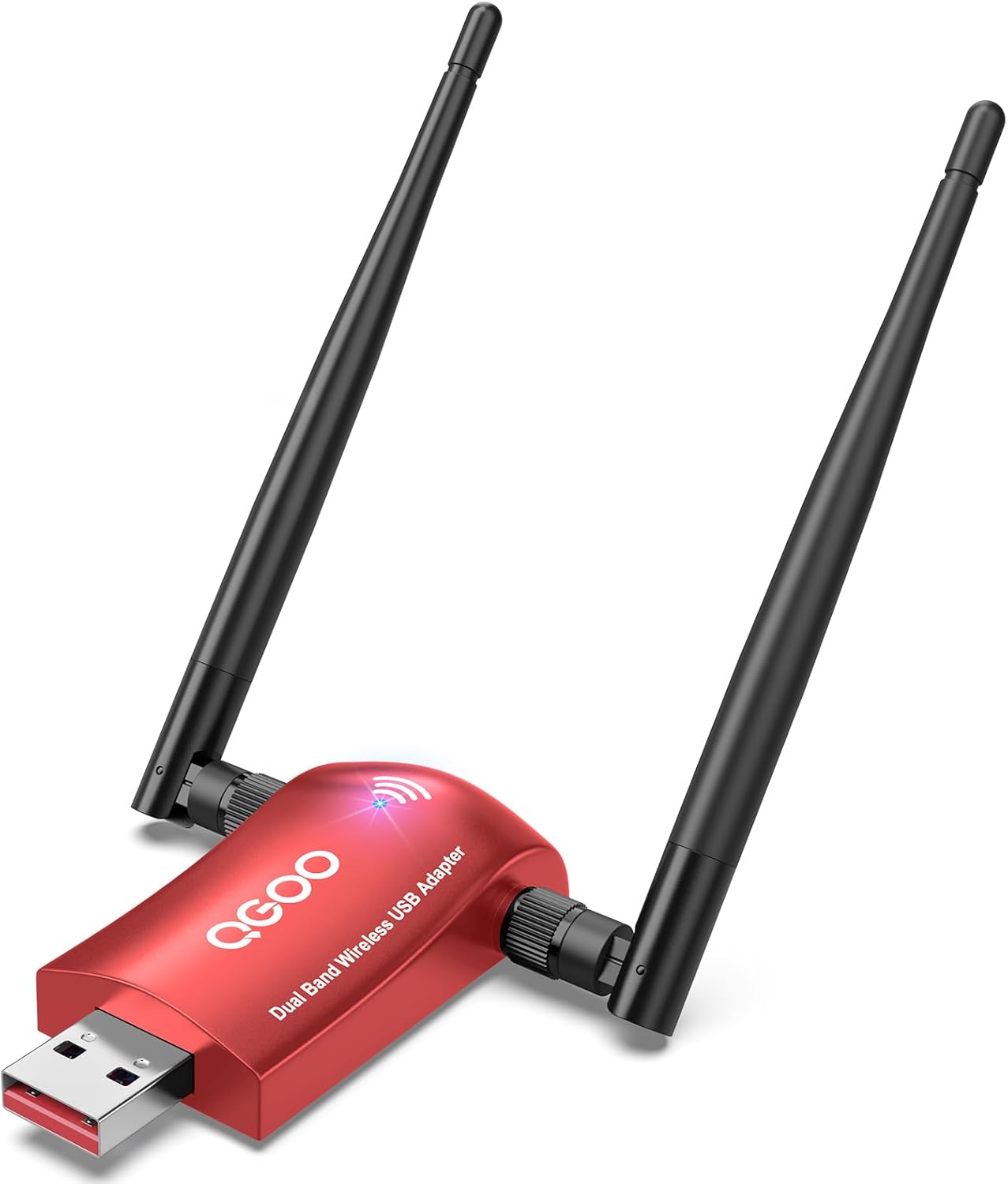
Figure 1: The QGOO AC1300Mbps USB WiFi Adapter, featuring a red body and two adjustable black antennas.
The QGOO AC1300Mbps USB 3.0 Dual Band Wireless WiFi Adapter is a compact device designed to provide high-speed wireless internet access to desktop and laptop computers. It features dual 5dBi high-gain antennas for improved signal reception and supports dual-band operation (2.4GHz and 5GHz) for flexible and stable connectivity.
Instruccions de configuració
1. Instal·lació de maquinari
- Col·loca les antenes: Carefully screw the two 5dBi high-gain antennas onto the adapter's connectors. Ensure they are securely fastened but do not overtighten.
- Connectar al port USB: Plug the USB 3.0 end of the adapter into an available USB 3.0 port on your desktop or laptop computer. For optimal performance, use a USB 3.0 port (typically blue).
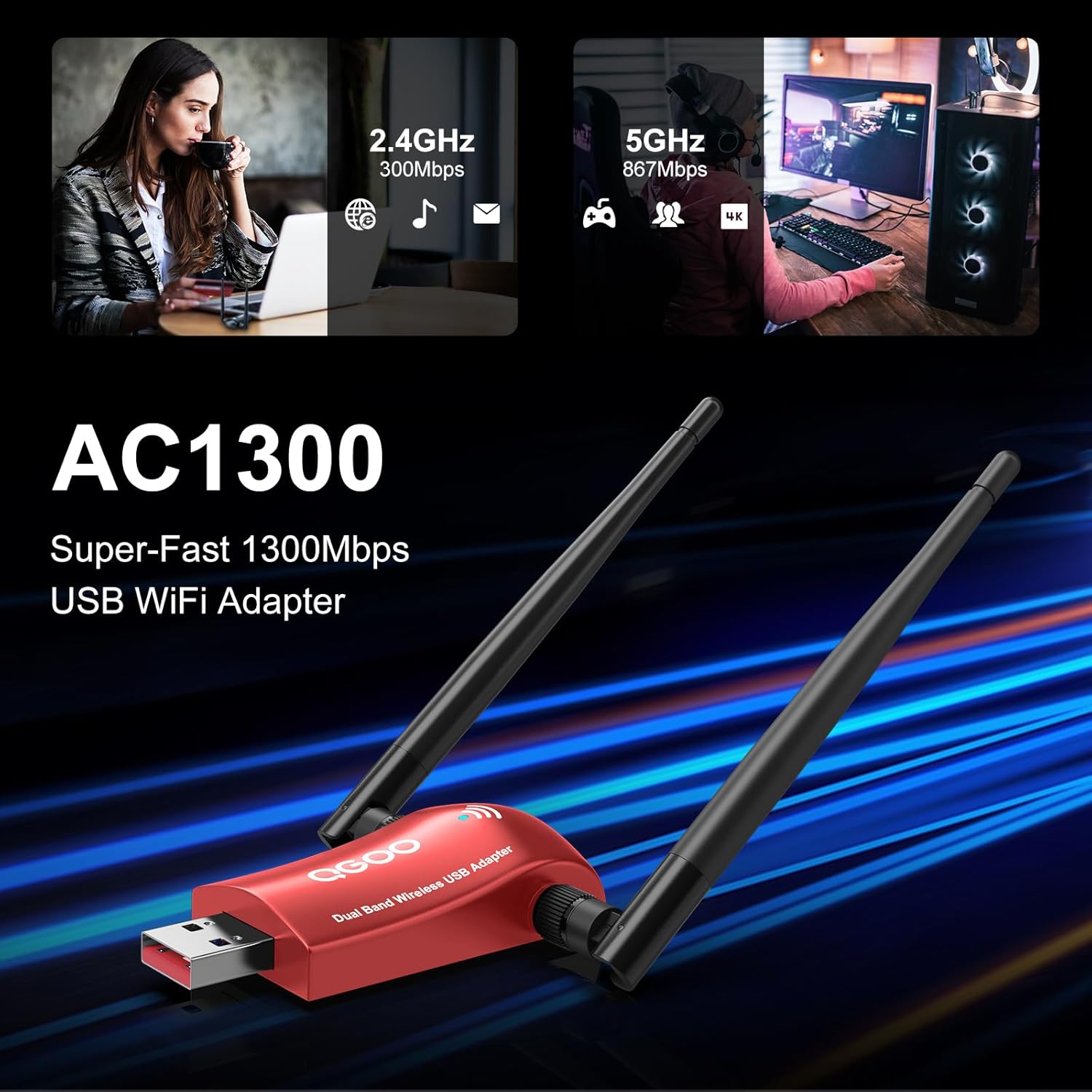
Figure 2: The QGOO WiFi adapter with antennas connected, ready for use.
2. Instal·lació del controlador
- Per a Windows 11/10: The adapter is designed for plug-and-play functionality on Windows 11 and 10. The necessary drivers should install automatically upon connection.
- Per a Windows 8.1/8/7: If the driver does not install automatically, use the included USB driver (flash drive or mini-CD, if provided) to install the necessary software. Alternatively, drivers can be downloaded from the official QGOO weblloc: www.qgoovip.com/pages/driver.
- Driver Installation Steps (if manual installation is needed):
- Insert the driver USB or mini-CD into your computer.
- Locate and run the setup file (e.g., "setup.exe").
- Seguiu les indicacions a la pantalla per completar la instal·lació.
- Reinicieu l'ordinador si se us demana.
Instruccions de funcionament
1. Connexió a una xarxa sense fil
- Once the adapter is installed and drivers are loaded, click on the Wi-Fi icon in your computer's system tray (usually in the bottom-right corner).
- A list of available wireless networks will appear. Select your desired network.
- Introduïu la clau de seguretat de xarxa (contrasenya) si se us demana.
- Click "Connect." The adapter will establish a connection to the chosen network.
2. Optimització del rendiment
- Posicionament de l'antena: Adjust the dual 5dBi antennas to achieve the best signal strength. Experiment with different angles to find the optimal position for your environment.
- Dual-Band Selection: The adapter supports both 2.4GHz and 5GHz bands.
- El Banda de 2.4 GHz offers wider coverage and better penetration through walls but generally lower speeds.
- El Banda de 5 GHz provides higher speeds but has a shorter range and is more susceptible to obstacles.
- Port USB 3.0: Ensure the adapter is connected to a USB 3.0 port for maximum data transfer rates.

Figure 3: Illustration of the adapter's signal coverage within a typical home environment.
Manteniment
- Mantenir net: Periodically clean the adapter and antennas with a soft, dry cloth to prevent dust buildup.
- Actualitzacions de firmware: Check the QGOO website for any available firmware updates for your adapter to ensure optimal performance and security.
- Eviteu les obstruccions: Position the adapter in an area free from physical obstructions (e.g., large metal objects, thick walls) that could interfere with the wireless signal.
Resolució de problemes
- Q: Why am I not getting a signal?
- Check if your router's WiFi function is working correctly by testing with another device.
- Reduce the distance between the USB WiFi adapter and the router, and avoid obstacles such as thick walls and metal.
- Q: I have successfully established a connection, but the internet speed is slow. Is there a way to improve it?
- Connect the WiFi adapter to a USB 3.0 port on your computer.
- Try using the adapter in an area with a stronger signal.
- If you are connected to a 2.4GHz wireless network, switch to the 5GHz band if your router supports it.
- Adjust the angle of the antennas for optimal signal reception.
- Q: The internet disconnects when the computer wakes up after a period of inactivity.
- To avoid any delay in reconnecting to the router after inactivity, we suggest you turn off the power-saving mode for the USB port or the network adapter in your computer's device manager.
- Q: Connected, but no 5G signal. How to adjust?
- Ensure that your router supports 5GHz.
- Turn off the "Combine 2.4 GHz and 5 GHz WiFi Network" setting in your router's WiFi configuration. Then you can manually choose between 2.4GHz or 5GHz.
- Remember that 2.4GHz has better penetration and longer distance, while 5GHz offers faster speeds but shorter range. Choose based on proximity to the router.
- P: Puc detectar el senyal WiFi, però no em puc connectar, què he de fer?
- Si us plau, assegureu-vos que heu introduït la contrasenya correcta.
- Check if you have set MAC address filtering on your router. If yes, you need to add the adapter's MAC address to the allowed list.
- Reboot your optical modem and router, then try to connect again.
- Check if the driver is correct. If issues persist, uninstall and reinstall the driver.
Especificacions
| Marca | QGOO |
| Model | AC-1300 |
| Interfície del maquinari | USB 3.0 (compatible enrere amb USB 2.0) |
| Velocitat de transferència de dades | Fins a 1300 Mbps (867 Mbps a 5 GHz, 400 Mbps a 2.4 GHz) |
| Antenes | Dual 5dBi High Gain Antennas |
| Dispositius compatibles | Escriptori, ordinador portàtil |
| Sistemes operatius | Windows 11/10/8.1/8/7 (Not recommended for Linux or Mac systems) |
| Normes | IEEE 802.11 ax/ac/a/b/g/n |
| Dimensions del producte | 7.17 x 5.12 x 0.63 polzades |
| Pes de l'article | 1.94 unces |
Garantia i Suport
For technical assistance, driver downloads, or warranty information, please visit the official QGOO website or contact their customer support. The product is compatible with Windows 11/10/8.1/8/7 and offers support for multiple languages.
Official QGOO Driver Download Page: www.qgoovip.com/pages/driver
QGOO Store on Amazon: Visit the QGOO Store