
Introducció
This manual provides detailed instructions for the setup, operation, maintenance, and troubleshooting of your Wisoqu Triple Connection Wireless Mouse. Please read this manual thoroughly before using the product to ensure proper function and longevity.
The Wisoqu mouse offers versatile connectivity with 2.4G wireless and dual Bluetooth 5.1 modes, allowing seamless switching between up to three devices. It features adjustable DPI settings, silent click buttons, and an ergonomic design for comfortable use.
Contingut del paquet
- 1 x Wisoqu Wireless Mouse
- 1 x cable de càrrega USB
- 1 x Receptor USB de 2.4 G
- 1 x Manual d'usuari (aquest document)

Image: Contents of the Wisoqu Wireless Mouse package, including the mouse, USB receiver, and charging cable.
Configuració
1. Càrrega del ratolí
Before first use, ensure the mouse is fully charged. Connect the provided USB charging cable to the mouse's charging port and to a USB power source (e.g., computer USB port, USB wall adapter). The charging indicator light will show the charging status.
2. Encendre/apagar
Locate the power switch on the bottom of the mouse. Slide it to the 'ON' position to power on the mouse.
3. Modes de connexió
The mouse supports three connection modes: 2.4G wireless and two Bluetooth 5.1 channels (BT1, BT2). You can switch between these modes using the mode switch button on the bottom of the mouse.
3.1. Connexió sense fil 2.4G
- Inseriu el receptor USB de 2.4 G a un port USB disponible de l'ordinador.
- Slide the mode switch on the bottom of the mouse to the '2.4G' position. The mouse should connect automatically.

Image: The Wisoqu mouse demonstrating multi-device control, including a 2.4G USB receiver for one connection.
3.2. Connexió Bluetooth (BT1 / BT2)
- Slide the mode switch on the bottom of the mouse to either 'BT1' or 'BT2' position.
- Press and hold the mode switch button for 3-5 seconds until the indicator light starts flashing, indicating pairing mode.
- A l'ordinador o dispositiu, obriu la configuració de Bluetooth i cerqueu dispositius nous.
- Select 'Wisoqu Mouse' (or similar name) from the list of available devices to pair.
- Repeat for the other Bluetooth channel (BT2) if you wish to connect to a third device.
Instruccions de funcionament
1. Canviar entre dispositius connectats
Use the mode switch button on the bottom of the mouse to cycle between 2.4G, BT1, and BT2 connections. This allows you to control up to three different devices seamlessly.
2. Ajust de DPI
The mouse features 4 adjustable DPI levels: 1000, 1600, 2400, and 4000. Press the DPI button (located near the scroll wheel) to cycle through these settings. Each DPI level is indicated by a specific light color:
- Vermell: 1000 DPI
- Verd: 1600 DPI
- Blau: 2400 DPI
- Lila: 4000 DPI
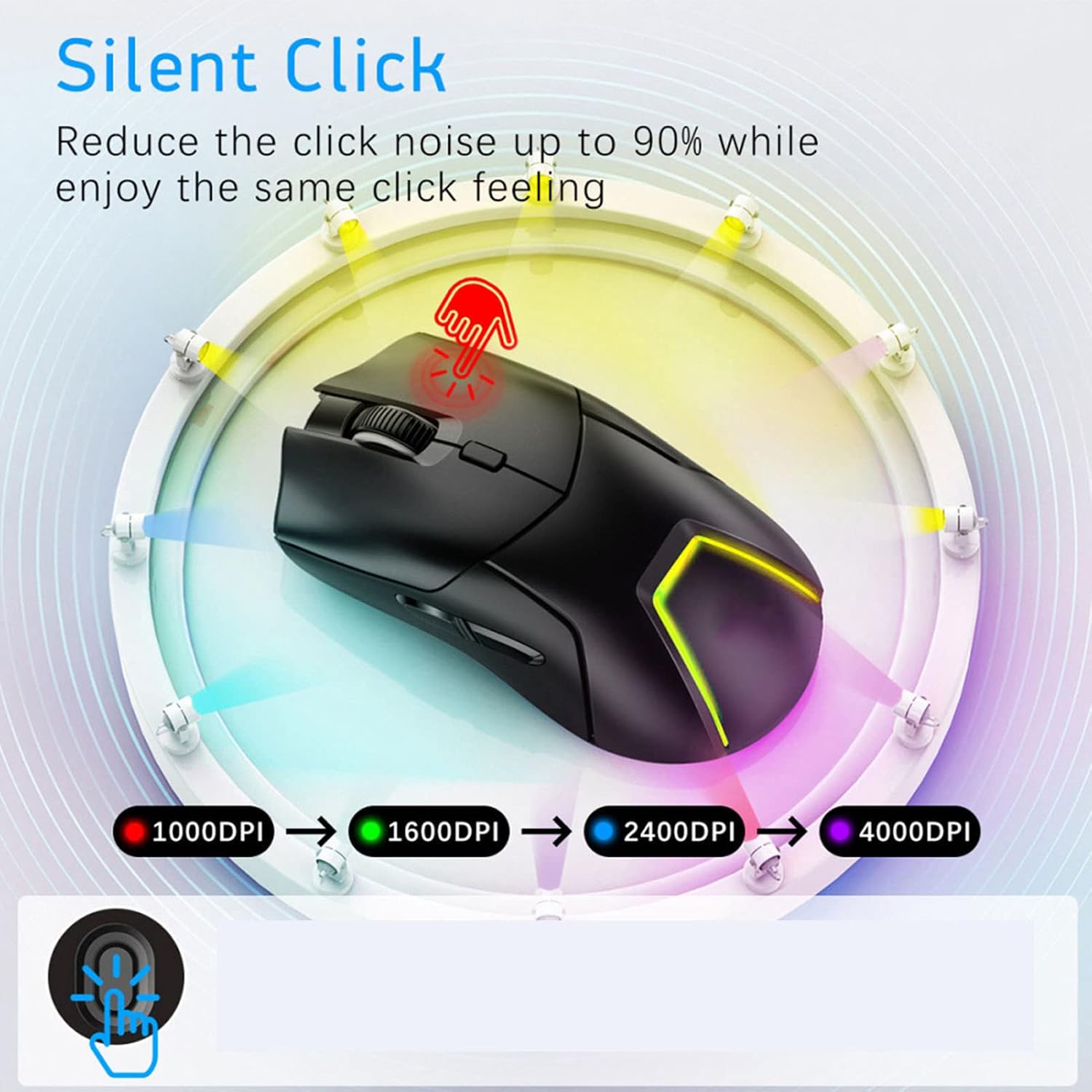
Image: Diagram illustrating the DPI adjustment feature with corresponding light colors for 1000, 1600, 2400, and 4000 DPI settings.
3. Quick Control Buttons (Volume Adjustment)
The side buttons (Forward/Backward) can also function as volume controls. To activate this feature, long-press the DPI button for 2 seconds. Then, roll the scroll wheel up or down to adjust the system volume. Long-press the DPI button again to return to normal DPI adjustment mode.

Imatge: Detallada view of the Wisoqu mouse, labeling the Left Button, Right Button, Scrollwheel, DPI button, Forward button, Back button, and USB Receiver slot.
4. Funció de clic silenciós
The left and right click buttons are designed for silent operation, reducing click noise by up to 90%. This feature is ideal for quiet environments such as offices, libraries, or late-night use.
5. Disseny ergonòmic
The mouse is shaped to fit comfortably in your hand, promoting a natural grip and reducing hand fatigue during extended use.

Imatge: Side profile of the Wisoqu mouse highlighting its ergonomic design for comfortable hand placement.
Manteniment
1. Neteja
Per netejar el ratolí, feu servir un drap suau i sec. Per a la brutícia persistent, feu servir un drap lleugerament sec.amp cloth can be used, but ensure no moisture enters the mouse's internal components. Avoid using harsh chemicals or abrasive cleaners.
2. Cura de la bateria
The mouse contains a built-in rechargeable lithium battery. To prolong battery life:
- Eviteu descarregar completament la bateria amb freqüència.
- Charge the mouse regularly, even if not in constant use.
- Guardeu el ratolí en un lloc fresc i sec quan no l'utilitzeu durant períodes prolongats.
Resolució de problemes
1. El ratolí no respon
- Assegureu-vos que el ratolí estigui encès.
- Comproveu el nivell de la bateria i carregueu-la si cal.
- For 2.4G connection: Ensure the USB receiver is securely plugged in and the mouse is in 2.4G mode. Try a different USB port.
- For Bluetooth connection: Ensure Bluetooth is enabled on your device and the mouse is in the correct BT1/BT2 mode. Re-pair the mouse if necessary.
2. Connexió intermitent
- Move the mouse closer to the receiver/device to reduce interference.
- Eviteu utilitzar el ratolí sobre superfícies metàl·liques, ja que poden interferir amb els senyals sense fil.
- Assegureu-vos que no hi hagi altres dispositius sense fil que causin interferències.
3. Els DPI no canvien
- Premeu fermament el botó DPI.
- If the volume adjustment feature was activated, long-press the DPI button again for 2 seconds to switch back to DPI adjustment mode.
Especificacions
| Característica | Detall |
|---|---|
| Número de model | Wisoqung3vrb5fxu-11 |
| Mode de connexió | 2.4G + BT1 + BT2 (Triple Mode) |
| Tipus de bateria | Bateria de liti recarregable |
| Capacitat de la bateria | 500 mAh |
| Configuració de DPI | 1000 (Red), 1600 (Green), 2400 (Blue), 4000 (Purple) |
| Feu clic a Tipus | Clic silenciós |
| Pes de l'article | 4.8 unces |
| Dimensions | 125mm (4.9 inches) x 66mm (2.6 inches) |
| Tecnologia de detecció de moviment | Làser |

Imatge: Superior i inferior views of the Wisoqu mouse, showing its dimensions (125mm length, 66mm width) and the mode switch on the underside.
Informació de la garantia
Specific warranty details are typically provided at the point of purchase or included with your product packaging. Please refer to your purchase documentation or the official Wisoqu website for the most accurate and up-to-date warranty policy.
Suport
For further assistance, technical support, or to inquire about replacement parts, please visit the official Wisoqu brand store or contact customer service through the retailer where you purchased the product.
Wisoqu Brand Store: https://www.amazon.com/stores/Wisoqu/page/4E7C992B-70C2-48A3-8C6D-5AB9D980F264