
1. Producte acabatview
This Loddery Android 13 Car Stereo is designed specifically for Hyundai Tucson models from 2015 to 2019. It features a 9-inch HD touch screen, 4GB RAM, 64GB ROM, and supports a variety of connectivity options and smart features to enhance your driving experience.
Característiques principals:
- Sistema operatiu Android 13
- 9-inch HD 2.5D Tempered Glass Touch Screen (1280x720 resolution)
- Apple CarPlay sense fil i Android Auto
- Mirror Link Functionality (Phonelink App)
- Bluetooth Hands-free Calling & Music Streaming
- Ràdio FM/RDS amb 18 emissores preestablertes
- Built-in GPS Navigation (online & offline maps)
- Suport de control del volant
- Entrada de càmera de marxa enrere AHD
- Wi-Fi Connectivity for app downloads (YouTube, TikTok)
- Funció de pantalla dividida
2. Què hi ha a la caixa
Desembaleu la caixa amb cura i assegureu-vos que hi hagi tots els elements:
- 1 x Reproductor MP5 per a cotxe (unitat principal)
- 1 x cable d'alimentació
- 1 x Antena GPS
- 1 x Cable d'entrada de la càmera posterior
- 1 x cable RCA
- 2 x cable USB
- 2 x Suport de muntatge
- 4 x cargols
- 1 x manual d'instruccions

Imatge: Tots els components inclosos a l'embalatge del producte.
3. Especificacions
| Sistema | Android 13 |
| Chipset | 8227L-DEMO |
| Mida de la pantalla | 9 polzades |
| Memòria | 4 GB (RAM) + 64 GB (ROM) |
| Resolució de pantalla | 1024 x 600 |
| Xip de ràdio | MT6625 |
| Potència de sortida | 4x45W |
| Temperatura de treball | -20 ℃ a 75 ℃ |
| Poder AmpXip lificador | TDA7388 |
| Banda de ràdio | FM/RDS |
| Sortida de vídeo | Suport |
| Entrada d'inversió | AHD or CVBS |
| Micròfon extern | Suport |
| Pantalla dividida | Suport |
| Mapes | Mapes fora de línia integrats (cal Internet per descarregar dades) |
| WIFI | Suport |
| USB | Doble interfície USB |
| Paraula clau de configuració de fàbrica | 8888 o 3368 |
| Pes de l'article | 4.41 lliures |
| Dimensions del paquet | 16.93 x 13.39 x 6.3 polzades |
4. Guia d'instal·lació
This section provides general guidance for installing the Loddery Android 13 Car Stereo. Professional installation is recommended. Always ensure the vehicle's power is disconnected before beginning installation.
4.1 Comprovació prèvia a la instal·lació
- Verify compatibility with your Hyundai Tucson (2015-2019).
- Ensure all components listed in 'What's in the Box' are present.
- Gather necessary tools (screwdrivers, wire strippers, electrical tape, etc.).
4.2 Removing the Old Head Unit
- Desconnecteu el terminal negatiu de la bateria del cotxe.
- Carefully remove the trim panels surrounding the factory radio.
- Unscrew and remove the factory head unit.
- Disconnect all wiring harnesses and antenna cables from the old unit.
4.3 Connecting the New Head Unit
- Connect the new wiring harness to the vehicle's factory harness.
- Connect the GPS antenna, USB cables, RCA cables, and rear camera input cable to the corresponding ports on the new stereo.
- If applicable, connect the external microphone.
- Mount the new stereo using the provided brackets and screws.
4.4 Comprovació posterior a la instal·lació
- Torneu a connectar la bateria del cotxe.
- Turn on the vehicle and the car stereo.
- Test all functions: radio, Bluetooth, GPS, touch screen, steering wheel controls, and backup camera.
- Adjust settings as needed (refer to Operating Instructions).

Image: Comparison of the car dashboard before and after installing the Loddery Android 13 Car Stereo.
5. Instruccions de funcionament
This section details the various functions and settings of your Loddery Android 13 Car Stereo. For a visual guide, please refer to the 'Multifunctional Operation Guide' video below.
Video: Multifunctional Operation Guide for the car stereo, demonstrating various settings and features.
5.1 Operacions bàsiques
- Encès/apagat: Press and hold the power button on the unit.
- Control de volum: Use the volume buttons on the unit or steering wheel controls.
5.2 Connectivitat
5.2.1 Wi-Fi Connection (Video: 05s - 34s)
To connect to Wi-Fi: Go to Configuració > Xarxa i Internet > Wi-Fi. Select your desired network and enter the password. After a successful connection, you can use online apps like YouTube or Google.
5.2.2 Bluetooth Connection (Video: 4m15s - 4m37s)
To connect your phone via Bluetooth: Go to Configuració > Bluetooth. Ensure Bluetooth is enabled on both the stereo and your phone. Select the car stereo's Bluetooth name from your phone's available devices and pair. After connecting, you can make hands-free calls and stream music.
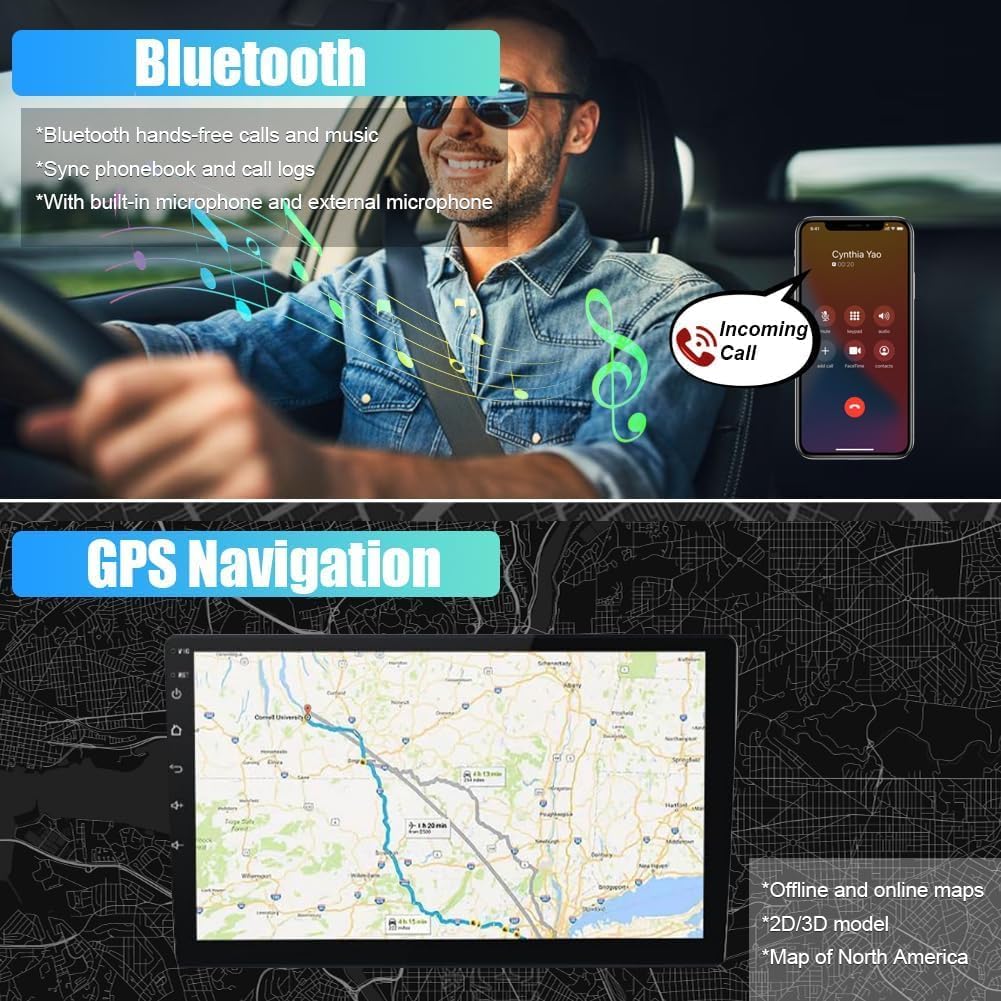
Image: The car stereo screen showing Bluetooth and GPS navigation interfaces.
5.2.3 Wireless CarPlay (Video: 4m37s - 5m02s)
Connect your iPhone to the car stereo via Bluetooth. Once paired, the CarPlay icon will appear. Tap it to launch Wireless CarPlay, allowing access to phone, music, maps, and messages directly on the stereo screen.
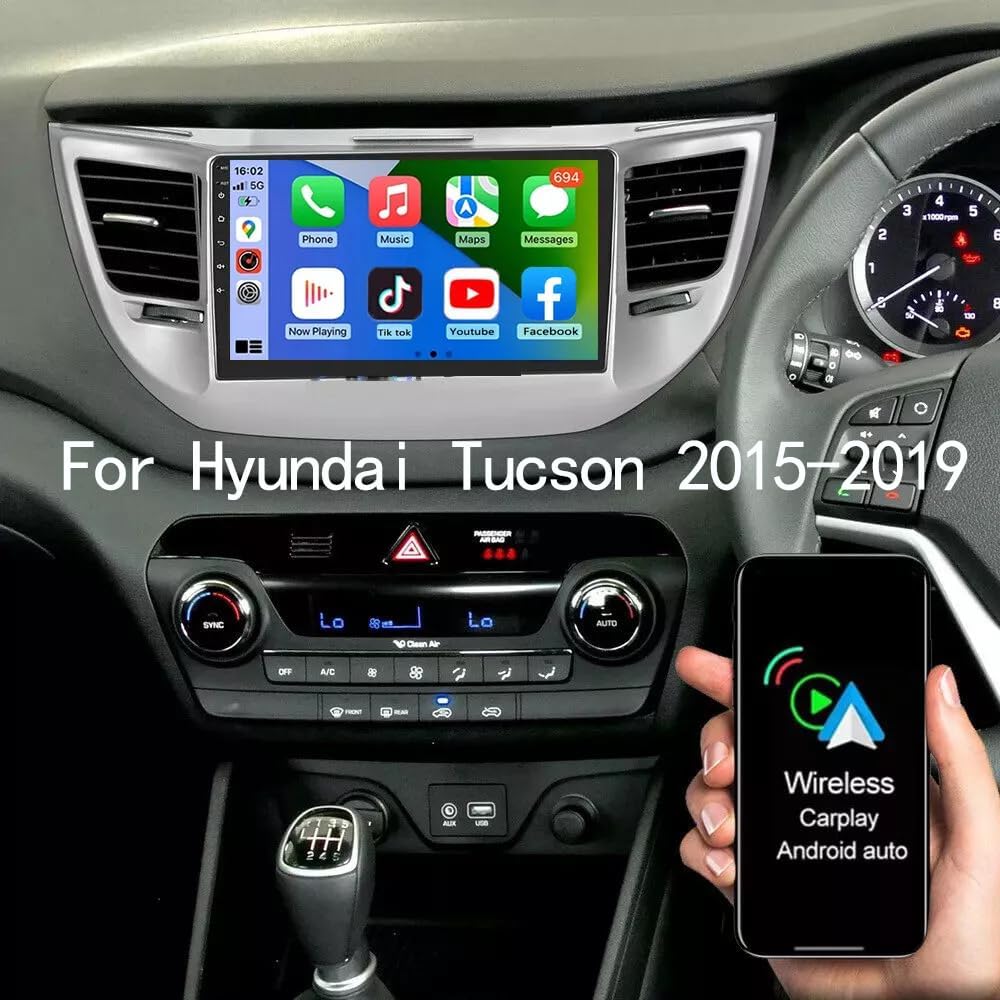
Image: The car stereo screen showing the Wireless CarPlay interface with common applications.
5.2.4 Android Auto (Video: 5m02s - 5m26s)
Connect your Android phone to the car stereo via Bluetooth. Once paired, the Android Auto icon will appear. Tap it to launch Wireless Android Auto, providing access to navigation, communication, and music apps.

Image: The car stereo screen illustrating voice control commands for CarPlay and Android Auto.
5.2.5 Enllaç de mirall
The Mirror Link function (via Phonelink app) allows you to mirror your smartphone screen onto the car stereo. For Android phones, it supports two-way control; for iOS, it supports one-way control. This feature is useful for displaying apps or content not natively supported by CarPlay/Android Auto.
Video: Demonstration of RK3326 CarPlay, Android Auto, and Mirror Link connection. (Note: Video creator 'Realdio' is a seller of similar products.)
5.3 Configuració de la pantalla
5.3.1 Screen Brightness Adjustment (Video: 34s - 52s)
Adjust screen brightness by navigating to Settings > Car Settings > Display > Brightness. Use the slider to set the desired brightness level for day and night modes. You can also swipe down the status bar for quick adjustments.
5.3.2 UI Theme (Video: 3m10s - 3m27s)
The stereo offers multiple UI themes for customization. Access themes through the main interface or settings to change the visual appearance. Some themes allow wallpaper customization.
5.4 Configuració d'àudio
5.4.1 Radio Settings (Video: 3m27s - 3m39s)
Access the Radio app to adjust radio bands, frequencies, and search for stations. You can save your favorite stations as presets.
5.4.2 EQ Settings (Video: 3m39s - 4m15s)
Customize the sound output using the Equalizer settings. You can select from preset modes (e.g., Pop, Rock, Jazz) or manually adjust individual frequency bands to achieve your preferred audio profile.
5.5 Configuració del sistema
5.5.1 Language Settings (Video: 52s - 1m07s)
To change the system language: Go to Settings > System > Languages & input > Languages > Add a language. Select your desired language from the list.
5.5.2 Time Settings (Video: 1m07s - 1m16s)
Set the date and time by going to Settings > System > Date & time. You can choose to use GPS-provided time for automatic synchronization.
5.5.3 Touch Calibration (Video: 1m16s - 1m39s)
If the touch screen responsiveness is off, perform a five-point calibration. Go to Factory Setup (password: 8888 or 3368) > Touch Calibration. Follow the on-screen instructions to touch the indicated points.
5.5.4 Steering Wheel Control Learning (Video: 2m19s - 2m41s)
To configure steering wheel controls: Go to Factory Setup (password: 8888 or 3368) > Party Control Learning. Follow the instructions to assign functions to your steering wheel buttons.
5.5.5 Reverse Camera Format Selection (Video: 2m41s - 2m51s)
Adjust the reverse camera format if needed. Go to Factory Setup (password: 8888 or 3368) > Backcar Source Settings and select the appropriate format (e.g., AHD 720P 25fps, CVBS).
5.5.6 Car System Protocol Settings (Video: 2m51s - 3m05s)
Configure car system protocols for specific vehicle models. Go to Factory Setup (password: 8888 or 3368) > Can Settings. Select the correct Brand, Model, Year, Cfg, and Protocol for your vehicle.
5.5.7 Clear Memory (Video: 3m05s - 3m10s)
To optimize performance, you can clear memory by swiping down from the top of the screen and tapping the 'System Optimize' or 'Clear Memory' option.
6. Manteniment
Regular maintenance helps ensure the longevity and optimal performance of your car stereo.
- Neteja: Feu servir un drap suau i sec per netejar la pantalla i la unitat. Eviteu productes de neteja o dissolvents abrasius.
- Actualitzacions de programari: Periodically check for software updates to ensure you have the latest features and bug fixes.
- Temperatura: Eviteu exposar la unitat a temperatures extremes.
7. Solució De Problemes
Si teniu problemes amb l'estèreo del vostre cotxe, consulteu els següents problemes i solucions habituals:
- Sense energia: Check all power connections and the vehicle's fuse box. Ensure the unit is properly installed.
- Sense so: Verify speaker connections, volume levels, and EQ settings. Check if the mute function is active.
- La pantalla tàctil no respon: Perform a touch calibration (refer to section 5.5.3). If the issue persists, try restarting the unit.
- Problemes de connexió Bluetooth: Ensure Bluetooth is enabled on both devices and that the stereo is discoverable. Try unpairing and re-pairing the devices.
- El GPS no funciona: Assegureu-vos que l'antena GPS estigui connectada correctament i que tingui una visió clara view of the sky. Check GPS settings in the system menu.
- Càmera de marxa enrere no es mostra: Verify the camera connection and ensure the correct reverse camera format is selected in settings (refer to section 5.5.5).
Per a problemes més complexos, poseu-vos en contacte amb l'atenció al client.
8. Garantia i Suport
For any questions or support needs regarding your Loddery Android 13 Car Stereo, please contact the seller or manufacturer directly. Warranty information may be provided with your purchase documentation.