
Producte acabatview
This document provides instructions for the installation, operation, and maintenance of the Laptop Keyboard for MEDION AKOYA S4402 MD63410 Swiss SW with Backlit Black. This keyboard is designed as a replacement part for compatible laptop models, offering a Swiss (SW) layout and integrated backlighting for improved visibility in low-light conditions.
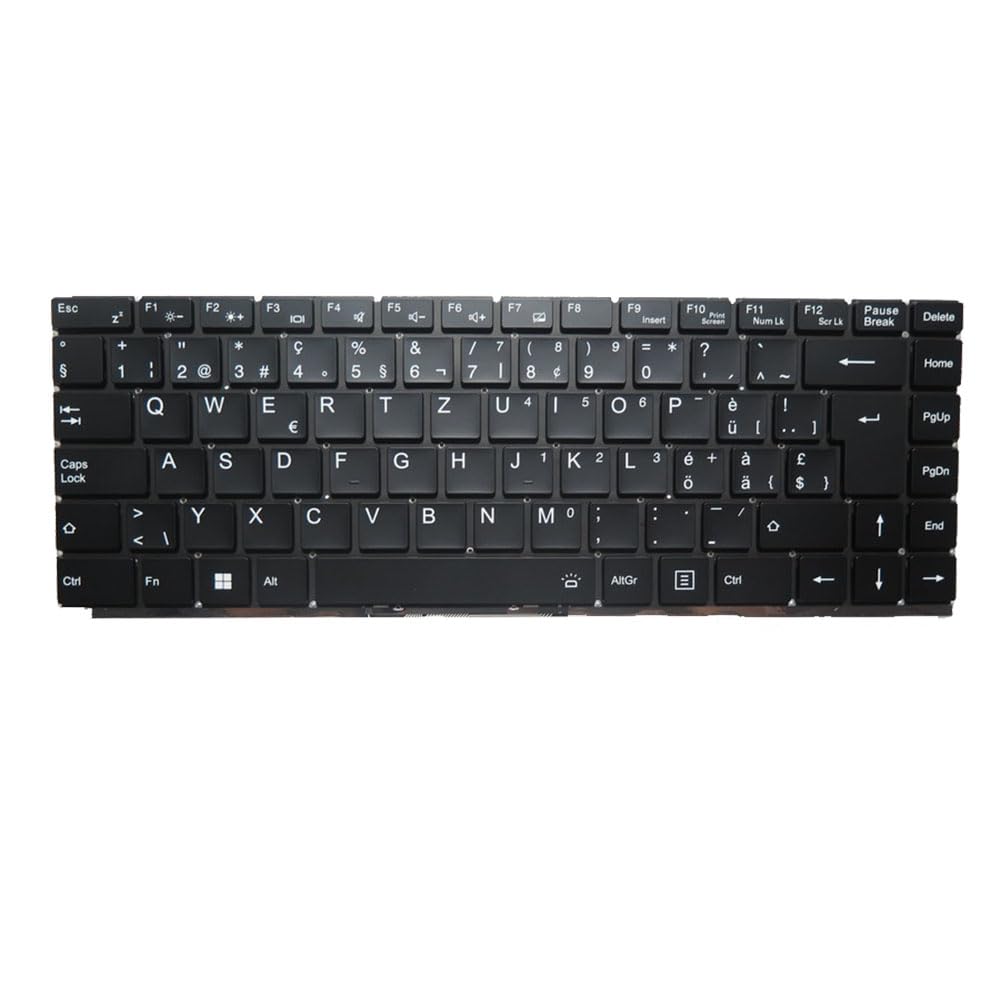
Imatge: Frontal view of the Laptop Keyboard for MEDION AKOYA S4402 MD63410. The keyboard features a black finish with white key legends, including a full alphanumeric section, function keys (F1-F12), navigation keys, and a numeric keypad. The layout is Swiss (SW), indicated by specific characters like '§', '€', 'é', 'à', 'ö', 'ä', 'ü', and '£'. The keyboard includes dedicated keys for backlight control (likely via Fn combinations) and standard laptop keyboard functions.
Especificacions
| Característica | Detall |
|---|---|
| Tipus de producte | Laptop Keyboard Replacement Part |
| Compatibilitat | MEDION AKOYA S4402 MD63410 |
| Disseny | Swiss (SW) |
| Llum de fons | Sí |
| Color | Negre |
| Dimensions del producte | 11.81 x 7.87 x 3.94 polzades |
| Pes de l'article | 1.76 lliures |
| Fabricant | Genèric |
| Número de model | MD63410-5. |
| País d'origen | Xina |
Configuració i instal·lació
Installing a laptop keyboard typically requires technical expertise and careful handling of internal components. It is highly recommended to consult your laptop's official service manual or seek professional assistance for installation to avoid damage to your device.
General Guidelines (Consult Professional for Specific Steps):
- Apagar: Ensure the laptop is completely powered off and disconnected from all power sources, including the battery.
- Desmuntatge: Carefully disassemble the laptop components that obstruct access to the keyboard. This may involve removing the bottom cover, battery, optical drive, or top case, depending on the laptop model.
- Desconnecta el teclat antic: Locate the keyboard ribbon cable connector on the motherboard. Gently unlatch the connector and disconnect the old keyboard's cable.
- Elimina el teclat antic: Unscrew or unclip the old keyboard from its housing.
- Instal·la el teclat nou: Position the new keyboard into the housing. Ensure it fits correctly and all mounting points align.
- Connecta el nou teclat: Carefully insert the new keyboard's ribbon cable into the connector on the motherboard and secure the latch. Ensure the cable is not bent or creased.
- Remuntatge: Reassemble the laptop components in reverse order. Double-check all connections before fully closing the laptop.
- Funcionalitat de prova: Power on the laptop and test all keyboard keys, including the backlight function, to ensure proper installation.
Exempció de responsabilitat: Improper installation can lead to damage to your laptop. The manufacturer is not responsible for any damage incurred during self-installation.
Instruccions de funcionament
This keyboard functions as a standard laptop keyboard with additional features specific to the Swiss (SW) layout and integrated backlighting.
Funcions clau:
- Standard Alphanumeric Keys: S'utilitza per escriure lletres, números i símbols.
- Tecles de funció (F1-F12): These keys often have secondary functions (e.g., volume control, screen brightness, Wi-Fi toggle) when pressed in combination with the Fn key. Refer to your laptop's specific documentation for exact Fn key combinations.
- Control de la llum de fons: The keyboard features integrated backlighting. Typically, the backlight can be toggled on/off or adjusted in brightness using a specific Fn key combination (e.g., Fn + Fx, where Fx is a function key with a backlight icon). Locate the key with a backlight symbol (often resembling a sun or light bulb) to control this feature.
- Swiss (SW) Layout Specifics: This keyboard includes characters and symbols specific to the Swiss layout, such as '§', '€', 'é', 'à', 'ö', 'ä', 'ü', and '£'. Familiarize yourself with the placement of these characters.
- Tecles de navegació: Includes Home, End, PgUp (Page Up), PgDn (Page Down), and arrow keys for document navigation.
Manteniment
Un manteniment adequat pot allargar la vida útil del teclat i garantir un rendiment òptim.
- Neteja: Netegeu regularment la superfície del teclat amb un drap suau i sense borrissol lleugerament humit.ampened with water or a mild, non-abrasive cleaning solution. Avoid spraying liquids directly onto the keyboard.
- Eliminació de pols: Feu servir aire comprimit per eliminar la pols i les restes que hi ha entre les tecles. Mantingueu l'envàs en posició vertical i ruixeu amb ràfegues curtes.
- Eviteu els vessaments: Protect the keyboard from liquid spills, which can cause permanent damage.
- Ús suau: Avoid excessive force when typing to prevent premature wear on the keys.
Resolució de problemes
If you encounter issues with your keyboard, consider the following common troubleshooting steps:
- El teclat no respon:
- Ensure the keyboard ribbon cable is securely connected to the motherboard.
- Reinicieu el vostre ordinador portàtil.
- Check device drivers in your operating system. Reinstall or update if necessary.
- Algunes tecles no funcionen:
- Check for physical obstructions or debris under the non-functional keys.
- If multiple keys in a specific area are not working, it might indicate a cable connection issue or a defect in the keyboard itself.
- La llum de fons no funciona:
- Ensure the backlight function is enabled via the appropriate Fn key combination.
- Check your laptop's BIOS/UEFI settings for keyboard backlight options.
- Caràcters incorrectes escrits:
- Verify that the correct keyboard layout (Swiss SW) is selected in your operating system settings.
If issues persist after attempting these steps, professional diagnosis and repair may be required.
Garantia i Suport
Aquest producte ve amb un 90 dies de garantia des de la data de compra. Aquesta garantia cobreix els defectes de fabricació i garanteix que el producte funcioni tal com es descriu en condicions d'ús normal.
La garantia no cobreix els danys derivats de:
- Improper installation or handling.
- Accidental damage, spills, or physical abuse.
- Reparacions o modificacions no autoritzades.
- Desgast normal.
For warranty claims or technical support, please contact the seller or retailer from whom you purchased this product. Ensure you have your proof of purchase readily available.