
1. Introducció
This manual provides essential information for the proper setup, operation, and maintenance of your FUNYET 2-in-1 Laptop Tablet. Please read this manual thoroughly before using the device to ensure optimal performance and longevity. Keep this manual for future reference.
2. Producte acabatview
2.1 Contingut del paquet
- FUNYET 2-in-1 Laptop Tablet
- Teclat desmuntable
- Adaptador de corrent alterna
- Manual d'usuari (aquest document)
2.2 Device Layout and Ports
Familiarize yourself with the various ports and buttons on your device.

Imatge: lateral view of the FUNYET 2-in-1 Laptop Tablet illustrating the location of the power button, volume control, two Type-C ports, and Micro HDMI port.
- Botó d'encesa: Press and hold to power on/off or sleep/wake the device.
- Control de volum: Ajusta el volum del sistema.
- Type-C (Full-featured): Admet la transferència de dades, la sortida de vídeo i el subministrament d'energia.
- Type-C (Charging and Data Transfer): Primarily for charging the device and data transfer.
- Micro HDMI: Connects to external displays.
2.3 Característiques clau
- Processador: Intel 12th Gen Celeron N100 (up to 3.4 GHz, 4 cores, 4 threads).
- Memòria: 16GB DDR5 RAM for efficient multitasking.
- Emmagatzematge: 512GB SSD for fast boot times and ampl'emmagatzematge.
- Visualització: 14-inch 1920 x 1200 IPS Touchscreen.
- Connectivitat: Wi-Fi 6 (802.11ax) i Bluetooth 5.2.
- Càmeres: 2MP Front Camera and 5MP Rear Camera.
- Teclat: Detachable, backlit keyboard.
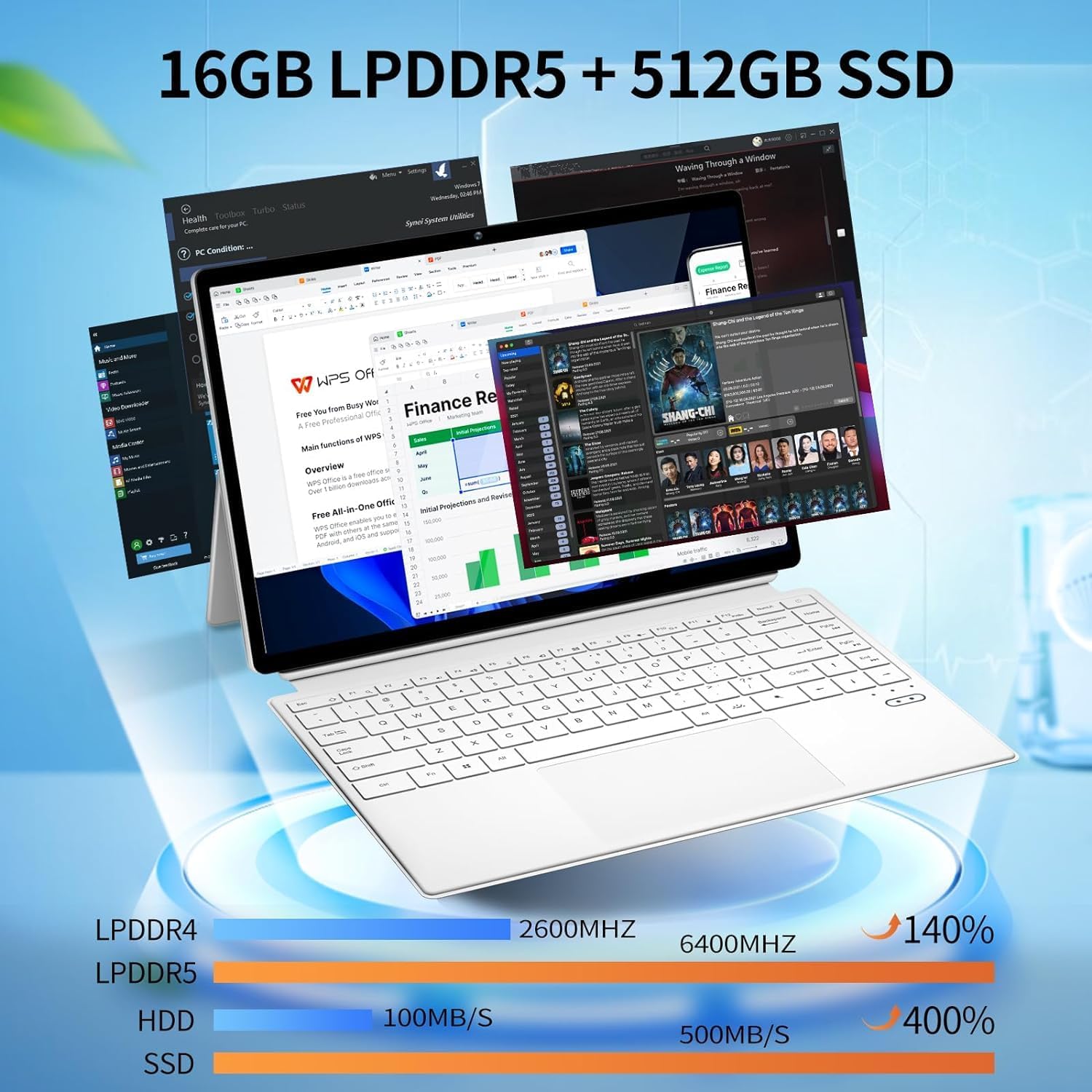
Imatge: The device displaying multiple open applications, illustrating its multitasking capabilities with 16GB LPDDR5 RAM and 512GB SSD.
3. Configuració
3.1 Càrrega inicial
Before first use, connect the AC power adapter to the device's charging Type-C port and a power outlet. Charge the device until the battery is full. The battery indicator will show charging status.
3.2 Connectar i desconnectar el teclat
The keyboard connects magnetically to the tablet. Align the magnetic connectors on the tablet and keyboard until they snap into place. To detach, gently pull the tablet away from the keyboard.
3.3 Adjusting the Kickstand
The integrated kickstand allows for various viewing angles. Extend the kickstand from the back of the tablet and adjust it to your desired position. Ensure the kickstand is fully extended and stable to prevent the device from tipping.

Imatge: Visual guide demonstrating the correct method for deploying the device's kickstand for stable use, alongside examples of incorrect positioning.
3.4 Primer arrencada i configuració de Windows
Press and hold the Power Button until the screen turns on. Follow the on-screen instructions to complete the Windows 11 Pro setup, including language selection, network connection, and user account creation.
4. Instruccions de funcionament
4.1 Engegada/Apagada i Mode de repòs
- Encès: Press and hold the Power Button for a few seconds.
- Apagar: From Windows, go to Start > Power > Shut down. Alternatively, press and hold the Power Button, then select 'Shut down' from the options.
- Mode de repòs: Briefly press the Power Button to enter or exit sleep mode.
4.2 Ús de la pantalla tàctil
The 14-inch display supports multi-touch gestures. Use your fingers to navigate, tap, swipe, pinch-to-zoom, and interact with applications.
4.3 Ús del teclat i del touchpad
When the keyboard is attached, it functions as a standard laptop keyboard. The integrated touchpad supports multi-touch gestures for navigation. The keyboard features backlighting for use in low-light conditions.

Imatge: Un primer pla view of the detachable backlit keyboard, showing the key layout and touchpad.
4.4 Connexió de perifèrics
- Dispositius USB-C: Connect compatible USB-C devices to the Type-C ports for data transfer or external display output (if full-featured).
- Pantalla externa: Use the Micro HDMI port to connect to an external monitor or TV. An appropriate adapter may be required.
4.5 Connectivitat sense fil
- Wi-Fi: Access network settings in Windows to connect to available Wi-Fi 6 networks.
- Bluetooth: Pair Bluetooth devices such as headphones, mice, or keyboards through Windows Bluetooth settings.

Imatge: The device in use, highlighting its wireless capabilities (Wi-Fi 6, Bluetooth 5.2) and integrated cameras (2MP front, 5MP rear).
4.6 Ús de la càmera
The device includes a 2MP front camera and a 5MP rear camera. Use the built-in Camera application in Windows to take photos, record videos, or participate in video calls.
5. Manteniment
5.1 Neteja
Use a soft, lint-free cloth to clean the screen and exterior surfaces. For stubborn marks, dampen the cloth slightly with water or a screen-safe cleaner. Avoid harsh chemicals or abrasive materials.
5.2 Cura de la bateria
Per allargar la durada de la bateria:
- Eviteu temperatures extremes.
- No descarregueu completament la bateria amb freqüència.
- If storing the device for an extended period, charge it to about 50-70%.

Imatge: An illustration of the 38Wh battery capacity and estimated usage times: 10 hours for daily use, 6-8 hours for video playback (Wi-Fi off), and 4 hours for video playback (Wi-Fi on).
5.3 Actualitzacions de programari
Regularly check for and install Windows updates to ensure system stability, security, and access to the latest features. Go to Start > Settings > Windows Update.
5.4 Gestió d'emmagatzematge
Periòdicament review and manage your storage space. Delete unnecessary files, uninstall unused applications, and consider cloud storage for large files to maintain optimal performance.
6. Solució De Problemes
- El dispositiu no s'encén: Ensure the device is charged. Connect the AC adapter and try again. If unresponsive, press and hold the power button for 15-20 seconds to perform a hard reset.
- El teclat no respon: Ensure the keyboard is securely attached. Check if the keyboard's power is on (if it has a separate power switch or indicator). Re-attach the keyboard.
- Problemes de connectivitat Wi-Fi: Check if Wi-Fi is enabled in Windows settings. Restart your router and the device. Ensure you are within range of a Wi-Fi network.
- Rendiment lent: Close unnecessary applications. Check for background processes consuming resources. Ensure sufficient free storage space. Run a system scan for malware.
- La pantalla no gira: Ensure auto-rotation is enabled in Windows settings (Action Center).
7. Especificacions
| Característica | Especificació |
|---|---|
| Nom del model | FUNYET-2-IN-1-LAPTOP-TABLET-1 |
| Processador | Intel Celeron N100 (12th Gen) |
| RAM | 16 GB DDR5 |
| Emmagatzematge | SSD de 512 GB |
| Mida de la pantalla | 14 polzades |
| Resolució de pantalla | 1920 x 1200 píxels |
| Sistema operatiu | Windows 11 Pro |
| Tipus sense fil | 802.11ax (Wi-Fi 6) |
| Bluetooth | Bluetooth 5.2 |
| Càmera frontal | 2 MP |
| Càmera posterior | 5 MP |
| Pes de l'article | 5.37 lliures |
| Dimensions del producte | 12.5 x 8.4 x 0.4 polzades |
| Color | Blanc |
8. Garantia i Suport
FUNYET offers a Intercanvi gratuït de 30 dies i a Reparació gratuïta d'1 any service for all its products. For any questions or assistance regarding your FUNYET 2-in-1 Laptop Tablet, please contact FUNYET support. We aim to respond within 24 hours.
For support, please visit the official FUNYET store or contact customer service through your purchase platform.