
DOOGEE T40
Manual d'usuari de la tauleta DOOGEE T40 amb Android 14
Model: T40 | Brand: DOOGEE
1. Producte acabatview
The DOOGEE T40 is an advanced Android 14 tablet designed for both entertainment and productivity. It features a high-resolution 2.5K display, a powerful Octa-Core processor, and extensive storage capabilities, making it suitable for a wide range of applications from gaming to professional tasks.

Figura 1.1: Davant i darrere view of the DOOGEE T40 Tablet, highlighting its sleek design and camera module.
Característiques principals:
- Visualització: 11-inch 2.5K IPS Ultra Clear Display (2560x1600 resolution) for vibrant visuals.
- Rendiment: Helio G99 Octa-Core Processor (6nm process technology) for smooth multitasking and gaming.
- Memòria i emmagatzematge: Up to 20GB RAM (8GB physical + 12GB virtual) and 512GB internal storage, expandable up to 2TB via microSD.
- Bateria: 8580mAh large battery with 18W fast charging and reverse charging capability.
- Connectivitat: Dual SIM 4G LTE, Dual-band Wi-Fi (2.4G/5G), Bluetooth 5.0.
- Sistema operatiu: Android 14 for enhanced productivity and entertainment.
- Àudio: Immersive Quad Speakers for rich sound.
- Càmeres: 16MP Main Camera and 8MP Front Camera.
Vídeo 1.1: Un overview of the DOOGEE T40 Tablet, showcasing its design, display, and key features.
2. Què hi ha a la caixa
Verifiqueu que tots els elements siguin presents al paquet abans de continuar amb la configuració.
- T40 Tablet x1
- Cable USB tipus C x1
- Carregador x1
- Tool for take card x1 (SIM Ejector Tool)
- Anti-explosion film x1 (Pre-applied screen protector)
- Caixa d'embalatge x1
- Manual x1 (This document)
3. Especificacions
| Característica | Especificació |
|---|---|
| Marca | DOOGEE |
| Nom del model | T40 |
| Sistema operatiu | Android 14 |
| Mida de la pantalla | 10.95 polzades |
| Resolució de pantalla | 2560 x 1600 píxels (2.5K) |
| Processador | MediaTek Helio G99 Octa-Core |
| RAM | 20 GB (8 GB físic + 12 GB virtual) |
| Emmagatzematge intern | 512 GB |
| Emmagatzematge ampliable | Fins a 2 TB mitjançant targeta MicroSD |
| Capacitat de la bateria | 8580 mAh |
| Carregant | 18W Fast Charging, Reverse Charging |
| Connectivitat | Dual SIM 4G LTE, Wi-Fi 2.4G/5G, Bluetooth 5.0 |
| Càmeres | 16MP Main, 8MP Front |
| Dimensions (LxWxH) | 10.09 x 6.61 x 0.3 polzades |
| Pes de l'article | 2.49 lliures |
4. Configuració
4.1. Càrrec inicial
Before first use, fully charge your DOOGEE T40 tablet using the provided Type-C USB cable and charger. Connect the charger to the tablet's USB-C port and plug it into a power outlet. The battery indicator on the screen will show charging progress.

Figure 4.1: Illustration of the tablet's 8580mAh battery and 18W fast charging capability.
4.2. Encendre/apagar
- Per encendre: Press and hold the Power button (located on the side) until the DOOGEE logo appears.
- Per apagar: Mantingueu premut el botó d'engegada fins que aparegui el menú d'opcions d'engegada i, a continuació, seleccioneu "Apagar".
- Per reiniciar: Al menú d'opcions d'energia, seleccioneu "Reiniciar".
4.3. Instal·lació de la targeta SIM i la targeta MicroSD
The DOOGEE T40 supports Dual SIM 4G LTE and MicroSD card expansion.
- Localitza la safata de la targeta SIM al lateral de la tauleta.
- Insert the provided SIM ejector tool into the small hole next to the tray and gently push until the tray pops out.
- Col·loqueu les targetes Nano-SIM i/o MicroSD a les ranures designades de la safata, assegurant-vos que l'orientació sigui correcta.
- Empenyeu amb cura la safata cap a dins de la tauleta fins que encaixi al seu lloc.

Figure 4.2: Close-up of the Dual SIM and TF (MicroSD) card slot on the DOOGEE T40 Tablet.
4.4. Connexió a la xarxa
- Wi-Fi: Vés a Configuració > Xarxa i Internet > Wi-Fi, turn Wi-Fi on, select your desired network, and enter the password if required.
- Dades mòbils: Ensure your SIM card is installed correctly. Go to Configuració > Xarxa i Internet > Xarxa mòbil and enable mobile data.
5. Instruccions de funcionament
5.1. Navegació per Android 14
The DOOGEE T40 runs on Android 14, offering an intuitive user experience.
- Pantalla d'inici: Llisca cap a l'esquerra o la dreta per accedir a les diferents pantalles d'inici.
- Calaix d'aplicacions: Llisca cap amunt des de la part inferior de la pantalla per accedir a totes les aplicacions instal·lades.
- Notificacions i configuració ràpida: Feu lliscar el dit cap avall des de la part superior de la pantalla fins a view notificacions i configuracions ràpides (Wi-Fi, Bluetooth, etc.).
- Aplicacions recents: Swipe up from the bottom and hold, then release to see recently used applications.
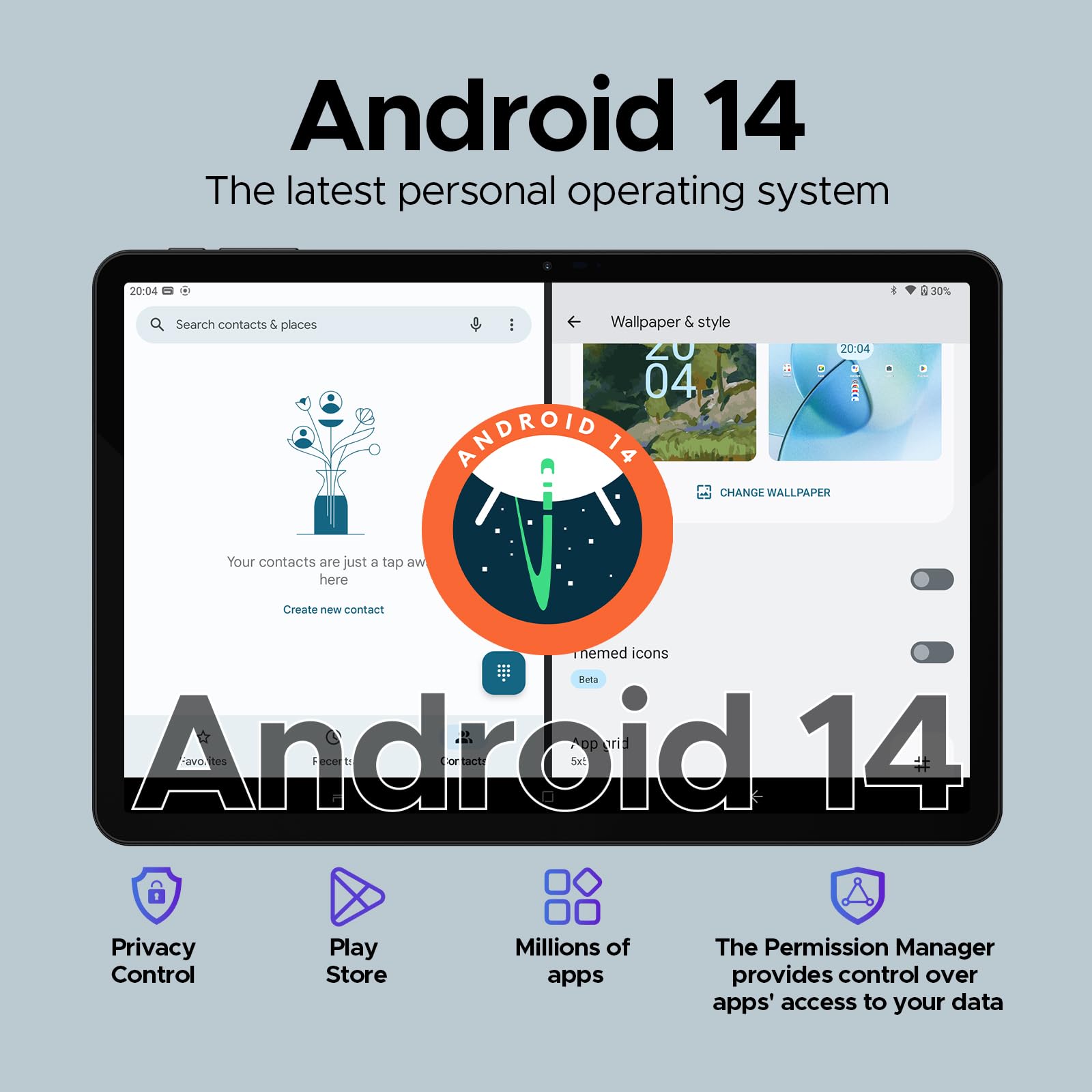
Figure 5.1: Visual representation of the Android 14 operating system interface on the DOOGEE T40.
5.2. Desbloqueig facial
For quick and secure access, configure Face Unlock:
- Vés a Settings > Security & privacy > Device unlock > Face unlock.
- Seguiu les instruccions a la pantalla per registrar la vostra cara.
5.3. Funcionalitat de pantalla dividida
Multitask efficiently by using two apps simultaneously:
- Obre la primera aplicació que vulguis utilitzar.
- Llisca cap amunt des de la part inferior i mantén premut per accedir a les aplicacions recents.
- Tap the app icon at the top of the first app's card, then select "Split screen".
- Trieu la segona aplicació de les vostres aplicacions recents o del calaix d'aplicacions per omplir l'altra meitat de la pantalla.
5.4. OTG (On-The-Go) Functionality
The DOOGEE T40 supports OTG, allowing you to connect USB devices like flash drives, keyboards, or mice directly to the tablet using a compatible OTG adapter (not included).
It also supports reverse charging, allowing the tablet to act as a power bank for other devices. Connect your device to the tablet's USB-C port using a compatible cable.
6. Manteniment
6.1. Cura de la bateria
- Eviteu les temperatures extremes, ja que poden reduir la durada de la bateria.
- Use only the original charger and cable provided with the tablet.
- Per a una durada òptima de la bateria, eviteu esgotar-la completament amb freqüència o mantenir-la al 100% durant períodes prolongats.
6.2. Neteja
- Feu servir un drap suau i sense borrissol per netejar la pantalla i el cos de la tauleta.
- Per a taques persistents, lleugerament dampNetegeu el drap amb aigua o un netejador de pantalles. Eviteu productes químics agressius.
6.3. Actualitzacions de programari
Comproveu i instal·leu regularment si hi ha actualitzacions de programari per garantir un rendiment òptim, seguretat i accés a noves funcions.
- Vés a Configuració > Sistema > Actualització del sistema.
- Segueix les instruccions que apareixen a la pantalla per descarregar i instal·lar les actualitzacions disponibles. Assegura't que la tauleta estigui prou carregada o connectada a l'alimentació durant les actualitzacions.
7. Solució De Problemes
| Problema | Possible solució |
|---|---|
| La tauleta no s'encén. | Assegureu-vos que la bateria estigui carregada. Connecteu el carregador i espereu uns minuts abans d'intentar tornar-lo a engegar. Si no respon, premeu i manteniu premut el botó d'engegada durant 10-15 segons per forçar un reinici. |
| Problemes de connexió Wi-Fi. | Restart the tablet and your Wi-Fi router. Forget the network in Wi-Fi settings and reconnect. Ensure you are within range of the Wi-Fi signal. |
| Les aplicacions es bloquegen o es congelen. | Clear the cache and data for the problematic app (Configuració > Aplicacions > [Nom de l'aplicació] > Emmagatzematge i memòria cauActualitza l'aplicació des de Google Play Store. Si el problema persisteix, desinstal·la i torna a instal·lar l'aplicació. |
| Rendiment lent. | Close unused background apps. Clear cache regularly. Consider uninstalling rarely used apps. Ensure sufficient free storage space. Restart the tablet periodically. |
| No s'ha detectat la targeta SIM. | Ensure the SIM card is correctly inserted into the tray. Restart the tablet. Verify that the SIM card is active with your mobile carrier. |
8. Garantia i Suport
The DOOGEE T40 Tablet comes with a 2 any de garantia, as stated in the product features. For any technical assistance or warranty claims, please contact the seller directly.
Venedor: Tablet flagship store
DOOGEE provides lifetime technical support and full 24/7 customer service for their products.
For further assistance, refer to the official DOOGEE weblloc web o contacteu amb els seus canals d'atenció al client.
Ask a question about this manual
Ask about setup, troubleshooting, compatibility, parts, safety, or missing instructions. Manuals+ will review the question and use this page’s manual context to help answer it.