
1. Introducció
This manual provides detailed instructions for the setup, operation, and maintenance of your Dpofirs 5G Router with SIM Card Slot. This device offers high-speed 5G cellular network access, dual-band Wi-Fi (2.4G and 5.8G), and supports up to 32 users, making it suitable for indoor home and office environments.
2. Producte acabatview
Familiarize yourself with the components and features of your 5G router.
2.1 Contingut del paquet
- 1 x Dpofirs 5G Router
- 1 x cable d'alimentació
- 1 x Manual d'instruccions (aquest document)
- 1 x Cable de xarxa
2.2 Router Components and Indicators
The router features various ports and indicator lights for easy monitoring and connectivity.
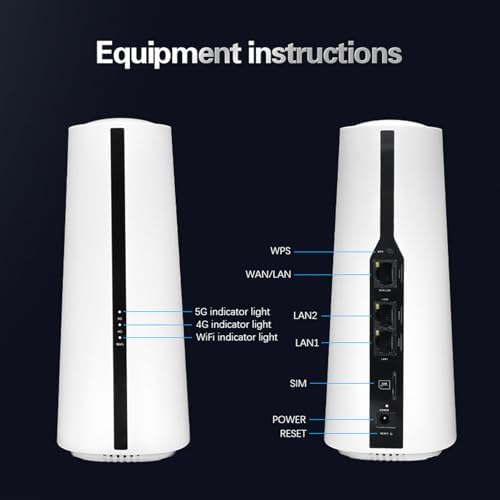
Imatge: Davant i darrere view of the Dpofirs 5G Router. The front shows indicator lights for 5G, 4G, and WiFi. The back panel includes ports for WPS, WAN/LAN, LAN2, LAN1, SIM card slot, Power input, and a Reset button.
- 5G Indicator Light: Indica l'estat de la xarxa 5G.
- 4G Indicator Light: Indica l'estat de la xarxa 4G.
- WiFi Indicator Light: Indica activitat Wi-Fi.
- Botó WPS: Per a la configuració protegida de Wi-Fi.
- Port WAN/LAN: Connects to an external modem or acts as a LAN port.
- Ports LAN1/LAN2: Connects to wired devices.
- Ranura per a targeta SIM: Insert your 5G/4G SIM card here.
- Entrada d'alimentació: Connecteu l'adaptador de corrent.
- Botó de restabliment: Press and hold to restore factory settings.
2.3 Dimensions i pes del producte
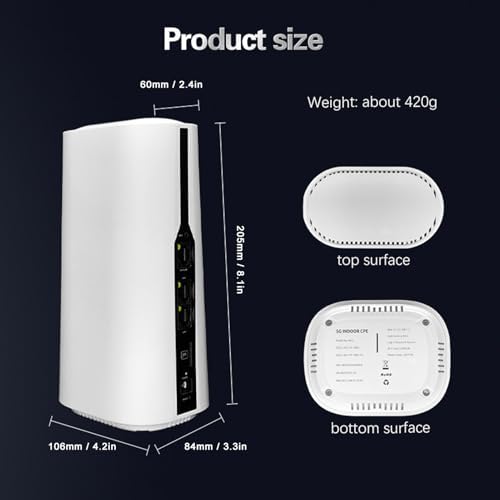
Imatge: Diagram showing the physical dimensions of the Dpofirs 5G Router. The router measures approximately 60mm (2.4in) at the top, 108mm (4.2in) at the base, 205mm (8.1in) in height, and 84mm (3.3in) in depth. Its weight is approximately 420g.
3. Instruccions de configuració
Follow these steps to set up your 5G router.
3.1 Inserció de la targeta SIM
- Assegureu-vos que l'encaminador estigui apagat.
- Locate the SIM card slot on the back of the router.
- Insert your activated 5G/4G SIM card into the slot until it clicks into place. Ensure the correct orientation as indicated on the device.
- Do not force the SIM card. If it does not fit, check the orientation or SIM card size.
3.2 Connexió de potència
- Connect the provided power adapter to the Power Input port on the router.
- Plug the other end of the power adapter into a standard electrical outlet (100-240V).
- The router will power on automatically. Wait for the indicator lights to stabilize.
3.3 Initial Network Configuration (Optional)
For advanced settings or initial setup, you can access the router's web interfície.
- Connect a computer to one of the LAN ports using the provided network cable, or connect wirelessly to the default Wi-Fi network (SSID and password usually found on a sticker on the router's bottom).
- Obre a web navegador i introduïu l'adreça IP predeterminada (p. ex., 192.168.1.1) a la barra d'adreces.
- Log in using the default username and password (refer to the sticker on the router or the quick start guide).
- Follow the on-screen prompts for initial setup, such as changing the default Wi-Fi name and password.
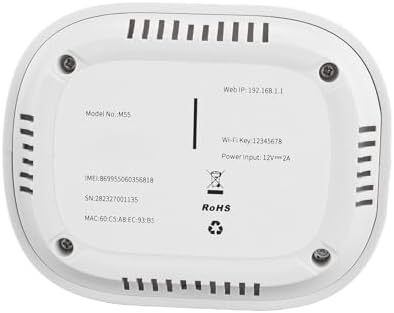
Imatge: The bottom surface of the Dpofirs 5G Router, displaying important information such as Model No.: M55, Web IP: 192.168.1.1, Wi-Fi Key: 12345678, and Power Input: 12V=2A. This information is crucial for initial setup and access.
4. Instruccions de funcionament
Once set up, your router provides internet access to multiple devices.
4.1 Connexió de dispositius
- Connexió sense fil: On your Wi-Fi enabled device (smartphone, laptop, tablet), search for available Wi-Fi networks. Select your router's SSID (network name) and enter the Wi-Fi password.
- Connexió per cable: Connect devices like desktop computers, gaming consoles, or smart TVs to the LAN1 or LAN2 ports using an Ethernet cable.
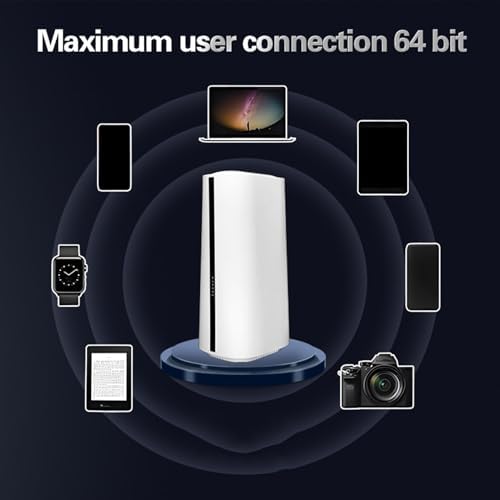
Imatge: Illustration demonstrating the Dpofirs 5G Router's capability to connect to multiple devices simultaneously. Devices shown include a laptop, smartphones, tablets, a smartwatch, and a camera, indicating support for up to 32 users.
4.2 Comprensió dels llums indicadors
- Solid Green (5G/4G): Connected to the respective cellular network.
- Blinking Green (5G/4G): Data activity on the respective cellular network.
- Solid Blue (WiFi): La Wi-Fi està activa.
- Blinking Blue (WiFi): Wi-Fi data activity.
- Sense llum: Network not connected or feature is off.
5. Manteniment
Un manteniment adequat garanteix un rendiment òptim i una llarga vida útil del vostre router.
5.1 Atenció general
- Keep the router in a cool, dry place, away from direct sunlight and heat sources.
- Assegureu-vos una ventilació adequada al voltant del dispositiu.
- Netegeu l'exterior amb un drap suau i sec. No utilitzeu netejadors líquids.
- Eviteu col·locar objectes pesats sobre el router.
5.2 actualitzacions de microprogramari
Reviseu periòdicament el router web interface for available firmware updates. Firmware updates can improve performance, add new features, and enhance security. Follow the instructions provided within the web interface for safe updating.
5.3 Restabliment de l'encaminador
If you encounter persistent issues or forget your login credentials, you may need to reset the router to factory default settings. To do this, with the router powered on, use a paperclip or similar pointed object to press and hold the Reset button for approximately 10 seconds until the indicator lights flash. The router will then restart with default settings.
6. Solució De Problemes
Consulteu aquesta secció per obtenir solucions a problemes comuns.
6.1 Sense connexió a Internet
- Comproveu la targeta SIM: Assegureu-vos que la targeta SIM estigui correctament inserida i activada amb un pla de dades.
- Intensitat del senyal: Verify the 5G/4G indicator light. If it's off or blinking slowly, the signal might be weak. Try repositioning the router.
- Estat del router: Check if the router is powered on and all necessary indicator lights are active.
- Reinicia: Power cycle the router by unplugging it for 30 seconds and then plugging it back in.
- Configuració de l'APN: Accedir al router web interface and verify that the Access Point Name (APN) settings are correct for your mobile carrier.
6.2 Problemes de connexió Wi-Fi
- Contrasenya incorrecta: Comproveu dues vegades la contrasenya del Wi-Fi.
- Rang de senyal: Assegureu-vos que el dispositiu estigui dins de l'abast Wi-Fi del router.
- Interferència: Other electronic devices can cause interference. Try changing the Wi-Fi channel in the router's settings.
- Límit de dispositius: The router supports up to 32 users. If too many devices are connected, performance may degrade.
6.3 Velocitat d'Internet lenta
- Intensitat del senyal: A weak 5G/4G signal will result in slower speeds.
- Congestió de la xarxa: During peak hours, cellular network speeds may decrease.
- Nombre d'usuaris: More connected devices sharing bandwidth can reduce individual speeds.
- Col·locació del router: Place the router in a central location, away from obstructions.
7. Especificacions
Detailed technical specifications for the Dpofirs 5G Router.
| Característica | Detall |
|---|---|
| Nom del model | Dpofirsei2sngv1m5-12 |
| Marca | Dpofirs |
| Tecnologia de connectivitat | Ethernet, 5G Cellular |
| Comunicació sense fils estàndard | 802.11ac, 802.11n |
| Classe de banda de freqüència | Doble banda (2.4 GHz, 5.8 GHz) |
| Velocitat de transferència de dades | Fins a 1800 Mbps |
| Nombre de Ports | 1 WAN/LAN, 2 LAN |
| Dispositius compatibles | Personal Computer, Laptop, Smartphone, Tablet, Gaming Console |
| Protocol de seguretat | WPA2-PSK, WPA3 |
| Color | Blanc |
| Entrada de potència | 100-240 V (endoll dels EUA) |
| Max Users Supported | 32 |
8. Garantia i Suport
This product comes with a manufacturer's warranty and support resources.
8.1 Garantia del fabricant
The Dpofirs 5G Router is covered by a Garantia del fabricant de 90 dies from the date of purchase. This warranty covers defects in materials and workmanship under normal use. It does not cover damage caused by misuse, accidents, unauthorized modifications, or external factors.
8.2 Atenció al client
For technical assistance, troubleshooting beyond this manual, or warranty claims, please contact Dpofirs customer support. Refer to the contact information provided with your purchase or visit the official Dpofirs weblloc per obtenir detalls de suport.
Nota: Conserveu el tiquet de compra com a comprovant de compra a efectes de garantia.