
1. Producte acabatview
This manual provides instructions for the Podofo Android 13 Car Stereo, designed specifically for FIAT TIPO EGEA models manufactured between 2015 and 2017. This unit features a 7-inch touchscreen, Android 13 operating system, wireless Carplay and Android Auto, GPS navigation, Bluetooth connectivity, FM/RDS radio, and support for an AHD rear camera and steering wheel controls via CANBUS.
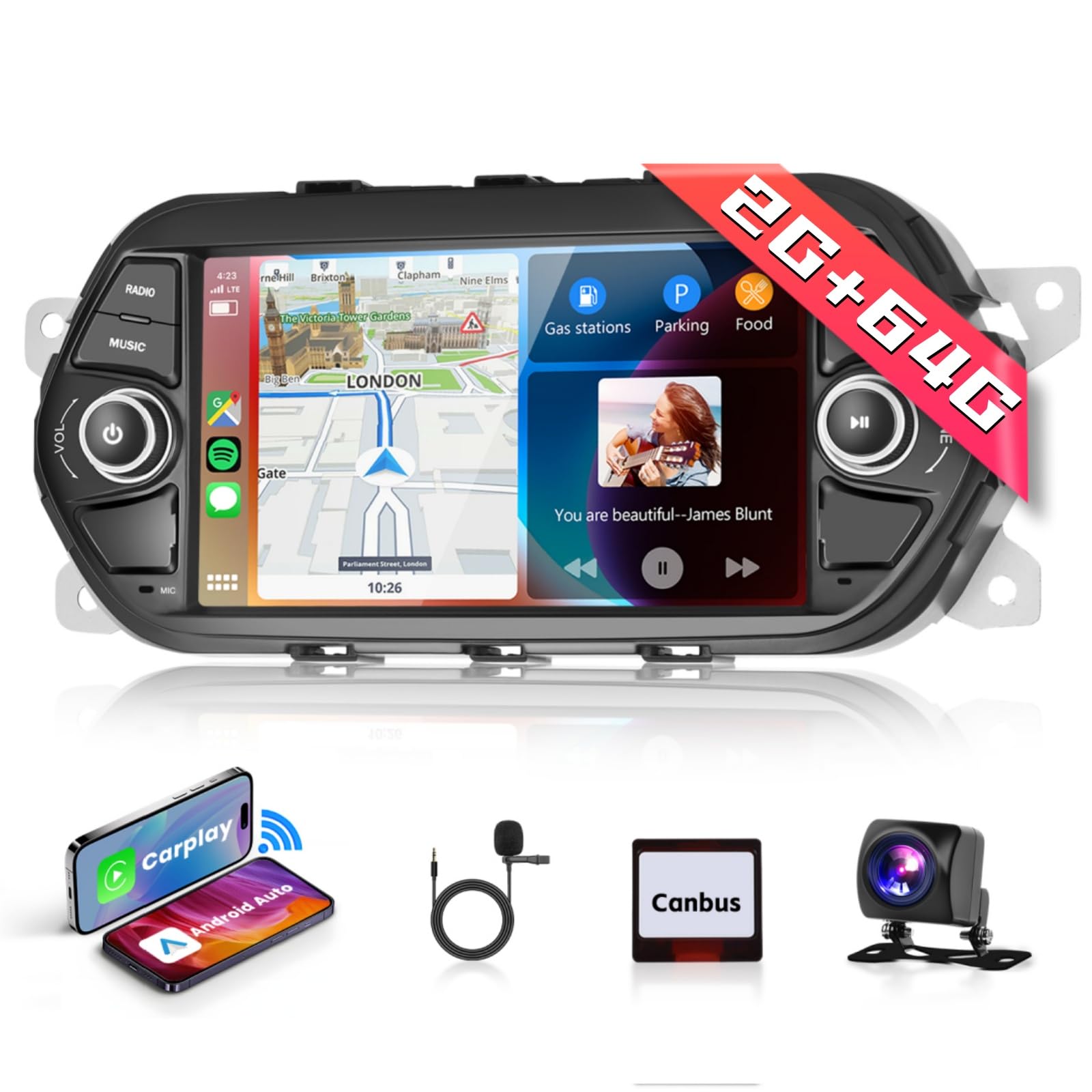
Image: Main unit of the Podofo Android 13 Car Stereo.
2. Contingut del paquet
Si us plau, verifiqueu que tots els components que s'enumeren a continuació estiguin inclosos al vostre paquet:
- 1 unitat d'estèreo per a cotxe
- 1 x cable d'alimentació
- 1 adaptador d'antena
- 1 x Installation Tool Set
- 1 x Antena GPS
- 1 x Cable d'entrada de la càmera posterior
- 1 x cable RCA
- 2 x cables USB
- 2 x Brackets de muntatge
- 4 x cargols
- 1 x Manual d'usuari
- 1 x AHD Rear Camera
- 1 descodificador CANBUS
- 1 x Microphone (MIC)

Image: Visual representation of the car stereo unit and all included accessories.
3. Configuració i instal·lació
3.1 Comprovació de compatibilitat
This car stereo is designed for FIAT TIPO EGEA models from 2015 to 2017. Ensure your vehicle's dashboard matches the compatible configuration before proceeding with installation.

Image: Illustration showing compatible and incompatible dashboard types for installation.
3.2 Passos d'instal·lació
- Desconnecta la bateria: Abans d'arrencar, desconnecteu el terminal negatiu de la bateria del vehicle per evitar curtcircuits.
- Eliminar la unitat antiga: Carefully remove the existing car stereo and dashboard trim.
- Connecteu el cablejat: Connect the provided power cable, CANBUS decoder, GPS antenna, radio antenna, USB cables, RCA cables, and rear camera input cable to the corresponding ports on the new stereo and vehicle harness.
- Muntatge: Secure the new car stereo using the provided mounting brackets and screws.
- Funcionalitat de prova: Before fully reassembling the dashboard, reconnect the battery and test all functions of the new stereo.
- Torneu a muntar: Once all functions are verified, reassemble the dashboard trim.

Image: Visual comparison of the dashboard before and after the Podofo car stereo installation.
4. Instruccions de funcionament
4.1 Funcionament bàsic
- Encès/apagat: Premeu i manteniu premut el botó d'engegada de la unitat o feu servir el contacte del vehicle.
- Control de volum: Adjust volume using the physical knobs or touchscreen controls.
- Interfície de pantalla tàctil: Navigate through menus and applications by tapping and swiping on the 7-inch HD touchscreen.

Imatge: Examples of the user interface display, showing different application screens and settings.
4.2 Wireless Carplay / Android Auto / Mirrorlink
Connect your smartphone wirelessly or via USB to access Carplay or Android Auto features, including navigation, music, and calls. Mirrorlink allows screen mirroring for compatible devices.
- Activa el Bluetooth/Wi-Fi: Assegureu-vos que el Bluetooth i la Wi-Fi estiguin activats al vostre telèfon intel·ligent.
- Parella el dispositiu: On the car stereo, go to the Carplay/Android Auto/Mirrorlink section and follow the on-screen instructions to pair your device.
- Connexió USB: For wired connection, connect your phone to one of the USB ports.

Image: Display of Carplay, Android Auto, and Mirrorlink interfaces on the car stereo screen.
4.3 Navegació WiFi i GPS
Connect the stereo to a Wi-Fi network or mobile hotspot to access online services and download apps. The integrated GPS allows for both online and offline navigation.
- Connexió Wi-Fi: Go to Settings > Network > Wi-Fi to connect to an available network.
- Navegació en línia: Use pre-installed navigation apps like Google Maps when connected to Wi-Fi.
- Navegació fora de línia: Download offline maps from the Play Store for navigation without an internet connection.
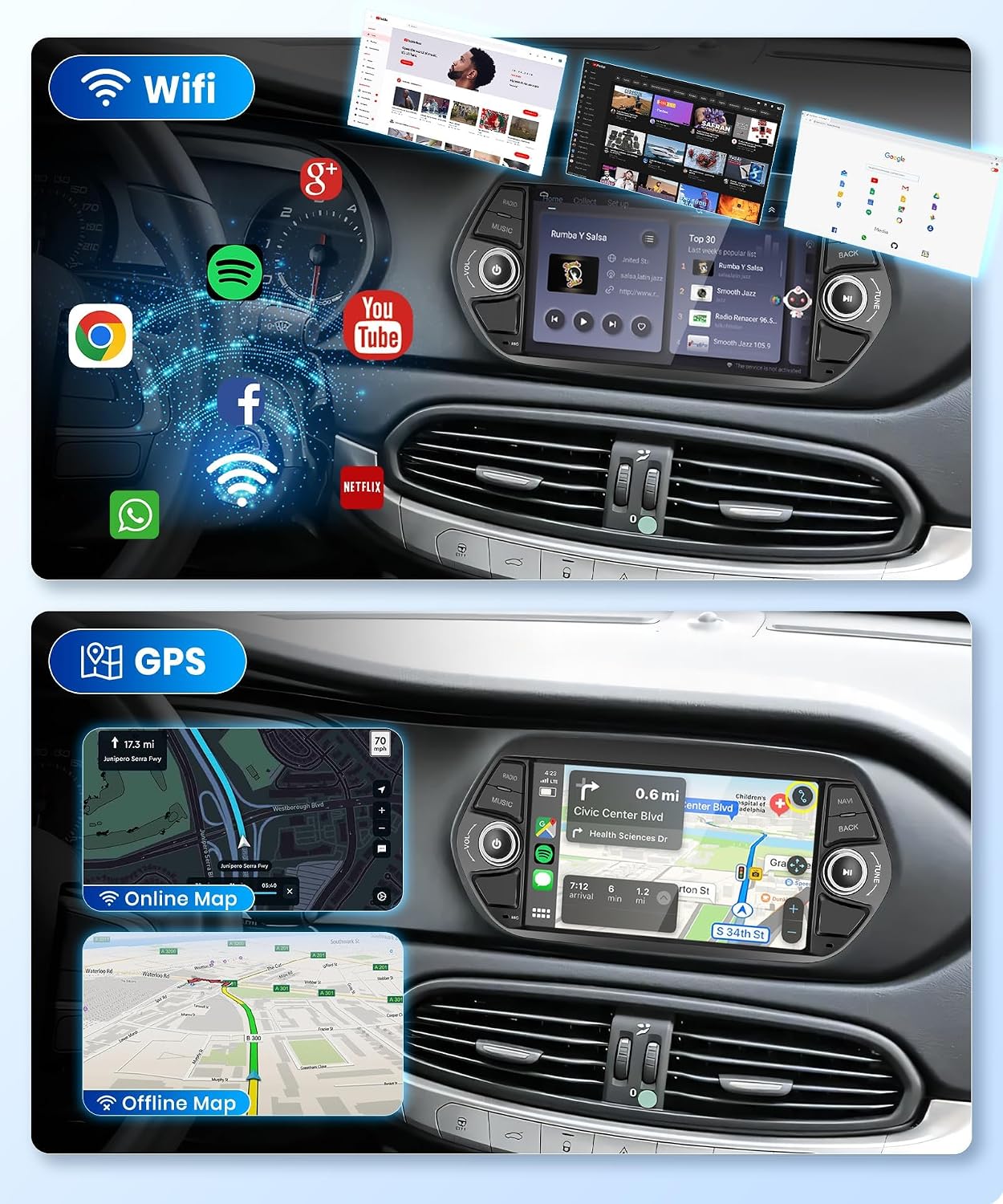
Image: Demonstrates Wi-Fi connectivity for app usage and GPS navigation with both online and offline map views.
4.4 Bluetooth, HIFI, RDS, and FM Radio
The unit supports Bluetooth for hands-free calling and music streaming. The FM/RDS radio provides clear reception and station information.
- Emparellament Bluetooth: Enable Bluetooth on your phone and search for the car stereo. Pair the devices.
- Trucades mans lliures: Make and receive calls directly from the stereo screen.
- Transmissió de música: Play audio from your phone via Bluetooth.
- Ràdio FM/RDS: Access the radio application to scan for stations. RDS displays station names and program information.

Image: Illustrates Bluetooth phone connectivity and the FM radio interface with RDS features.
4.5 AHD Rear Camera and Steering Wheel Control (SWC)
La càmera posterior AHD inclosa proporciona una visió clara view when reversing. The CANBUS integration allows you to use your vehicle's original steering wheel controls.
- Càmera posterior: The screen automatically switches to the rear camera view quan el vehicle està en marxa enrere.
- Configuració del control del volant: Access the SWC settings in the stereo menu to program the buttons on your steering wheel for functions like volume, track change, and mode selection.

Image: Displays the rear camera view and the interface for programming steering wheel controls.
Equalitzador d'àudio 4.6 (EQ)
Customize your audio experience using the built-in equalizer. Select from various presets or adjust individual frequency bands to suit your preferences.

Image: The audio equalizer interface, showing various sound presets and adjustable frequency bands.
5. Manteniment
To ensure the longevity and optimal performance of your Podofo car stereo, follow these maintenance guidelines:
- Neteja de pantalla: Use a soft, lint-free cloth to gently wipe the touchscreen. Avoid abrasive cleaners or harsh chemicals.
- Actualitzacions de programari: Periodically check for and install software updates to ensure the system runs efficiently and has the latest features.
- Condicions ambientals: Eviteu exposar la unitat a temperatures extremes, a la llum solar directa durant períodes prolongats o a una humitat excessiva.
- Connexions de cable: Assegureu-vos que tots els cables estiguin connectats correctament. Les connexions soltes poden provocar problemes intermitents.
6. Solució De Problemes
Si teniu problemes amb l'estèreo del vostre cotxe, consulteu els següents problemes i solucions habituals:
- Sense energia:
- Comproveu totes les connexions del cable d'alimentació.
- Verifiqueu que el fusible de l'estèreo del vehicle estigui intacte.
- Assegureu-vos que la bateria del vehicle estigui connectada i carregada correctament.
- Sense so:
- Comproveu les connexions dels cables de l'altaveu.
- Assegureu-vos que el volum no estigui silenciat ni massa baix.
- Verifiqueu la configuració de la sortida d'àudio al menú estèreo.
- El GPS no funciona:
- Assegureu-vos que l'antena GPS estigui instal·lada correctament i que tingui una vista clara view del cel.
- Reviseu la configuració del GPS al menú del sistema.
- Verify that location services are enabled for navigation apps.
- Problemes de connexió Bluetooth:
- Assegureu-vos que el Bluetooth estigui activat tant a l'estèreo com al telèfon.
- Suprimeix els emparellaments anteriors i intenta emparellar-los de nou.
- Reinicieu tant l'estèreo com el telèfon.
- La càmera posterior no mostra:
- Comproveu la connexió del cable d'entrada de la càmera posterior.
- Assegureu-vos que la càmera està rebent energia.
- Verify the vehicle is in reverse gear.
For persistent issues, please contact Podofo customer support.
7. Especificacions
| Marca | podofo |
| Número de model | 2+64G |
| Sistema operatiu | Android |
| Mida de la pantalla | 7 polzades |
| Resolució | 1024 x 600 |
| Capacitat d'emmagatzematge | 64 GB |
| Tecnologia de connectivitat | Bluetooth, WiFi |
| Característiques especials | Bluetooth, GPS, Touchscreen, Carplay, Android Auto, RDS, AHD Camera Support, CANBUS |
| Mode de sortida d'àudio | estèreo |
| Tipus de muntatge | On-dash |
| Tipus de vehicle compatible | Automobile (FIAT TIPO EGEA 2015-2017) |
| Dimensions de l'article (LxWxH) | 17L x 21W x 15H cm |
8. Garantia i Suport
8.1 Informació de la garantia
The Podofo Android 13 Car Stereo comes with a 2 any de garantia des de la data de compra. Aquesta garantia cobreix defectes de fabricació i avaries en condicions d'ús normal. Conserveu el comprovant de compra per a reclamacions de garantia.
8.2 Atenció al client
For any questions, technical assistance, or warranty claims, please contact Podofo customer support. Podofo has over ten years of experience in car electronics and provides lifetime support for its products.
Contact information can typically be found on the official Podofo weblloc web o a través del vostre distribuïdor.


