
1. Introducció
The KCEVE HDMI KVM Switch (Model KVM201A) allows you to control two computers using a single set of keyboard, mouse, and monitor. This device is designed to streamline your workspace by reducing cable clutter and the need for multiple peripheral sets. It supports 4K@60Hz resolution and features EDID emulation for stable display layouts, along with a 4-port USB 3.0 hub for connecting various peripherals.
2. Característiques del producte
- 2-Input 1-Output KVM Functionality: Seamlessly switch between two PCs using one keyboard, mouse, and monitor.
- 4K@60Hz High Resolution: Supports high-definition video output up to 4K@60Hz (3840x2160), ensuring clear and vibrant visuals. Also compatible with 3D content and resolutions below 1080p. For stable 4K output, use high-quality HDMI 2.0 cables (18Gbps or higher).
- Emulació EDID: Equipped with EDID emulation to maintain optimal display resolution and refresh rate when switching between PC1 and PC2, preventing screen flickering or re-recognition issues.
- 4-Port USB 3.0 Hub: Features four USB 3.0 ports with a theoretical transfer speed of up to 5Gbps, approximately 10 times faster than USB 2.0 (480Mbps). Connect various peripherals such as printers, USB memory sticks, scanners, keyboards, and mice.
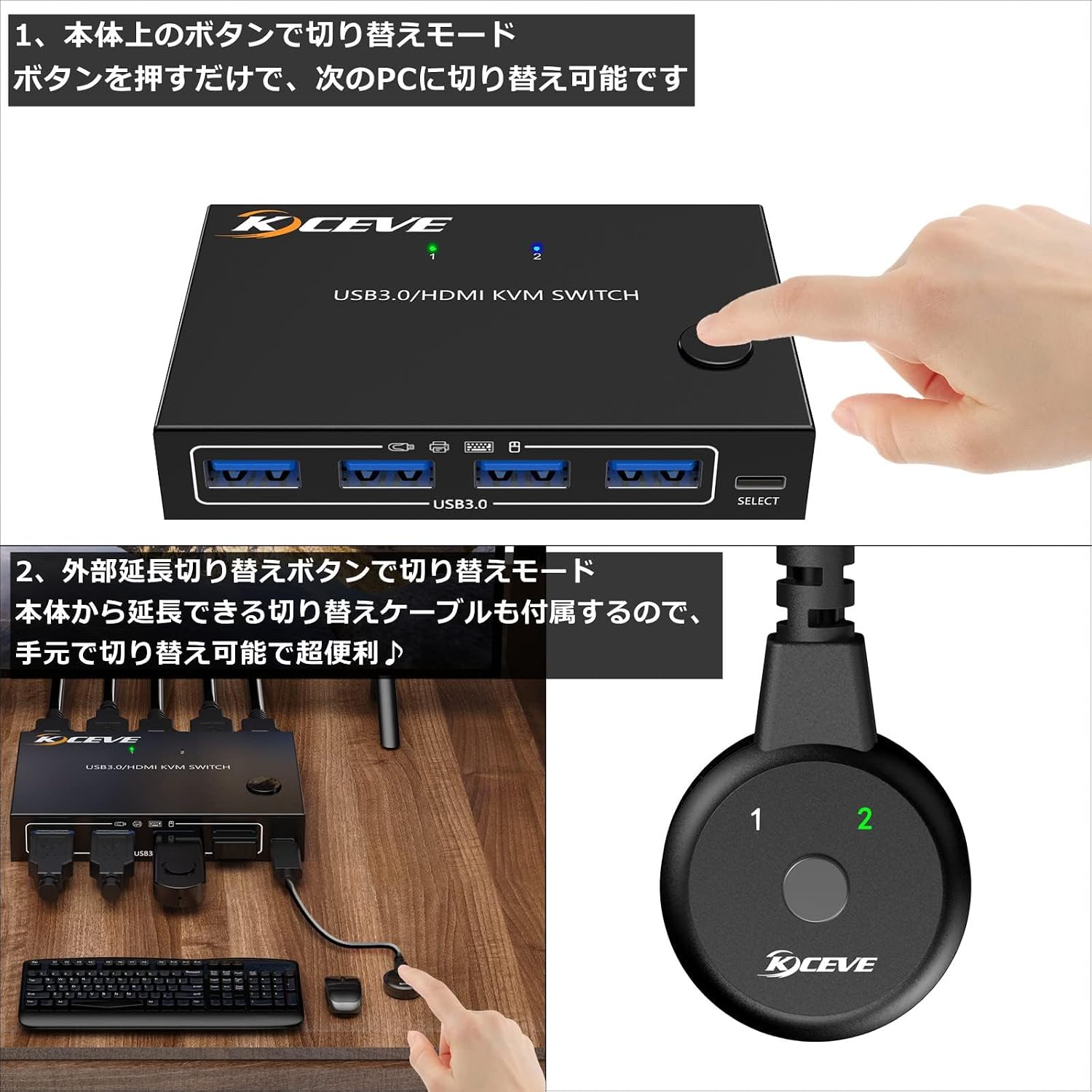
- Easy Switching Methods: Switch between connected computers using either the button on the main unit or the included wired remote switch (1.5m cable).
- Àmplia compatibilitat: Compatible with devices featuring HDMI ports, including laptops, PS4/5, Xbox One, and supports multi-OS environments like Windows, macOS, Linux, and Unix. Ideal for education, conferences, training, video surveillance, and security applications.
3. Contingut del paquet
Si us plau, verifiqueu que tots els elements siguin presents al vostre paquet:
- 1 x KVM Switch Unit
- 1 x HDMI Cable (approx. 1.5m)
- 2 x USB 3.0 Cables (approx. 1.5m)
- 1 x External Switching Button (approx. 1.5m)
- 1 x Manual d'usuari

4. Diagrama del producte
Familiarize yourself with the ports and controls of your KCEVE HDMI KVM Switch:
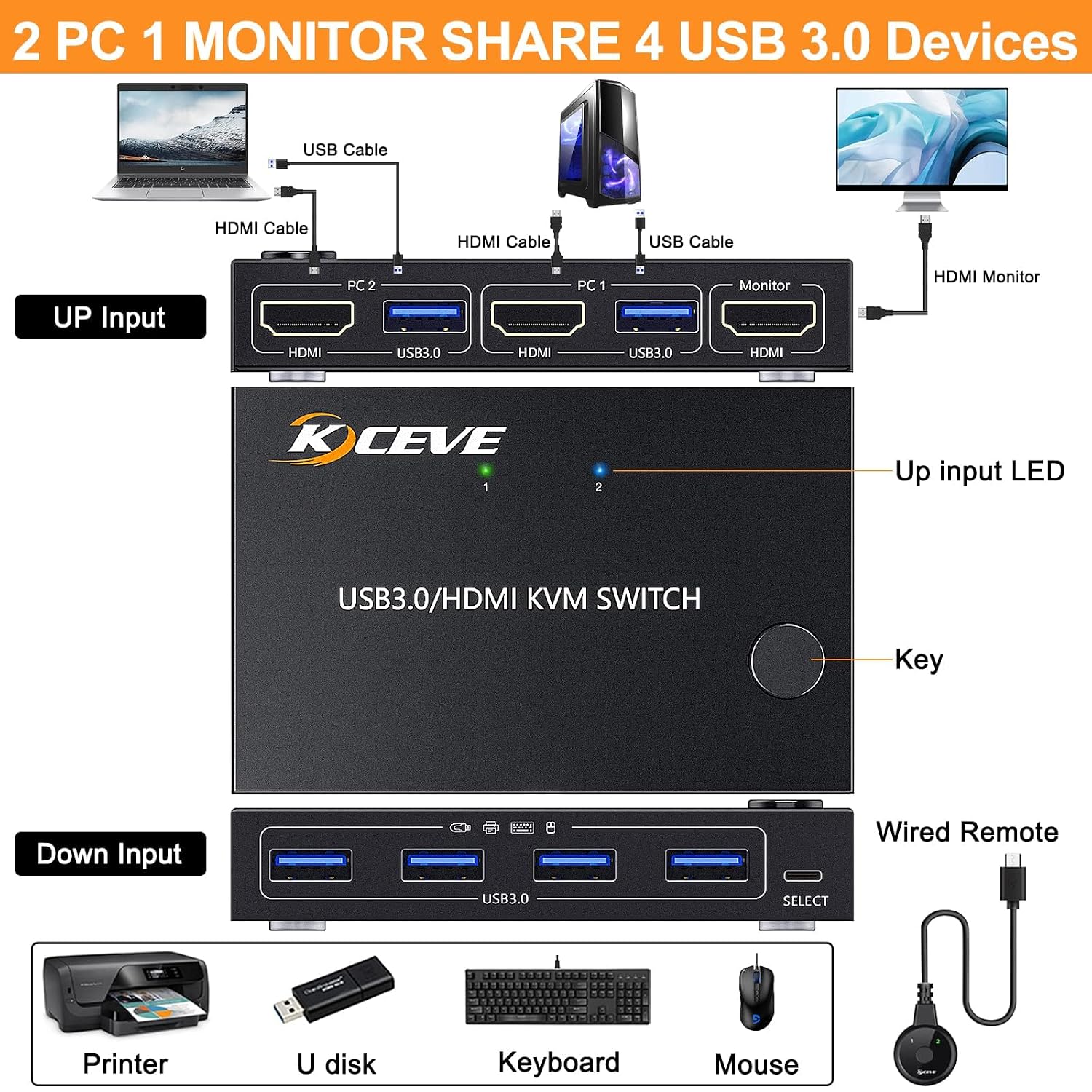
- PC Input Ports (PC1, PC2): Connect HDMI and USB 3.0 cables from your computers.
- Monitor Output Port: Connect your display monitor via HDMI.
- USB 3.0 Peripheral Ports: Connect your keyboard, mouse, printer, USB drives, and other USB devices.
- Botó de canvi: Press to switch between connected PCs.
- Wired Remote Port: Connect the external switching button for convenient switching.
- Entrada d'alimentació (5 V CC): Connect the power adapter (not explicitly listed in package contents, but implied by power rating).
5. Instruccions de configuració
Follow these steps to set up your KCEVE HDMI KVM Switch:
- Connexió d'alimentació: Connect the DC 5V power adapter (if included or required) to the KVM switch.
- Connect PCs to KVM:
- For PC1: Connect one end of an HDMI cable to PC1's HDMI output and the other end to the KVM's PC1 HDMI input. Connect one end of a USB 3.0 cable to PC1's USB port and the other end to the KVM's PC1 USB 3.0 input.
- For PC2: Repeat the above step, connecting PC2's HDMI and USB 3.0 outputs to the KVM's PC2 HDMI and USB 3.0 inputs, respectively.

Image: The KVM switch with HDMI and USB cables connected, illustrating the PC input connections. - Connect Monitor to KVM: Connect one end of an HDMI cable to your monitor's HDMI input and the other end to the KVM's Monitor HDMI output.
- Connect Peripherals to KVM: Connect your keyboard, mouse, and any other USB devices (e.g., printer, USB drive) to the USB 3.0 peripheral ports on the KVM switch.
- Connexió de commutador extern (opcional): If desired, connect the wired remote switch to the designated port on the KVM for convenient desktop switching.
Once all connections are made, power on your computers and monitor. The KVM switch should automatically detect the active PC.
6. Instruccions de funcionament
Operating the KCEVE HDMI KVM Switch is straightforward:
Canvi entre ordinadors:
- Using the Main Unit Button: Press the 'SELECT' button on the front panel of the KVM switch to cycle between PC1 and PC2. The LED indicator will show which PC is currently active.
- Using the Wired Remote Switch: Press the button on the external wired remote switch to cycle between PC1 and PC2. This provides a convenient way to switch without reaching for the main unit.
Display Modes (Windows):
After connecting, you may need to configure your display settings on your PC. Press the 'Windows' key + 'P' to open the Project menu and select your desired display mode:
- Duplicat: Shows the same content on all connected displays.
- Ampliar: Extends your desktop across multiple displays, allowing for more workspace.

7. Manteniment
To ensure the longevity and optimal performance of your KCEVE HDMI KVM Switch, follow these maintenance guidelines:
- Neteja: Feu servir un drap suau i sec per netejar l'exterior del dispositiu. Eviteu utilitzar netejadors líquids o materials abrasius.
- Ventilació: Ensure the KVM switch is placed in a well-ventilated area to prevent overheating. Do not block ventilation openings.
- Gestió de cables: Keep cables organized and avoid excessive bending or tension, which can damage connectors or cables.
- Emmagatzematge: Quan no l'utilitzeu durant períodes prolongats, guardeu el dispositiu en un lloc fresc i sec, allunyat de la llum solar directa i de temperatures extremes.
8. Solució De Problemes
If you encounter issues with your KCEVE HDMI KVM Switch, refer to the following troubleshooting tips:
- Sense pantalla/pantalla parpellejant:
- Ensure all HDMI cables are securely connected to both the KVM switch, PCs, and monitor.
- Verifiqueu que el commutador KVM estigui encès.
- Try using different HDMI cables, especially high-quality HDMI 2.0 cables for 4K resolution.
- Restart the KVM switch and connected PCs.
- Check your PC's display settings (Windows Key + P) to ensure the correct display mode (Duplicate or Extend) is selected.
- El teclat/ratolí no respon:
- Ensure USB cables from PCs to the KVM are securely connected.
- Ensure keyboard and mouse are connected to the correct USB peripheral ports on the KVM.
- Try connecting the keyboard and mouse directly to the PC to confirm they are functional.
- Some specialized gaming keyboards/mice or those requiring specific drivers may have compatibility issues when connected via KVM. Try a standard keyboard/mouse first.
- Dispositius USB no detectats:
- Confirm the USB device is properly plugged into a USB 3.0 port on the KVM.
- Ensure the USB cables connecting the KVM to the PCs are functional.
- Alguns dispositius USB d'alta potència poden requerir una font d'alimentació externa o una connexió directa a l'ordinador.
- Retard de canvi: A brief delay (2-5 seconds for USB, 5 seconds for video) during switching is normal as the system re-establishes connections.
- Compatibilitat amb MacBook: Some users have reported specific compatibility challenges with MacBooks, where manual re-plugging of HDMI cables might be needed after switching. Ensure your MacBook's display settings are configured correctly.
9. Especificacions
| Número de model | KVM201A |
| Pes del producte | 480 g |
| Dimensions del paquet | 15.4 x 15.2 x 5.2 cm |
| Estil | 2-Input 1-Output KVM Switch |
| Ús de la bateria | No |
| Mode de funcionament | ON-OFF |
| Valoració actual | 1 Ampere |
| Vol. Operatiutage | 12 volts (CC) |
| Tipus de connector | Endoll |
| Material de contacte | Metall |
| Recompte d'unitats | 1.00 recompte |
10. Garantia i Suport
Aquest producte ve amb un Servei de garantia d'1 any. If you have any questions or require assistance, please feel free to contact the seller directly. We are committed to providing support for our products.