
1. Introducció
This manual provides detailed instructions for the installation, operation, and maintenance of your MekedeTech Android Car Radio Stereo. Please read this manual thoroughly before installation and use to ensure proper function and to prevent damage.
2. Informació de seguretat
- Assegureu-vos que el vehicle estigui apagat i que la bateria estigui desconnectada abans de començar la instal·lació.
- Si no esteu segurs de cap pas a seguir, consulteu un professional per a la instal·lació.
- No feu servir el dispositiu de manera que us distregui de la conducció.
- Avoid exposing the unit to extreme temperatures, direct sunlight for prolonged periods, or moisture.
- Feu servir només els cables d'alimentació i els accessoris especificats.
3. Contingut del paquet
Verifiqueu que tots els elements siguin presents al paquet:
- MekedeTech Android Car Radio Stereo Head Unit
- Dash Kit (vehicle-specific)
- Arnès de cables d'alimentació
- Cable RCA
- Cable de càmera de marxa enrere
- Cables USB
- Antena GPS
- 4G LTE Antenna (if applicable)
- Manual d'usuari (aquest document)
4. Configuració i instal·lació
This unit is designed for a plug-and-play installation for compatible Chevrolet Colorado, Silverado, and GMC Sierra models from 2014-2018. Ensure all vehicle-specific accessories are used.
4.1 Passos previs a la instal·lació
- Desconnecteu la bateria del vehicle per evitar curtcircuits.
- Carefully remove the factory radio and trim panels. Refer to your vehicle's service manual for specific instructions.
4.2 Connexions de cablejat
- Connect the provided power cable harness to the vehicle's wiring harness.
- Connect the RCA cables for external ampamplificadors o subwoofers si escau.
- Connect the reversing camera cable to the designated input.
- Connecteu l'antena GPS i col·loqueu-la en un lloc amb visibilitat clara view del cel (per exemple, el quadre de comandament).
- Insert a 4G SIM card into the designated slot if you intend to use 4G LTE connectivity.
- Connect any USB devices to the provided USB cables.
4.3 Head Unit Installation
- Mount the MekedeTech head unit into the dash opening using the provided dash kit.
- Secure the unit firmly.
- Torneu a instal·lar tots els panells de guarnició.
- Torneu a connectar la bateria del vehicle.
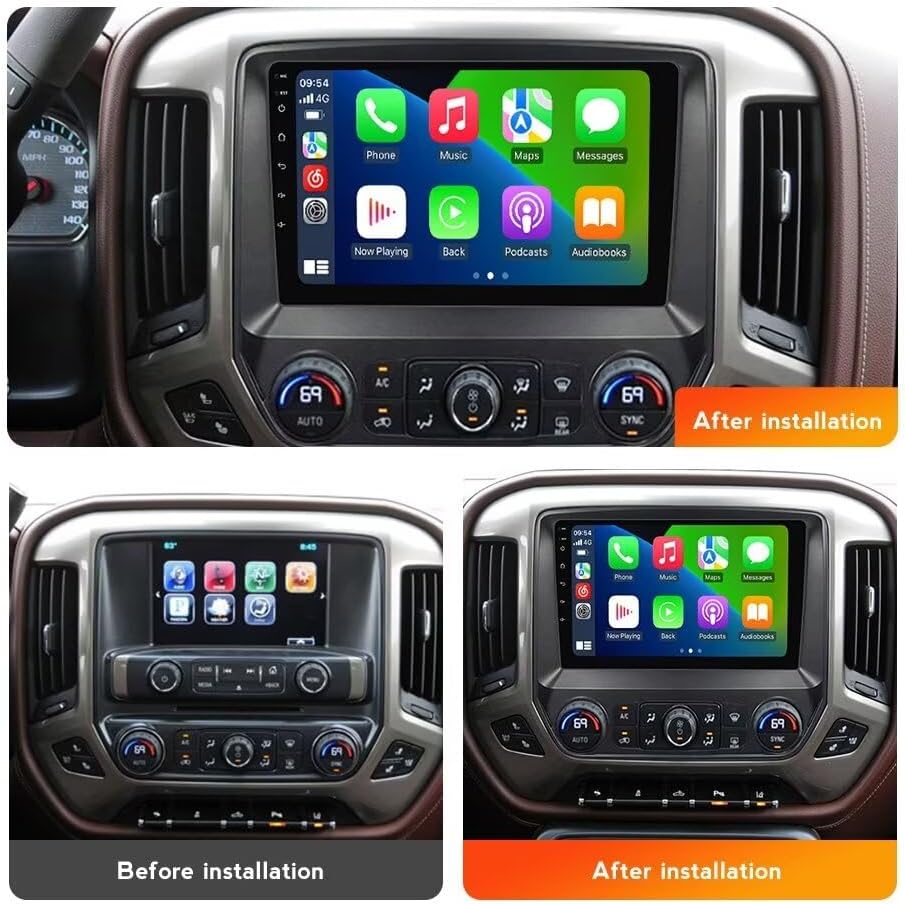
Figura 4.3.1: Comparison of the vehicle dashboard before and after the installation of the MekedeTech Android Car Radio Stereo.

Figura 4.3.2: Illustration of the cooling fan system and initial setup steps for device configuration.
4.4 Engegada i configuració inicials
- Engegueu el contacte del vehicle. La unitat s'hauria d'encendre automàticament.
- Seguiu les instruccions que apareixen a la pantalla per a la configuració inicial, inclosa la selecció d'idioma i la zona horària.
- Connect to a Wi-Fi network or ensure your 4G SIM card is active for internet access.
- Navigate to the device settings to verify all components are recognized and functioning correctly.
5. Instruccions de funcionament
5.1 Navegació bàsica
The unit operates on Android 12 OS. Navigate through applications and settings using the 9-inch IPS touchscreen. Swipe, tap, and pinch gestures are supported.
5.2 CarPlay sense fil i Android Auto amb cable
The unit supports both wireless Apple CarPlay and wired Android Auto for seamless smartphone integration.
For Wireless CarPlay (iOS devices):
- Assegureu-vos que el Bluetooth estigui habilitat al vostre iPhone.
- On the head unit, open the 'Car Link' application or similar.
- Pair your iPhone via Bluetooth with the head unit.
- Confirm the CarPlay prompt on your iPhone.
For Wired Android Auto (Android devices):
- Ensure Android Auto is installed on your Android phone.
- Connect your Android phone to the head unit using a USB cable.
- Follow any on-screen prompts on both the head unit and your phone.

Figura 5.2.1: Visual guide for connecting iOS devices via Wireless CarPlay and Android devices via Wired Android Auto.
5.3 Navegació GPS
The unit includes built-in GPS navigation. Access the pre-installed navigation application or download your preferred navigation app from the Google Play Store (requires internet connection).
5.4 Connectivitat Bluetooth
Bluetooth 5.0 allows for hands-free calling and audio streaming.
- Go to the Bluetooth settings on the head unit.
- Activeu el Bluetooth al vostre dispositiu mòbil i cerqueu els dispositius disponibles.
- Select the head unit from the list and pair.
5.5 4G LTE and Wi-Fi Functionality
The unit supports 4G LTE connectivity via a SIM card and Wi-Fi for internet access.
- 4G LTE: Insert a compatible 4G SIM card into the designated slot. The unit will automatically connect to the cellular network.
- Wi-Fi: Go to Wi-Fi settings, scan for networks, and connect to your desired Wi-Fi hotspot.

Figura 5.5.1: Illustration of the 4G LTE SIM card slot and the integrated DSP processor.
5.6 Comandaments al volant
The unit retains original steering wheel control functionality, allowing you to manage audio and calls without removing your hands from the steering wheel. Configuration may be required in the system settings.
5.7 Configuració d'àudio DSP
The built-in Digital Sound Processor (DSP) allows for advanced audio customization. Access the DSP settings in the audio menu to adjust equalization, balance, fader, and other sound parameters for optimal audio quality.
6. Manteniment
- Neteja: Feu servir un drap suau i sec per netejar la pantalla i la unitat. Eviteu productes de neteja o dissolvents abrasius.
- Actualitzacions de programari: Periodically check for system software updates via the settings menu to ensure optimal performance and access to new features. An internet connection is required for updates.
- Ventilador de refrigeració: Ensure the cooling fan area is free from obstructions to maintain proper ventilation and prevent overheating.
7. Solució De Problemes
Si teniu problemes, consulteu els següents problemes i solucions habituals:
- Sense energia: Check all power connections and the vehicle's fuse box. Ensure the battery is properly reconnected.
- Sense so: Verifiqueu les connexions dels altaveus, els nivells de volum i la selecció de la font d'àudio. Comproveu la configuració del DSP.
- Pèrdua de senyal GPS: Assegureu-vos que l'antena GPS estigui connectada correctament i que tingui una visió clara view del cel.
- CarPlay/Android Auto no es connecta: For wireless CarPlay, ensure Bluetooth is on and paired. For wired Android Auto, try a different USB cable and ensure the Android Auto app is updated on your phone.
- Pantalla tàctil que no respon: Try restarting the unit. If the issue persists, a factory reset may be necessary (note: this will erase all user data).
- Sobreescalfament de la unitat: Ensure the cooling fan is functioning and not obstructed. Reduce prolonged heavy usage in extreme temperatures.
Si els problemes persisteixen, poseu-vos en contacte amb el servei d'atenció al client.
8. Especificacions
| Sistema operatiu | OS Android 12 |
| CPU | 8-Core A53 1.8GHz |
| Memòria | 4 GB de RAM, 64 GB de ROM |
| Mida de la pantalla | 9 polzades |
| Resolució de visualització | 1280 x 720 (HD IPS Touch Screen) |
| Potència de sortida | 4 * 50W |
| Connectivitat | Built-in 4G LTE, Wi-Fi, Bluetooth 5.0 |
| Navegació | GPS integrat |
| Integració del telèfon intel·ligent | Wireless CarPlay, Wired Android Auto |
| Funcions d'àudio | Built-in DSP Sound System |
| Entrada de la interfície humana | Buttons, Keyboard, Touchscreen |
9. Informació de la garantia
This MekedeTech Android Car Radio Stereo comes with a 1 anys de garantia from the date of purchase. This warranty covers manufacturing defects and malfunctions under normal use. It does not cover damage caused by improper installation, misuse, accidents, or unauthorized modifications.
Conserveu el vostre comprovant de compra per a reclamacions de garantia.
10. Atenció al client
For technical assistance, troubleshooting, or warranty inquiries, please contact MekedeTech customer support through the retailer where the product was purchased or visit the official MekedeTech weblloc per obtenir informació de contacte.
Recursos en línia:
- MekedeTech Store on Amazon: Visita la botiga
