
1. Introducció
This manual provides essential instructions for the safe and effective operation of your VIRAN V11 Action Camera. Please read this manual thoroughly before using the camera to ensure proper setup and functionality. Keep this manual for future reference.

Image 1.1: The VIRAN V11 Action Camera shown with its remote control, carrying case, and a 64GB memory card.
2. Contingut del paquet
Verifiqueu que tots els articles que s'enumeren a continuació s'inclouen al vostre paquet. Si falta algun article o està malmès, poseu-vos en contacte amb el vostre distribuïdor.
- VIRAN V11 Action Camera
- Control remot
- Muntura de casc
- Suport adaptador (x2)
- Seient fix
- Adaptador
- Base Glue
- Cable tipus C
- Netegeu el drap
- Manual d'instruccions
- J-Seat
- Corretja de mà

Image 2.1: All components included in the VIRAN V11 Action Camera package.
3. Càmera acabadaview
3.1 pantalles de visualització
The VIRAN V11 features a dual-screen design for versatile viewing i control.
- Pantalla principal: 2.2-inch IPS touch high-definition screen on the rear for primary operation and playback.
- Pantalla de selfies: 1.4-inch IPS high-definition screen on the front for convenient self-framing.
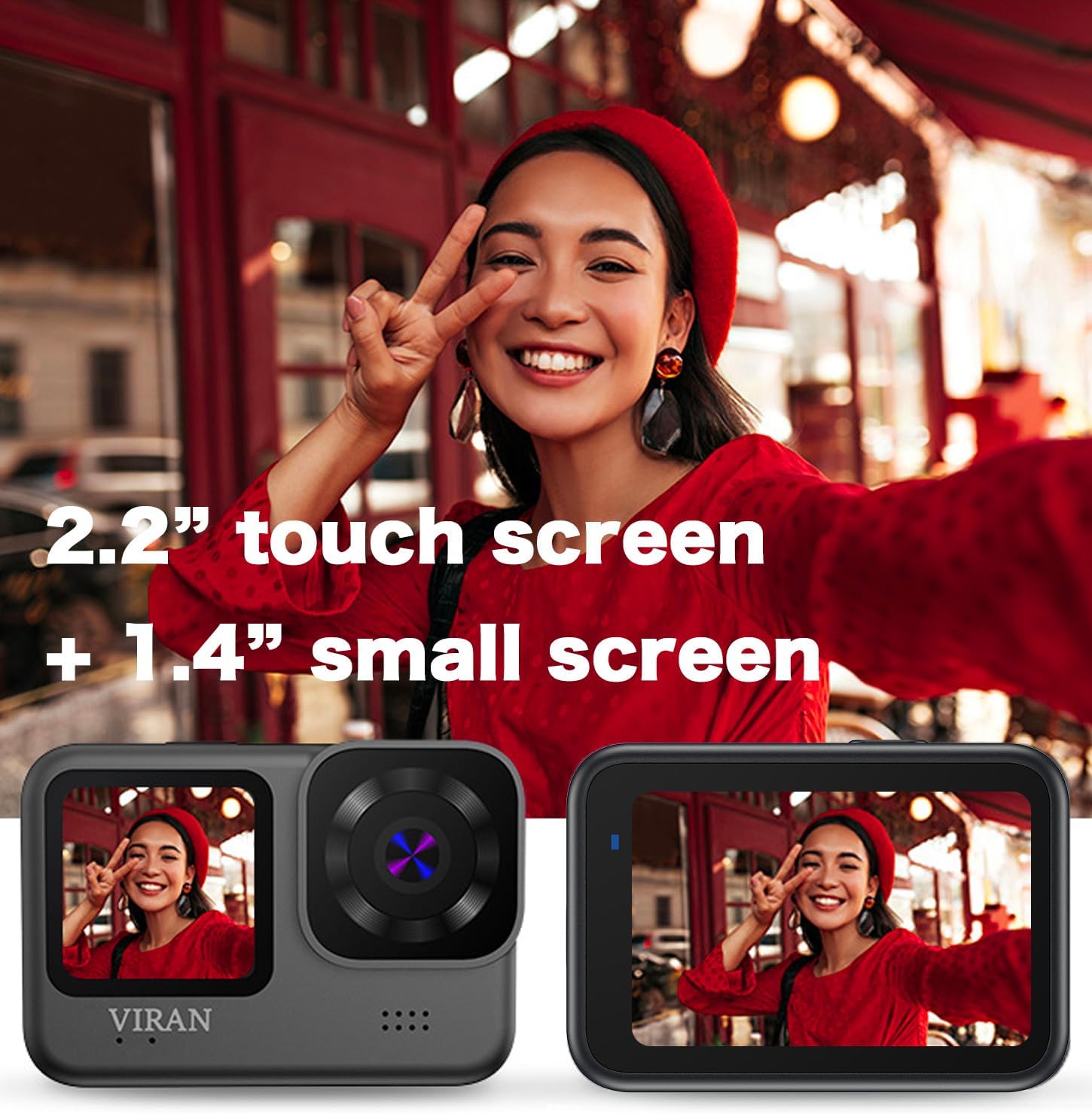
Image 3.1: The VIRAN V11 Action Camera showcasing its 2.2-inch rear touch screen and 1.4-inch front screen.
3.2 Ports i botons
The camera includes a USB Type-C port for charging and data transfer. This port is protected by a waterproof cover.

Image 3.2: The USB Type-C port on the VIRAN V11 Action Camera, used for data transfer and webfuncionalitat de càmera.
4. Configuració
4.1 Càrrega de la bateria
The camera has a built-in 1200mAh battery. To charge:
- Locate the USB Type-C port cover on the side of the camera.
- Carefully open the cover. Note: This cover provides waterproofing, ensure it is securely closed after charging.
- Connect the provided Type-C cable to the camera and a USB power adapter (not included) or a computer.
- The charging indicator will illuminate. Charging time is approximately 90 minutes.
4.2 Inserció d'una targeta MicroSD
A microSD card (up to 128GB, Class 10 or higher recommended) is required for recording. A 64GB card may be pre-installed.
- Obriu la tapa del port USB tipus C.
- Insert the microSD card into the designated slot with the contacts facing the correct direction until it clicks into place.
- Per treure-la, premeu suaument la targeta fins que surti.
- Close the USB Type-C port cover securely.
4.3 Encès inicial
Press and hold the Power/Mode button (usually on the top or side) for a few seconds until the screen illuminates.
4.4 Connecting to Wi-Fi (App Control)
The VIRAN V11 supports Wi-Fi connectivity for control via a mobile application.
- Download the official VIRAN app from your mobile device's app store.
- On the camera, navigate to the Wi-Fi settings and enable Wi-Fi. The camera's Wi-Fi network name (SSID) and password will be displayed.
- On your mobile device, go to Wi-Fi settings and connect to the camera's Wi-Fi network.
- Open the VIRAN app. You can now control the camera, view viu footage, i transferència files.
4.5 Emparellament del control remot
The camera comes with a wireless remote control for convenient operation.

Image 4.1: The VIRAN V11 Action Camera being controlled wirelessly by its remote control.
- Assegureu-vos que la càmera estigui engegada.
- Refer to the remote control's specific instructions for pairing mode (usually involves holding a button).
- On the camera, navigate to the remote control pairing settings and initiate pairing.
- Once paired, you can use the remote to start/stop recording and take photos.
5. Instruccions de funcionament
5.1 Funcionament bàsic
- Encès/apagat: Manteniu premut el botó d'engegada/mode.
- Canvi de mode: Short press the Power/Mode button to cycle through video, photo, and playback modes.
- Botó de l'obturador/selecció: Press to start/stop recording or take a photo. In menus, press to confirm selection.
5.2 Enregistrament de vídeo
The VIRAN V11 supports various video resolutions and features.
- Resolucions: 5K(5120x2880) 30fps, 4K(3840 × 2160) 30/60fps, 2.7K(2704 × 1520) 30/60fps, 1080p (1920 × 1080) 120/60/30fps, 720p (1280 × 720) 240/120/60fps.
- Estabilització electrònica d'imatge (EIS): The camera features 3.0 EIS anti-shake technology for smoother footage. Enable this in the settings menu.

Image 5.1: Comparison showing the effect of Electronic Image Stabilization (EIS) on video smoothness.
- Pre-Record Function: This feature allows the camera to continuously record a short buffer of video before you press the record button, ensuring you don't miss critical moments. Configure duration in settings.

Image 5.2: The pre-record function settings on the VIRAN V11 Action Camera, allowing selection of buffer duration.
- Other Video Functions: Loop video, shrink video, slow/fast motion video.
5.3 Captura de fotos
The camera supports various photo resolutions and modes.
- Resolucions: 48MP, 24MP, 20MP, 16MP, 14MP, 10MP, 8MP, 5MP, 2MP.
- Photo Functions: Single shot, regular shot, continuous shot.
5.4 Ús impermeable
The VIRAN V11 is designed to be waterproof without an additional case.

Image 5.3: A diver using the VIRAN V11 Action Camera underwater, demonstrating its 10-meter waterproof capability without a separate case.
- The camera is waterproof up to 10 meters (IP68 rated) without a waterproof housing.
- For depths up to 30 meters, a specialized waterproof case (sold separately) is required.
- Ensure all port covers are securely closed before exposing the camera to water.
- Mode de busseig: Activate Dive Mode in settings to automatically correct underwater colors for more natural and realistic footage.
5.5 Modes especials
- Car Mode (Dashcam): The camera can function as a car recorder with features like loop recording and inversion mode.
- WebMode de càmera: Connect the camera to a computer via the Type-C cable and select webcam mode for use as a high-quality weblleva.
6. Manteniment
6.1 Neteja de la càmera
- Use the provided wipe cloth or a soft, lint-free cloth to clean the camera body and lens.
- Per a la brutícia persistent, lleugerament dampen the cloth with water. Do not use harsh chemicals or solvents.
- Ensure the lens is clean before recording to avoid blurry footage.
6.2 Cura de la bateria
- Eviteu descarregar completament la bateria amb freqüència.
- Carregueu la bateria regularment, fins i tot si no l'utilitzeu, per mantenir-ne la vida útil.
- Guardeu la càmera en un lloc fresc i sec quan no la feu servir.
6.3 Emmagatzematge
- Store the camera in its protective case to prevent scratches and damage.
- Keep the camera away from extreme temperatures, humidity, and direct sunlight.
7. Solució De Problemes
If you encounter issues with your VIRAN V11 Action Camera, refer to the following common problems and solutions.
- La càmera no s'encén:
Ensure the battery is charged. Connect the camera to a power source using the Type-C cable and try again. - No es pot gravar vídeo/fer fotos:
Check if a microSD card is inserted and properly formatted. Ensure there is sufficient storage space. - Mala qualitat d'imatge/vídeo:
Clean the camera lens. Check the selected resolution settings. Ensure adequate lighting. - Problemes de connexió Wi-Fi:
Ensure Wi-Fi is enabled on the camera and your mobile device. Restart both devices and try reconnecting. Verify the correct app is installed. - Audio capture is poor or non-existent:
Ensure the microphone is not obstructed. Check audio settings in the camera menu. Note that external microphone compatibility may vary and specific settings might be required. - La càmera es bloqueja o deixa de respondre:
Press and hold the Power/Mode button for 10-15 seconds to force a restart. If the issue persists, remove and reinsert the microSD card. - Fuga d'aigua:
Immediately power off the camera. Ensure all port covers are securely closed before water exposure. If leakage occurs, contact customer support.
8. Especificacions
Detailed technical specifications for the VIRAN V11 Action Camera.
| Característica | Especificació |
|---|---|
| Sensor | Sony IMX386 |
| Classificació impermeable | IP68 (5m without case, 10m machine waterproof), 30m with optional waterproof case |
| Anti sacsejada | Electronic Image Stabilization (EIS 3.0) |
| Wi-Fi | Supported (Mobile phone APP control) |
| Pantalles de visualització | Rear: 2.2" IPS Touch HD Screen, Front: 1.4" IPS HD Screen |
| Resolució de vídeo | 5K(5120x2880) 30fps, 4K(3840x2160) 30/60fps, 2.7K(2704x1520) 30/60fps, 1080p (1920x1080) 120/60/30fps, 720p (1280x720) 240/120/60fps |
| Resolució fotogràfica | 48MP/24MP/20MP/16MP/14MP/10MP/8MP/5MP/2MP |
| Viewangle ing | 170° Adjustable Wide Angle (Wide, Medium, Narrow) |
| Capacitat de la bateria | Ió de liti de 1200 mAh |
| Port de càrrega | USB tipus C |
| Emmagatzematge | Micro SD (up to 128GB, Class 10 or higher) |
| Format de vídeo | MOV |
| Format d'àudio | MP4 |
| Connectivitat | Wi-Fi, Remote Control |

Image 8.1: Illustration of the 170-degree wide-angle lens and its components on the VIRAN V11 Action Camera.
9. Garantia i Suport
For warranty information, please refer to the documentation provided with your purchase or contact the seller directly. VIRAN is committed to providing quality products and support.
For further assistance or technical support, please visit the official VIRAN website or contact their customer service department through the contact information provided by your retailer.


