
1. Introducció
This manual provides detailed instructions for the operation and maintenance of your OBZ 2D Bluetooth Barcode Scanner, Model OV-40R. This device is designed for efficient scanning of 1D and 2D barcodes from various surfaces, including paper and digital screens. It offers versatile connectivity options, including 2.4G wireless, Bluetooth, and USB wired modes, ensuring compatibility with a wide range of systems such as Windows, Mac OS, iOS, Android, and Linux.
Please read this manual thoroughly before using the scanner to ensure proper setup and optimal performance.

Image 1.1: OBZ 2D Bluetooth Barcode Scanner (Model OV-40R) with its 2.4G USB dongle.
2. Contingut del paquet
Verifiqueu que tots els elements siguin presents al paquet:
- OBZ 2D Bluetooth Barcode Scanner (Model OV-40R)
- Dongle sense fil USB 2.4G
- Cable de càrrega USB-A a USB-C
- Manual d'usuari (aquest document)
3. Producte acabatview
The OBZ OV-40R scanner features a large LCD screen and intuitive controls for ease of use. Familiarize yourself with the components:

Imatge 3.1: Detallada view of the scanner's LCD screen and control buttons.
- Large LCD Display Screen: Displays total scanned barcodes, total stored barcodes, connection modes (BT HID, BT BLE, 2.4G Wireless, USB Wired), battery level, and time.
- Botó amunt: Used for navigation and selection within the menu.
- Botó avall: Used for navigation and selection within the menu.
- Activador d'escaneig: Activa la funció d'escaneig.
- Scan Indicator Light: Flashes upon successful barcode scanning.
- Transmissió de veu: The scanner can provide voice feedback for operations; this feature can be enabled or disabled.
4. Configuració i connexió
The scanner supports three primary connection methods: 2.4G Wireless, Bluetooth, and USB Wired. Choose the method best suited for your device and environment.
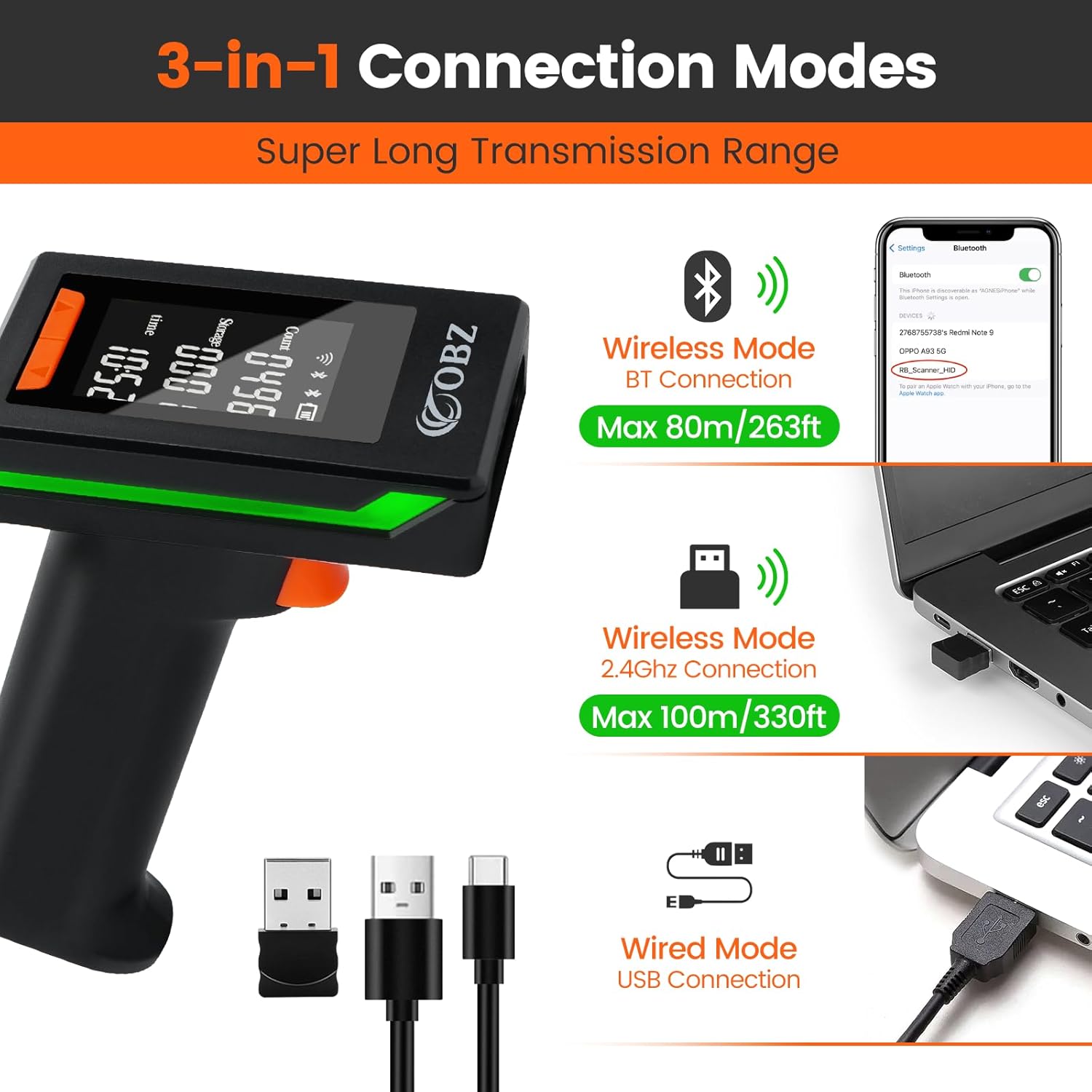
Imatge 4.1: acabatview of the three available connection modes and their typical ranges.
4.1. Mode sense fil 2.4G
This mode uses the included USB dongle for wireless connection to a computer. The wireless transmission distance can reach up to 100m (328ft) in a barrier-free environment.
- Assegureu-vos que l'escàner estigui engegat.
- Premeu tots dos UP i ABAIX buttons simultaneously to enter Setup Mode.
- Utilitza el UP or ABAIX button to navigate until the 2.4G Wireless Mode icon is selected and blinking on the LCD screen.
- Premeu el botó Activador d'escaneig to confirm and enter 2.4G Wireless pairing mode.
- Plug the 2.4G USB wireless dongle into an available USB port on your computer. The scanner will automatically pair with the dongle.
- The LCD screen will indicate a successful wireless connection. You can now open a text editor or spreadsheet program and begin scanning.
4.2. Bluetooth Mode (HID/BLE)
This mode allows connection to Bluetooth-enabled devices such as smartphones, tablets, and computers. The Bluetooth transmission distance can reach up to 80m (263ft) in a barrier-free environment.
- Assegureu-vos que l'escàner estigui engegat.
- Premeu tots dos UP i ABAIX buttons simultaneously to enter Setup Mode.
- Utilitza el UP or ABAIX button to select either Mode BT HID or BT BLE Mode on the LCD screen. BT HID (Human Interface Device) is generally recommended for most computers and mobile devices as it emulates a keyboard.
- Premeu el botó Activador d'escaneig to confirm and enter Bluetooth pairing mode. The scanner will announce the selected mode (if voice broadcasting is enabled).
- On your host device (PC, laptop, smartphone, tablet), go to Bluetooth settings and search for new devices.
- Select "RB_Scanner_HID" (or similar name) from the list of available devices to pair.
- Once paired, the LCD screen will indicate a successful Bluetooth connection.
4.3. USB Wired Mode
For a direct and stable connection, use the provided USB cable.
- Connect the USB-C end of the cable to the scanner.
- Connecteu l'extrem USB-A del cable a un port USB disponible de l'ordinador.
- The scanner will automatically switch to USB Wired Mode and begin charging. No additional pairing steps are required.
5. Instruccions de funcionament
5.1. Escaneig bàsic
Per escanejar un codi de barres:
- Ensure the scanner is connected to your host device via one of the methods described in Section 4.
- Open an application on your host device where you want the scanned data to appear (e.g., Notepad, Word, Excel, POS software).
- Apunteu la finestra de l'escàner cap al codi de barres que voleu escanejar.
- Manteniu premut el botó Activador d'escaneig. A red aiming line will appear.
- Align the aiming line across the entire barcode.
- Upon a successful scan, the scanner will emit a beep (if enabled), the indicator light will flash, and the barcode data will appear in your application. The LCD screen will also update the 'Count' of scanned barcodes.
5.2. Decoding Capabilities
The OBZ OV-40R is equipped with an advanced CMOS sensor, allowing it to accurately capture a wide range of 1D and 2D barcodes from both paper and electronic screens.

Imatge 5.1: Ex.amples of 1D and 2D barcode types supported by the scanner.
- Codis de barres 1D: Codabar, Code 11, Code128, Code 39, Code 93, UPC/EAN, Industrial 2 of 5, Interleaved 2 of 5, Matrix 2 of 5, MSI Plessey, RSS, etc.
- Codis de barres 2D: QR Code, PDF417, DataMatrix, Aztec, Maxicode, Micro QR, Hanxin Code.
- The scanner can also read damaged, distorted, colorful, reflective, or inverse barcodes.
5.3. Data Upload Modes
The scanner offers three data upload modes to suit different operational needs:

Image 5.2: Visual representation of Instant Upload and Automatic Storage modes.
- Mode de càrrega instantània: Barcode data is synchronously uploaded to your connected device immediately after scanning.
- Automatic Storage Mode / Inventory Mode: Barcodes are stored in the scanner's internal memory (up to 512,000 bytes) and can be uploaded to your device later when needed. This mode is useful for offline scanning.
- Mode continu: The scanner continuously scans without requiring trigger presses.
To switch between these modes, refer to the specific setup codes provided in the supplementary PDF manual or contact customer support.
5.4. Compatibilitat
The scanner is highly compatible with various operating systems and devices.

Image 5.3: The scanner is compatible with a wide range of operating systems and devices.
- Sistemes operatius: Windows, Mac OS, iOS, Android, Linux.
- Dispositius: PC, Laptop, Smart Phone, Tablet, POS systems.
6. Funcions avançades i personalització
The OBZ OV-40R offers several customization options to enhance its functionality:
- Detecció automàtica: Configures the scanner to automatically detect and scan barcodes without pressing the trigger.
- Prefix/Suffix: Afegiu caràcters personalitzats abans o després de les dades escanejades.
- Delete Characters: Remove specific characters from scanned data.
- Control de volum: Adjust or turn off the scanner's audible feedback.
- Barcode Type Enable/Disable: Freely enable or disable specific barcode symbologies to prevent unintended scans.
- Barcode Conversion: Convert certain barcode types.
- Extra Code: Add additional codes.
- Velocitat de transmissió: Adjust the data transmission speed.
- Multi-language Keyboard: Suport per a diverses distribucions de teclat.
- Tecles del teclat: Add special keyboard keys like CR&LF (Carriage Return & Line Feed) or TAB after each scan.
These advanced settings are typically configured by scanning specific setup barcodes found in the comprehensive PDF manual. Please refer to that document for detailed instructions on each customization option.

Image 6.1: The scanner features adjustable sound, vibration, and light indicators.
7. Manteniment
7.1. Neteja
To maintain optimal scanning performance, keep the scanner's window clean. Use a soft, lint-free cloth, slightly dampened with water or a mild cleaning solution. Avoid abrasive materials or harsh chemicals that could scratch the window or damage the device.
7.2. Càrrega de la bateria
The scanner is powered by a rechargeable Lithium Ion battery. Connect the scanner to a USB power source using the provided USB-A to USB-C cable. The battery level is displayed on the LCD screen. A full charge provides approximately 20 hours of continuous operation.
7.3. Emmagatzematge
Store the scanner in a cool, dry place away from direct sunlight and extreme temperatures. Avoid dropping the scanner; it is designed with environmentally friendly drop-resistant material but excessive force can cause damage.

Image 7.1: The scanner is designed to withstand drops from up to 3 meters.
8. Solució De Problemes
Si teniu problemes amb l'escàner, consulteu els problemes i solucions més comuns següents:
- Scanner not connecting/pairing:
- Ensure the scanner is in the correct connection mode (2.4G, BT HID, BT BLE).
- For 2.4G, ensure the USB dongle is properly inserted and recognized by the computer.
- For Bluetooth, ensure your host device's Bluetooth is enabled and discoverable. Try unpairing and re-pairing the device.
- If switching between wireless and Bluetooth modes, you may need to re-pair the scanner each time.
- Try connecting via USB wired mode to verify basic functionality.
- L'escàner no llegeix els codis de barres:
- Ensure the barcode is not severely damaged, smudged, or poorly printed.
- Check if the barcode type is supported by the scanner (refer to Section 5.2).
- Ensure the scanner's window is clean.
- Ajusteu la distància i l'angle de l'escàner al codi de barres.
- Verify that the scanner is in Instant Upload Mode if you expect immediate data transmission.
- Scanned data appears incorrectly:
- Check keyboard language settings on your host device and scanner.
- Review advanced settings for prefixes, suffixes, or character deletions that might be altering the data.
- Scanner goes to sleep too quickly:
- The scanner enters sleep mode after 2 minutes of inactivity to conserve battery. This setting can usually be adjusted via setup codes in the full manual.
For more complex issues or specific configuration settings, please refer to the detailed PDF manual or contact OBZ customer support.
9. Especificacions
| Característica | Especificació |
|---|---|
| Número de model | OV-40R |
| Dimensions del paquet | 8.03 x 4.06 x 3.23 polzades |
| Pes de l'article | 6.1 unces |
| Bateries | 1 bateria de ions de liti (inclosa) |
| Tecnologia de connectivitat | Bluetooth, 2.4G Wireless, USB Cable |
| Interval de transmissió sense fil | Up to 100m (328ft) in barrier-free environment (2.4G Wireless) Up to 80m (263ft) in barrier-free environment (Bluetooth) |
| Capacitat de descodificació | 1D (Codabar, Code 11, Code128, Code 39, Code 93, UPC/EAN, etc.) 2D (QR Code, PDF417, DataMatrix, Aztec, Maxicode, Micro QR, Hanxin Code) |
| Emmagatzematge fora de línia | Fins a 512,000 bytes |
| Dispositius compatibles | Computer, Laptop, POS, Smartphone, Tablet |
| Sistemes operatius | Windows, Mac OS, iOS, Android, Linux |
| Font d'alimentació | Funciona amb piles, elèctric amb cable |

Image 9.1: The scanner offers a wireless transmission range of up to 100 meters.
10. Garantia i Suport
OBZ is committed to providing high-quality products and customer satisfaction. If you require further assistance, have questions about specific configuration settings, or need to scan additional barcode types not covered in this manual, please contact OBZ customer support.
You may also be provided with specific setup codes and a detailed PDF manual upon request to address advanced customization needs.