
1. Introducció
Thank you for choosing the Cuifati Bluetooth Transparent Mouse. This device offers dual-mode connectivity (Bluetooth 5.0 and 2.4G USB receiver), RGB backlighting, and a rechargeable design for versatile use with PCs, laptops, and tablets. This manual provides detailed instructions for setup, operation, maintenance, and troubleshooting to ensure optimal performance.
2. Contingut del paquet
Si us plau, verifiqueu que tots els elements siguin presents al vostre paquet:
- 1 x Cuifati Bluetooth Transparent Mouse
- 1 x Cable de càrrega (Tipus C)
- 1 receptor USB (2.4G)
- 1 x Manual d'usuari

Image: Contents of the Cuifati mouse package, including the mouse, Type-C charging cable, and 2.4G USB receiver.
3. Especificacions
| Característica | Detall |
|---|---|
| Configuració de DPI | 800, 1200, 1600 |
| Modes de transmissió | Sense fil 2.4G, Bluetooth 5.0 |
| Capacitat de la bateria | Bateria Li-ion de 400 mAh |
| Dimensions del ratolí | Approx. 113.5 x 58 x 25mm (±2mm) |
| Mètode de càrrega | Tipus C USB |
| Vol. Operatiutage | 3.3V-4.2V |
| Operating Current (Light mode) | ≤25mA |
| Operating Current (Non-lighting mode) | ≤8mA |
| Requisits del sistema 2.4G | Windows XP/7/8/10+, Android 4.4+, OS X 10.5+, Linux Kernel 2.6+2, Chrome OS |
| Requisits del sistema Bluetooth | Windows 8/10, Android 5.0+, OS X 10.10+ (Bluetooth 4.0 and above adapter required) |
| Material | PC |
4. Configuració
4.1. Càrrega del ratolí
Before first use, fully charge the mouse. Connect the provided Type-C charging cable to the mouse's charging port and the other end to a USB power source (e.g., computer USB port, USB wall adapter). A full charge typically takes 2-3 hours.

Image: The Cuifati mouse being charged via its Type-C port, indicating a 2-3 hour charging time.
4.2. Connexió mitjançant un receptor USB de 2.4G
- Locate the USB receiver, usually stored within the mouse's magnetic cover or packaging.
- Connecteu el receptor USB a un port USB disponible de l'ordinador o dispositiu.
- Turn on the mouse and switch it to 2.4G mode (refer to Section 5.1 for mode switching).
- El ratolí s'hauria de connectar automàticament al dispositiu.

Image: The transparent design of the Cuifati mouse, showing the internal components and the USB receiver slot.
4.3. Connexió mitjançant Bluetooth 5.0
- Turn on the mouse and switch it to Bluetooth mode (refer to Section 5.1 for mode switching).
- On your device (PC, laptop, tablet), navigate to the Bluetooth settings.
- Activa el Bluetooth i cerca dispositius nous.
- Select "Cuifati Mouse" or a similar name from the list of available devices to pair.
- Seguiu les indicacions de la pantalla per completar el procés de vinculació.
Note: You cannot use Bluetooth mode and 2.4G USB mode simultaneously. Ensure only one mode is active at a time.
5. Instruccions de funcionament
5.1. Engegada/Apagada i Canvi de Mode
The mouse features a switch on its underside to power it on/off and select the connection mode. Slide the switch to the desired position for 2.4G or Bluetooth connectivity, or to the 'Off' position to conserve battery.
5.2. Ajust de DPI
The mouse supports three DPI (Dots Per Inch) settings: 800, 1200, and 1600. Press the DPI button (usually located near the scroll wheel or on the underside) to cycle through these settings and adjust cursor sensitivity to your preference.
5.3. Control de la il·luminació RGB
The mouse features various RGB lighting effects. A dedicated lighting switch key, typically on the underside or a side button, allows you to cycle through 11 different lighting modes or turn off the lights completely. This enhances the aesthetic appeal during use.
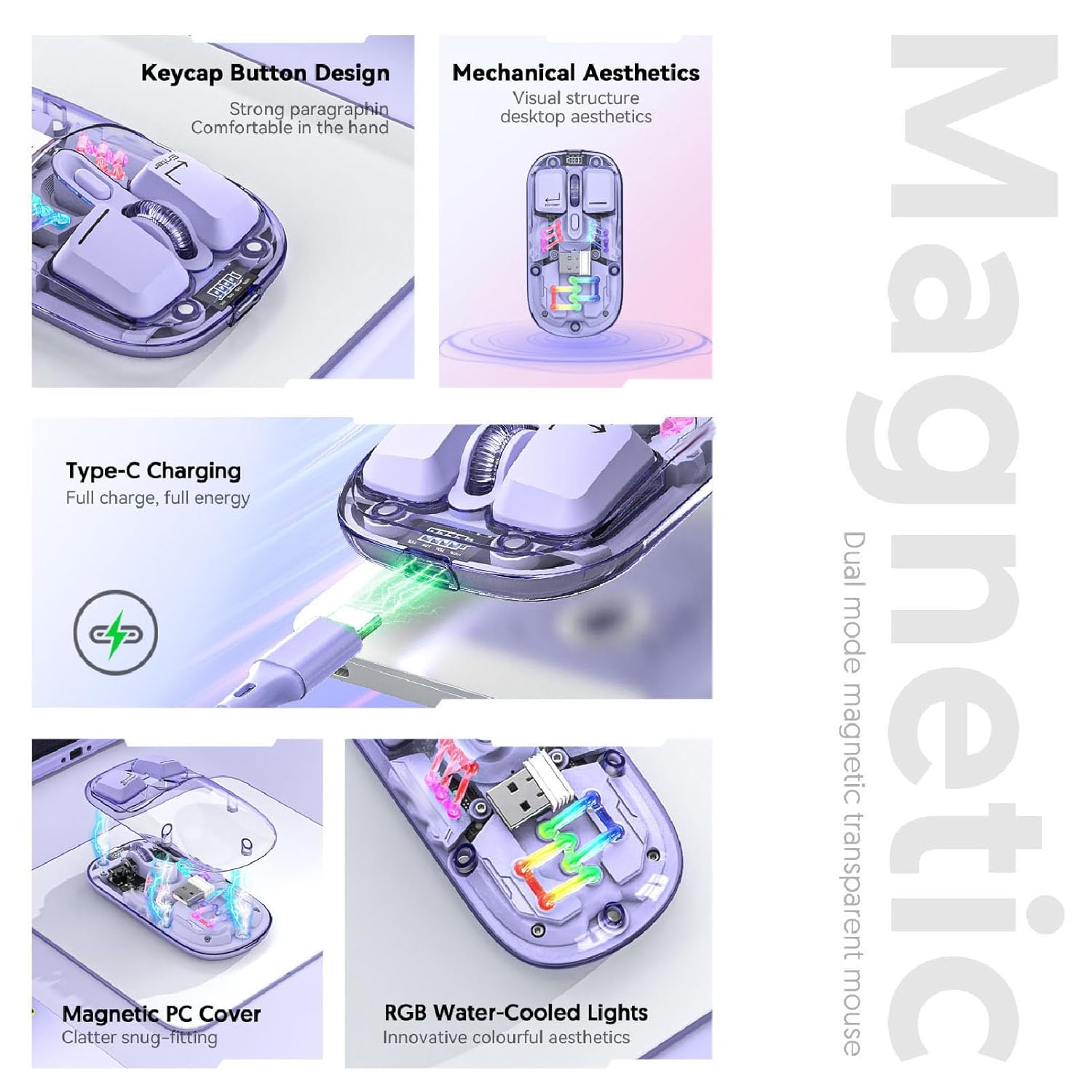
Imatge: Una composició view highlighting the RGB lighting, Type-C charging, and magnetic cover design of the mouse.
5.4. Visualització del nivell de la bateria
The mouse is equipped with a power display to check the remaining battery level at any time. This display typically uses indicator lights to show the charge status:
- 4 lights on: 100% bateria
- 3 lights on: 75% bateria
- 2 lights on: 50% bateria
- 1 light on: 25% bateria

Image: Close-up of the Cuifati mouse's battery level display, illustrating how indicator lights correspond to charge percentage.
5.5. Automatic Energy Saving
To conserve battery life, the mouse features an automatic sleep function:
- Son lleuger: After 60 seconds of no operation, the mouse enters a light sleep state.
- El somni profund: If no operation occurs for 10 minutes, the mouse enters a deep sleep mode.
- Desperta: To wake the mouse from sleep, simply move it or press any button.
Note: Actual power saving performance may vary based on usage habits.

Image: Visual representation of the mouse's power-saving states: light sleep after 60 seconds, deep sleep after 10 minutes, and how to wake it up.
6. Manteniment
6.1. Neteja
To maintain the mouse's appearance and functionality, regularly clean its surfaces. Use a soft, dry, lint-free cloth. For stubborn dirt, slightly dampen the cloth with water or a mild, non-abrasive cleaner. Avoid using harsh chemicals or abrasive materials that could damage the transparent shell or internal components.

Image: The Cuifati mouse with its magnetic top cover detached, revealing the internal structure for potential cleaning or maintenance.
6.2. Cura de la bateria
The built-in Li-ion battery is designed for long-term use. To prolong battery life:
- Eviteu descarregar completament la bateria amb freqüència.
- Charge the mouse using the provided Type-C cable.
- Guardeu el ratolí en un lloc fresc i sec quan no l'utilitzeu durant períodes prolongats.
7. Solució De Problemes
If you encounter issues with your Cuifati mouse, please refer to the following common solutions:
- El ratolí no respon:
- Assegureu-vos que el ratolí estigui encès.
- Comproveu el nivell de la bateria i carregueu si cal.
- Verify the correct connection mode (2.4G or Bluetooth) is selected.
- Per a 2.4G, assegureu-vos que el receptor USB estigui ben connectat. Proveu un altre port USB.
- Per al Bluetooth, assegureu-vos que el Bluetooth estigui activat al dispositiu i que el ratolí estigui emparellat. Intenteu tornar a emparellar.
- El moviment del cursor és erràtic o lent:
- Netegeu el sensor òptic de la part inferior del ratolí.
- Assegureu-vos que feu servir el ratolí sobre una superfície adequada (no gaire reflectant ni transparent).
- Adjust the DPI setting (refer to Section 5.2).
- Les llums RGB no funcionen:
- Assegureu-vos que el ratolí estigui encès.
- Press the lighting switch key to cycle through modes or turn them on (refer to Section 5.3).
- Comproveu el nivell de la bateria; una bateria baixa pot desactivar la il·luminació.
- Cannot connect via Bluetooth and 2.4G simultaneously:
- This is expected behavior. The mouse is designed to operate in one mode at a time. Switch to the desired mode using the selector switch.
8. Garantia i Suport
The Cuifati Bluetooth Transparent Mouse comes with a standard manufacturer's warranty. Please refer to the warranty card included in your package or visit the official Cuifati weblloc web per obtenir informació detallada sobre els termes i condicions de la garantia.
For technical support, product inquiries, or warranty claims, please contact Cuifati customer service through their official channels. Contact information can typically be found on the product packaging or the manufacturer's weblloc.