
1. Introducció
Thank you for choosing the LOFREE Zero ARTZ Mechanical Keyboard and Terrazzo Mouse combo. This manual provides essential information for setting up, operating, and maintaining your new devices. The Zero ARTZ keyboard features a 75% layout, hot-swappable switches, and versatile connectivity options including Bluetooth, 2.4GHz wireless, and USB-C. The accompanying Terrazzo Mouse offers dual-mode connectivity and adjustable DPI settings for enhanced productivity.

Image: The LOFREE Terrazzo Mouse, featuring its unique speckled design.
2. Contingut del paquet
Si us plau, assegureu-vos que tots els articles estiguin presents al vostre paquet:
- LOFREE Zero ARTZ Mechanical Keyboard
- LOFREE Terrazzo Mouse
- Cable USB-C a USB-A
- Receptor sense fils de 2.4 GHz
- Keycap Puller (for hot-swappable switches)
- Switch Puller (for hot-swappable switches)
- Manual d'usuari (aquest document)
3. Configuració
3.1 Càrrega dels dispositius
Both the keyboard and mouse are equipped with rechargeable batteries. Before first use, it is recommended to fully charge both devices.
- Connect the provided USB-C cable to the charging port on the keyboard and mouse.
- Connecteu l'altre extrem del cable USB-C a un adaptador de corrent USB (no inclòs) o al port USB d'un ordinador.
- El llum indicador de càrrega s'il·luminarà durant la càrrega i s'apagarà o canviarà de color quan estigui completament carregat.
3.2 Keyboard Connectivity
The Zero ARTZ keyboard supports three connection modes: Bluetooth, 2.4GHz Wireless, and USB-C wired.
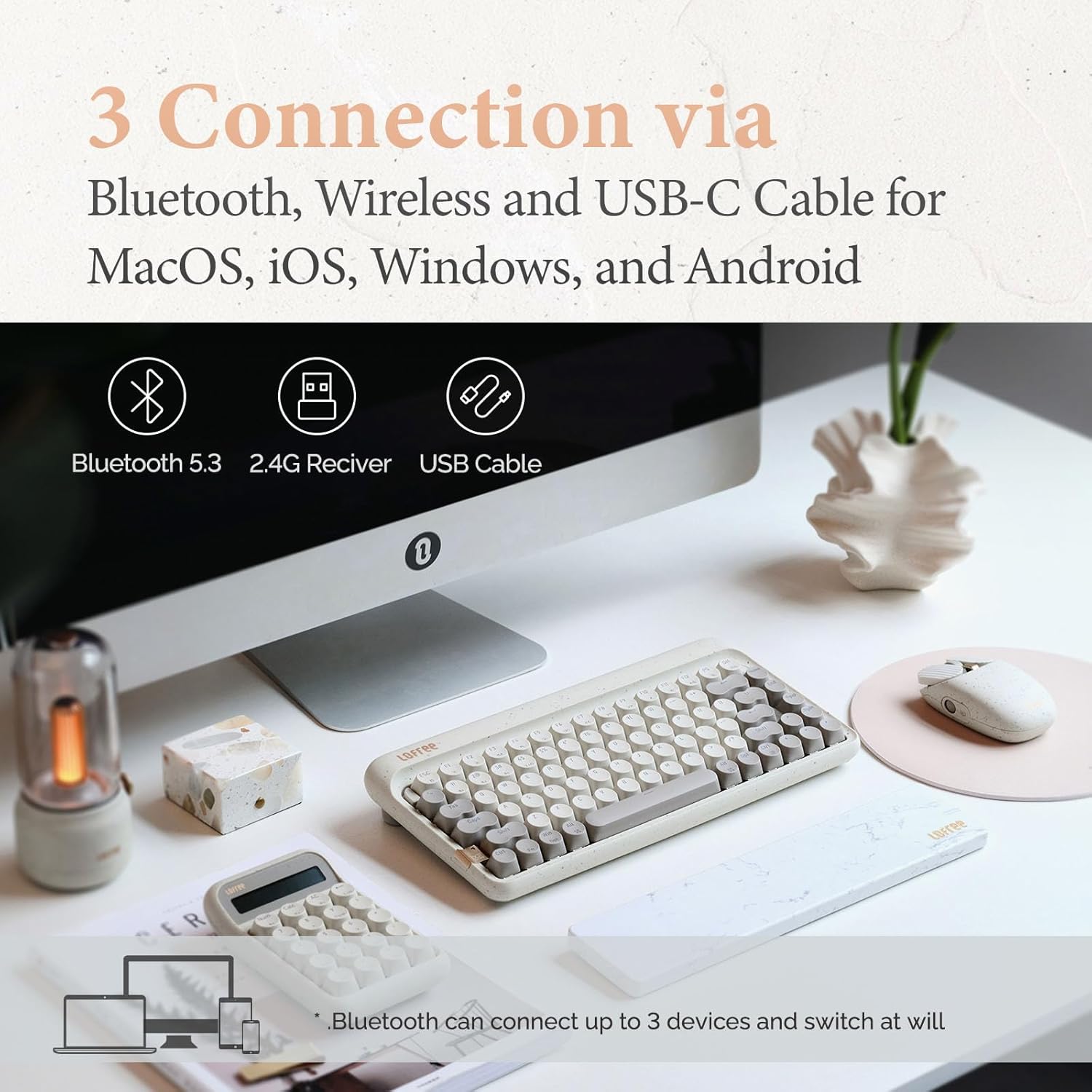
Image: Illustration showing the three connection methods: Bluetooth 5.3, 2.4G Receiver, and USB Cable, compatible with MacOS, iOS, Windows, and Android.
3.2.1 Connexió Bluetooth
- Locate the mode switch on the keyboard and set it to 'BT' (Bluetooth).
- Mantén premut Fn + 1, Fn + 2, o Fn + 3 for 3-5 seconds until the indicator light flashes rapidly, indicating pairing mode. The keyboard can store up to three Bluetooth devices.
- On your device (computer, tablet, smartphone), enable Bluetooth and search for 'LOFREE Zero ARTZ'.
- Select the keyboard to pair. The indicator light will stop flashing once connected.
- Per canviar entre dispositius Bluetooth emparellats, premeu Fn + 1, Fn + 2, o Fn + 3 breument.
Connexió sense fil 3.2.2 de 2.4 GHz
- Locate the mode switch on the keyboard and set it to '2.4G'.
- Insert the 2.4GHz wireless receiver into an available USB port on your computer.
- El teclat s'hauria de connectar automàticament. Si no, premeu Fn + 4 per iniciar l'aparellament.
3.2.3 Connexió amb cable USB-C
- Locate the mode switch on the keyboard and set it to 'USB'.
- Connect the provided USB-C cable from the keyboard to your computer's USB port.
- The keyboard will be recognized as a standard USB device and is ready for use.
3.3 Mouse Connectivity
The Terrazzo Mouse supports dual-mode connection: Bluetooth and 2.4GHz Wireless.
3.3.1 Connexió Bluetooth
- Locate the mode switch on the bottom of the mouse and set it to 'BT'.
- Press and hold the Bluetooth pairing button (usually near the mode switch) for 3-5 seconds until the indicator light flashes.
- On your device, enable Bluetooth and search for 'LOFREE Terrazzo Mouse'.
- Select the mouse to pair. The indicator light will stop flashing once connected.
- The mouse can connect to 2 devices simultaneously. Use the pairing button to switch between them.
Connexió sense fil 3.3.2 de 2.4 GHz
- Locate the mode switch on the bottom of the mouse and set it to '2.4G'.
- Insert the 2.4GHz wireless receiver into an available USB port on your computer.
- El ratolí s'hauria de connectar automàticament.
4. Instruccions de funcionament
4.1 Funcions del teclat
The Zero ARTZ keyboard is designed for optimal typing experience with a gasket mount structure and 1000Hz polling rate.

Imatge: Explosió view of the LOFREE keyboard showing the Gasket Mount, Keycaps, Switches, Gasket Pad, Poron, PCBA IXPE Foam, EVA Foam, EVA Pad, Upper Case, and Bottom Case layers.
4.1.1 Function Key Combinations (Fn)
Utilitza el Fn key in combination with other keys to access special functions:
- Fn + 1/2/3: Switch between Bluetooth devices.
- Fn + 4: Activate 2.4GHz wireless pairing.
- Fn + Q/W/E/R: (Specific to some models) Switch between operating system layouts (e.g., Mac/Windows). Refer to the keycap legends for specific OS modes.
- Fn + F1-F12: Multimedia and system control keys (e.g., volume, playback, screen brightness). The specific functions are indicated by icons on the keycaps.
4.1.2 Compatibilitat del sistema operatiu
The keyboard is compatible with MacOS, iOS, Windows, and Android. Ensure the correct operating system mode is selected if available, typically via a switch or Fn key combination, to ensure proper key mapping.

Image: A user typing on the LOFREE keyboard, highlighting the 1000Hz Polling Rate for responsive input.
4.2 Funcions del ratolí
The Terrazzo Mouse features an ergonomic design and adjustable sensitivity.

Image: A hand comfortably resting on the LOFREE Terrazzo Mouse, demonstrating its ergonomic design.
4.2.1 Ajust de DPI
The mouse offers 5 adjustable DPI levels to suit different preferences and tasks. Press the DPI button (usually located on the top or bottom of the mouse) to cycle through the available DPI settings. The indicator light may change color or flash to indicate the current DPI level.
4.2.2 Thumb Wheel and Button
The mouse includes a thumb wheel and an additional button for multi-gesture use, enhancing navigation and productivity. Refer to your operating system's mouse settings for customization options.
5. Manteniment
5.1 Neteja
To maintain the appearance and functionality of your devices:
- Use a soft, dry, lint-free cloth to wipe the surfaces of the keyboard and mouse.
- Per a la brutícia persistent, lleugerament dampNetegeu el drap amb aigua o un netejador suau i no abrasiu. Eviteu la humitat excessiva.
- To clean between keycaps, use compressed air or a small brush.
5.2 Commutadors intercanviables en calent
The Zero ARTZ keyboard features hot-swappable switches, allowing for easy replacement without soldering.
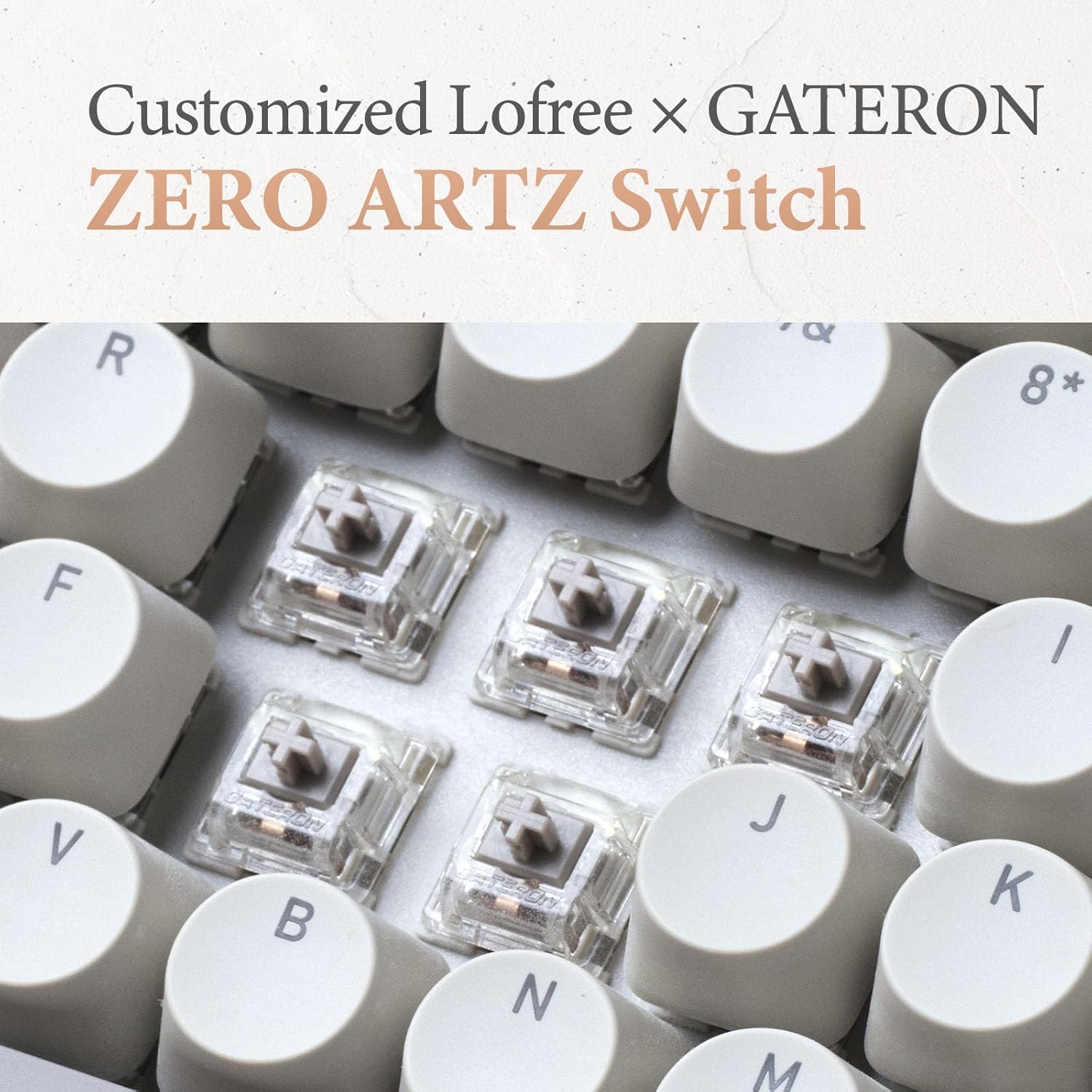
Image: Close-up of the customized LOFREE x GATERON ZERO ARTZ switches installed in the keyboard.
- Feu servir l'extractor de tecles proporcionat per treure amb cura la tecla desitjada.
- Use the provided switch puller to gently grip the switch from its top and bottom clips, then pull it straight up to remove.
- Alineeu els pins del nou interruptor amb els forats de la placa de circuit imprès i premeu-lo fermament fins que encaixi al seu lloc. Assegureu-vos que els pins no estiguin doblegats.
- Substitueix la tapa de les tecles.
5.3 Cura de la bateria
Per allargar la durada de la bateria:
- Eviteu descarregar completament la bateria amb freqüència.
- Store the devices in a cool, dry place when not in use for extended periods.
- Recharge the devices when the low battery indicator appears. The mouse has an approximate 50-day battery life on a single charge, depending on usage.
6. Solució De Problemes
6.1 Problemes de connectivitat
- El dispositiu no es connecta per Bluetooth: Ensure the keyboard/mouse is in pairing mode. Check your device's Bluetooth settings and try re-pairing. Ensure no other devices are interfering.
- 2.4GHz wireless not working: Ensure the 2.4GHz receiver is securely plugged into a USB port. Try a different USB port. Ensure the keyboard/mouse is set to 2.4G mode.
- Wired connection issues: Ensure the USB-C cable is properly connected to both the keyboard and the computer. Try a different USB-C cable or port.
6.2 Keyboard/Mouse Not Responding
- Comproveu els nivells de la bateria i recarregueu-la si cal.
- Ensure the correct connection mode (Bluetooth, 2.4G, USB) is selected on the device.
- Reinicieu l'ordinador o el dispositiu.
- For the keyboard, ensure the correct operating system mode (Mac/Windows) is selected.
6.3 DPI Adjustment Not Working (Mouse)
- Assegureu-vos que el ratolí estigui encès i connectat.
- Press the DPI button firmly. If there's no visual indicator, try moving the mouse after each press to feel the change in sensitivity.
7. Especificacions
| Característica | Detall |
|---|---|
| Marca | LOFREE |
| Model | Zero ARTZ |
| Disposició del teclat | 75% QWERTY |
| Tecnologia de connectivitat | Bluetooth 5.3, sense fil de 2.4 GHz, USB-C amb cable |
| Dispositius compatibles | Laptop, Personal Computer, Smartphone, Tablet (Windows, Mac OS, iOS, Android) |
| Font d'alimentació | Funciona amb bateria (recarregable) |
| Taxa de sondeig del teclat | 1000 Hz |
| Interruptors de teclat | Customized LOFREE x GATERON ZERO ARTZ (Linear) |
| Tecles del teclat | Dual Color PBT |
| Nivells de DPI del ratolí | 5 nivells ajustables |
| Durada de la bateria del ratolí | Approx. 50 days (depending on usage) |
| ASIN | B0DKJB48FR |
| Data de primera disponibilitat | 22 d'octubre de 2024 |
8. Garantia i Suport
LOFREE products are covered by a limited warranty. For detailed warranty information, please refer to the warranty card included with your product or visit the official LOFREE website. If you encounter any issues or require technical assistance, please contact LOFREE customer support through their official channels.
- Official LOFREE Weblloc: www.lofree.co
- Correu electrònic d’atenció al client: Consulteu l'embalatge del producte o weblloc web per obtenir informació de contacte actualitzada.