
SUPVAN E11
Manual d'usuari de la màquina d'etiquetes Bluetooth SUPVAN E11
Introducció
This manual provides detailed instructions for the setup, operation, maintenance, and troubleshooting of your SUPVAN E11 Bluetooth Label Maker Machine. Please read this manual thoroughly before using the device to ensure proper function and longevity.
Informació de seguretat
- Mantingueu el dispositiu allunyat de l'aigua i la humitat elevada.
- No exposeu el dispositiu a temperatures extremes ni a la llum solar directa.
- Use only SUPVAN approved label tapes to prevent damage to the print head.
- No intenteu desmuntar o reparar el dispositiu vosaltres mateixos. Contacteu amb l'assistència al client per obtenir assistència.
- Mantenir fora de l'abast dels nens.
Contingut del paquet
Verifiqueu que tots els elements siguin presents al vostre paquet:
- Etiquetadora E11
- Manual d'usuari
- Cable USB-C
- 2 Rolls White Continuous Label Tape (15 mm x 6 m)
- 2 Rolls White Die-cut Label Tape (12 mm x 40 mm)

Image: Contents of the SUPVAN E11 Label Maker package, including the label maker, USB-C cable, user manual, and four rolls of label tape.
Producte acabatview
The SUPVAN E11 is a portable thermal label maker designed for various labeling needs. It features a QWERTY keyboard for direct input and Bluetooth connectivity for app-based design and printing.
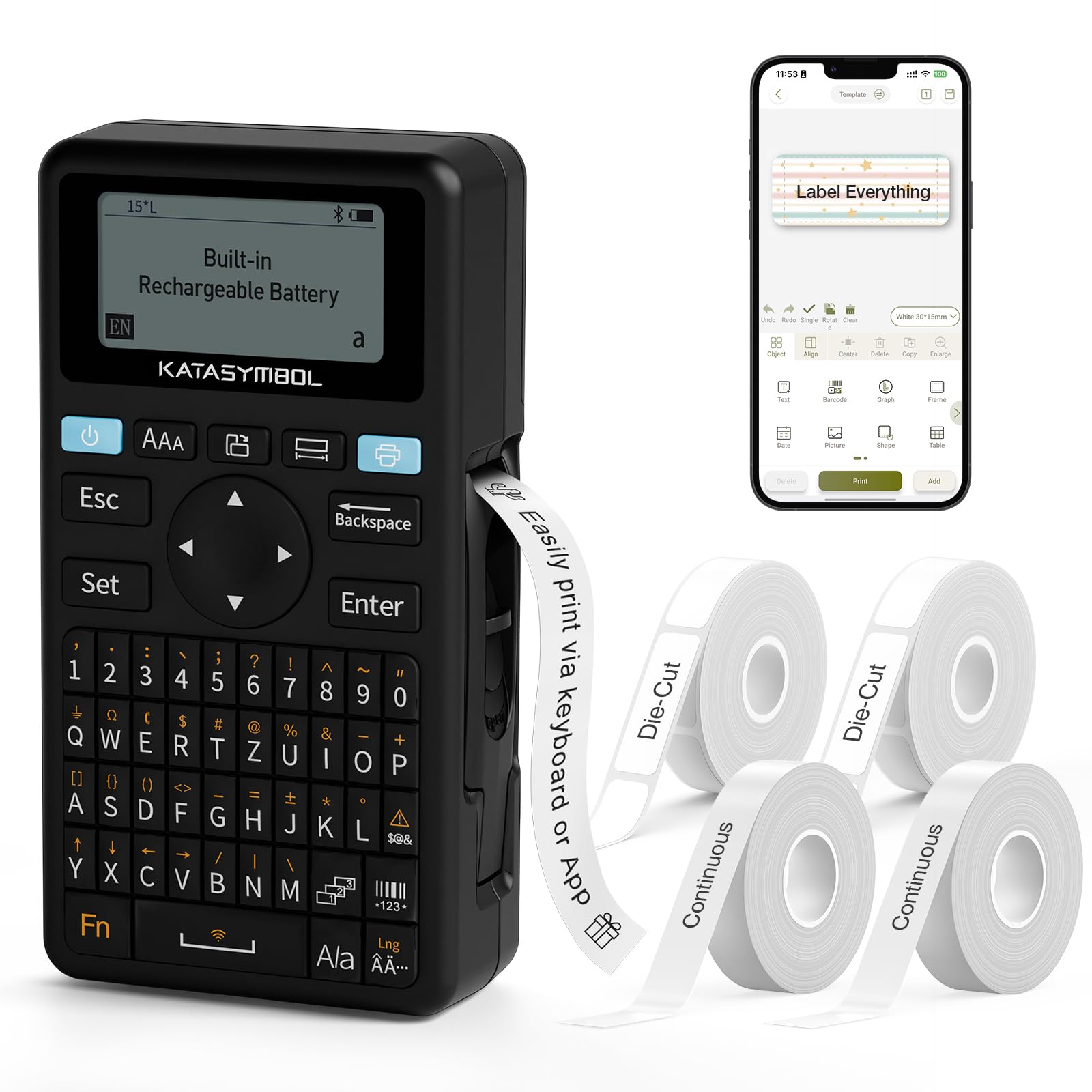
Imatge: Frontal view of the SUPVAN E11 Label Maker, showing the QWERTY keyboard and display screen.
Configuració
1. Càrrega del dispositiu
The SUPVAN E11 features a built-in 1200 mAh rechargeable battery. Before initial use, fully charge the device using the provided USB-C cable.
- Connect the USB-C cable to the charging port on the label maker.
- Connecteu l'altre extrem del cable a un adaptador de corrent USB (no inclòs) o a un port USB de l'ordinador.
- The charging indicator on the device will show the charging status.

Image: The SUPVAN E11 Label Maker demonstrating that it uses thermal paper and requires no ink or toner.
2. Installing Label Tape
The E11 label maker uses thermal label rolls. Follow these steps to install a new roll:
- Obriu la tapa del compartiment d'etiquetes que hi ha al lateral del dispositiu.
- Insert the label roll into the compartment, ensuring the label tape feeds out from the bottom and through the guide slot.
- Tanqueu la coberta del compartiment de manera segura.

Image: A hand demonstrating how to install a label tape roll into the SUPVAN E11 Label Maker.
3. Connecting via Bluetooth (App)
For advanced customization and printing, connect your label maker to the companion app:
- Baixeu l'aplicació oficial de SUPVAN des de la botiga d'aplicacions del vostre dispositiu.
- Turn on the label maker and ensure Bluetooth is enabled on your smartphone.
- Open the SUPVAN app and follow the on-screen instructions to pair with your E11 device.

Image: A visual guide showing the step-by-step process of connecting the label maker to the mobile app via Bluetooth.
Funcionament
1. Keyboard Printing
For quick and frequent labeling, use the integrated QWERTY keyboard:
- Engegueu l'etiquetadora.
- Type your desired text using the keyboard. The text will appear on the LCD display.
- Press the 'Print' button to print the label.
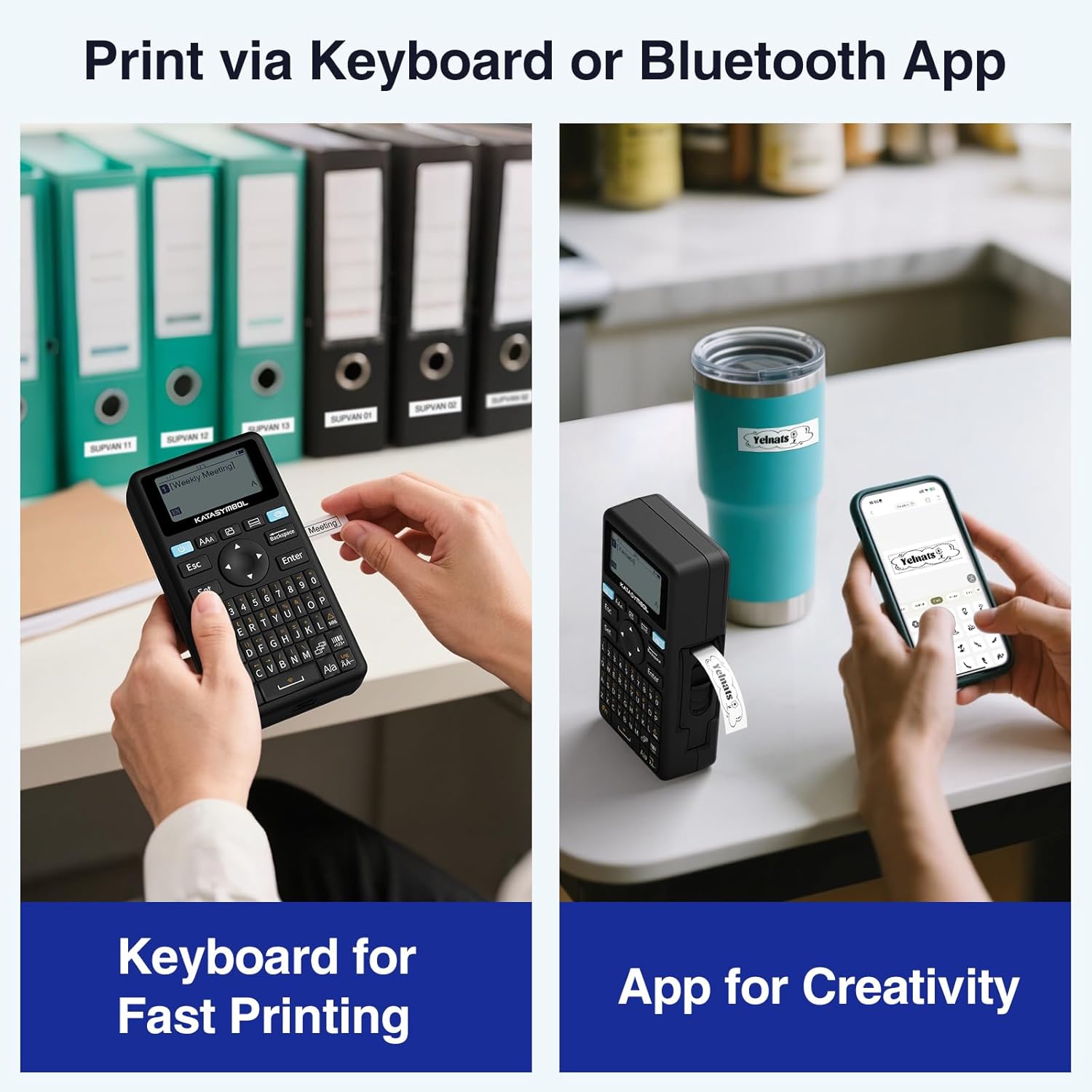
Image: A person using the SUPVAN E11 Label Maker's keyboard to type and print a label.
2. App Printing and Customization
The SUPVAN app offers extensive customization options:
- Ensure your device is connected to the app via Bluetooth.
- Open the app and select your label design.
- Utilize the app's features to customize your label:
- Tipus de lletra: Choose from over 30 fonts.
- Marcs: Apply from over 50 frames.
- Icones: Select from over 660 icons.
- Codis QR i codis de barres: Generate and print QR codes and various barcode types.
- Plantilles: Create and save your own label templates.
- Once your design is complete, tap the 'Print' button in the app.
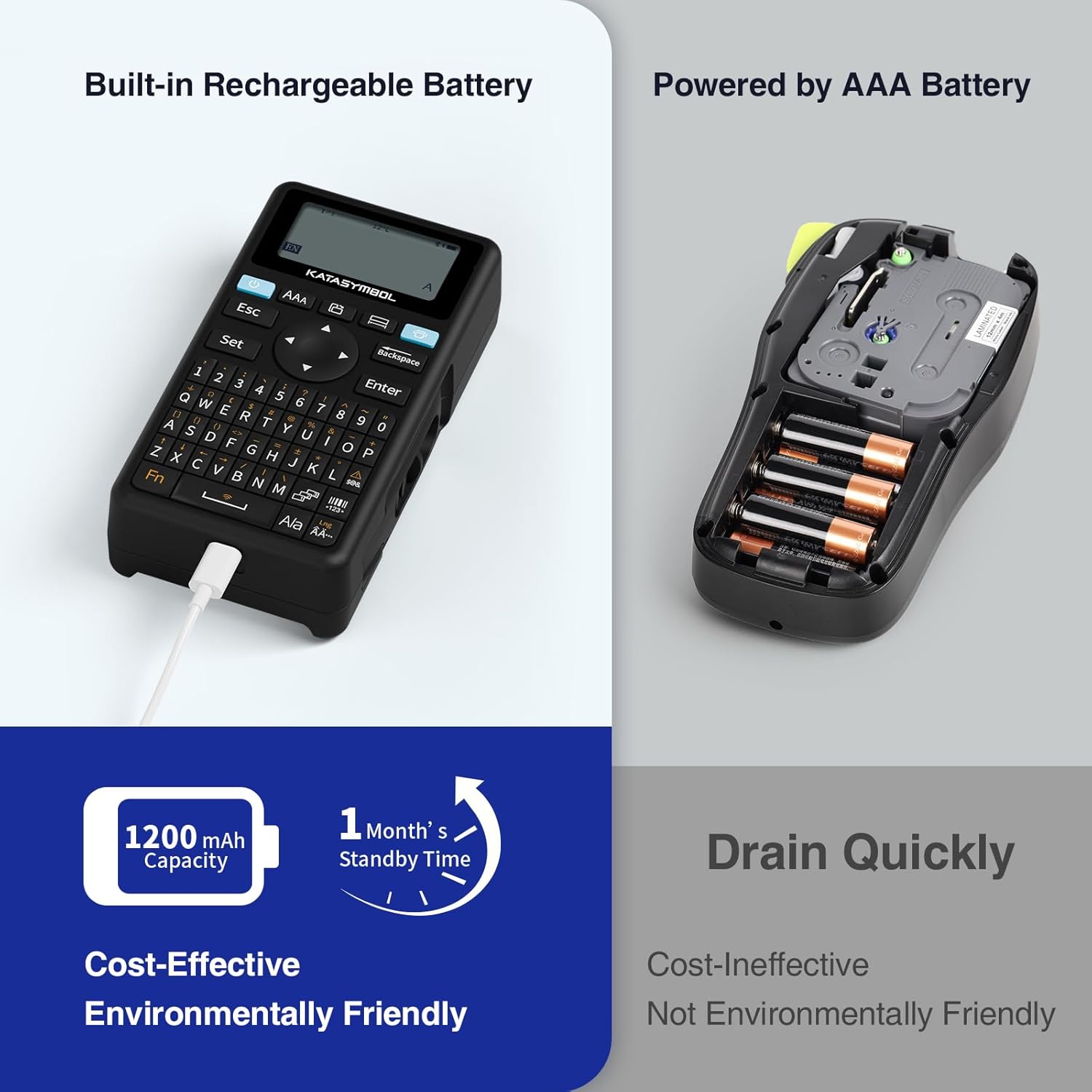
Image: A person using the SUPVAN E11 Label Maker in conjunction with the mobile app to design and print a customized label.

Image: A visual representation of the SUPVAN Label App's features, including a wide selection of fonts, frames, icons, and options for QR codes and barcodes.
Adjusting Label Font Size in the App
Video: This video demonstrates how to adjust the font size of your label text within the SUPVAN mobile application.
Adjusting Font Styles in the App
Video: This video illustrates the process of changing font styles and applying various formatting options to your labels using the SUPVAN mobile application.
3. Label Types and Minimal Margin Printing
The E11 supports both continuous and die-cut labels, offering flexibility for different applications. It also features minimal margin printing, reducing label waste.
- Etiquetes contínues: Ideal for long text or custom lengths.
- Etiquetes retallades: Pre-sized labels for specific items or standard applications.
- Minimal Margin: The E11 prints with only a 0.2-inch margin, significantly less than many other label makers, saving tape.

Imatge: Examples of die-cut and continuous labels printed by the SUPVAN E11, showcasing its versatility for different label types.
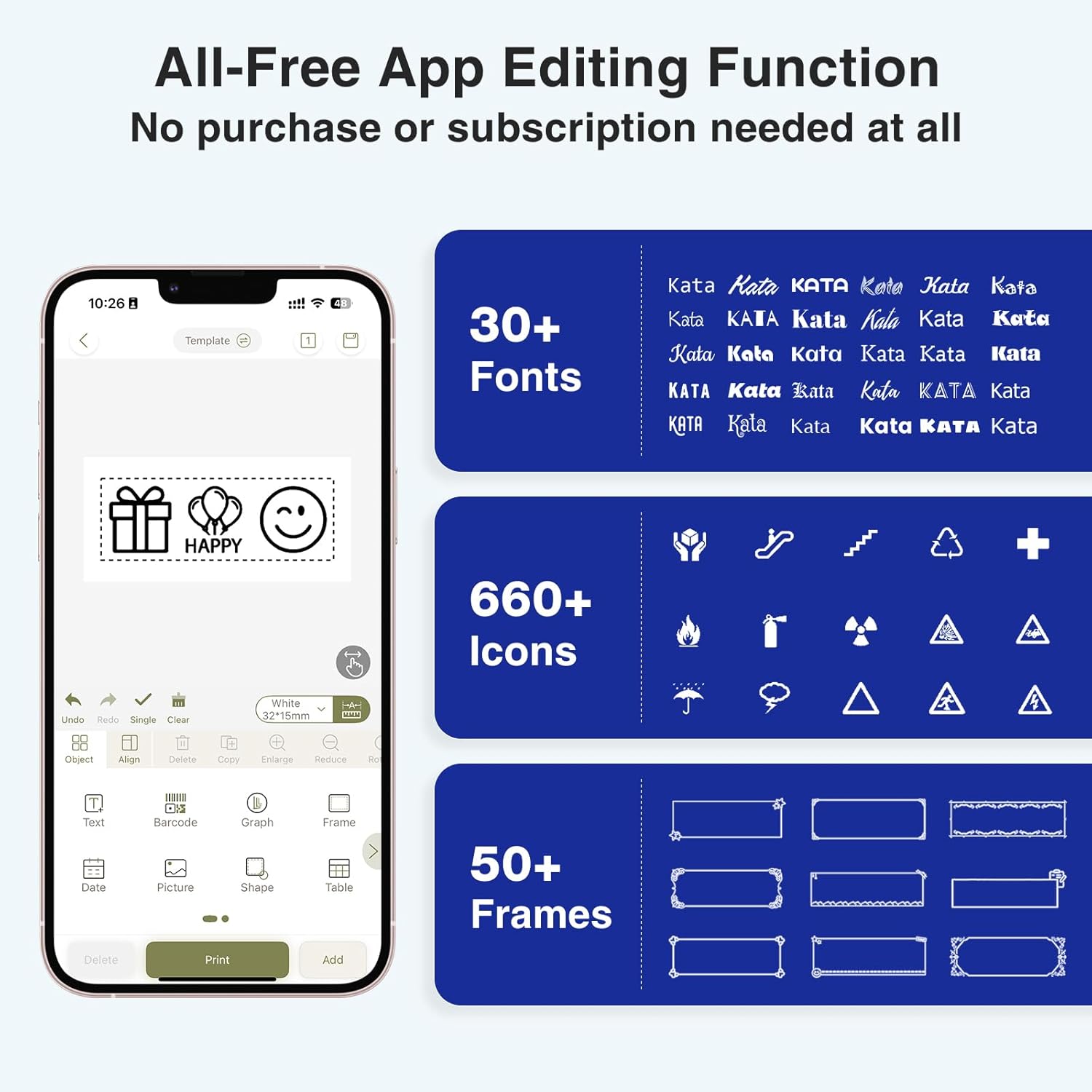
Image: A visual comparison highlighting the minimal 0.2-inch margin of SUPVAN labels versus the larger 1-inch margin of other label makers, demonstrating material efficiency.
4. Wide Applications
The SUPVAN E11 is suitable for various organizational tasks in different environments:
- Inici: Organizing pantry items, storage bins, and personal belongings.
- Cuina: Labeling food containers, spices, and expiry dates.
- Oficina: Categorizing files, folders, and office supplies.
- Escola: Labeling school supplies, books, and projects.
- Garage/Workshop: Organizing tools and parts.

Image: A collage showing various applications of labels created with the SUPVAN E11, including labeling bottles, file folders, and storage containers.
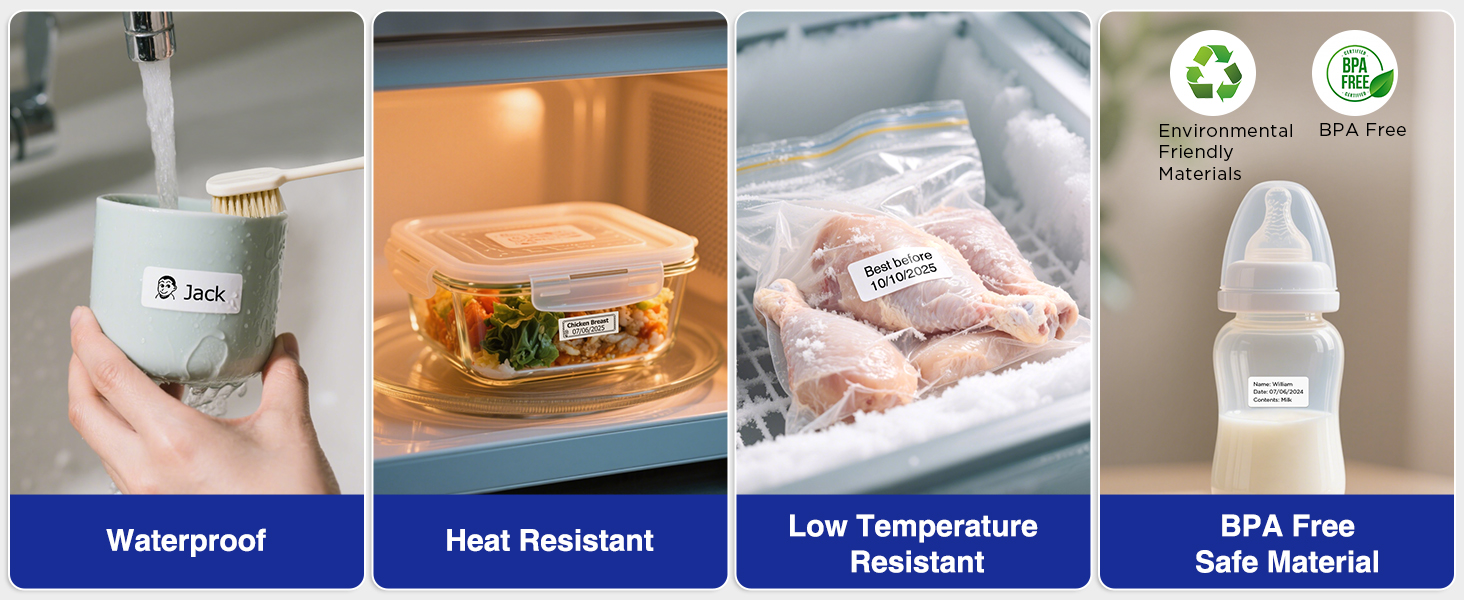
Image: A display illustrating the durability of SUPVAN laminated labels, highlighting their waterproof, heat-resistant, low-temperature resistant, and BPA-free characteristics.
Manteniment
1. Neteja del capçal d'impressió
To ensure optimal print quality, regularly clean the print head:
- Turn off the label maker and open the label compartment.
- Netegeu suaument el capçal d'impressió amb un drap suau i sense borrissolampamb alcohol isopropílic.
- Allow the print head to dry completely before closing the compartment and using the device.
2. Cura de la bateria
Per allargar la durada de la bateria:
- Eviteu descarregar completament la bateria amb freqüència.
- Carregueu el dispositiu regularment, fins i tot si no l'esteu fent servir, per mantenir la bateria en bon estat.
- Guardeu el dispositiu en un lloc fresc i sec quan no el feu servir durant períodes prolongats.
Resolució de problemes
| Problema | Causa possible | Solució |
|---|---|---|
| Device does not turn on or turns off unexpectedly. | Low battery; device overload during long prints. | Ensure the device is fully charged. For long prints, try breaking the text into shorter segments. |
| Poor print quality (faint, streaky, or blank labels). | Print head is dirty; incorrect label tape installation; faulty label tape. | Clean the print head as described in the Maintenance section. Reinstall the label tape correctly. Try a new roll of label tape. |
| Problemes de connexió Bluetooth. | Bluetooth is off; device not paired; app issues. | Ensure Bluetooth is enabled on both devices. Re-pair the label maker through the app. Restart the app and the label maker. |
| Labels are not feeding correctly or jamming. | Improper tape installation; foreign object in the feed path. | Open the compartment and re-install the tape, ensuring it is aligned. Check for any obstructions and carefully remove them. |
Especificacions
| Característica | Detall |
|---|---|
| Marca | SUPVAN |
| Nom del model | E11 |
| Tecnologia de connectivitat | Bluetooth |
| Tecnologia d'impressió | Tèrmica |
| Sortida de la impressora | Monocrom |
| Velocitat màxima d'impressió en monocrom | 40 mm/s |
| Resolució | 203 ppp |
| Pes de l'article | 0.5 lliures (aprox. 227 g) |
| Dimensions del producte (P x A x A) | 14.7 cm x 7.9 cm x 3.8 cm (aprox. 5.8 cm x 3.1 cm x 1.5 cm) |
| Capacitat de la bateria | 1200 mAh |
| Interfície de càrrega | USB tipus C |
| Tipus de visualització | LCD |
| Mètode de control | Aplicació, botó |
| Mida màxima del suport | 15 mm x 6 m |
Informació de la garantia
L'etiquetadora SUPVAN E11 inclou un 2 any de garantia del fabricantAquesta garantia cobreix els defectes de materials i de fabricació en condicions d'ús normal. Si us plau, conserveu el comprovant de compra per a reclamacions de garantia.
For detailed warranty terms and conditions, please refer to the official SUPVAN weblloc o contacteu amb el servei d'atenció al client.
Atenció al client
If you encounter any issues or have questions not covered in this manual, please contact SUPVAN customer support:
- Weblloc: Visita el SUPVAN oficial weblloc web per a preguntes freqüents i recursos de suport.
- Correu electrònic: Consulteu l'embalatge del producte o la fitxa oficial weblloc web per a adreces de correu electrònic d'atenció al client.
Ask a question about this manual
Ask about setup, troubleshooting, compatibility, parts, safety, or missing instructions. Manuals+ will review the question and use this page’s manual context to help answer it.