
Introducció
This manual provides comprehensive instructions for the Akko MG75 ABNT2 Mechanical Keyboard. Designed for efficiency and customization, this 75% layout keyboard features Akko Silver V3 Pro mechanical switches, full RGB backlighting, and hot-swappable switch sockets. Please read this manual carefully to ensure proper use and maintenance of your device.
1. Configuració
1.1 Contingut del paquet
- Akko MG75 ABNT2 Mechanical Keyboard
- USB-C Cable (Removable)
- Extractor de tecles
- Tirador de commutació
- Interruptors addicionals
- Manual d'usuari (aquest document)
1.2 Connexió del teclat
- Localitza el port USB-C a la part posterior del teclat.
- Connect the provided USB-C cable to the keyboard.
- Connecteu l'altre extrem del cable USB-C a un port USB disponible de l'ordinador.
- El sistema operatiu reconeixerà automàticament el teclat. Normalment no es necessiten controladors addicionals per a la funcionalitat bàsica.

Image: USB-C port for connecting the keyboard.
1.3 Ajust de l'alçada del teclat
The Akko MG75 keyboard features three levels of adjustable height. Flip out the feet located on the underside of the keyboard to select your preferred typing angle.
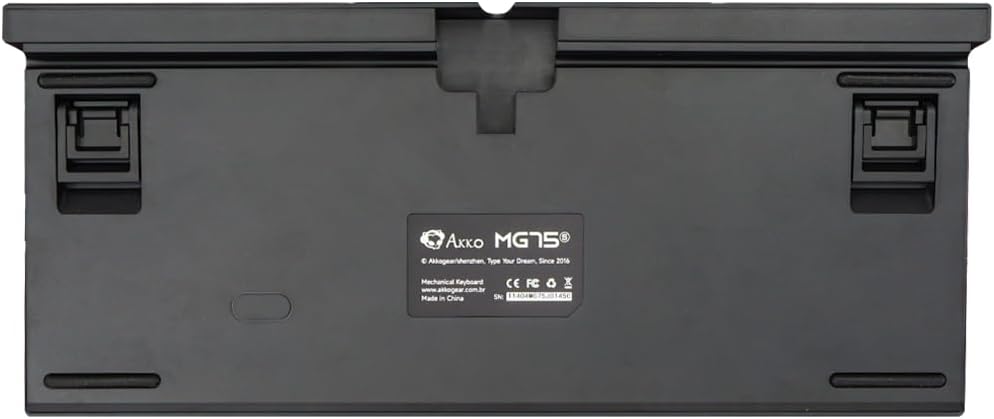
Image: Underside of the keyboard with adjustable feet.
2. Instruccions de funcionament
2.1 Control d'il·luminació RGB
The Akko MG75 keyboard features full RGB backlighting with multiple effects and customization options. Refer to the included quick guide or the official Akko software for detailed instructions on changing lighting modes, colors, and brightness. Typically, lighting effects can be cycled using specific key combinations (e.g., Fn + certain keys).
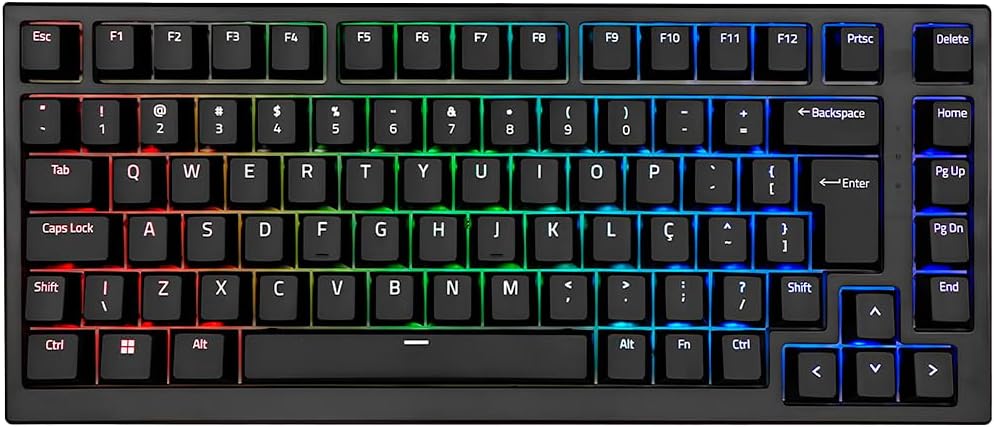
Image: Akko MG75 keyboard displaying RGB lighting.
2.2 Commutadors intercanviables en calent
The Akko MG75 supports hot-swappable mechanical switches, compatible with both 3-pin and 5-pin switches. This allows for easy customization of your typing experience without soldering.
Changing Switches:
- Use the provided switch puller to carefully remove the desired switch from the keyboard. Grip the switch firmly and pull straight up.
- Alineeu els pins del nou interruptor amb els forats de la placa de circuit imprès. Assegureu-vos que els pins estiguin rectes.
- Gently press the new switch into place until it clicks securely. Do not force the switch if it does not go in easily; check pin alignment.

Image: Akko mechanical switches, illustrating their design for hot-swapping.
2.3 ABNT2 Layout
This keyboard features the ABNT2 layout, which includes specific keys for Portuguese language characters and punctuation, such as 'Ç' and dedicated keys for accents. This layout is standard for Brazilian Portuguese users.

Imatge: De dalt a baix view of the Akko MG75 keyboard, highlighting the ABNT2 layout.
3. Manteniment
3.1 Neteja del teclat
- Desconnecteu el teclat de l'ordinador abans de netejar-lo.
- Feu servir un raspall suau o aire comprimit per eliminar la pols i les restes que hi ha entre les tecles.
- For stubborn dirt, gently wipe the keycaps and keyboard surface with a slightly damp cloth (water only). Avoid excessive moisture.
- No utilitzeu productes químics ni productes de neteja abrasius.
3.2 Substitució de les tecles
To replace keycaps, use the provided keycap puller. Gently hook the puller onto the keycap and pull straight up. To install a new keycap, align it with the switch stem and press down firmly until it is seated.
4. Solució De Problemes
4.1 El teclat no respon
- Assegureu-vos que el cable USB-C estigui connectat correctament tant al teclat com a l'ordinador.
- Try disconnecting and reconnecting the USB-C cable multiple times. Some users have reported this resolves initial connection issues.
- Test the keyboard on a different USB port on your computer.
- If possible, test the keyboard on another computer to rule out system-specific issues.
- Check if the cable itself is damaged by trying a different USB-C cable if available.
4.2 La il·luminació RGB no funciona correctament
- Assegureu-vos que el teclat estigui connectat correctament i que rebi alimentació.
- Refer to the quick guide for key combinations to cycle through lighting modes and adjust brightness.
- If using Akko software, ensure it is up-to-date and correctly configured.
5. Especificacions
| Característica | Detall |
|---|---|
| Marca | Akko |
| Model | MG75 |
| Disseny | 75% ABNT2 |
| Interruptors | Akko Silver V3 Pro Mechanical |
| Intercanvi en calent | Sí (compatible amb 3 i 5 pins) |
| Connectivitat | USB-C (Removable Cable) |
| Il·luminació de fons | RGB |
| Anti-fantasma | N-keys Rollover |
| Taps de claus | ABS Laser |
| Alçada ajustable | Sí, 3 nivells |
| Dispositius compatibles | PC |
| Color | Negre |
| Nombre de claus | 84 |
| Pes brut | 1582 g |
| Pes net | 1451 g |
| Package Dimensions (L x H x D) | 350 mm x 250 mm x 50 mm |
6. Garantia i Suport
6.1 Garantia del producte
The Akko MG75 Mechanical Keyboard comes with a 12 mesos de garantia against manufacturing defects from the date of purchase. Please retain your proof of purchase for warranty claims. This warranty does not cover damage caused by misuse, accidents, unauthorized modifications, or normal wear and tear.
6.2 Atenció al client
For technical assistance, warranty claims, or further inquiries, please visit the official Akko website or contact your local retailer. You may find additional resources, FAQs, and software downloads on the manufacturer's support page.
Official Akko Weblloc: www.akkogear.com