
1. Configuració
1.1. Contingut del paquet
Assegureu-vos que tots els components estiguin presents al paquet:
- AUSDOM 108-Key Wireless Keyboard
- AUSDOM Wireless Mouse
- USB Receiver (stored in the mouse)
- Cable de càrrega USB-C
- Manual d'usuari
1.2. Connecting the Combo
- Localitza el receptor USB: The 2.4GHz USB receiver is conveniently stored in a compartment on the underside of the wireless mouse. Gently slide open the battery cover to access it.
- Inseriu el receptor: Plug the USB receiver into an available USB port on your computer (PC, laptop, or tablet). The system will automatically detect and install the necessary drivers.
- Dispositius d'encesa: Ensure both the keyboard and mouse are switched to the 'ON' position. The power switch for the keyboard is located on its top edge, and for the mouse, it is on the underside.

1.3. Charging the Combo
Both the keyboard and mouse are equipped with built-in rechargeable Lithium Polymer batteries. Use the provided USB-C cable to charge them.
- Connect the USB-C end of the cable to the charging port on the keyboard (located on the top edge) or the mouse (located on the front).
- Connect the USB-A end of the cable to a powered USB port on your computer or a USB wall adapter.
- Una càrrega completa triga aproximadament 2 hores i proporciona fins a 300 hores de temps d'espera.

2. Instruccions de funcionament
2.1. Característiques del teclat
The AUSDOM KAM200X keyboard features a full-size 108-key layout, including a dedicated numeric keypad and various function keys for enhanced productivity.
- Mechanical-Feel Keys: Experience tactile feedback similar to mechanical keyboards, combined with quiet scissor-switch mechanisms and a short 3.8mm key travel for comfortable and precise typing.
- Multimedia and Shortcut Keys: Utilize dedicated media controls (volume, play/pause) and app-switching shortcuts for streamlined workflow. Refer to the user manual for a complete list of function key combinations.
- Canvi de sistema operatiu: Easily switch between Windows and macOS layouts using specific function key combinations (e.g., Fn + P for Windows, Fn + O for Mac).


2.2. Característiques del ratolí
The ergonomic wireless mouse is designed for comfortable use and precise control.
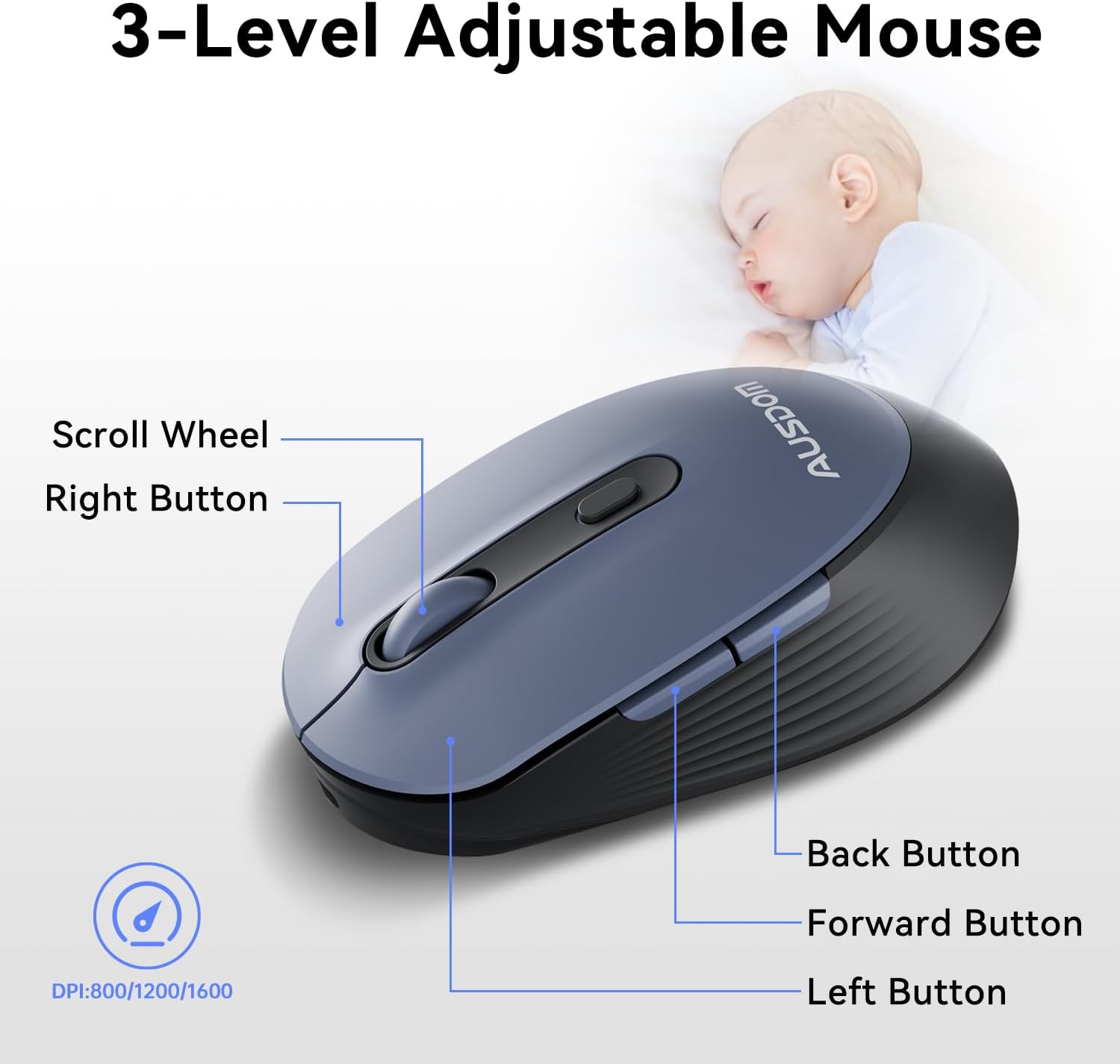
- DPI ajustable: Cycle through 3 DPI levels (800, 1200, 1600) using the dedicated DPI button to adjust cursor sensitivity for different tasks.
- Botons Endavant/Enrere: Utilize the side buttons for quick navigation in web navegadors i aplicacions.
- Clics silenciosos: The mouse features silent click buttons to minimize noise in quiet environments.
2.3. Àmplia compatibilitat
The AUSDOM wireless combo is compatible with a broad range of operating systems and devices, ensuring seamless integration into your existing setup.
- Sistemes operatius: Compatible with Windows XP/ME/Vista/7/8/10/11 and macOS.
- Dispositius: Works instantly with desktops, laptops, and other computers without requiring additional software or drivers.

3. Manteniment
3.1. Neteja
To ensure the longevity and optimal performance of your AUSDOM combo, regular cleaning is recommended.
- Feu servir un drap suau, sec i sense borrissol per netejar les superfícies del teclat i del ratolí.
- Per a la brutícia persistent, lleugerament dampen the cloth with water or a mild cleaning solution, ensuring no liquid enters the device openings.
- Eviteu utilitzar productes químics agressius, netejadors abrasius o dissolvents.
3.2. Emmagatzematge
When not in use for extended periods, store the keyboard and mouse in a cool, dry place away from direct sunlight and extreme temperatures. The USB receiver can be stored inside the mouse to prevent loss.
4. Solució De Problemes
4.1. Problemes de connexió
- Comprovació del receptor: Ensure the USB receiver is firmly plugged into a working USB port on your computer.
- Encès: Verify that both the keyboard and mouse are switched to the 'ON' position.
- Nivell de bateria: Confirm that both devices have sufficient battery charge. Recharge if necessary.
- Prova un port diferent: Plug the USB receiver into a different USB port on your computer.
4.2. Lag or Unresponsiveness
- Reduir la interferència: Move the keyboard and mouse closer to the USB receiver. Avoid placing large metal objects between the devices and the receiver.
- Check for Other Devices: Other 2.4GHz wireless devices might cause interference. Try to minimize their use or move them further away.
- Recàrrega: Ensure both devices are fully charged.
4.3. Keyboard Specific Issues
- Les tecles no responen: Netegeu suaument els voltants de les tecles afectades per eliminar qualsevol residu.
- Sortida de clau incorrecta: Check your computer's operating system settings to ensure the correct keyboard layout is selected.
4.4. Mouse Specific Issues
- Erratic Cursor: Clean the optical sensor on the underside of the mouse. Ensure you are using the mouse on a suitable, non-reflective surface.
- Ajust de DPI: Press the DPI button on the top of the mouse to cycle through the 800/1200/1600 DPI settings.
5. Especificacions del producte
| Característica | Especificació |
|---|---|
| Marca | AUSDOM |
| Número de model | KAM200X |
| Dimensions del producte | 17.44 x 5.31 x 0.79 polzades |
| Pes de l'article | 1.8 lliures |
| Bateries | Necessites 2 piles de polímer de liti (incloses) |
| Tecnologia de connectivitat | 2.4 Ghz sense fil |
| Característiques especials | Lightweight, Rechargeable, Scissor Switch, Wireless |
| Dispositius compatibles | Ordinador portàtil, ordinador personal, tauleta |
6. Informació de la garantia
For detailed warranty information regarding your AUSDOM KAM200X Wireless Keyboard and Mouse Combo, please refer to the official documentation included in your product packaging or visit the manufacturer's official weblloc web. Els termes i condicions de la garantia poden variar segons la regió i el producte.
7. Atenció al client
If you encounter any issues or have questions about your AUSDOM KAM200X Wireless Keyboard and Mouse Combo, please contact AUSDOM customer support through their official channels. You can often find support contact information, FAQs, and additional resources on the AUSDOM Store Page o el seu oficial weblloc.