
Introducció
Thank you for choosing the OMOTON Wireless Bluetooth Keyboard. This ultra-slim keyboard is designed for seamless compatibility with various Mac devices, offering a stable and efficient typing experience. This manual provides detailed instructions for setup, operation, maintenance, and troubleshooting to ensure optimal performance of your device.

OMOTON Wireless Keyboard compatible with various Mac devices including iMac, Mac mini, and MacBook Pro/Air. System requirement: Mac OS X 10.10 or above.
Configuració
1. Instal·lació de la bateria
The OMOTON Wireless Bluetooth Keyboard requires two AAA batteries (not included). Follow these steps to install them:
- Locate the battery compartment on the back of the keyboard.
- Feu lliscar la tapa de la bateria.
- Introduïu dues piles AAA, assegurant-vos de la polaritat correcta (+/-).
- Tanqueu la tapa de la bateria amb seguretat.
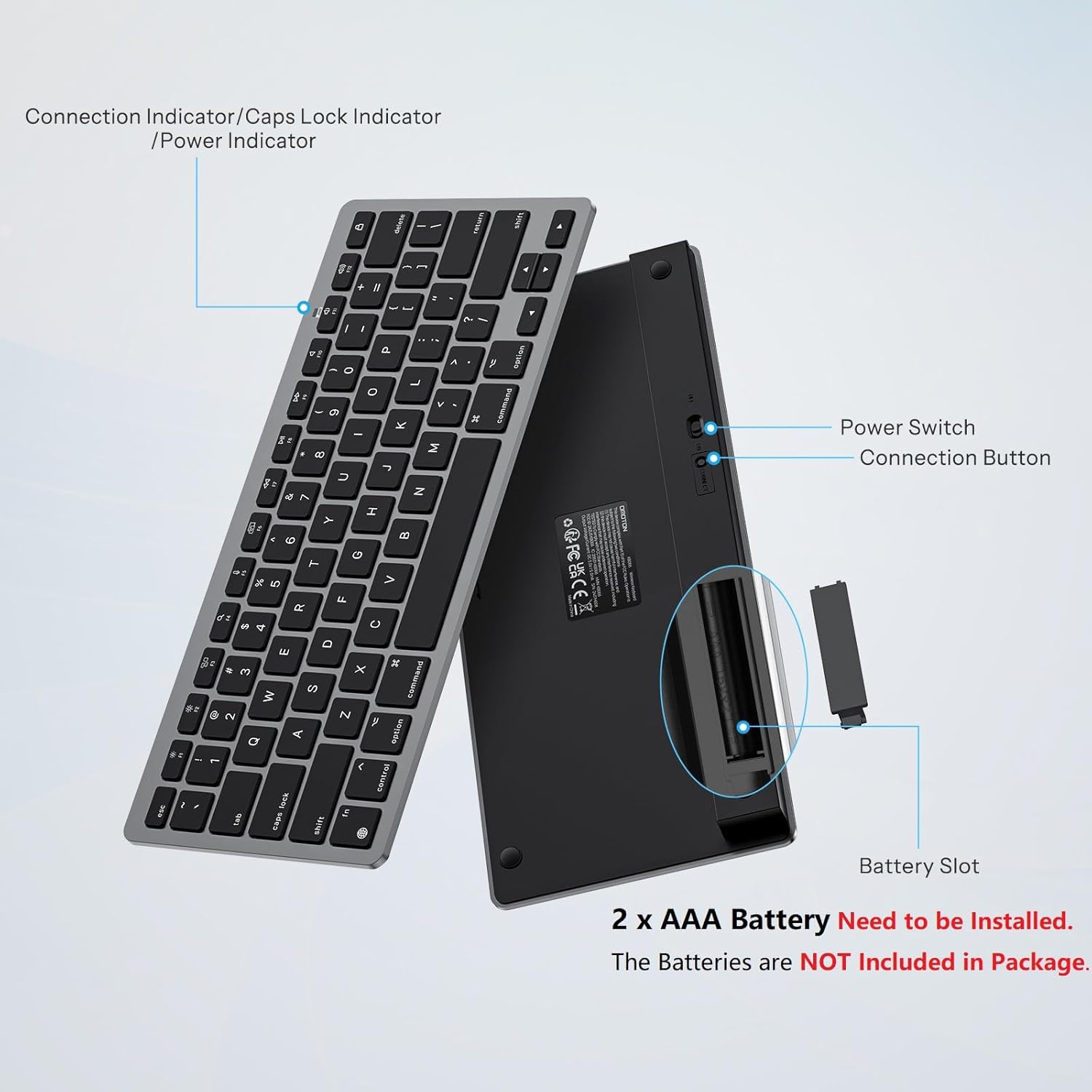
posterior view of the OMOTON Wireless Keyboard showing the power switch, connection button, and battery slot for two AAA batteries.
2. Emparellament Bluetooth
To connect your keyboard to your Mac device, follow these steps:
- Assegureu-vos que el teclat tingui piles noves instal·lades.
- Locate the power switch on the back of the keyboard and slide it to the "ON" position.
- Press the "Connect" button on the back of the keyboard. The Bluetooth indicator light on the keyboard will begin to flash, indicating it is in pairing mode.
- On your Mac device, go to Configuració del sistema (o Preferències del sistema) > Bluetooth.
- Assegureu-vos que el Bluetooth estigui activat.
- Look for "KB066 Mac Keyboard" (or similar) in the list of available devices and click "Connect" or "Pair".
- Once connected, the Bluetooth indicator light on the keyboard will stop flashing.

Step-by-step visual guide for connecting the OMOTON Wireless Keyboard via Bluetooth to a Mac device.
The keyboard maintains a stable Bluetooth connection range of up to 33 feet (10 meters).
Instruccions de funcionament
Mecanografia bàsica
The keyboard features a standard QWERTY layout. The keys are designed for a quick and responsive typing experience.

Close-up of a key on the OMOTON Wireless Keyboard, illustrating the scissor-switch mechanism for quick and quiet typing.
Claus multimèdia
The top row of keys (F1-F12) provides dedicated multimedia and function controls for Mac devices. These include:
- F1/F2: Ajust de brillantor
- F3: Control de missió
- F4: Cerca
- F5: Dictat
- F6: Captura de pantalla
- F7/F8/F9: Pista anterior, Reproducció/Pausa, Pista següent
- F10/F11/F12: Silenciar, baixar el volum, pujar el volum
- Tecla d'expulsió: Pantalla de bloqueig

Layout of the OMOTON Wireless Keyboard highlighting the dedicated multimedia function keys for Mac.
Disseny ergonòmic
The keyboard features an 8-degree tilt angle, designed to promote a comfortable typing posture and reduce strain during extended use. Four rubber feet on the bottom provide slip resistance for stability.

lateral view of the OMOTON Wireless Keyboard demonstrating its 8-degree ergonomic tilt for comfortable typing.
Manteniment
Neteja
Per mantenir l'aspecte i la funcionalitat del teclat:
- Use a soft, lint-free cloth to wipe the surface.
- Per a la brutícia persistent, lleugerament dampNetegeu el drap amb aigua o una solució de neteja suau. Eviteu l'excés d'humitat.
- Do not use abrasive cleaners, solvents, or aerosol sprays directly on the keyboard.
Canvi de bateria
When the keyboard's performance degrades or it fails to connect, it may be time to replace the batteries. Refer to the "Battery Installation" section for instructions on replacing the two AAA batteries. The energy-saving design and auto-sleep mode allow for a battery replacement interval of up to 6 months under typical usage.
Resolució de problemes
- Keyboard not connecting or frequently disconnecting:
- Ensure the keyboard is powered on and has fresh batteries.
- Verify that Bluetooth is enabled on your Mac device.
- Move the keyboard closer to your Mac to ensure it's within the 33-foot (10-meter) range.
- Try unpairing and re-pairing the keyboard through your Mac's Bluetooth settings. - Les tecles no responen:
- Check battery levels and replace if necessary.
- Ensure the keyboard is properly connected via Bluetooth.
- If the keyboard has been idle, it may be in auto-sleep mode. Press any key and wait 2-3 seconds for it to wake up. - Entrada amb retard o retard:
- This could be due to interference. Try moving other wireless devices away from your keyboard and Mac.
- Ensure your Mac's operating system is up to date.
Especificacions
| Característica | Detall |
|---|---|
| Marca | OMOTON |
| Model | B0DLMXVTHM |
| Dispositius compatibles | Mac/iMac/Macbook/Laptop etc. (macOS 10.10 and later) |
| Tecnologia de connectivitat | Bluetooth |
| Descripció del teclat | Multimedia, Wireless |
| Usos recomanats | Oficina |
| Característica especial | Ergonòmic, portàtil |
| Color | Negre Gris |
| Material | Plàstic |
| Font d'alimentació | Alimentat per piles (2 x AAA, no incloses) |
| Disposició del teclat | QWERTY |
| Pes de l'article | 11.7 unces |
| Dimensions del paquet | 11.38 x 5 x 0.94 polzades |

Dimensions of the OMOTON Wireless Keyboard (11.22 x 4.72 inches) shown in comparison to a MacBook and a smartphone.
Garantia i Suport
OMOTON products are designed for reliability and performance. For specific warranty details, please refer to the warranty card included with your product packaging or visit the official OMOTON website. For technical support or further assistance, please contact OMOTON customer service through their official channels.