
1. Introducció
The VILCORN SNPLUS5k Retro Game Console offers a nostalgic gaming experience with a vast library of built-in 8-bit and 16-bit classic games. Designed for plug-and-play convenience, this system connects directly to your TV via HDMI, providing instant access to thousands of titles. Enjoy classic pixel-art visuals and sound, faithfully recreating the golden age of gaming.
2. Contingut del paquet
Verifiqueu que tots els elements que s'enumeren a continuació s'inclouen al vostre paquet:
- 1 x VILCORN SNPLUS5k Game Console
- 2 x Wired Gamepads
- 1 x cable HDMI
- Cable d’alimentació 1 x USB
- 1 x Power Adapter (USB Wall Charger)
- 1 x Manual d'usuari

Image: The VILCORN SNPLUS5k console and its two wired controllers, along with the HDMI and power cables.
3. Instruccions de configuració
Follow these steps to connect your VILCORN SNPLUS5k Retro Game Console to your television or monitor:
- Insert the Game Memory Card: Ensure the game memory card (TF card) is securely inserted into the console's designated slot.
- Connect the Data Cable: Plug the USB power cable into the console's Type-C 5V-INPUT port.
- Connect HDMI to Console: Insert one end of the HDMI cable into the console's HD-TV OUTPUT port.
- Connect HDMI to TV: Plug the other end of the HDMI cable into an available HDMI input on your TV or monitor.
- Encès: Insert the USB power cable into the power adapter, then plug the adapter into a wall outlet. The console's indicator light should illuminate.
- Prepare Gamepads: Insert 2 AA batteries into each gamepad (batteries not included).
- Seleccioneu l'entrada: On your TV or monitor, select the correct HDMI input source to display the console's menu.

Image: Visual steps demonstrating how to connect the game console to a television, including inserting the memory card, connecting power, and HDMI cables.
Guia de vídeo de configuració
Video: An official video from VILCORN Global Store demonstrating the unboxing, connection, and initial setup of the retro game console.
4. Instruccions de funcionament
4.1. Navigating the Game Menu
Once the console is powered on and connected to your display, the main game selection menu will appear. Use the directional pad (D-pad) on your gamepad to navigate through the list of games. Press the 'A' button (or equivalent action button) to select a game and start playing.

Imatge: Un primer pla view of the gamepad, highlighting the directional pad and action buttons for game control.
4.2. Saving and Loading Game Progress
The console supports instant saving and loading of game progress. To access the in-game menu:
- During gameplay, simultaneously press the SELECCIONA i COMENÇA buttons on your controller.
- A menu will appear, offering options such as 'Resume', 'Return', 'Load', 'Save', 'Screen', and 'System'.
- Select 'Save' to store your current game progress. You can choose from multiple save slots.
- Select 'Load' to resume a previously saved game.

Image: A television screen displaying the in-game menu with options like 'Resume', 'Load', and 'Save' highlighted.
4.3. Game Management Features
The console includes features to help you manage your game library:
- Cerca: Use the search function to quickly find specific games within the extensive library.
- Preferits: Mark your preferred games as favorites for easy access.
- Història: View your recently played games in the history section.
- NTSC/PAL Support: The system supports both NTSC and PAL video formats. This setting can typically be adjusted in the 'System' menu.

Image: A screen displaying the game management interface, including options for searching, favoriting, and viewing game history.
5. Downloading Additional Games
The VILCORN SNPLUS5k console allows you to add more games by following these steps:
- Download Game Files: Obtain compatible game ROM files from a legitimate source.
- Connect TF Card to Computer: Remove the TF card from the console and insert it into a card reader connected to your computer.
- Joc de còpia Files: Copy the downloaded game files into the designated "Roms" folder on the TF card.
- Insert Card and Power On: Safely eject the TF card from your computer, reinsert it into the console, and power on the game system.
- Find and Play: Navigate the console's menu to find your newly added games and start playing.
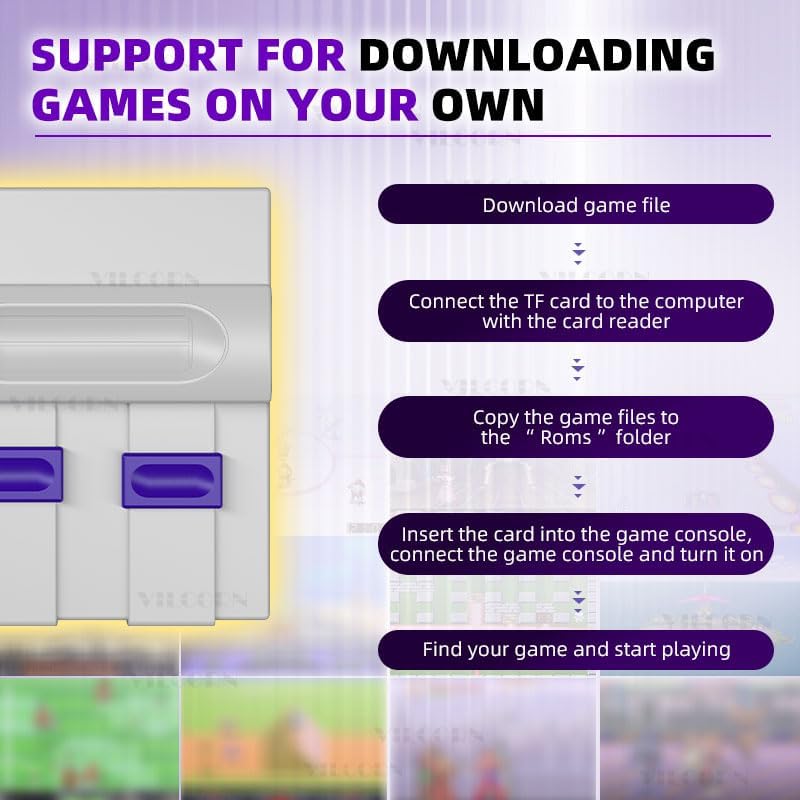
Image: A visual guide illustrating the process of downloading game files and transferring them to the console's memory card.
6. Especificacions
| Característica | Detall |
|---|---|
| Número de model | SNPLUS5k |
| Nombre de jugadors | 2 |
| Tipus de controlador | Joystick (Wired) |
| Font d'alimentació | Battery Powered (for controllers), USB (for console) |
| Requisits de bateria | 2 AA batteries per controller |
| Tipus de visualització | Digital |
| Capacitat d'emmagatzematge de memòria | 4 GB (mitjançant targeta TF) |
| Factor de forma | Handheld (controllers), Console (main unit) |
| Muntatge obligatori | No |
| Plataforma | TV Plug & Play |
| Dimensions (L x A x A) | 7.9 x 3.2 x 6.5 polzades |
| Pes de l'article | 1.2 lliures |
| Color | Blanc |
| Tipus de material | Plàstic |
| Fabricant | Shenzhen Jiajue Technology Co., Ltd |

Image: A diagram illustrating the physical dimensions of both the VILCORN SNPLUS5k console and its accompanying gamepads.
7. Solució De Problemes
- Sense alimentació/Sense pantalla:
- Ensure the USB power cable is securely connected to both the console and the power adapter, and the adapter is plugged into a working wall outlet.
- Verify that the HDMI cable is firmly connected to both the console and your TV/monitor.
- Check that your TV/monitor is set to the correct HDMI input source.
- Try a different HDMI port on your TV or a different power outlet.
- Controllers Not Responding:
- Ensure fresh AA batteries are correctly inserted into each gamepad.
- Verify that the gamepad cables are securely plugged into the console's USB ports.
- Restart the console and try reconnecting the controllers.
- Game Freezes or Glitches:
- Reinicieu la consola.
- Ensure the TF card is properly inserted. Remove and reinsert it if necessary.
- If the issue persists with a specific game, the game file podria estar malmès.
- Cannot Save Game Progress:
- Ensure the TF card is inserted and has sufficient free space.
- Follow the correct procedure for saving (simultaneously pressing SELECT + START).
8. Manteniment
- Keep the console and accessories in a dry, dust-free environment.
- Eviteu exposar el dispositiu a temperatures extremes o a la llum solar directa.
- Clean the console and controllers with a soft, dry cloth. Do not use liquid cleaners or abrasive materials.
- When not in use for extended periods, remove batteries from the gamepads.
9. Garantia i Suport
For warranty information or technical support, please refer to the contact details provided with your purchase or visit the official VILCORN weblloc web. Conserveu el rebut de compra com a comprovant de compra.