
1. Producte acabatview
The MINISFORUM MGA1 is a Mini eGPU Dock Station designed to enhance the graphics capabilities of compatible devices, primarily mini PCs and laptops. It integrates an AMD Radeon RX 7600M XT graphics card and a robust power supply solution to deliver high-performance graphics processing and versatile connectivity.
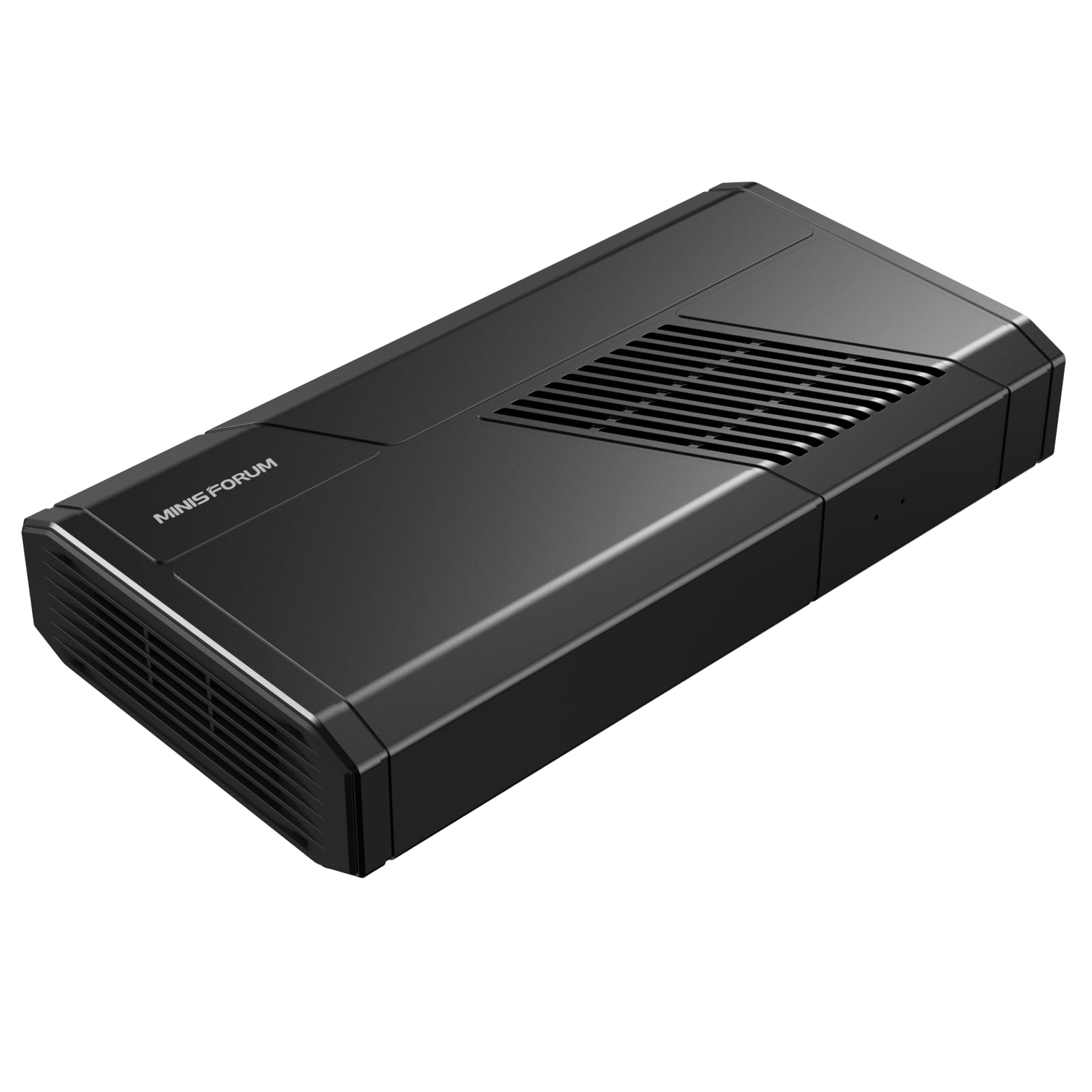
Image: The MINISFORUM MGA1 Mini eGPU Dock Station, a compact black unit with various ports.
Característiques principals:
- Targeta gràfica: Equipped with an AMD Radeon RX 7600M XT, featuring 8GB GDDR6 video memory, RDNA 3 architecture, 6nm manufacturing process, 120W TDP, 2048 stream processors, and 32 computing units. Base frequency is 1437 MHz, with an acceleration frequency up to 2300 MHz.
- Font d'alimentació: Built-in 240W GaN power supply provides stable power and supports 65W Power Delivery (PD) output. It is compatible with ATX and SFX standard power supplies for flexible integration.
- Oculink Interface: Features an Oculink 4i (PCIE4.0x4) uplink and PCIEx16 (PCIE4.0x4) downlink, supporting data transfer rates up to 64Gbps for efficient graphics processing and data transfer.
- Smart Startup Function: Includes ForcePowerOn with an LED indicator, allowing one-click switching between forced startup and follow-up startup modes. This function is compatible with MINISFORUM mini PCs and requires original cables.
- Protecció de seguretat: Incorporates a high-quality signal amplification chip for stable transmission. The Oculink connector has a fixed locking mechanism; press the switch to unlock before unplugging to prevent damage. Nota: The Oculink interface does not support hot-plugging; the computer must be powered off before connecting or disconnecting the cable.
2. Guia de configuració
2.1 Contingut del paquet
Abans de continuar amb la configuració, assegureu-vos que tots els components estiguin presents al paquet:

Image: The MINISFORUM MGA1 eGPU dock, power cable, Oculink cable, and USB-C cable laid out next to the product box.
- MINISFORUM MGA1 Mini eGPU Dock Station
- Cable d'alimentació
- Oculink Cable
- Cable USB-C
- Manual d'usuari (aquest document)
2.2 Connecting the eGPU Dock Station
- Connexió d'alimentació: Connect the provided power cable to the AC-IN port on the MGA1 dock and then to a power outlet.
- Oculink Connection: Important: Ensure your host computer is powered off before connecting the Oculink cable. Connect one end of the Oculink cable to the Oculink 4i port on the MGA1 dock and the other end to the Oculink port on your compatible host computer (e.g., MINISFORUM mini PC). Ensure the locking mechanism clicks into place.
- Connexió de visualització: Connect your monitor(s) to the MGA1 dock using HDMI 2.1 or DisplayPort 1.4 cables. The dock supports up to three displays simultaneously.
- Connexió del dispositiu USB: Connect any USB peripherals (keyboard, mouse, external drives) to the USB 3.2 Type-A ports on the MGA1 dock.
- USB-C PD Connection (Optional): If your host computer supports USB-C Power Delivery, connect the provided USB-C cable from the MGA1 dock's USB-C port to your host computer for 65W charging.

Image: A close-up of the Oculink port on the MGA1 dock with a cable being inserted, illustrating the connection process.

Image: Three monitors connected to the MGA1 dock, displaying different content, demonstrating triple display output capability.

Image: A laptop connected to the MGA1 dock via a USB-C cable, indicating 65W power delivery.
3. Instruccions de funcionament
3.1 Encès i apagat
- Standard Startup: After all connections are made, power on your host computer. The MGA1 dock should be detected automatically.
- ForcePowerOn: The MGA1 features a ForcePowerOn button with an LED. Press this button to switch between forced startup and follow-up startup modes. In follow-up mode, the eGPU dock will power on/off with your MINISFORUM mini PC (requires original cables).
- Apagar: Power off your host computer normally. The MGA1 dock will power down automatically in follow-up mode, or can be manually powered off using its power switch.
3.2 Configuració de la pantalla
The MGA1 supports up to three independent displays. Once connected, your operating system should detect the new displays. You can configure display settings (e.g., extend, duplicate, resolution) through your operating system's display settings.
3.3 Transferència de dades
The three USB 3.2 Type-A ports provide high-speed data transfer for connected peripherals. The USB-C port also supports data transfer in addition to 65W Power Delivery.
4. Manteniment
4.1 Neteja
- Assegureu-vos que el dispositiu estigui apagat i desconnectat abans de netejar-lo.
- Use a soft, dry cloth to wipe the exterior of the dock.
- For dust accumulation in vents, use compressed air carefully.
4.2 Dissipació de calor
The MGA1 is designed with efficient heat dissipation, including a large area thermal conductive copper tube and a built-in ultra-quiet fan. To ensure optimal performance and longevity, keep the ventilation areas clear of obstructions.

Image: An illustration highlighting the internal cooling components of the MGA1 dock, including a large thermal conductive copper tube and a fan.
5. Solució De Problemes
- Sense sortida de pantalla:
- Ensure the MGA1 dock is powered on.
- Verify that the Oculink cable is securely connected to both the dock and the host computer.
- Check that display cables (HDMI/DisplayPort) are firmly connected to both the dock and the monitor.
- Confirm the correct input source is selected on your monitor.
- Oculink Connection Issues:
- Remember that Oculink does not support hot-plugging. Always power off your computer before connecting or disconnecting the Oculink cable.
- Ensure the Oculink cable is an original MINISFORUM cable for optimal compatibility.
- Problemes d'alimentació:
- Check if the power cable is securely connected to the MGA1 dock and the power outlet.
- Comproveu que la presa de corrent funcioni.
- Smart Startup Function Not Working:
- This feature is primarily compatible with MINISFORUM mini PCs.
- Ensure you are using the original Oculink cable provided with the device.
6. Especificacions

Image: A table showing detailed specifications for the MINISFORUM MGA1, including GPU, memory, uplink, input, power supply, video output, audio output, USB ports, and power switch.
| Característica | Especificació |
|---|---|
| Marca | MINISFÒRUM |
| Model | MGA1 |
| GPU | AMD Radeon RX 7600M XT |
| Memòria GPU | 8 GB GDDR6 |
| Interfície d'enllaç ascendent | Oculink 4i (PCIE4.0x4) |
| Entrada | Type-C x1 USB3.1 (with 65W PD OUT) |
| Font d'alimentació | Built-in 240W GaN |
| Entrada de potència | 110-220V ~3A |
| Sortida de vídeo | HDMI 2.1 x1, DisplayPort 1.4 x2 |
| Sortida d'àudio | Via HDMI 2.1 x1, DisplayPort 1.4 x2 |
| Ports USB | 3x USB 3.2 Gen1 Type-A Ports |
| Interruptor d'alimentació | 1x interruptor d'alimentació |
| Dispositius compatibles | Laptops, PCs |
| Interfície del maquinari | DisplayPort, HDMI, PCI Express 4.0, USB Type C |
| Wattage | 240W |
| Entrada Voltage | 110 volts (CA) |
7. Informació de la garantia
The MINISFORUM MGA1 Mini eGPU Dock Station typically comes with a manufacturer's warranty. Please refer to the specific warranty documentation included with your purchase or visit the official MINISFORUM website for detailed information regarding warranty duration, terms, and conditions.
8. Suport
For further assistance, technical support, or inquiries regarding your MINISFORUM MGA1 Mini eGPU Dock Station, please utilize the following resources:
- Oficial Weblloc: Visita el MINISFORUM official weblloc for product updates, drivers, FAQs, and support contact information.
- Atenció al client: Contact MINISFORUM customer support directly through their weblloc web per a assistència personalitzada.