
Introducció
This manual provides detailed instructions for the installation, operation, and maintenance of your CAMECHO 1-DIN Car Stereo. Please read this manual thoroughly before using the product to ensure proper function and safety.
Informació de seguretat
- Ensure professional installation to avoid damage to the vehicle's electrical system.
- No feu servir el dispositiu de manera que us distregui de la conducció.
- Keep the volume at a safe level to hear external traffic sounds.
- Eviteu exposar la unitat a temperatures extremes o a la llum solar directa durant períodes prolongats.
Contingut del paquet
Verifiqueu que tots els elements siguin presents al paquet:
- CAMECHO 1-DIN Car Stereo Unit
- Power & Speaker Cable Harness
- Micròfon
- DAB+ Module (USB dongle)
- posteriorview Càmera
- Control remot
- Manual d'usuari

Configuració i instal·lació
Installation of this car stereo requires basic automotive electrical knowledge. Professional installation is recommended.
- Unit Dimensions Check: Before installation, verify the dimensions of the head unit (178mm L x 48mm H x 112mm D) to ensure it fits your vehicle's 1-DIN slot.
- Connexions de cablejat:
- Connect the ISO standard power and speaker cables to your vehicle's harness.
- Connecteu l'antena FM.
- DAB+ Module Installation: Attach the DAB+ antenna to the windshield (typically on the right side A-pillar) and connect it to the DAB+ USB module. Plug the DAB+ module into the rear USB-A port of the car stereo.
- posteriorview Connexió de la càmera: Connecteu la part posteriorview camera's video output (yellow RCA) to the "CAMIN" input on the stereo. Connect the camera's power cable to the reversing lamp power. Ensure both yellow RCA connectors (CVBSIN and CAMIN) are connected, even if a rearview camera is not installed, as this can affect Wi-Fi and Bluetooth functionality.
- Microphone Installation: Route the external microphone cable to a suitable location (e.g., near the driver's sun visor) and plug it into the designated microphone input on the stereo.
- Control del volant (SWC): If your vehicle supports it, connect the SWC wires to enable control from your steering wheel. The unit supports learning original vehicle steering wheel commands.
- Assegurar la unitat: Carefully slide the unit into the dashboard opening and secure it using the mounting brackets.


Instruccions de funcionament
1. CarPlay / Android Auto
Connect your smartphone via USB to enable CarPlay (for iOS) or Android Auto (for Android devices). This allows access to navigation, music, calls, and messaging through the car stereo's touchscreen or voice commands.

2. Enllaç de mirall
Use the USB connection to mirror your smartphone's screen onto the car stereo display. This feature supports both Android and iOS devices, allowing you to view maps, videos, and other content directly on the 7-inch HD screen.

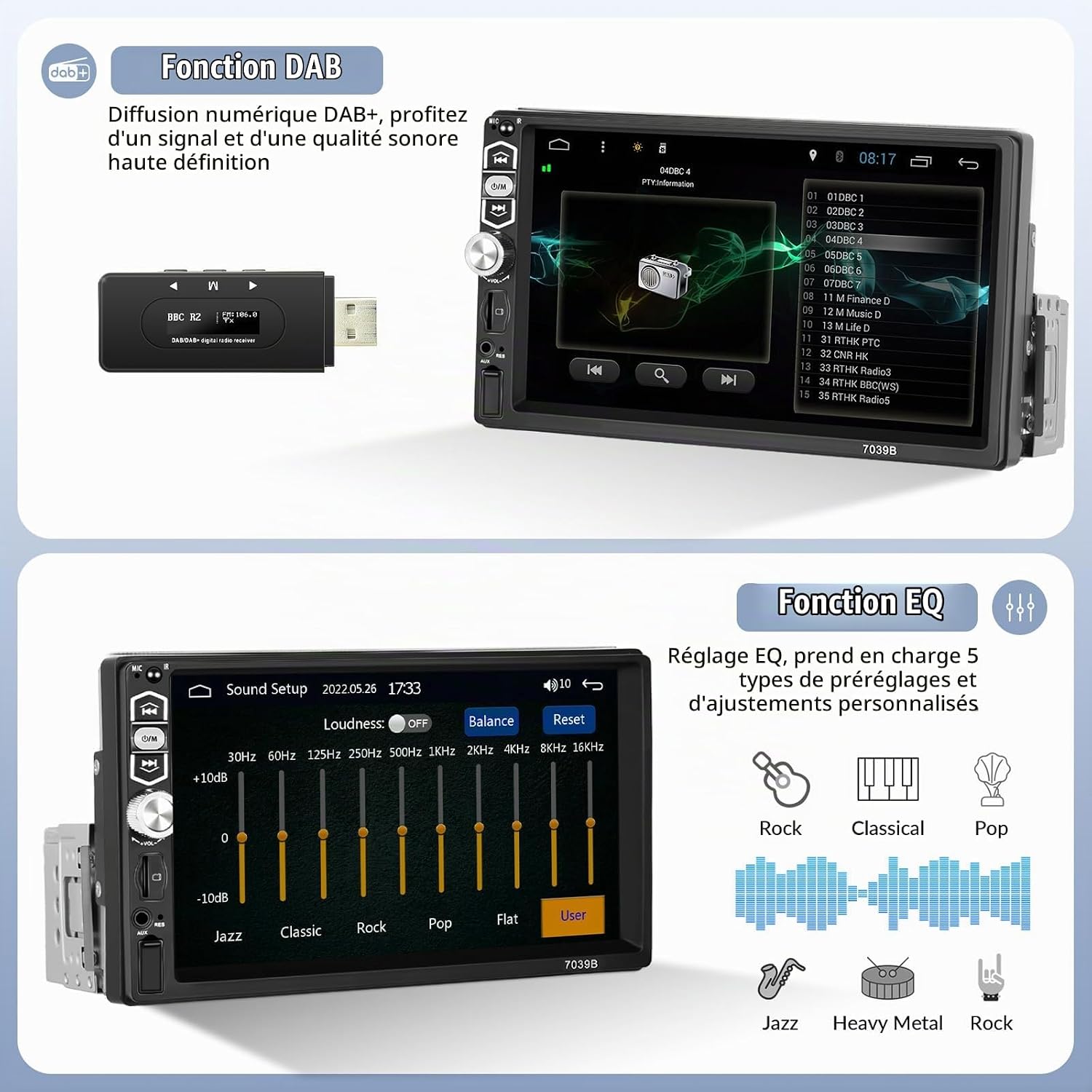
3. DAB+ Digital Radio
The included DAB+ module provides access to a wider selection of digital radio stations with enhanced sound quality. Ensure the DAB+ antenna is properly installed for optimal reception.

4. Connectivitat Bluetooth
Pair your smartphone via Bluetooth for hands-free calling and wireless audio streaming. Access your phonebook and make calls directly from the stereo's touchscreen.
- Aneu al menú Bluetooth de l'equip estèreo.
- Activeu el Bluetooth al vostre telèfon intel·ligent i cerqueu els dispositius disponibles.
- Select "CAMECHO" (or similar device name) from the list and pair.
- Once paired, you can make/receive calls and play music wirelessly.
5. Ràdio FM
Tune into your favorite FM radio stations. The unit supports 18 preset stations for quick access.
- Select the "Radio" function from the main menu.
- Use the scan function to find stations or manually tune.
- Premeu i manteniu premut un botó de predefinició per desar l'emissora actual.
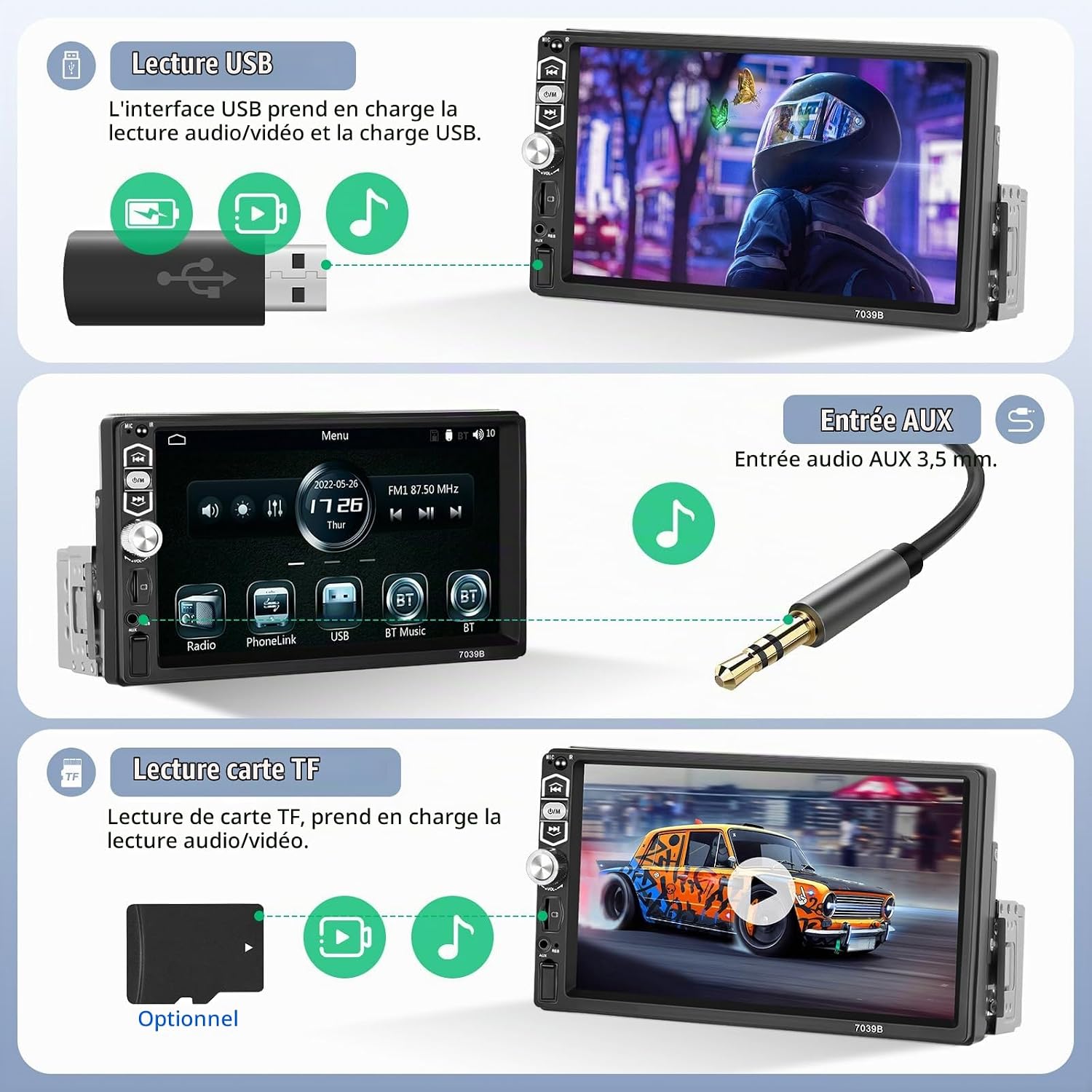
6. USB / AUX / TF Card Playback
The unit supports media playback from USB drives, AUX input, and TF (MicroSD) cards. The USB interface also provides charging capabilities for your devices.
- USB: Insert a USB drive into the front USB port for audio/video playback and device charging.
- AUX: Connect external audio devices via the 3.5mm AUX input jack.
- Targeta TF: Insert a TF card into the designated slot for media playback.

7. Equalizer (EQ) Settings
Adjust audio output with the built-in equalizer. Choose from 5 preset EQ modes (Jazz, Classic, Pop, Rock, Flat) or customize your own settings.

8. Darreraview Visualització de la càmera
When the vehicle is in reverse gear, the stereo automatically displays the rearview camera feed, assisting with parking and maneuvering.
Manteniment
- Neteja: Feu servir un drap suau i sec per netejar la pantalla i la unitat. Eviteu productes de neteja o dissolvents abrasius.
- Temperatura: No exposeu la unitat a temperatures extremes.
- Actualitzacions de firmware: Comproveu el del fabricant weblloc web per a qualsevol actualització de firmware disponible per garantir un rendiment i una compatibilitat òptims.
Resolució de problemes
| Problema | Causa possible | Solució |
|---|---|---|
| Sense poder | Cablejat incorrecte; fusible fundit | Comproveu les connexions d'alimentació; substituïu el fusible si cal. |
| Sense so | Cables d'altaveu desconnectats; Volum massa baix; Silenciament activat | Check speaker connections; Increase volume; Deactivate mute. |
| DAB+ "No Service" | DAB+ antenna not properly connected or positioned; DAB+ module not recognized | Ensure DAB+ antenna is correctly installed and connected to the module. Verify the DAB+ module is securely plugged into the USB port. |
| Bluetooth/Wi-Fi not working | posteriorview camera RCA cables (CVBSIN and CAMIN) not connected | Ensure both yellow RCA connectors for the rearview camera are connected, even if no camera is used. |
| Mirror Link / CarPlay / Android Auto not connecting | Faulty USB cable; Phone not compatible; Software issue | Try a different USB cable; Ensure your phone's OS is updated; Restart both phone and stereo. |
| La pantalla tàctil no respon | Temporary software glitch; Screen calibration needed | Perform a soft reset (locate the reset button, usually a small pinhole); If issue persists, contact support. |
Especificacions
| Característica | Detall |
|---|---|
| Marca | CAMECHO |
| Número de model | DAB+Carplay+Camera+MIC |
| Mostra | Pantalla tàctil HD de 7 polzades (resolució de 1024 * 600) |
| Connectivitat | Bluetooth 5.1, USB Type A, 3.5mm AUX Jack |
| Integració del telèfon intel·ligent | Wired CarPlay, Wired Android Auto, Mirror Link (iOS/Android) |
| Ràdio | FM Radio (18 presets), DAB+ Digital Radio (via external module) |
| Mode de sortida d'àudio | Stereo, 5.1 Surround Sound Configuration |
| Potència de sortida | 45 watts (per canal, 6 canals) |
| Codificació de vídeo | H.264, H.265/HEVC (1080P video playback support) |
| Mètode de control | Touchscreen, Voice (via CarPlay/Android Auto), Steering Wheel Control, Remote Control |
| Pes de l'article | 900 grams |
| Color | Negre |
Garantia i Suport
CAMECHO products typically come with a manufacturer's warranty. Please refer to your purchase documentation for specific warranty terms and duration.
Suport tècnic
For technical assistance, troubleshooting, or any questions regarding your CAMECHO car stereo, please contact customer support through the retailer where you purchased the product. You can usually find a "Contact Seller" or "Ask a Question" option on the product page.


