Introducció
This user manual provides detailed instructions for the Q5 Air Mouse Wireless 2.4G Gyroscope Remote Control. This device combines the functionality of a traditional remote control, an air mouse, and a voice input device, designed for seamless interaction with Android TV boxes, Smart Mini PCs, and other compatible systems running Windows, Android, or Linux.
The Q5 remote utilizes 2.4G wireless technology for stable and responsive control, featuring a built-in gyroscope for precise air mouse functionality and a microphone for voice commands.

Imatge: Un front clar view of the Q5 Air Mouse Wireless 2.4G Gyroscope Remote Control, showcasing its buttons and ergonomic design.
Contingut del paquet
- Q5 Air Mouse Remote Control
- Receptor USB 2.4G
- Manual d'usuari (aquest document)

Image: The Q5 Air Mouse Remote Control shown alongside its compact USB 2.4G receiver, which is required for wireless connectivity.
Característiques
- Connectivitat sense fil 2.4G: Provides a stable and reliable connection with an effective range of up to 10 meters.
- Funció Air Mouse: Equipped with a built-in 6-axis gyroscope, allowing for precise cursor control by simply moving the remote in the air.
- Entrada de veu: Features an integrated microphone for convenient voice commands, search functions, and dictation.
- Compatibilitat multisistema: Designed to work seamlessly with various operating systems, including Android, Windows, and Linux.
- Disseny ergonòmic: Crafted for comfortable handling and intuitive operation, reducing hand fatigue during extended use.

Image: A hand holding the Q5 remote, with icons at the bottom indicating broad compatibility with Android, Windows, and other operating systems, demonstrating its versatility.
Configuració
- Insereix les piles: Open the battery compartment on the back of the remote control. Insert two AAA batteries (not included), ensuring that the positive (+) and negative (-) terminals are aligned correctly according to the indicators.
- Connecteu el receptor USB: Locate an available USB port on your target device (e.g., Android TV box, Smart Mini PC, Smart TV). Plug the 2.4G USB receiver firmly into the USB port.
- Emparellament automàtic: The remote control and the USB receiver are designed to pair automatically upon connection. If the remote does not respond, manual pairing may be required.
- Emparellament manual (si cal): If the remote does not pair automatically, press and hold the "OK" button and the "Return" button simultaneously on the remote for approximately 3 seconds. The indicator light on the remote will flash rapidly. Release the buttons once the light begins flashing. The light will stop flashing and remain solid once pairing is successful.
- A punt per al seu ús: Once the pairing process is complete, the remote control is ready for immediate operation.
Instruccions de funcionament
Funcions del botó:
- Botó d'encendre (⏻): Toggles the power state of the connected device. Functionality may vary depending on the device.
- Botó D'acord: Confirms selections, opens items, or acts as an enter key.
- Botons de navegació (amunt/avall/esquerra/dreta): Used for navigating menus, lists, and on-screen elements.
- Botó de retorn (↩): Navega de tornada a la pantalla o al menú anterior.
- Botó d'inici (⌂): Returns to the main home screen or desktop of the connected device.
- Volume Buttons (V+/V-): Increases (V+) or decreases (V-) the audio volume.
- Page Up/Page Down (PG+/PG-): Scrolls content up (PG+) or down (PG-) within applications or web pàgines.
- Botó Silenciar (🔇): Toggles audio mute on or off.
- Botó de menú (☰): Opens context-sensitive menus or options within applications.
- Voice Input Button (🎤): Activates the microphone for voice commands and search functions.
Funció Air Mouse:
The Q5 remote features a built-in gyroscope that enables precise cursor control. To activate the air mouse, simply move the remote in the air. The cursor on your screen will follow your hand movements. To click, press the Botó D'acord. To disable the air mouse and use traditional navigation, press the air mouse toggle button (if present, otherwise it's always active when moved).
Control de veu:
To utilize the voice control feature, press and hold the Voice Input Button (marked with a microphone icon). While holding the button, speak clearly into the microphone located on the remote. Release the button once you have finished speaking. This feature is highly effective for voice searches, launching applications, or issuing commands to your compatible device.

Image: A close-up of the Q5 remote highlighting the voice input button with a microphone icon, demonstrating its position for easy access during voice commands.
Manteniment
- Neteja: To clean the remote, use a soft, dry, lint-free cloth. Avoid using liquid cleaners, aerosols, or abrasive materials, as these can damage the surface or internal components.
- Emmagatzematge: Store the remote control in a cool, dry environment, away from direct sunlight, high humidity, and extreme temperatures.
- Substitució de la bateria: Replace the batteries when the remote's responsiveness decreases or if the indicator light signals low power. If the remote will not be used for an extended period (e.g., several weeks or months), remove the batteries to prevent leakage and potential damage.
- Protecció física: Protect the remote from physical shocks, drops, and excessive force, which can lead to internal damage or malfunction.
Resolució de problemes
| Problema | Causa possible | Solució |
|---|---|---|
| El comandament a distància no respon | Low or dead batteries; USB receiver not properly connected; Pairing lost; Device USB port issue. | Replace batteries with fresh ones; Ensure USB receiver is firmly plugged into a working USB port; Re-pair the remote following the instructions in the "Setup" section; Try a different USB port on your device. |
| Air mouse cursor erratic or not moving | Environmental interference; Gyroscope requires calibration; Remote too far from receiver. | Ensure no strong electromagnetic interference sources nearby; Place the remote on a flat, stable surface for a few seconds to allow the gyroscope to re-calibrate; Reduce the distance between the remote and the USB receiver. |
| El control de veu no funciona | Microphone blocked or dirty; Voice input button not held down; Software settings on the connected device; No internet connection (for some voice features). | Ensure the microphone opening is clear; Press and hold the voice input button continuously while speaking; Check microphone permissions and settings on your device; Ensure your device has an active internet connection if voice commands require online processing. |
| Interval de funcionament curt | Wireless interference; Physical obstructions; Weak signal due to distance. | Avoid using the remote near other 2.4G wireless devices (e.g., Wi-Fi routers, cordless phones); Ensure a clear line of sight between the remote and the USB receiver; Reduce the distance between the remote and the connected device. |
Especificacions
| Característica | Detall |
|---|---|
| Connectivitat | Sense fil de 2.4 GHz (receptor USB) |
| Sensor | 6-axis Gyroscope (for Air Mouse) |
| Entrada de veu | Yes, integrated microphone |
| Distància d'operació | Fins a 10 metres (33 peus) |
| Font d'alimentació | 2 piles AAA (no incloses) |
| Compatibilitat | Android OS, Windows OS, Linux OS |
| Dimensions (L x A x A) | Aproximadament 158 mm x 41 mm x 14 mm |
| Número de model | MOIR553564D6ED20D3FBA04ACC18CB08613C |
| Fabricant | MOIMI |
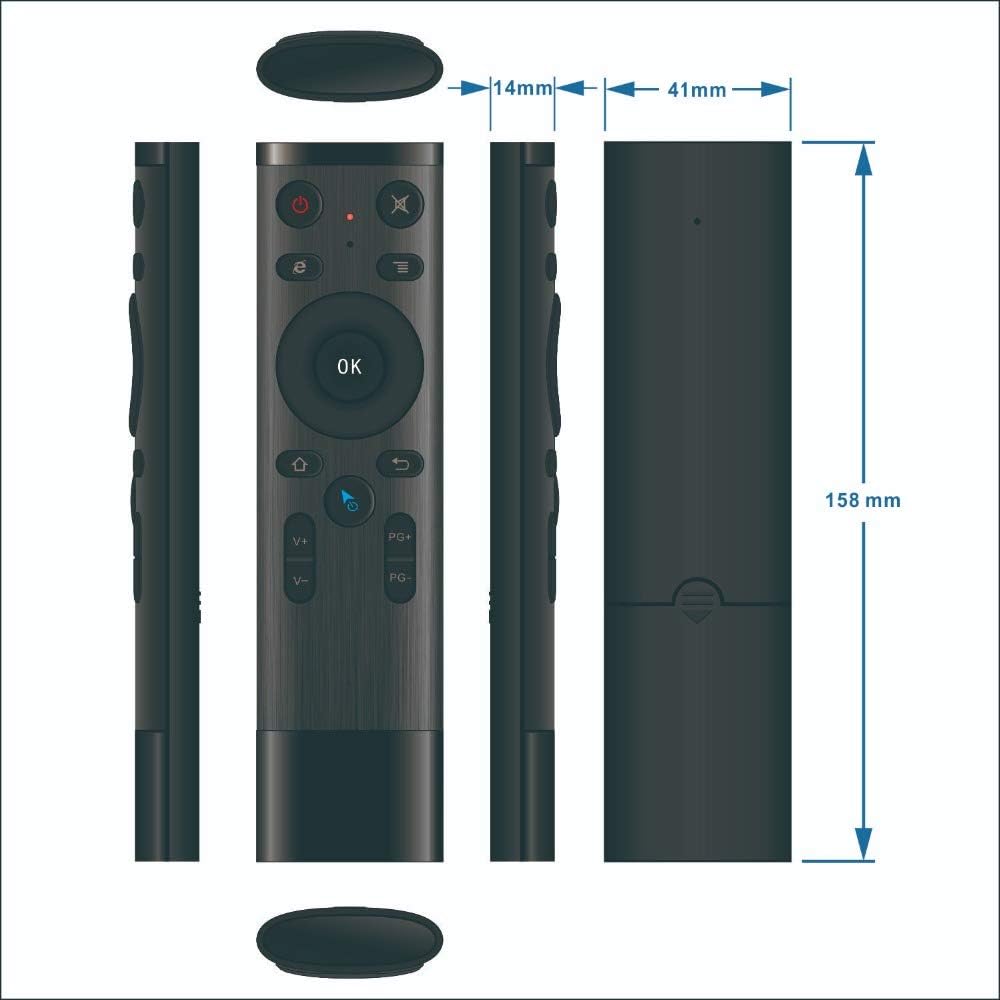
Image: Technical drawing illustrating the precise dimensions of the Q5 remote control, including its length (158mm), width (41mm), and thickness (14mm).