
PGYTECH PG-035
PGYTECH MagCam Phone Grip Kit User Manual
Model: PG-035
1. Introducció
The PGYTECH MagCam Phone Grip Kit is a versatile 3-in-1 mobile phone accessory designed for photography enthusiasts. It integrates MagSafe wireless charging, a detachable Bluetooth remote, and a built-in power bank, offering enhanced control and convenience for smartphone photography and daily use. This manual provides detailed instructions for setup, operation, and maintenance of your MagCam Phone Grip Kit.
2. Què hi ha a la caixa
Upon unboxing your PGYTECH MagCam Phone Grip Kit, please ensure all the following components are present:
- Suport magnètic EDC
- Empunyadura de la càmera (control remot inclòs)
- Anell magnètic
- Corretja de mà
- Manual d'instruccions

Image: All components included in the PGYTECH MagCam Phone Grip Kit, showing the main grip, magnetic charging module, and Bluetooth remote.
3. Configuració
3.1 Assembling the MagCam Phone Grip
The MagCam Phone Grip features a modular design. To assemble, securely attach the Bluetooth Remote Module to the top of the Charging Grip Module. Then, slide the Magnetic Wireless Charging Module onto the side of the Charging Grip Module until it clicks into place. Ensure all connections are firm for stable operation.

Imatge: Detallada view of how to install and lock the different modules of the MagCam Phone Grip, showing the Bluetooth Remote Module, Charging Grip Module, and Magnetic Wireless Charging Module.
3.2 Bluetooth Pairing (for iPhone Users)
Before using the remote control functions, you need to pair the MagCam Phone Grip with your iPhone via Bluetooth. Follow these steps:
- Open your iPhone's Configuració aplicació.
- Navega a Accessibilitat.
- Seleccioneu Toca.
- Activa AssistiveTouch by toggling the switch to the ON position.
- Scroll down and set the Sensibilitat de seguiment to the lowest possible setting.
- Open your iPhone's Control Center (swipe down from the top-right corner on newer iPhones, or up from the bottom on older models) and ensure Bloqueig d'orientació retrat està habilitat.
- Torna a Configuració i seleccioneu Bluetooth.
- Press and hold the On/Off button on the MagCam's remote control for 1 second to turn it on. The blue light on the remote will indicate it's ready for pairing.
- In your iPhone's Bluetooth settings, locate "PGY-MagCam" in the list of devices and tap to pair. Confirm the pairing request if prompted.

Image: Screenshots illustrating the iPhone settings required for Bluetooth pairing, including Accessibility, Touch, AssistiveTouch, and Bluetooth device list.
Video: Official PGYTECH MagCam Phone Grip Instructions for iPhone, demonstrating the setup and pairing process.
4. Instruccions de funcionament
4.1 Funció de càrrega sense fil
The MagCam Phone Grip features a built-in 3000mAh battery that supports MagSafe magnetic wireless charging. To initiate charging, simply attach your iPhone (12-16 series compatible) to the magnetic charging module and press the power button on the grip. The grip module can also function as a compact 10W power bank. Double-press the power button to stop charging.

Image: Demonstrates the MagCam Phone Grip's various uses, including charging a phone wirelessly.
4.2 Detachable Bluetooth Remote Control
The Bluetooth remote detaches from the grip, allowing for remote control of your camera up to 10 meters away. This is ideal for group photos or stable shots.
- Zoom/Focus Adjustment: Toggle the dial on the remote control left or right to adjust the focal length (zoom in/out) within your camera app.
- Capture Photo/Start Recording: Half-press the front button on the remote to focus. Fully press the front button to capture a photo or start/stop video recording.
- Camera Flip: Double-tap the front button on the remote to switch between the front and rear cameras.
Video: PGYTECH MagCam Phone Grip Kit overview, espectacleasing the remote control's functionalities like zoom, focus, and camera flip.
4.3 Integrated Phone Stand
The wireless charging module can transform into a magnetic phone stand with one click. Simply detach the charging module from the grip and unfold the integrated metal support leg. This allows for convenient hands-free viewing de fotos i vídeos.

Image: Illustrates the MagCam Phone Grip's dual functionality as a compact power bank and an everyday carry (EDC) stand.
4.4 característiques addicionals
- Compatibilitat amb trípode: The bottom of the grip features a 1/4” thread, allowing it to be mounted on tripods and other photography accessories for stable shots.
- Magnetic Ring Included: A magnetic ring is included for compatibility with non-MagSafe phones (e.g., Android devices), enabling them to utilize the magnetic charging and grip features. For iPhones, it is best used with a MagSafe-enabled case.
- Dual-sided Magnet: The magnetic charging module has a dual-sided magnet, allowing for attachment of additional accessories like fill lights (sold separately).
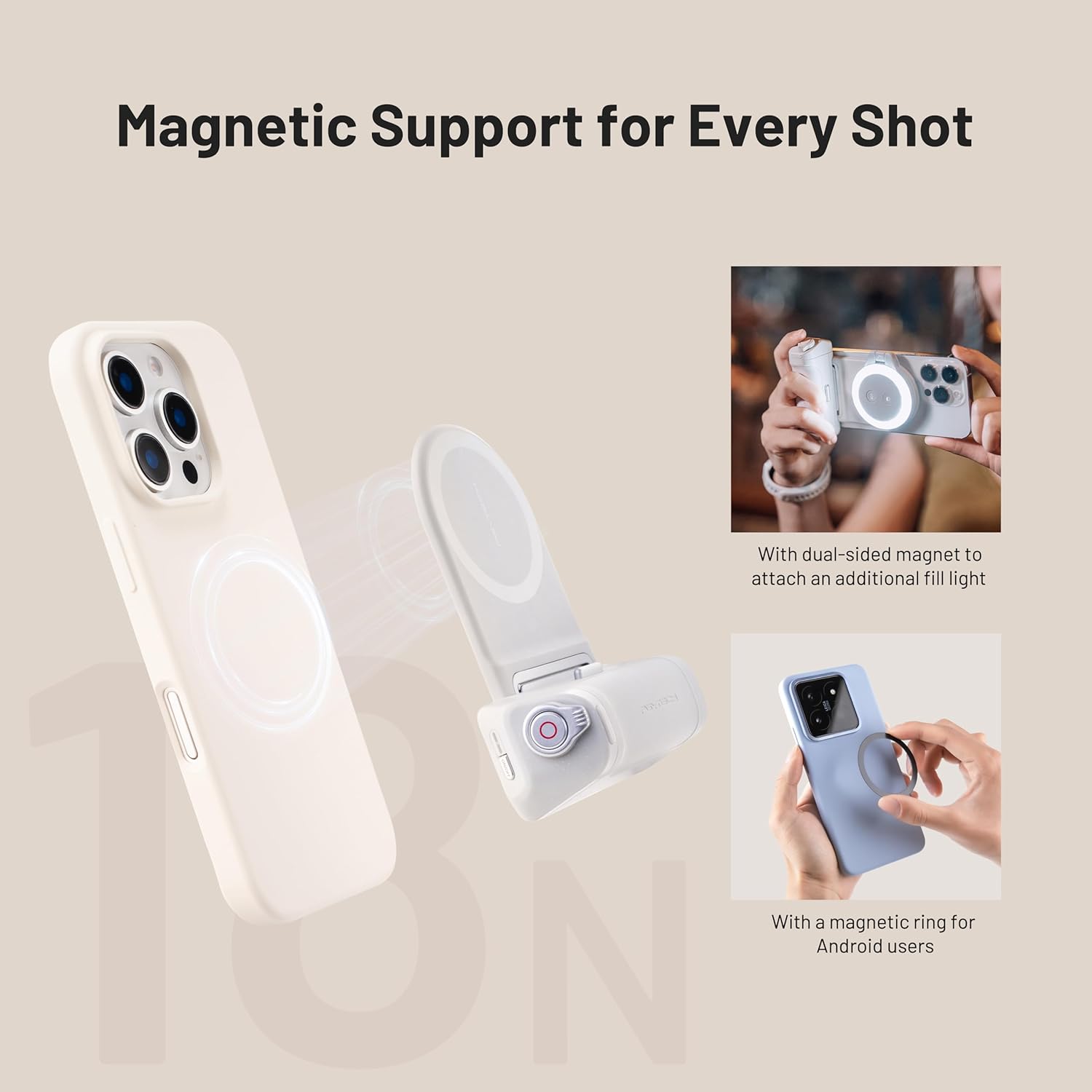
Image: Shows the magnetic support features, including the use of a magnetic ring for non-MagSafe phones and the dual-sided magnet for attaching accessories like fill lights.
5. Manteniment
- Neteja: Use a soft, dry cloth to clean the surface of the MagCam Phone Grip. Avoid using harsh chemicals or abrasive materials.
- Emmagatzematge: Guardeu el dispositiu en un lloc fresc i sec, allunyat de la llum solar directa i de temperatures extremes.
- Cura de la bateria: To prolong battery life, avoid fully discharging the power bank frequently. Charge it regularly, even if not in active use.
6. Solució De Problemes
| Problema | Causa possible | Solució |
|---|---|---|
| El dispositiu no s'encén. | Bateria baixa; mal funcionament intern. | Ensure the grip is fully charged. If issue persists, contact customer support. |
| Bluetooth remote does not connect or disconnects frequently. | Incorrect pairing; interference; low battery in remote. |
|
| La càrrega sense fil no funciona. | Misalignment; phone not MagSafe compatible; grip battery low. |
|
| Remote control functions (zoom, focus, flip) not working. | Bluetooth not connected; app compatibility; incorrect settings. |
|
7. Especificacions
| Característica | Detall |
|---|---|
| Número de model | PG-035 |
| Marca | PGYTECH |
| Color | Gris ennuvolat |
| Compatibilitat | Only iPhone 12~iPhone 16 series (with MagSafe or magnetic ring for others) |
| Tipus de bateria | 1 bateria de ions de liti (inclosa) |
| Capacitat de la bateria | 3000 mAh (incorporat) |
| Sortida de càrrega sense fils | 10W |
| Pes de l'article | 5.1 unces (145 grams) |
| Dimensions del paquet | 5.04 x 4.65 x 1.54 polzades |
| Mida plegada | 48g (weight of a component) |
| Fil del trípode | 1/4” standard thread |
8. Garantia i assistència
For warranty information, technical support, or service inquiries regarding your PGYTECH MagCam Phone Grip Kit, please refer to the warranty card included in your product packaging or visit the official PGYTECH weblloc web. També podeu contactar directament amb el venedor per obtenir ajuda.
For the latest product information and updates, please visit the Botiga PGYTECH a Amazon.
Ask a question about this manual
Ask about setup, troubleshooting, compatibility, parts, safety, or missing instructions. Manuals+ will review the question and use this page’s manual context to help answer it.