
1. Introducció
Thank you for choosing the Fafeicy Mini Handheld Inkjet Printer. This manual provides essential information for the safe and efficient operation, setup, and maintenance of your device. Please read this manual thoroughly before using the printer and keep it for future reference.
2. Producte acabatview
2.1 Característiques clau
- Rendiment suau: Equipped with a powerful quad-core CPU and high-capacity battery for continuous and efficient operation.
- Precise Printing: Delivers accurate printing of text, barcodes, and images.
- Impressió versàtil: Capable of printing on various surfaces including wood, acrylic, fabric, and leather.
- Pantalla tàctil intuïtiva: Features an HD LED touchscreen for a user-friendly interface.
- Connectivitat perfecta: Supports USB-C connection for easy import of images or QR codes.
- Disseny compacte: Portable and easy to carry, suitable for printing on curved, concave, and convex surfaces.
- Suport en diversos idiomes: Supports 28 languages including Simplified Chinese, Traditional Chinese, English, Russian, Thai, Spanish, German, French, Japanese, Korean, Arabic, Turkish, Italian, Portuguese, Vietnamese, Bulgarian, Ukrainian, Polish, Hebrew, Hungarian, Greek, Indonesian, Dutch, Serbian, Malaysian, Filipino, Persian.
- Adjustable Printing: Printing lines adjustable from 1 to 3 lines, and printing height adjustable from 2-12.7mm.
2.2 Components de la impressora
The Fafeicy Mini Handheld Inkjet Printer consists of the main printer unit with an integrated touchscreen, an ink cartridge slot, a power button, and a USB-C port. It also includes a lanyard for portability.

Imatge 2.2.1: Davant view of the Fafeicy Mini Handheld Inkjet Printer showing its compact size and dimensions (70mm/2.8in height, 82mm/3.2in width, 48mm/1.9in depth). The device features a large touchscreen display.

Imatge 2.2.2: The Fafeicy Mini Handheld Inkjet Printer with an attached lanyard, highlighting its portability and the HD touch capacitive screen. The screen displays icons for document, print, and settings.

Imatge 2.2.3: Visual representation of the printer's key features, including compact design, multiple languages, handwriting support, adjustable word height, high-definition quick drying ink, capacitive touch screen, excellent chip, and multi-material printing capability.
3. Instruccions de configuració
3.1 Instal·lació del cartutx de tinta
- Remove Protector Clip: Carefully remove the protective clip from the ink cartridge.
- Inseriu el cartutx: Insert the ink cartridge into the machine at a 45-degree angle, ensuring it seats correctly.
- Clamp Màquina: De manera segura clamp the machine to hold the cartridge in place. The cartridge can be removed by reversing these steps.

Imatge 3.1.1: Step-by-step guide for installing the ink cartridge. (1) Remove the ink cartridge protector clip. (2) Insert the cartridge into the machine at a 45-degree angle. (3) Clamp the machine to secure the cartridge.
3.2 Handle Installation (Optional)
For enhanced grip and control during handheld operation, you can attach the provided handle.
- Prepare the Handle: Ensure the handle is clean and ready for attachment.
- Align Handle and Printer: Position the handle with the mini printer, aligning the grooves.
- Push Handle: Gently push the handle into the groove located under the printer until it clicks into place.
- Verifica la instal·lació: Confirm that the handheld inkjet printer is successfully installed and secure on the handle.
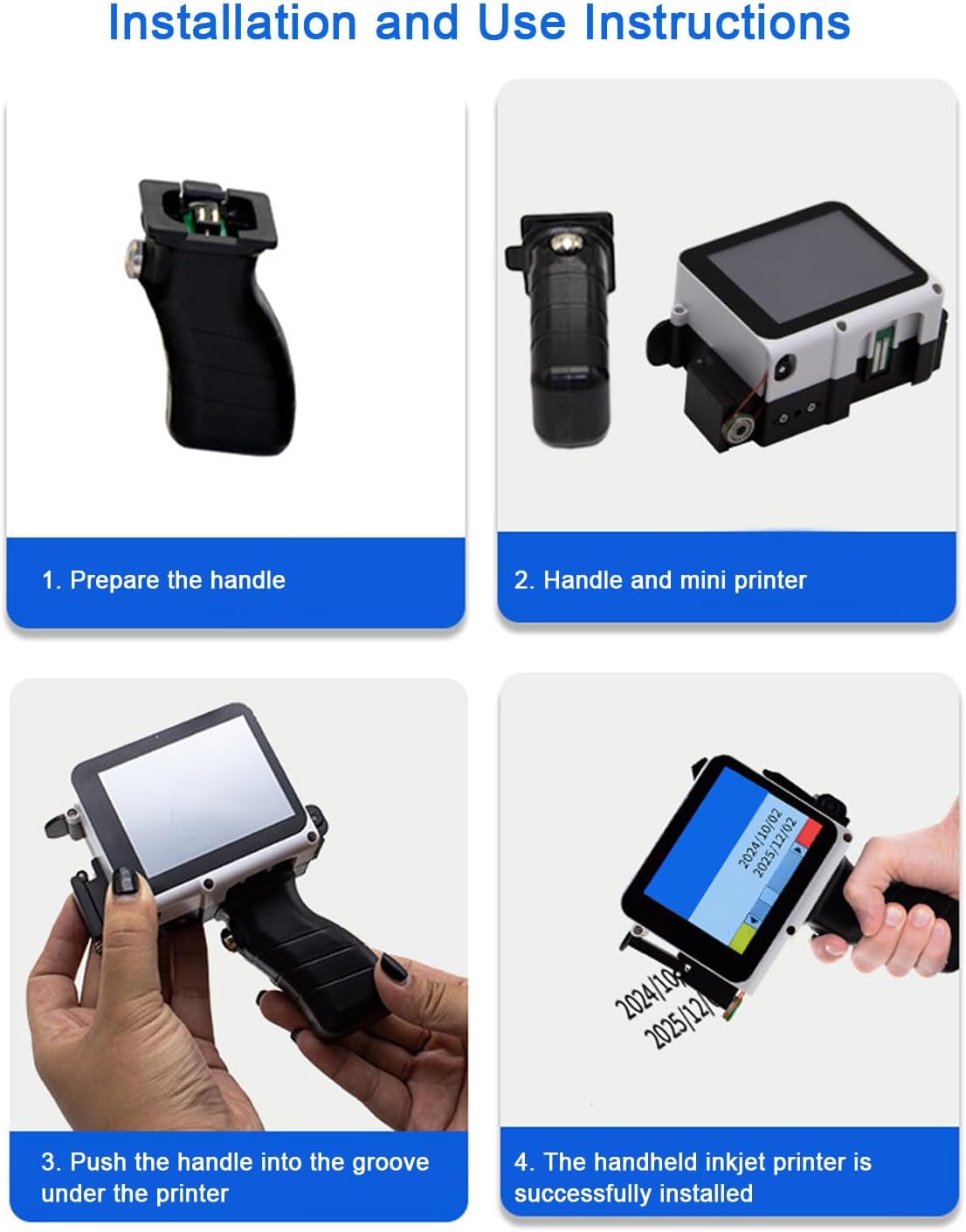
Imatge 3.2.1: Visual instructions for installing the handle. (1) Prepare the handle. (2) Align the handle with the mini printer. (3) Push the handle into the groove under the printer. (4) The handheld inkjet printer is successfully installed and ready for use.
4. Instruccions de funcionament
4.1 Engegada/apagada
- Encès: Press and hold the power button located on the side of the printer until the screen illuminates.
- Apagar: Press and hold the power button until a shutdown prompt appears on the screen, then confirm to power off.
4.2 Interfície de pantalla tàctil
The printer features an HD LED touchscreen, similar to a smartphone. Navigate through menus and options by tapping and swiping. The main screen typically displays icons for creating/editing content, printing, and settings.
4.3 Creating Print Content
- Access Content Editor: Tap the 'document' or 'edit' icon on the touchscreen to enter the content creation interface.
- Input Text: Use the on-screen keyboard to type text. You can adjust font size, style, and alignment.
- Add Barcodes/QR Codes: Select the barcode/QR code option and input the data.
- Importa imatges: Connect the printer to your computer via the USB-C cable. Transfer image files (e.g., BMP, JPEG) to the printer's internal storage. Then, select the image import option from the content editor.
- Ajustar la configuració: Modify printing parameters such as print lines (1-3), print height (2-12.7mm), and printing accuracy (300-600dpi) as needed.
4.4 Procés d'impressió
- Seleccioneu contingut: From the main menu or content editor, select the content you wish to print.
- Prepara la superfície: Ensure the printing surface is clean and dry. For optimal results, maintain a 5mm distance between the print head and the object.
- Iniciar la impressió: Tap the 'print' icon on the touchscreen.
- Apply Printer: Gently and steadily move the printer across the desired printing surface. The printer will automatically apply the ink.
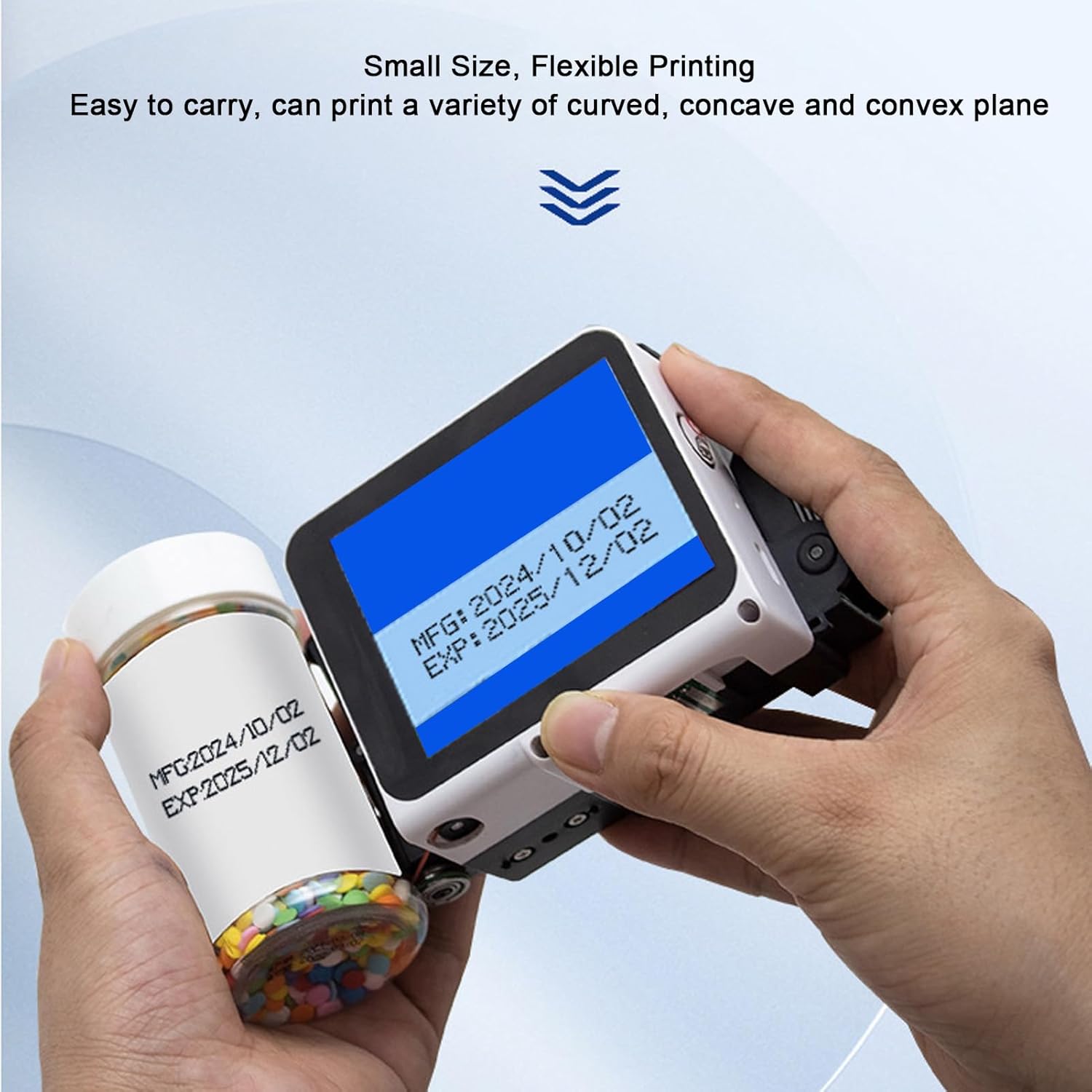
Imatge 4.4.1: A user demonstrating the Fafeicy Mini Handheld Inkjet Printer applying date and expiration information onto a small plastic bottle, showcasing its ability to print on curved surfaces.

Imatge 4.4.2: Examples of printing results on various materials, including a white bottle, a red cap, and a blue plastic surface, demonstrating the printer's versatility and clarity of output for dates and codes.
5. Manteniment
5.1 Neteja
- Regularly wipe the exterior of the printer with a soft, dry cloth.
- If the print head becomes clogged or dirty, use a lint-free cloth lightly dampened with isopropyl alcohol to gently clean the print head surface. Avoid excessive moisture.
- Clean the touchscreen with a soft, dry microfiber cloth. Do not use abrasive cleaners.
5.2 Substitució del cartutx de tinta
When the ink cartridge is empty or the print quality deteriorates significantly, replace it by following the installation steps in Section 3.1 in reverse order for removal, then install a new cartridge.
5.3 Emmagatzematge
- Guardeu la impressora en un lloc fresc i sec, allunyat de la llum solar directa i de temperatures extremes.
- Ensure the ink cartridge has its protective clip re-attached or is properly sealed if storing for an extended period to prevent drying.
6. Solució De Problemes
- Sense energia: Ensure the battery is charged. Connect the printer to a power source using the USB-C cable and allow it to charge for at least 30 minutes before attempting to power on again.
- Mala qualitat d'impressió:
- Check if the ink cartridge is properly installed and not empty.
- Netegeu el capçal d'impressió tal com es descriu a la secció 5.1.
- Ensure the printing distance (5mm) is maintained consistently.
- Adjust printing accuracy settings on the touchscreen.
- La impressora no respon: Try restarting the device. If the issue persists, perform a factory reset via the settings menu (refer to the on-screen instructions).
- Cannot Import Files via USB-C: Ensure the USB-C cable is securely connected to both the printer and the computer. Check if the computer recognizes the printer as a storage device.
- Pantalla tàctil que no respon: Restart the printer. If the issue continues, contact customer support.
7. Especificacions
| Característica | Especificació |
|---|---|
| Bateria | Li Battery x 1 (1500MAH) (Built-in) |
| Interfície externa | TYPE C Port, Photoelectric Interface |
| Imprimir contingut | Date, Count, Batch Number, Serial Number, Image, Dynamic 2D code, Bar code, Graphics, Variable Database etc. |
| Technical Serial Number | 1 to 9 Variable |
| Printing Lines | Adjustable 1 to 3 Lines |
| Distància d'impressió | 5mm (Between Print Head and Object) |
| Alçada d'impressió | Ajustable 2-12.7 mm |
| Precisió d'impressió | Adjustable 300-600dpi |
| Idiomes | 28 languages (Simplified Chinese, Traditional Chinese, English, Russian, Thai, Spanish, German, French, Japanese, Korean, Arabic, Turkish, Italian, Portuguese, Vietnamese, Bulgarian, Ukrainian, Polish, Hebrew, Hungarian, Greek, Indonesian, Dutch, Serbian, Malaysian, Filipino, Persian) |
| Ports Externs | USB, 3.5mm Port |
| Sistema operatiu | Built-in for RTOS Operating System |
| Tipus de tinta | Water-based, Oil-based, 42ml Ink Cartridge |
| Materials d'impressió | Carton, Plastic, Wood, Pipeline, Stone, Cable, Industrial Packaging, Pharmaceutical Food |
| Pes de l'article | 1.01 lliures |
| Dimensions del paquet | 9.84 x 4.33 x 3.15 polzades |
| Número de model | Fafeicyriqoe0ta3z |
8. Garantia i Suport
This product comes with a standard manufacturer's warranty. Please refer to the warranty card included in your product packaging for specific terms and conditions. For technical support, troubleshooting assistance, or warranty claims, please contact Fafeicy customer service through the retailer where the product was purchased or visit the official Fafeicy weblloc per obtenir informació de contacte.