
1. Introducció
This manual provides instructions for the setup, operation, and maintenance of your Simply Smart Home PhotoShare MyLuma LED 7-inch WiFi Digital Photo Frame. Please read this manual thoroughly before using the device to ensure proper functionality and to maximize your experience.
2. Contingut del paquet
Verifiqueu que tots els elements siguin presents al vostre paquet:
- PhotoShare MyLuma LED 7-inch Digital Photo Frame
- Adaptador d'alimentació
- Guia d'inici ràpid (si escau)
3. Dispositiu acabatview
Familiarize yourself with the physical components of your PhotoShare MyLuma frame.

Imatge 3.1: posterior view of the PhotoShare MyLuma frame, highlighting the SD port, USB-C port, USB port, and the LED light bar.
- Pantalla tàctil HD d'7 polzades: Main display for photos and videos.
- Barra de llum LED: Located on the back, provides customizable color alerts.
- Soft-Touch Fabric Back Panel: Enhances aesthetic and grip.
- SD Port: For memory card expansion.
- Port USB-C: Per a la transferència d'energia i dades.
- Port USB: Per connectar dispositius USB.
4. Configuració
4.1 Encès
- Connect the power adapter to the USB-C port on the back of the frame.
- Connecteu l'adaptador de corrent a una presa de corrent.
- El marc s'encén automàticament i mostra la pantalla de configuració inicial.
4.2 Connexió a Wi-Fi
- On the touchscreen, select your preferred language.
- Follow the on-screen prompts to connect to your Wi-Fi network. You will need your Wi-Fi network name (SSID) and password.
- Once connected, the frame will guide you through creating a PhotoShare account or logging into an existing one.
4.3 Installing the PhotoShare App
To send photos and videos to your frame, download the free PhotoShare app on your smartphone or tablet.

Imatge 4.1: Screenshot of a smartphone displaying options to download the PhotoShare app from the Apple App Store and Google Play Store.
- Cerca "PhotoShare" in the Apple App Store (for iOS devices) or Google Play Store (for Android devices).
- Install the app and log in with the same account credentials used for your frame.
5. Instruccions de funcionament
5.1 Enviament de fotos i vídeos
You can send photos and videos to your frame using the PhotoShare app or via email.

Imatge 5.1: A visual guide demonstrating how to capture a photo with a smartphone, edit it within the PhotoShare app, and then share it to the digital frame.
- Ús de l'aplicació:
- Open the PhotoShare app.
- Select the photos or videos you wish to send.
- Choose your MyLuma frame as the recipient.
- Tap "Send."
- Using Email:
- Each PhotoShare frame has a unique email address. Find this in your frame's settings or the app.
- Attach photos or videos (up to 50MB per email) to an email and send it to your frame's email address.
5.2 Customizing LED Alerts
Assign unique LED colors and sounds to contacts so you can instantly identify who sent a new photo or video.
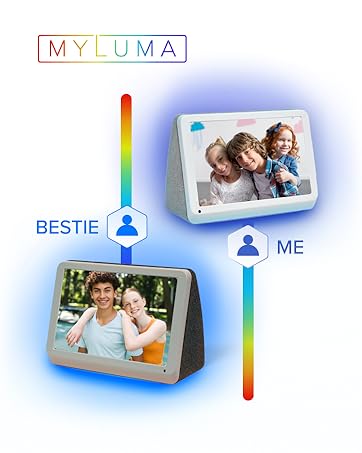
Imatge 5.2: The MyLuma frame showing how different contacts can be assigned specific LED colors for notifications.
- In the PhotoShare app, navigate to the "Contacts" or "Settings" section.
- Select a contact and choose a desired LED color and notification sound.
- The frame's LED light bar will illuminate with the assigned color when that contact sends new content.
5.3 Digital Effects and Slideshows
Enhance your photos with borders, stickers, and captions using the PhotoShare app. The frame can also display seasonal themes automatically.

Imatge 5.3: The digital frame showcasing a photo with applied digital effects, including borders, stickers, and captions, managed through the app.
- Borders, Stickers, Captions: Use the PhotoShare app's editing tools to add these to your photos before sending.
- Seasonal Themes: The frame can automatically apply seasonal themes to your slideshows. This option can be managed in the frame's settings.
5.4 característiques addicionals

Imatge 5.4: The PhotoShare MyLuma frame highlighting its various functionalities such as Wi-Fi connectivity, photo and video display, clock and calendar, weather updates, and auto on/off.
- Rellotge i calendari: Mostra hora i data.
- Temps: Show local weather information.
- Encès/apagat automàtic: Schedule the frame to turn on and off at specific times to conserve energy.
6. Manteniment
6.1 Neteja del marc
- Use a soft, dry, lint-free cloth to clean the screen and frame exterior.
- Do not use liquid cleaners, aerosols, or abrasive cleaners, as these may damage the screen or finish.
6.2 Actualitzacions de programari
The frame may receive automatic software updates to improve performance and add new features. Ensure your frame is connected to Wi-Fi for these updates.
7. Solució De Problemes
| Problema | Causa possible | Solució |
|---|---|---|
| El marc no s'encén. | L'adaptador de corrent no està connectat o està defectuós. | Assegureu-vos que l'adaptador de corrent estigui connectat correctament al marc i a una presa de corrent que funcioni. Proveu una altra presa de corrent. |
| No es pot connectar a la Wi-Fi. | Contrasenya incorrecta, senyal feble o problema de xarxa. | Verify Wi-Fi password. Move the frame closer to the router. Restart your router and the frame. |
| Photos are not appearing on the frame. | Not sent correctly, frame not connected to internet, or app issue. | Check app's send status. Ensure frame is connected to Wi-Fi. Restart the app and try again. Verify the frame's email address if sending via email. |
| Els llums LED no canvien de color. | LED alert settings not configured or app synchronization issue. | Ensure LED colors are assigned to contacts in the PhotoShare app. Check app and frame for updates. |
8. Especificacions
| Característica | Detall |
|---|---|
| Número de model | FML07SD |
| Mida de la pantalla | 7 polzades |
| Resolució | 1280 x 800 |
| Connectivitat | Wi-Fi, Bluetooth, USB, Memory Stick |
| Capacitat d'emmagatzematge de memòria | 1 TB (Internal, for cloud storage) |
| Mètode de control | Aplicació, Toc |
| Font d'alimentació | Elèctric amb cable |
| Material del marc | Tela |
| Relació d'aspecte | 16:9 |
9. Informació de la garantia
The PhotoShare MyLuma LED 7-inch WiFi Digital Photo Frame comes with a 1 Year End User Warranty. For detailed terms and conditions, please refer to the warranty card included in your product packaging or visit the Simply Smart Home official weblloc.
10. Suport
Per a més ajuda, suport tècnic o per a view frequently asked questions, please visit the Simply Smart Home support weblloc o contacteu amb el servei d'atenció al client.
- Assistència en línia: www.simplysmarthome.com/support (Example URL, please verify official support link)
- Atenció al client: Consulteu l'embalatge del producte o la fitxa oficial weblloc web per a números de contacte i horaris d'atenció.
11. Vídeo del producteview
Mireu aquest vídeo per obtenir una visió generalview of the PhotoShare MyLuma LED Digital Smart Frame's features, including its color-changing LEDs.
Vídeo 11.1: An official product video demonstrating the key features of the PhotoShare MyLuma frame, including its color-changing LED notifications.