
1. Introducció
This manual provides essential information for the proper installation, operation, and maintenance of your GAMEON Pro Series 27-inch Fast IPS Gaming Monitor (Model: GOAE27QHD165IPS). Please read this manual thoroughly before using the product to ensure optimal performance and safety. Keep this manual for future reference.

Imatge 1.1: Frontal view of the GAMEON Pro Series 27-inch Fast IPS Gaming Monitor, showcasing els seus bisells prims i el suport.
The GAMEON Pro Series 27-inch Fast IPS Gaming Monitor features a QHD 2K (2560x1440p) resolution, a 165Hz refresh rate, and a 0.5ms MPRT response time. It supports Adaptive-Sync and Variable Refresh Rate (VRR) technologies for smooth, tear-free gameplay. Connectivity options include dual HDMI 2.1 ports and dual DisplayPort 1.4 ports, along with an audio-out jack and integrated speakers. This monitor is compatible with various gaming consoles and PCs, including PS5.
2. Contingut del paquet
Si us plau, comproveu el contingut del paquet en desembalar-lo. Si falta algun article o hi ha algun dany, poseu-vos en contacte amb el vostre distribuïdor.
- GAMEON Pro Series 27-inch Fast IPS Gaming Monitor
- Suport de monitor (base i coll)
- Adaptador d'alimentació i cable d'alimentació
- Cable HDMI
- Cable DisplayPort
- Manual d'usuari
3. Configuració
3.1 Muntatge del monitor
- Traieu amb cura el monitor del seu embalatge, mantenint la pantalla protegida.
- Fixeu el coll del suport al panell del monitor. Assegureu-vos que encaixi correctament al seu lloc o que estigui fixat amb cargols si n'hi ha.
- Attach the stand base to the stand neck and tighten the screw at the bottom of the base.
- Col·loqueu el monitor muntat sobre una superfície plana i estable.
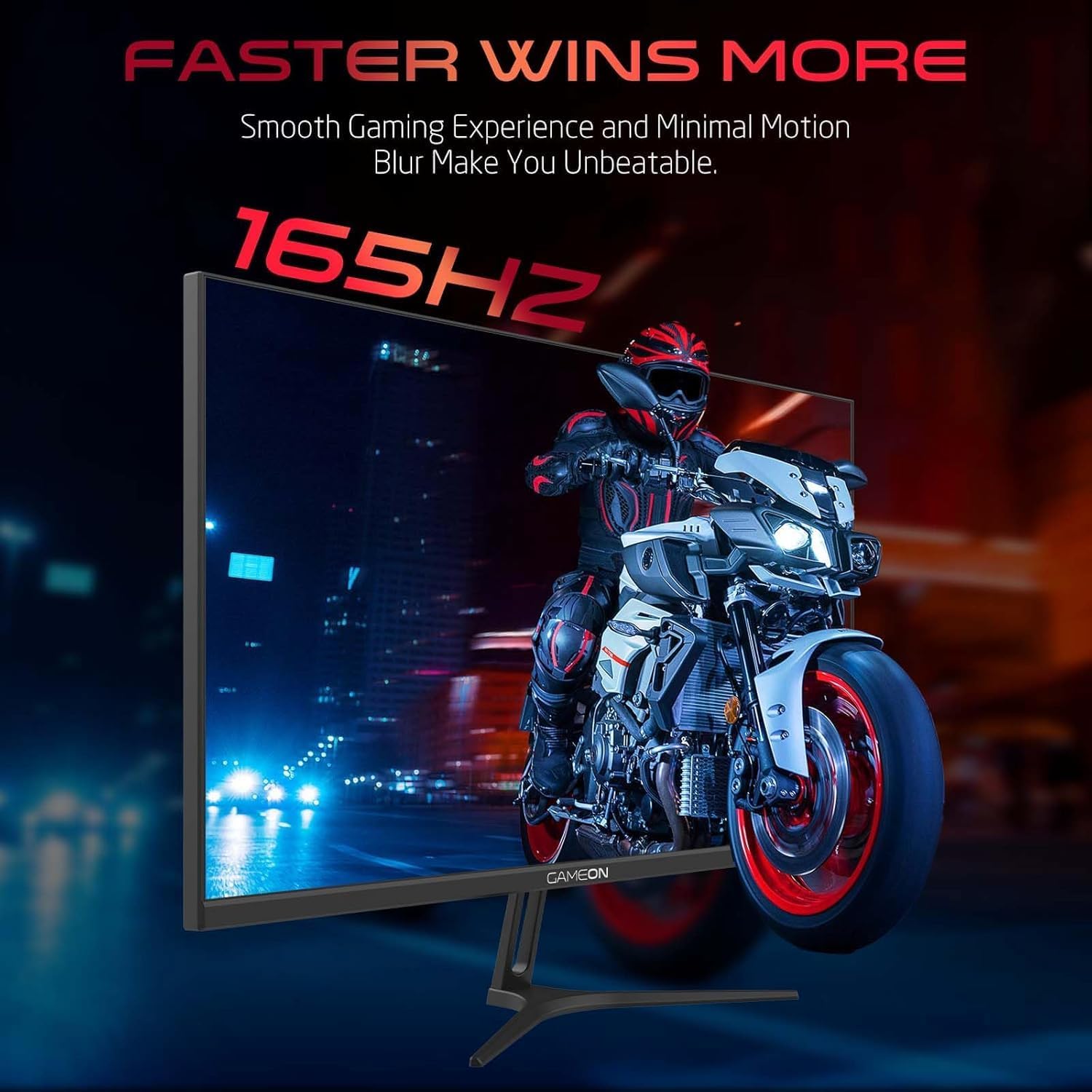
Image 3.1: Illustration of the monitor with its stand, ready for assembly.
3.2 Connexió a dispositius
The monitor offers multiple input options. Choose the appropriate cable for your device (PC, gaming console, etc.).

Imatge 3.2: posterior view of the monitor, highlighting the input ports and VESA mounting points.

Image 3.3: Detailed diagram illustrating the various input/output ports and their corresponding devices.
- Connexió HDMI: Connect one end of the HDMI cable to the HDMI output port of your device (PC, PS5, Xbox, TV box) and the other end to one of the HDMI 2.1 ports on the monitor.
- Connexió DisplayPort: Connect one end of the DisplayPort cable to the DisplayPort output of your PC and the other end to one of the DisplayPort 1.4 ports on the monitor.
- Sortida d'àudio: For external audio, connect headphones or external speakers to the 3.5mm audio-out jack on the monitor.
3.3 Connexió d'alimentació
- Connect the power adapter to the DC IN port on the monitor.
- Plug the power cable into the power adapter, then plug the other end of the power cable into a power outlet.
4. Instruccions de funcionament
4.1 Encès/Apagat
Premeu el botó d'engegada que es troba al monitor per engegar-lo o apagar-lo. L'indicador lluminós d'engegada s'il·luminarà quan el monitor estigui encès.
4.2 Menú de visualització en pantalla (OSD)
The monitor features a menu button (often a joystick or a series of buttons) usually located on the back or bottom right of the monitor. Use this to navigate the OSD menu and adjust settings.
- Press the menu button to open the OSD menu.
- Feu servir els controls de navegació per moure's per les opcions del menú.
- Press the menu button again (or a designated 'Enter' button) to select an option.
- Use the navigation controls to adjust values or select sub-menus.
- Select 'Exit' or press the menu button repeatedly to close the OSD menu.
4.3 Configuració comuna de l'OSD
- Configuració de la imatge: Ajusta la brillantor, el contrast, la nitidesa, la gamma i la temperatura del color.
- Configuració de color: Fine-tune RGB values, hue, and saturation.
- Font d'entrada: Manually select between HDMI 1, HDMI 2, DisplayPort 1, or DisplayPort 2.
- Àudio: Ajusta el volum dels altaveus integrats o dels auriculars connectats.
- Característiques del joc: Enable/disable Adaptive-Sync/FreeSync, adjust overdrive settings, and activate crosshair overlays if available.
4.4 PS5 120Hz Setup Guide
To enable 120Hz output on your PlayStation 5 with this monitor, follow these steps:

Image 4.1: Visual guide for configuring 120Hz refresh rate on a PlayStation 5 console.
- Enable 120Hz from PS5 Settings:
- Vés a Configuració > Screen and Video > Sortida de vídeo.
- Set Enable 120Hz Output a Automàtic.
- Set Resolució a 1080p or Automàtic. (Note: While the monitor supports 1440p, some PS5 games may require 1080p for 120Hz output.)
- Enable Performance Mode for Gamers:
- Vés a Configuració > Save Data and Game App Settings > Preajustos del joc.
- Set Mode de rendiment com a predeterminat.
- Check In-Game Settings:
- Go to the specific game's Configuració del joc > Configuració de vídeo i seleccioneu 120 fps or Mode de rendiment.
5. Manteniment
5.1 Neteja de la pantalla
- Apagueu el monitor i desendolleu el cable d'alimentació.
- Utilitzeu un drap suau i sense pelusa dampnetejat amb aigua o amb un netejador de pantalles especialitzat.
- Wipe the screen gently. Do not press hard or use abrasive materials.
- Avoid using alcohol, ammonia, or benzene-based cleaners, as they may damage the screen surface.
5.2 Neteja de la Casing
- Feu servir un drap suau i sec per netejar el monitor casing.
- Per a les taques tossudes, lleugerament dampNetegeu el drap amb aigua i un detergent suau i després eixugueu-lo.
6. Solució De Problemes
If you encounter issues with your monitor, refer to the following troubleshooting guide:
| Problema | Causa possible | Solució |
|---|---|---|
| No hi ha imatge a la pantalla | Sense alimentació; Font d'entrada incorrecta; Cable de vídeo fluix | Ensure power cable is securely connected and power outlet is active. Press power button. Check OSD menu to select correct input source (HDMI/DP). Reconnect video cable firmly. |
| La imatge és borrosa o distorsionada | Incorrect resolution; Video cable issue | Set display resolution to 2560x1440p in your device's display settings. Try a different video cable. |
| Sense so | Volume too low; Incorrect audio output selected; Loose audio cable | Adjust monitor volume via OSD. Ensure monitor is selected as the audio output device on your PC/console. Check external audio cable connection if using headphones/speakers. |
| La pantalla parpelleja | Refresh rate mismatch; Adaptive-Sync/VRR issue | Ensure your device's refresh rate is set to 165Hz. If flickering persists with Adaptive-Sync/VRR enabled, try disabling it in the OSD or your graphics card settings. |
| Monitor not detected by PC/console | Video cable issue; Driver issue | Try a different video cable or port. Update your graphics card drivers. Restart your PC/console. |
7. Especificacions
Below are the technical specifications for the GAMEON Pro Series 27-inch Fast IPS Gaming Monitor (GOAE27QHD165IPS):
| Característica | Especificació |
|---|---|
| Mida de la pantalla | 27 polzades |
| Tipus de panell | IPS ràpid |
| Resolució | QHD 2K (2560x1440p) |
| Freqüència d'actualització | 165 Hz |
| Temps de resposta | MPRT d'0.5 ms |
| Relació de contrast | 1000:1 |
| Brillantor | 280 (±30) nits typical |
| ViewAngles | Ample viewing angles (IPS technology) |
| Tecnologia de sincronització adaptativa | Adaptive-Sync, FreeSync, VRR Compatible |
| Connectivitat | 2x HDMI 2.1, 2x DisplayPort 1.4, 1x Audio Out (3.5mm) |
| Àudio | Built-in 4Ω2W speakers |
| Compatibilitat de muntatge VESA | 100x100mm |
| Entrada de potència | Adaptador extern DC 12V 4A |
| Consum màxim d'energia | 48W |
| Dimensions del producte (amb suport) | 16.2 x 61.4 x 45.3 cm |
| Pes del producte | 5.84 kg |
| Número de model | GOAE27QHD165IPS |
8. Garantia i Suport
The GAMEON Pro Series 27-inch Fast IPS Gaming Monitor comes with a 2 any de garantia des de la data de compra. Aquesta garantia cobreix els defectes de fabricació en condicions d'ús normal. Si us plau, conserveu el comprovant de compra per a reclamacions de garantia.
For technical support, warranty inquiries, or service requests, please contact GAMEON customer service through their official website or the retailer where the product was purchased. Provide your monitor's model number (GOAE27QHD165IPS) and a detailed description of the issue to expedite assistance.