
1. Producte acabatview
This manual provides detailed instructions for the installation, operation, and maintenance of your MekedeTech Android Car Stereo. This 9-inch touch screen head unit is specifically designed for Volkswagen VW Polo Sedan models manufactured between 2008 and 2018, offering advanced features such as Android 12 OS, 8-Core CPU, 8GB RAM, 256GB ROM, 4G LTE connectivity, Wireless CarPlay, and Android Auto.
The system integrates seamlessly with your vehicle's existing controls, including steering wheel controls, and provides a modern multimedia experience with a high-resolution IPS display and built-in DSP sound processing.
2. Configuració i instal·lació
Before beginning installation, ensure your vehicle's ignition is off and the battery is disconnected to prevent electrical damage. The package includes a frame kit and a plug-and-play harness designed to simplify the installation process and retain factory steering wheel controls.
2.1. Comprovació prèvia a la instal·lació
- Verify all components are present: head unit, frame kit, wiring harness, GPS antenna, 4G antenna.
- Familiarize yourself with your vehicle's dashboard layout and existing radio removal procedure.
2.2. Removing the Factory Radio
Carefully remove the trim panels surrounding your existing radio. Use appropriate tools to avoid scratching the dashboard. Disconnect all wiring harnesses and the antenna cable from the factory radio.
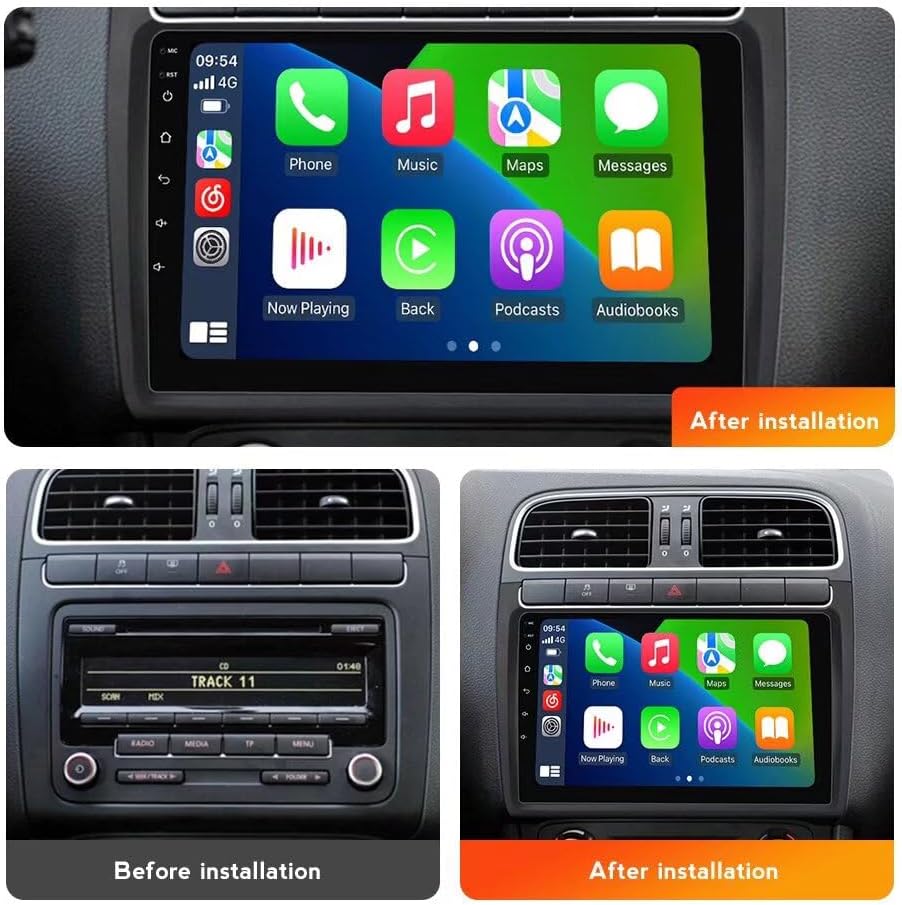
Imatge: Comparison of the car dashboard before and after the installation of the MekedeTech Android Car Stereo. The top image shows the new 9-inch touch screen installed, while the bottom left shows the original factory radio and the bottom right shows the new unit in place.
2.3. Connecting the New Head Unit
- Connect the provided wiring harness to the new head unit and then to the vehicle's factory wiring. Ensure all connections are secure.
- Connecteu l'antena GPS i col·loqueu-la en un lloc amb visibilitat clara view del cel (per exemple, al tauler de control).
- Connect the 4G antenna. The unit includes a 4G LTE card slot for inserting a SIM card for data access.
- If your unit includes a cooling fan, ensure it is properly connected. Refer to the diagram for setup steps.

Imatge: This diagram illustrates the internal components of the car stereo, including the Octa-Core CPU, 8GB RAM, and 256GB ROM. It also details the function of the cooling fan, showing how it prevents high temperatures, and provides a four-step guide for connecting and activating the cooling fan.
2.4. Proves i muntatge
Before fully reassembling the dashboard, reconnect the vehicle battery and turn on the ignition. Test all functions of the head unit, including power, audio, touch screen response, steering wheel controls, GPS, and radio. Once confirmed operational, carefully reassemble the dashboard panels.
3. Instruccions de funcionament
3.1. Funcionament bàsic
- Encès/apagat: Premeu i manteniu premut el botó d'engegada de la unitat o feu servir el contacte del vehicle.
- Control de volum: Adjust using the physical buttons on the unit or your steering wheel controls.
- Pantalla tàctil: Navigate through menus and applications by tapping, swiping, and pinching on the 9-inch IPS display.
- Pantalla d'inici: Customize with widgets and app shortcuts for quick access.
3.2. CarPlay sense fil i Android Auto
The unit features built-in wireless CarPlay (for iOS devices) and Android Auto (for Android devices), allowing seamless integration of your smartphone for navigation, music, calls, and messages.
- Passos de connexió:
- Assegureu-vos que el Bluetooth estigui activat al telèfon intel·ligent i a l'estèreo del cotxe.
- On the car stereo, navigate to the "Car Link" or "Phone Link" application.
- Pair your phone via Bluetooth. Once paired, the system will prompt you to activate Wireless CarPlay or Android Auto.
- Follow the on-screen instructions to complete the setup. A USB cable connection can also be used for initial setup or if wireless connection is unstable.

Imatge: This image illustrates the built-in Wireless CarPlay and Android Auto features. It shows the user interface for both iOS (CarPlay) and Android (Android Auto) systems, along with step-by-step instructions for connecting via Bluetooth and the "Car Link" application. It also notes that a USB cable can be used for connection.
3.3. 4G LTE and Wi-Fi Connectivity
The head unit supports 4G LTE for internet access via a SIM card and has a built-in Wi-Fi module for connecting to Wi-Fi hotspots.
- 4G LTE: Insert a compatible SIM card into the designated 4G LTE card slot. This allows for direct internet access without needing a phone hotspot.
- Wi-Fi: Go to "Settings" > "Network & Internet" > "Wi-Fi" to connect to available Wi-Fi networks.

Imatge: This image highlights the built-in 4G LTE and Wi-Fi capabilities, showing the location of the SIM card slot. It also features the Digital Sound Processor (DSP), explaining its role in enhancing audio quality with multi-dimensional surround sound.
3.4. Processador de so digital (DSP)
The integrated DSP processor enhances audio quality, providing multi-dimensional surround lossless sound effects. Access DSP settings through the "Sound" or "Equalizer" application to customize your audio experience.
3.5. Navegació GPS
The unit comes with built-in GPS navigation and pre-installed maps. Ensure the GPS antenna is properly installed for optimal signal reception. You can also download additional navigation apps from the Google Play Store.
4. Manteniment
- Neteja de pantalla: Use a soft, lint-free cloth to clean the touch screen. For stubborn smudges, lightly dampNetegeu el drap amb aigua o un netejador de pantalles. Eviteu materials abrasius o productes químics agressius.
- Actualitzacions de programari: Comproveu periòdicament si hi ha actualitzacions de programari a través de la configuració del sistema per garantir un rendiment òptim i l'accés a les noves funcions.
- Atenció general: Eviteu exposar la unitat a temperatures extremes, a la llum solar directa durant períodes prolongats o a una humitat excessiva.
5. Solució De Problemes
- Sense energia: Check all power connections and fuses. Ensure the vehicle battery is properly connected.
- Sense so: Verify speaker connections. Check volume levels and audio settings, including DSP settings. Ensure the mute function is not active.
- La pantalla tàctil no respon: Prova de reiniciar la unitat. Si el problema persisteix, pot ser necessari restablir les dades de fàbrica (nota: això esborrarà totes les dades de l'usuari).
- Pèrdua de senyal GPS: Assegureu-vos que l'antena GPS estigui instal·lada correctament i que tingui una visió clara view del cel. Eviteu col·locar-lo sota objectes metàl·lics.
- Problemes de connexió amb CarPlay/Android Auto: Ensure Bluetooth is on for both devices. Try forgetting the device on both ends and re-pairing. Check for software updates on your phone and the head unit.
- Rendiment lent: Close unnecessary background applications. Clear cache from time to time. If persistent, consider a factory reset.
6. Especificacions
| Característica | Especificació |
|---|---|
| Marca | MekedeTech |
| Mida de la pantalla | 9 polzades |
| Sistema operatiu | OS Android 12 |
| CPU | 8-Core A53 1.8GHz |
| Memòria (RAM) | 8 GB |
| Emmagatzematge (ROM) | 256 GB |
| Resolució de pantalla | 1280*720 IPS Touch Screen |
| Potència de sortida | 4 * 50W |
| Connectivitat | 4G LTE, Wi-Fi, Bluetooth |
| Característiques especials | Wireless CarPlay, Wireless Android Auto, Built-in GPS, DSP Sound System, AM/FM Radio |
| Entrada de la interfície humana | Touchscreen, Buttons, Steering Wheel Controls |
7. Garantia i Suport
This MekedeTech Android Car Stereo comes with a 1 anys de garantia des de la data de compra, que cobreix els defectes de fabricació. Conserveu el comprovant de compra per a reclamacions de garantia.
For technical support, troubleshooting assistance, or warranty inquiries, please contact the seller or MekedeTech customer service through the platform where the product was purchased. Provide your product model number (8-Core 8+256G) and ASIN (B0DR92R5JQ) for faster service.