
1. Introducció
The PWNAGE Trinity Wireless Gaming Mouse is engineered for high-performance gaming, featuring an ultralight carbon fiber composite design, a custom XERO PAW3950 optical sensor, and an 8kHz polling rate. This manual provides essential information for setting up, operating, customizing, and maintaining your Trinity gaming mouse to ensure optimal performance.
2. Contingut del paquet
- PWNAGE Trinity Wireless Gaming Mouse
- USB Wireless Receiver (Dongle)
- Cable de càrrega/dades USB-C a USB-A
- Manual d'usuari (aquest document)
3. Producte acabatview
Familiarize yourself with the components of your PWNAGE Trinity Wireless Gaming Mouse.

Figura 3.1: superior view of the Trinity Wireless Gaming Mouse, showcasing its symmetrical design and perforated shell.

Figura 3.2: Angle view of the Trinity Wireless Gaming Mouse, highlighting its ergonomic shape and button placement.
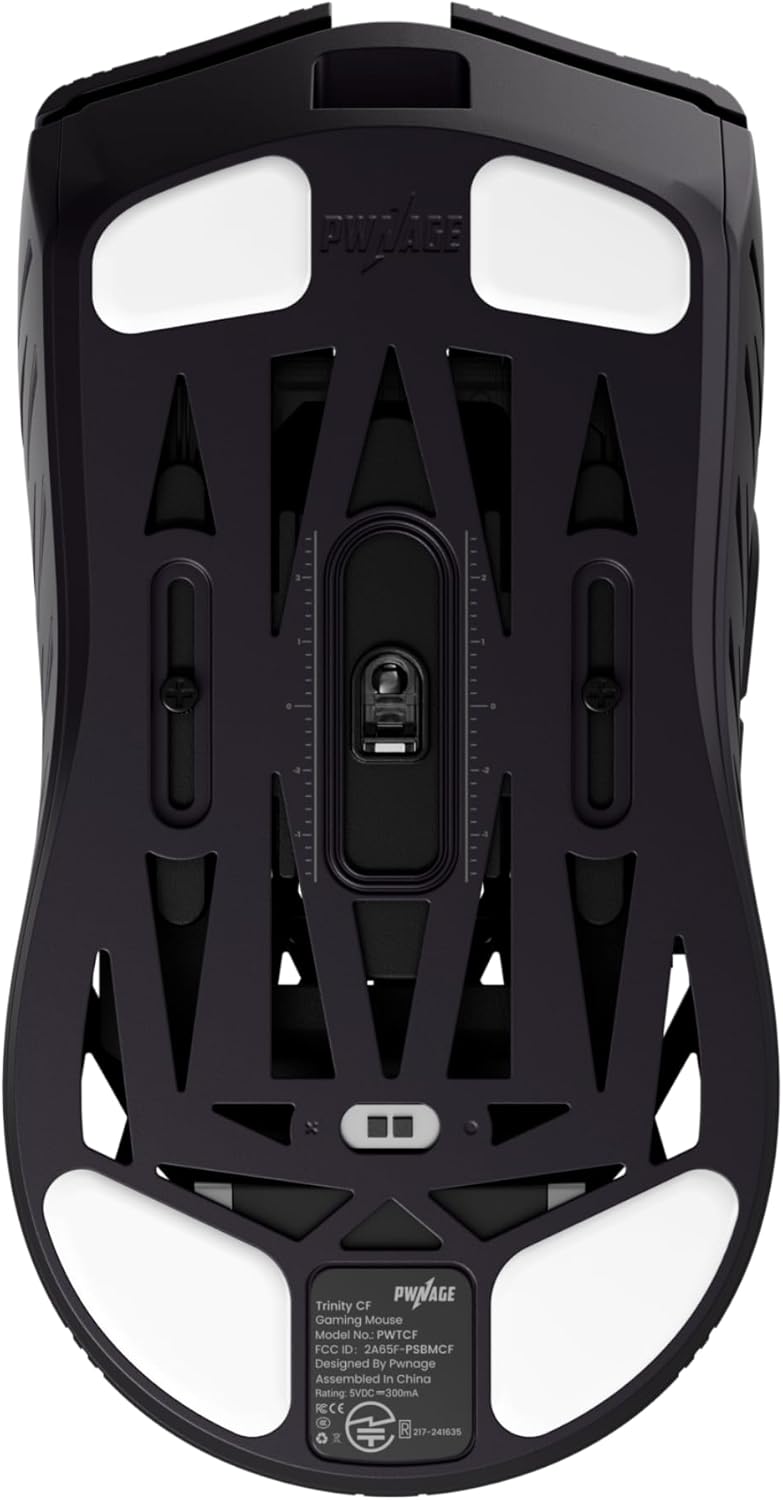
Figura 3.3: A baix view of the Trinity Wireless Gaming Mouse, showing the sensor, PTFE skates, and sensor adjustment screws.
Components clau:
- Botons de clic esquerre/dret: Primary input buttons.
- Roda de desplaçament: Per a la funcionalitat de desplaçament vertical i clic amb el botó central.
- Botons laterals: Programable per a diverses funcions.
- Botó DPI: Cycles through DPI settings (location may vary, typically on top or bottom).
- XERO PAW3950 Optical Sensor: High-precision tracking sensor located on the bottom.
- PTFE Skates: Low-friction feet for smooth glide.
- Port USB-C: Per a càrrega i connexió per cable.
- Interruptor d'encesa/mode: To turn the mouse on/off or switch between wired/wireless modes.
4. Configuració
4.1 Càrrega inicial
Before first use, it is recommended to fully charge the mouse. Connect the provided USB-C cable to the mouse and the USB-A end to an available USB port on your computer or a USB wall adapter. The LED indicator on the mouse will show charging status and turn off or change color when fully charged.
Connexió sense fil 4.2 (2.4 GHz)
- Insert the USB Wireless Receiver into an available USB port on your computer.
- Enceneu el ratolí amb l'interruptor d'encesa situat a la part inferior del dispositiu.
- The mouse should automatically connect to the receiver. If not, press the pairing button (if available, refer to specific product diagram) or consult the online software for pairing instructions.
4.3 Connexió per cable
Connect the USB-C cable directly from the mouse to your computer's USB port. The mouse will function in wired mode and charge simultaneously. This mode also supports the 8kHz polling rate.
4.4 Instal·lació del programari (Web-Based)
The Trinity mouse utilizes web-based customization software. No downloads are required. Access the software by visiting the official PWNAGE website and navigating to the support or software section for the Trinity mouse. This allows for customization of DPI, macros, and profiles, which are stored in the mouse's onboard memory.
5. Instruccions de funcionament
5.1 Ajust de DPI
The mouse features a dedicated DPI button (location may vary) to cycle through preset DPI levels. Default DPI settings can be customized via the web-based software. The XERO 3950 sensor supports up to 36,000 DPI.
5.2 Taxa de sondeig
The Trinity mouse supports an 8,000 Hz polling rate in both wired and wireless modes. This setting can be configured through the web-based customization software for optimal responsiveness.
5.3 Adjustable Sensor Technology
The mouse features adjustable sensor technology, allowing you to fine-tune the sensor's physical position for personalized aim optimization. This can improve tracking accuracy and reduce path deviation. Refer to the web-based software for detailed instructions on adjusting the sensor position.

Figure 5.1: Diagram showing the adjustable sensor position mechanism on the mouse's underside.
5.4 Personalització de botons
All programmable buttons, including side buttons, can be remapped to perform various functions, macros, or keystrokes using the web-based customization software.
6. Customization Software
The PWNAGE Trinity Wireless Gaming Mouse uses an intuitive web-based customization software. This platform allows you to:
- Ajusta la configuració de DPI i crea un professional personalitzatfiles.
- Program macros for complex command sequences.
- Remap mouse buttons.
- Configure polling rate (up to 8kHz).
- Fine-tune sensor position for optimal aim.
- Manage onboard memory profiles.
Access the software via the official PWNAGE website. Ensure your mouse is connected (wired or wireless) to apply changes.
7. Manteniment
7.1 Neteja
Per netejar el ratolí, feu servir un drap suau, sec i sense borrissol. Per a la brutícia persistent, netegeu-lo lleugerament.ampen the cloth with water. Avoid using harsh chemicals, abrasive cleaners, or solvents, as these can damage the mouse's surface and internal components. Ensure no liquid enters the mouse's openings.
7.2 Cura de la bateria
The Trinity mouse contains a rechargeable Lithium Ion battery. To prolong battery life:
- Eviteu descarregar completament la bateria amb freqüència.
- Store the mouse at room temperature when not in use for extended periods.
- Charge the mouse using the provided cable or a certified USB power source.
7.3 PTFE Skates
The mouse is equipped with 100% PTFE skates for smooth gliding. Over time, these may wear down. Replacement skates can be purchased from authorized retailers. The universal flat groove bottom plate is compatible with various mouse skates, allowing for customization.
8. Solució De Problemes
8.1 El ratolí no respon
- Assegureu-vos que el ratolí estigui encès.
- Comproveu el nivell de la bateria i carregueu-la si cal.
- For wireless mode, ensure the USB receiver is securely plugged into a working USB port. Try a different USB port.
- Per al mode amb cable, assegureu-vos que el cable USB-C estigui connectat correctament tant al ratolí com a l'ordinador.
- Proveu de reiniciar l'ordinador.
8.2 Intermittent Connectivity/Lag
- Ensure the USB receiver is close to the mouse and not obstructed by metal objects.
- Avoid placing the receiver near other wireless devices (e.g., Wi-Fi routers, Bluetooth devices) that may cause interference.
- Ensure the mouse firmware is up to date via the webprogramari basat en -.
8.3 Problemes de seguiment
- Clean the optical sensor on the bottom of the mouse with a soft, dry cloth.
- Assegureu-vos que feu servir el ratolí sobre una superfície adequada (per exemple, una estora de ratolí). Eviteu superfícies molt reflectants o transparents.
- Check DPI settings in the customization software.
8.4 La bateria es descarrega ràpidament
- High polling rates (e.g., 8kHz) consume more power. Consider reducing the polling rate if extended battery life is prioritized.
- Assegureu-vos que el ratolí estigui apagat quan no estigui en ús.
- Check for any background processes or software conflicts that might be keeping the mouse active.
9. Especificacions
| Característica | Detall |
|---|---|
| Model | Trinity Wireless Gaming Mouse |
| Material de construcció | Compost de fibra de carboni |
| Pes | Aproximadament 39 grams (1.31 unces) |
| Sensor | Custom XERO PAW3950 Optical Sensor |
| Rang de DPI | Fins a 36,000 DPI |
| Precisió de seguiment | 99.8% |
| Taxa de votació | Up to 8,000 Hz (Wired & Wireless) |
| Connectivitat | Lag-Free 2.4GHz Wireless, USB-C Wired |
| Patins | 100% PTFE, Universal Flat Groove Bottom Plate |
| Bateria | 1 ió de liti (inclòs) |
| Característiques especials | Ultralight Design, Carbon Fiber Construction, Symmetrical Shape, Adjustable Sensor Technology, Web-Based Customization Software |
| Dimensions del paquet | 8.66 x 6.61 x 3.43 polzades |
10. Garantia i Suport
For warranty information and technical support, please visit the official PWNAGE weblloc web o poseu-vos en contacte amb el servei d'atenció al client. Conserveu el comprovant de compra per a reclamacions de garantia.
Fabricant: Pwnage
Weblloc: PWNAGE Official Store