
Introducció
This manual provides essential information for the proper setup, operation, maintenance, and troubleshooting of your KTC H27T27 27-inch WQHD IPS Flat Monitor. Please read this manual thoroughly before using the product to ensure optimal performance and safety.
The KTC H27T27 monitor features a 27-inch WQHD (2560x1440) IPS panel with a 100Hz refresh rate, designed to deliver clear and detailed images with smooth motion. It includes FreeSync technology for enhanced visual fluidity during dynamic content. The IPS panel ensures vivid colors and wide viewangles d'ajust.

Figure 1: KTC H27T27 27-inch WQHD IPS Flat Monitor Front View
Configuració
1. Desembalatge
Carefully remove all components from the packaging. Ensure all items listed in the packing list are present and undamaged. Retain the original packaging for future transport or service needs.
2. Muntatge de l'estand
- Col·loqueu el monitor cara avall sobre una superfície suau i neta per evitar ratllades.
- Fixeu la base del suport al coll del suport amb els cargols proporcionats.
- Align the assembled stand with the mounting slot on the back of the monitor and secure it firmly.
3. Muntatge VESA (opcional)
The monitor supports VESA 100x100mm mounting. If using a VESA mount, remove the stand and attach the VESA compatible bracket to the monitor's rear panel using appropriate screws.
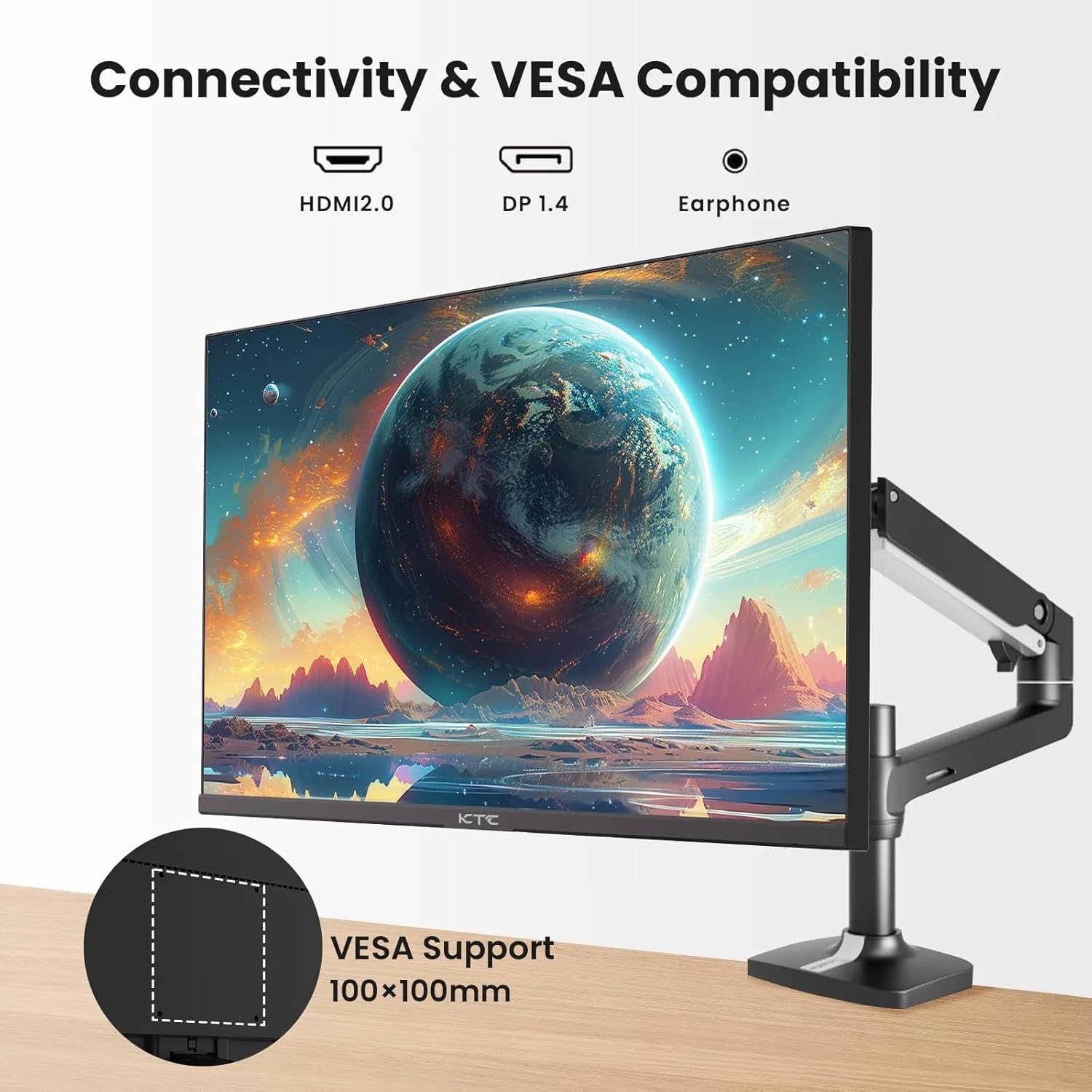
Figure 2: VESA Compatibility and Connectivity Ports
4. Cables de connexió
Connecteu els cables necessaris al monitor i a l'ordinador o a altres dispositius. Assegureu-vos que totes les connexions estiguin ben connectades.
- Cable de corrent: Connect the power adapter to the monitor's DC input port, then plug the power cable into a power outlet.
- Cable de vídeo: Connect either an HDMI cable (HDMI 2.0) or a DisplayPort cable (DP 1.4) from your computer's graphics card to the corresponding input port on the monitor.
- Sortida d'àudio: If desired, connect headphones or external speakers to the 3.5mm audio output jack.

Figure 3: Monitor Input Ports
5. Engegada inicial
Press the power button on the monitor. The power indicator light will illuminate. If no image appears, ensure your computer is powered on and the correct input source is selected on the monitor.
En funcionament
1. Encendre/apagar
Press the power button located on the monitor to turn it on or off. The power indicator will show the monitor's status.
2. Menú de visualització en pantalla (OSD).
The OSD menu allows you to adjust various monitor settings. Use the control buttons (usually located on the back or bottom of the monitor) to navigate the menu.
- Press a button to activate the OSD menu.
- Feu servir els botons de navegació per moure's per les opcions del menú.
- Press a selection button to enter a sub-menu or confirm a setting.
- Press an exit button to close the OSD menu.
3. Ajustar la configuració
Els paràmetres ajustables habituals inclouen:
- Brillantor/Contrast: Ajusta la luminància general i la diferència entre les zones clares i fosques.
- Configuració de color: Modifiqueu la temperatura de color, el gamma i els valors RGB individuals.
- Font d'entrada: Manually select between HDMI 1, HDMI 2, or DisplayPort inputs.
- Mode d'imatge: Select predefined display modes (e.g., Standard, Game, Movie).
4. Freqüència d'actualització
The KTC H27T27 supports a 100Hz refresh rate, providing smoother motion compared to standard 60Hz displays. Ensure your graphics card and operating system are configured to output at 100Hz for the best experience.

Figure 4: 100Hz Refresh Rate Benefit
5. FreeSync Technology
This monitor is compatible with AMD FreeSync technology, which synchronizes the monitor's refresh rate with your graphics card's frame rate. This helps eliminate screen tearing and stuttering for a smoother gaming and video experience. Ensure FreeSync is enabled in both the monitor's OSD menu and your graphics card's control panel.
Figure 5: FreeSync Technology in Action
Manteniment
1. Neteja de la pantalla
- Apagueu el monitor i desconnecteu el cable d'alimentació.
- Netegeu suaument la pantalla amb un drap suau i sense pelusa.
- Per a marques difícils, esbandiu lleugeramentampNetegeu el drap amb aigua o un netejador de pantalles especialitzat (no ruixeu directament sobre la pantalla).
- Eviteu utilitzar netejadors abrasius, alcohol o solucions amb base d'amoníac, ja que poden danyar la superfície de la pantalla.
2. Atenció general
- Keep the monitor away from direct sunlight, excessive heat, and humidity.
- Assegureu-vos que hi hagi una ventilació adequada al voltant del monitor per evitar el sobreescalfament.
- Eviteu col·locar objectes pesats sobre el monitor o els seus cables.
Resolució de problemes
Si teniu problemes amb el monitor, consulteu els problemes i solucions més comuns següents:
- Sense energia:
- Ensure the power cable is securely connected to both the monitor and the power outlet.
- Verify the power outlet is functional. - Sense senyal:
- Check that the video cable (HDMI or DisplayPort) is securely connected to both the monitor and your computer.
- Ensure your computer is powered on and not in sleep mode.
- Select the correct input source via the monitor's OSD menu. - Imatge parpellejant o distorsionada:
- Check the video cable for damage or loose connections.
- Adjust the refresh rate settings on your computer.
- Disable or enable FreeSync in the OSD menu and graphics card settings to test. - Colors incorrectes:
- Reset color settings to factory defaults in the OSD menu.
- Adjust color temperature or individual RGB values.
Si el problema persisteix després d'intentar aquestes solucions, poseu-vos en contacte amb l'atenció al client.
Especificacions
| Característica | Especificació |
|---|---|
| Marca | CTC |
| Número de model | H27T27 |
| Mida de la pantalla | 27 polzades |
| Resolució | 2560 x 1440 (WQHD) |
| Freqüència d'actualització | 100 Hz |
| Tipus de visualització | IPS |
| Temps de resposta | 7 mil·lisegons |
| Sincronització adaptativa | FreeSync |
| Connectivitat | 2x HDMI 2.0, 1x DisplayPort 1.4, 1x 3.5mm Audio Out |
| Relació d'aspecte | 1.78:1 |
| Superfície de la pantalla | Mat |
| Dimensions de l'article (D x W x H) | 1.85 "P x 24.25" W x 14.33" H |
| Pes de l'article | 4 quilos |
Garantia i Suport
Informació de la garantia
This KTC monitor is covered by a manufacturer's warranty. Please refer to the warranty card included in your product packaging for specific terms, conditions, and duration of coverage. Keep your purchase receipt as proof of purchase for warranty claims.
Atenció al client
For technical assistance, warranty service, or any product-related inquiries, please contact KTC customer support. Contact details can typically be found on the official KTC weblloc web o a la targeta de garantia.
When contacting support, please have your monitor's model number (H27T27) and serial number ready.