
1. Introducció
Thank you for choosing the MageGee Light84 Transparent Mechanical Keyboard. This wired gaming keyboard features a unique transparent design, vibrant RGB backlighting, and crystal switches, offering a superior typing and gaming experience. This manual provides detailed instructions for setup, operation, maintenance, and troubleshooting to help you get the most out of your new keyboard.

Figure 1: MageGee Light84 Transparent Mechanical Keyboard
2. Característiques clau
- Transparent Keycaps and RGB Backlighting: Features blue transparent keycaps that are delicate and smooth to the touch, with clear, fade-resistant characters. Full RGB backlighting offers cool, eye-catching effects with adjustable light modes and brightness, enhancing the transparent design.
- Customizable Crystal Switches and Double Layer Sound Deadening Structure: Equipped with dust-proof transparent axles for fast, no-delay response and tactile feedback. The gasket structure and EVA sound deadening cotton effectively eliminate most cavity sound, optimizing typing feel and sound consistency.
- Hot-swappable Full-Key Replacement Design: Compatible with most three-legged and five-legged shafts, allowing for DIY customization. Supports simultaneous keystrokes without conflict for fast trigger continuous skills.
- Gasket Mount Mechanical Keyboard: Utilizes high-quality gasket material and silicone pad to absorb vibrations and eliminate noise. Includes Poron sandwich foam, Poron socket foam, and PET sound pads for a quieter and smoother typing experience.
- Simple Button to Switch WIN/MAC/Xbox Layouts: Easily switch between Mac and Windows operating systems. The 84-key, 70% layout saves desk space and offers maximum comfort, suitable for gamers, office workers, and writers.
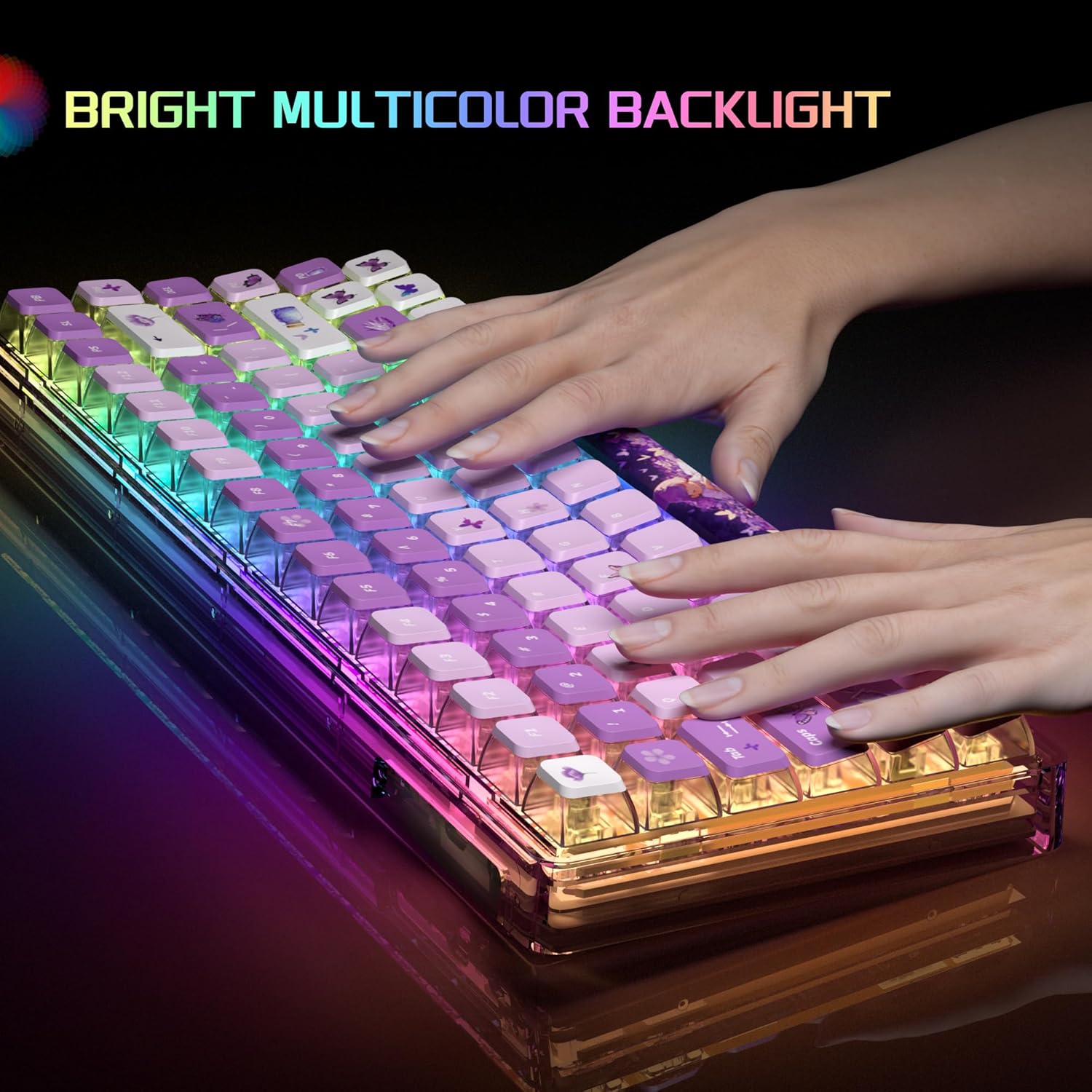
Figure 2: Bright Multicolor Backlight in action

Figure 3: Crystal Switch Components
Producte acabatview Vídeo
Video 1: A short demonstration of the MageGee Transparent Keyboard, showcasing its RGB lighting effects and overall design.
3. Guia de configuració
- Descomprimir el teclat: Traieu amb cura el teclat i tots els accessoris de l'embalatge.
- Connecta't al dispositiu: Locate the USB cable provided with your keyboard. Plug the USB-C end into the keyboard's port and the USB-A end into an available USB port on your computer (PC, Laptop, Gaming Console) or Mac.
- Reconeixement del sistema: Your operating system (Windows, macOS) should automatically detect and install the necessary drivers. This process usually takes a few moments.
- Funcionalitat de prova: Open a text editor or browser and test typing to ensure all keys are functioning correctly.
4. Instruccions de funcionament
4.1. Control de retroiluminació RGB
The MageGee Light84 keyboard features customizable RGB backlighting. Specific key combinations are used to change lighting modes and brightness. Refer to the quick start guide included in your packaging for detailed key combinations, as these can vary.
- Canvi de modes d'il·luminació: Typically, use Fn + [Tecla] combinations to cycle through various lighting effects (e.g., wave, breathing, static).
- Ajust de brillantor: Ús Fn + Fletxa amunt/avall keys to increase or decrease backlight brightness.
- Ajust de velocitat: Ús Fn + Fletxa esquerra/dreta keys to adjust the speed of dynamic lighting effects.
4.2. Switching WIN/MAC/Xbox Layouts
The keyboard allows for quick switching between different operating system layouts to optimize key functions.
- Switching Layout: Press the dedicated key button (often marked with a system icon or located near the function keys) to instantly change the keyboard's working system to Mac, Windows, or Xbox mode.
4.3. Hot-Swappable Key Replacement
The hot-swappable design allows you to easily change mechanical switches without soldering. This feature is ideal for customization and maintenance.
- Extracció d'un interruptor: Use the provided switch puller tool to gently grip the switch and pull it straight up.
- Instal·lació d'un interruptor: Alineeu els pins del nou interruptor amb els forats de la placa de circuit imprès. Premeu fermament fins que l'interruptor encaixi al seu lloc. Assegureu-vos que els pins no estiguin doblegats.
4.4. Lock WIN Key Function
To prevent accidental presses of the Windows key during gaming, you can lock its functionality.
- Lock/Unlock WIN Key: Typically, press Fn + WIN key to toggle the Windows key lock on or off. An indicator light may show its status.
5. Manteniment
Proper maintenance ensures the longevity and optimal performance of your MageGee Light84 keyboard.
- Neteja general: Regularly use a soft brush or compressed air to remove dust and debris from between the keycaps.
- Neteja de les tecles: For deeper cleaning, you can carefully remove the keycaps using a keycap puller. Clean them with a mild soap solution and a soft cloth, then ensure they are completely dry before reattaching. Avoid harsh chemicals that may damage the transparent material or legends.
- Neteja de superfícies: Netegeu la superfície del teclat amb un drap lleuger.amp, lint-free cloth. Do not use excessive moisture.
- Eviteu els vessaments: Keep liquids away from the keyboard to prevent damage to internal components. In case of a spill, immediately unplug the keyboard, dry it thoroughly, and allow it to air dry completely before reconnecting.
6. Solució De Problemes
Si teniu problemes amb el teclat, proveu els passos següents per resoldre'ls:
| Problema | Possible solució |
|---|---|
| El teclat no respon |
|
| La retroiluminació no funciona o parpelleja |
|
| Certes tecles no funcionen |
|
| WIN key is locked |
|
If these steps do not resolve your issue, please contact MageGee customer support for further assistance.
7. Especificacions
- Marca: MageGee
- Model: Llum 84
- Color: Purple Butterfly
- Tecnologia de connectivitat: Amb cable
- Tipus d'interruptor: Tactile (Crystal Switches)
- Descripció del teclat: Ergonomic, 70% Layout (84-key)
- Dispositius compatibles: Consola de jocs, ordinador portàtil, PC
- Compatible Operating System Family: Windows, Mac, Xbox
- Pes de l'article: 2.92 lliures (aprox. 1.32 kg)
- Dimensions del paquet: 13.94 x 6.3 x 2.44 polzades (aprox. 35.4 x 16 x 6.2 cm)

Figure 4: Keyboard Dimensions
8. Garantia i Suport
MageGee products are designed and manufactured to the highest quality standards. For information regarding warranty coverage, please refer to the warranty card included with your product or visit the official MageGee weblloc.
For technical support, troubleshooting assistance, or any other inquiries, please contact MageGee customer service through their official channels. You can often find contact information on the product packaging or the brand's official weblloc.
MageGee Official Store: Visit the MageGee Store on Amazon