
1. Introducció
Thank you for choosing the HOU Magnetic Detachable Keyboard Case. This product is designed to enhance your iPad experience by providing a protective case, a versatile stand, and a functional keyboard with a precision touchpad. Please read this manual carefully to ensure proper use and maintenance of your device.
2. Compatibilitat
This keyboard case is compatible with the following iPad models:
- iPad Air 11 (M3 2025): Models A3266/A3267/A3270
- iPad Air 11 (M2 2024): Models A2902/A2903/A2904
- iPad Air 5th Gen (10.9"): Models A2591/A2589/A2588
- iPad Air 4th Gen (10.9"): Models A2325/A2324/A2316/A2072
- iPad Pro 11 (2022): Models A2435/A2759/A2761/A2762
- iPad Pro 11 (2021): Models A2377/A2459/A2301/A2460
- iPad Pro 11 (2020): Models A2228/A2068/A2230/A2231
- iPad Pro 11 (2018): Models A1980/A2013/A1934/A1979

Image: iPad Compatibility Chart. Please verify your iPad model number for correct fit.
3. Contingut del paquet
El paquet inclou:
- 1 x HOU Keyboard
- 1 x HOU Protective Case
- 1 x USB-C Charging Cable (for keyboard)
- 1 x Manual d'usuari
4. Instruccions de configuració
4.1 Attaching the iPad to the Case
- Gently insert your iPad into the protective case, ensuring all edges are securely covered. The case is designed for a snug fit to provide 360-degree protection.
- Ensure the camera cutout and port openings align correctly with your iPad's features.
4.2 Connectar el teclat
The keyboard attaches magnetically to the case.
- Col·loqueu el teclat sobre una superfície plana.
- Align the magnetic strip on the case (with the iPad inserted) with the corresponding area on the keyboard. The magnets will automatically snap the keyboard into place.

Image: Magnetic Keyboard Attachment. The keyboard and case connect securely via magnets.
4.3 Vinculació Bluetooth
Per connectar el teclat al teu iPad mitjançant Bluetooth:
- Assegureu-vos que el teclat estigui carregat.
- Turn on the keyboard using the power switch, usually located on the side. A status indicator light will illuminate.
- Al teu iPad, vés a Configuració > Bluetooth.
- Activa el Bluetooth. El teu iPad cercarà dispositius propers.
- Locate "HOU Keyboard" (or similar name) in the list of devices and tap to connect.
- If prompted, enter the pairing code displayed on your iPad using the keyboard and press Enter.
- Once connected, the status indicator on the keyboard will change, and the keyboard will appear as "Connected" on your iPad.
5. Instruccions de funcionament
5.1 Característiques del teclat
- Il·luminació de fons: The keyboard features multi-color backlighting with adjustable brightness. Use the dedicated backlight key (often a sun icon or similar) to cycle through colors and brightness levels.
- Tecles de drecera: The keyboard includes a row of dedicated iOS shortcut keys for quick access to functions like Home, Search, Brightness, Volume, Media Control, and Keyboard Hide/Show.
- X-shaped Keys: The keys are designed with an X-shaped mechanism for responsive and comfortable typing.
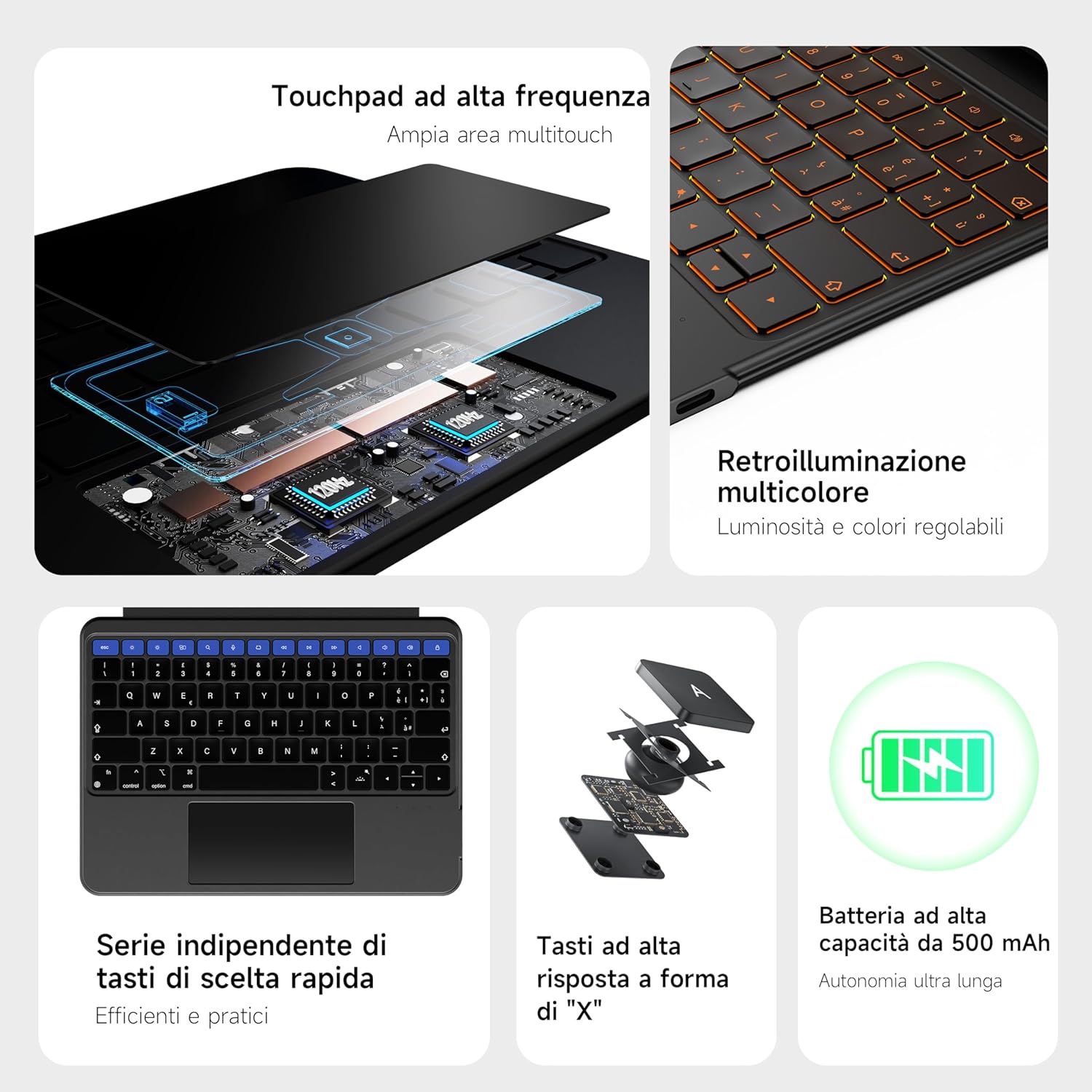
Image: Keyboard Features. High-frequency touchpad, multi-color backlight, and dedicated shortcut keys.

Image: Italian Keyboard Layout (78 Keys). Features large keys and a spacious touchpad.
5.2 Touchpad Gestures
The precision touchpad supports various iOS gestures for efficient navigation:
- Toc amb un sol dit: Click/Select
- Two Fingers Swipe (Up/Down): Scroll content
- Two Fingers Pinch (In/Out): Apropar/reduir
- Three Fingers Swipe (Up): Vés a la pantalla d'inici
- Three Fingers Swipe (Left/Right): Canvia entre aplicacions obertes
- Three Fingers Swipe (Down): Access Dock
- Four Fingers Swipe (Up): View Centre de control

Image: Enhanced Touchpad. The touchpad surface is 35% larger with a 120Hz refresh rate for smooth response.
5.3 Magnetic Detachment and Viewmodes
The magnetic design allows for flexible usage scenarios:
- Teclat desmuntable: The keyboard can be easily detached from the case, allowing you to use the iPad as a standalone tablet for drawing, reading, or media consumption.
- Suport giratori de 360°: The integrated stand allows for 360-degree rotation, enabling both vertical and horizontal viewing orientations. The adjustable angle (90°-170°) provides optimal viewing for various activities like video conferencing, presentations, or streaming.
- Pencil Holders: The case includes both a magnetic slot for Apple Pencil (USB-C version) for charging and an elastic holder for secure storage.

Image: Magnetic Detachable Design. The keyboard and case can be easily separated or combined.

Image: Key Features. Illustrates 360-degree rotation, adjustable stand, magnetic combination, full protection, and dual pencil slot.

Image: Various Usage Modes. Shows the case in laptop, tablet, and drawing modes.

Image: Apple Pencil Magnetic Charging Area. The case allows for magnetic charging of the Apple Pencil.

Image: Elastic Pencil Holder. A secure elastic loop for storing your Apple Pencil.
6. Manteniment
To ensure the longevity and optimal performance of your HOU Keyboard Case:
- Neteja: Utilitzeu un suau, damp cloth to wipe the exterior of the case and keyboard. Avoid harsh chemicals or abrasive materials.
- Emmagatzematge: Quan no l'utilitzeu, guardeu la funda del teclat en un lloc fresc i sec, allunyat de la llum solar directa i de temperatures extremes.
- Càrrega: Charge the keyboard regularly to maintain battery health. Avoid overcharging or completely draining the battery.
- Protecció: While the case offers protection, avoid dropping the iPad or exposing it to excessive force.

Image: Keyboard Charging Port. The keyboard features a USB-C charging port.
7. Solució De Problemes
If you encounter issues with your HOU Keyboard Case, refer to the following common solutions:
- El teclat no es connecta per Bluetooth:
- Assegureu-vos que el teclat estigui encès i completament carregat.
- Turn off and on your iPad's Bluetooth.
- Forget the device in iPad's Bluetooth settings and re-pair.
- Reinicia l'iPad i el teclat.
- Les tecles no responen:
- Comproveu si el teclat està connectat per Bluetooth.
- Assegureu-vos que el teclat estigui carregat.
- Netegeu el voltant de les tecles per eliminar qualsevol residu.
- El panell tàctil no funciona:
- Ensure the keyboard is connected.
- Check iPad settings for touchpad functionality (Settings > Accessibility > Touch > AssistiveTouch).
- Reinicieu el teclat i l'iPad.
- La retroiluminació no funciona:
- Assegureu-vos que el teclat estigui carregat.
- Press the backlight key to cycle through modes.
Si el problema persisteix després de provar aquests passos, poseu-vos en contacte amb l'atenció al client.
8. Especificacions
| Marca | HOU |
| Dispositius compatibles | iPad Air, iPad Pro |
| Tecnologia de connectivitat | Bluetooth |
| Descripció del teclat | Multifunció |
| Característica especial | Rotatable, Backlit |
| Color | Negre |
| Material | Silicona |
| Components inclosos | Keyboard, Case |
| Font d'alimentació | Funciona amb bateria |
| Pes de l'article | 850 g |
| Dimensions del paquet | 29.1 x 20.3 x 2.7 cm |
9. Garantia i Suport
9.1 Informació de la garantia
HOU products are covered by a standard manufacturer's warranty against defects in materials and workmanship. The specific duration and terms of the warranty may vary by region and retailer. Please retain your proof of purchase for warranty claims.
9.2 Atenció al client
For technical assistance, troubleshooting, or warranty inquiries, please contact HOU customer support through the retailer where you purchased the product or visit the official HOU weblloc per obtenir informació de contacte.
Please provide your product model number and a detailed description of the issue when contacting support.


