
1. Introducció
This manual provides detailed instructions for the installation, operation, and maintenance of your Seventour 14-inch 4K Android 13 Car Headrest Monitor. Please read this manual thoroughly before using the product to ensure proper function and safety. Keep this manual for future reference.

Image: The 14-inch headrest monitor showcasing its Android 13 interface with pre-installed applications like Netflix, Chrome, Play Store, YouTube, and Disney+.
2. Informació de seguretat
- Ensure the monitor is securely mounted to prevent detachment during vehicle movement.
- Do not obstruct ventilation openings on the device.
- Eviteu exposar el dispositiu a temperatures extremes, a la llum solar directa durant períodes prolongats o a la humitat.
- Feu servir només els adaptadors i cables d'alimentació proporcionats.
- No intenteu desmuntar o reparar el dispositiu vosaltres mateixos. Contacteu amb l'assistència al client per obtenir assistència.
- Keep small parts and accessories out of reach of children.
3. Contingut del paquet
Verifiqueu que tots els elements siguin presents al paquet:
- 14 Inch Touch Screen (x2 for 4G+64G(2*PCs) model)
- Mount Bracket (x2 for 4G+64G(2*PCs) model)
- Car Charger Power Cable (2-port, 9.8 ft)
- DC 12V Adapter (x2 for home use)
- Cable HDMI (x1)
- USB Flash Drive (32GB)

Image: An illustration detailing the contents of the product box, including the monitors, mounting hardware, and various cables.
4. Configuració
4.1 Instal·lació del monitor
The headrest monitor comes with a robust metal mounting bracket designed for easy installation on car headrest poles. It is compatible with over 98% of car models featuring round headrest poles.
- Attach the mounting bracket to the headrest poles. Ensure the bracket is securely fastened by tightening the adjustment knobs.
- Slide the monitor onto the bracket until it clicks into place.

Image: Visual guide for installing the monitor bracket on a car headrest, highlighting compatibility with round poles.
4.2 Connexió d'alimentació
The monitor supports multiple power supply methods:
- Car Cigarette Lighter Cable: Connect the provided car charger power cable to the monitor's DC 12V input and your car's cigarette lighter socket.
- Adaptador d'alimentació de CC de 12 V: For home use, connect the provided DC 12V adapter to the monitor and a standard wall outlet.
- Car Battery Cable: For a permanent installation, a separate hardwire kit (ASIN: B0DSSFGC9V) can be purchased to connect directly to the car battery.

Imatge: Més deview of available power connection options for the monitor.
4.3 Configuració inicial del Wi-Fi
To access online features and apps, connect the monitor to a Wi-Fi network:
- From the main screen, tap on 'SETUP' or navigate to 'Settings'.
- Select 'Wi-Fi' or 'WLAN'.
- Activeu el Wi-Fi i seleccioneu la xarxa desitjada de la llista.
- Introduïu la contrasenya si se us demana i toqueu "Connecta".
If a Wi-Fi network is not available, you can use a mobile hotspot from your phone as a network source.
5. Instruccions de funcionament
5.1 Basic Navigation and App Usage
The monitor features an intuitive Android 13.0 touch screen interface. Navigate by tapping icons, swiping, and using the back/home buttons.
- Google Play Store: Download and install various applications such as YouTube, Netflix, Disney+, Prime Video, HBO, and TikTok.
- Aplicacions preinstal·lades: Access popular streaming services directly from the home screen.

Imatge: Examples of the monitor's Android interface and various settings screens.
5.2 Phone Wireless Mirror Link
The monitor supports wireless screen mirroring from both iOS and Android devices.
- iOS AirPlay: For iPhones, ensure both the phone and monitor are connected to the same Wi-Fi network (or use the phone's hotspot). On your iPhone, open the Control Center, tap 'Screen Mirroring', and select the monitor's device name.
- Android Miracast: For Android phones, ensure both devices are on the same Wi-Fi network. On your phone, enable 'Smart View' or 'Screen Cast' from the quick settings panel and select the monitor's device name.
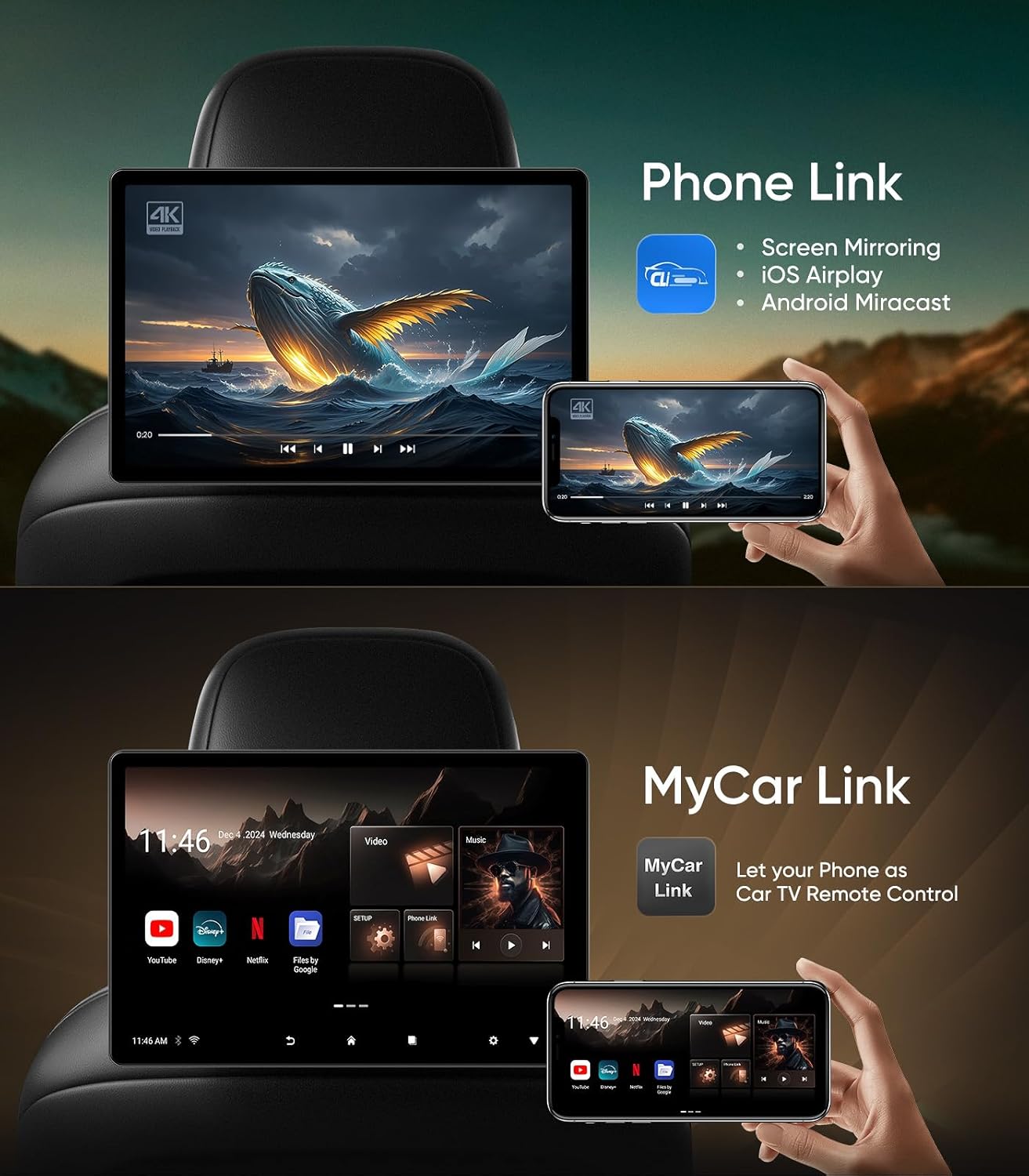
Image: A smartphone mirroring its display to the headrest monitor, demonstrating the 'Phone Link' feature.
5.2.1 iOS Wireless Mirror Link Guide
Video: Demonstrates how to connect an iPhone to the headrest monitor for wireless screen mirroring using the MyCar Link app and Wi-Fi hotspot.
5.2.2 Android Wireless Mirror Link Guide
Video: Demonstrates how to connect an Android phone to the headrest monitor for wireless screen mirroring using the MyCar Link app and Wi-Fi hotspot.
5.3 MyCar Link App for Remote Control
The MyCar Link App allows you to control the monitor from your smartphone, enabling convenient operation from the front seat.
- Download and install the 'MyCar Link' app from the Google Play Store (for Android) or App Store (for iOS).
- Ensure both your phone and the monitor are connected to the same Wi-Fi network.
- Open the MyCar Link app on your phone. The app should detect the monitor.
- Tap on the detected device in the app to establish a connection and begin remote control.
5.4 HDMI Input and Output
The monitor features both HDMI input and output ports, expanding its versatility.
- Entrada HDMI: Use the monitor as an external display for devices such as PS4/PS5, Xbox, Fire TV Stick, TV box, or computers.
- Sortida HDMI: Connect two monitors via an HDMI cable for lossless transfer of images, allowing synchronized viewing on both screens.

Imatge: Detallada view of the monitor's ports and an illustration of HDMI input/output functionality.
5.5 USB and Micro SD Card Ports
The monitor includes USB and Micro SD card ports, supporting up to 1TB USB drives for local media playback.
- Insert a USB drive or Micro SD card into the respective port.
- Navigate to the 'File Folder' app on the monitor to browse and play your media files.
5.6 Multiple Audio Playback Methods
Enjoy audio through various options:
- Altaveus integrats: The monitor comes with high-quality integrated speakers.
- Wireless Bluetooth Headset: Connect Bluetooth headphones via the 'Bluetooth' settings for private listening.
- Wired Headset: Use the 3.5mm headphone jack for wired audio output.
- Transmissió FM: Tune the monitor's FM transmitter and your car radio to the same frequency to play audio through your car's speakers. Access FM transmission settings from the main menu.
5.7 LED Light Settings
Customize the ambient LED lights on the monitor:
- Go to 'Settings' on the monitor.
- Locate and select 'Display/Volume' or a similar lighting option.
- Adjust the color and brightness of the LED lights to your preference.
6. Manteniment
- Neteja: Feu servir un drap suau i sec per netejar la pantalla i l'exterior. Per a marques difícils, netegeu lleugerament.ampNetegeu el drap amb aigua o un netejador de pantalles. Eviteu productes químics agressius.
- Emmagatzematge: Si guardeu el dispositiu durant un període prolongat, desconnecteu-lo de l'alimentació i guardeu-lo en un lloc fresc i sec.
- Actualitzacions de programari: The Android Headrest TV supports OTA (Over-The-Air) cloud system push updates. Ensure your device is connected to Wi-Fi to receive automatic system updates for improved performance and features.
7. Solució De Problemes
| Problema | Possible solució |
|---|---|
| El monitor no s'encén. | Check power connections. Ensure the car charger or DC adapter is securely plugged in and receiving power. |
| No hi ha connexió Wi-Fi. | Verify Wi-Fi password. Ensure the network is active and within range. Try restarting the monitor and your Wi-Fi router/hotspot. |
| El mirall de pantalla no funciona. | Confirm both devices are on the same Wi-Fi network. For iOS, ensure AirPlay is selected. For Android, ensure Miracast/Smart View is enabled. Restart both devices. |
| No sound from car speakers via FM. | Ensure the monitor's FM transmitter and car radio are tuned to the exact same frequency. Adjust volume on both devices. |
| Les aplicacions són lentes o es bloquegen. | Close unused apps. Clear app cache in Android settings. Ensure sufficient storage space. Consider a factory reset if issues persist (note: this will erase data). |
8. Especificacions
- Mida de la pantalla: 14 polzades
- Tipus de visualització: HD IPS Touch Screen (2240*1400 resolution)
- Sistema operatiu: Android 13.0
- Processador: Quad Core RK3568 (up to 2.0GHz)
- Memòria: 4 GB de RAM + 64 GB de ROM
- Connectivitat: WiFi 5G/2.4 GHz, Bluetooth 5.0
- Ports: HDMI Input, HDMI Output, USB 2.0, Micro SD Card Slot, 3.5mm Headphone Jack, DC 12V Power Input
- Àudio: Built-in Speakers, Dolby Atmos support, FM Transmission
- Compatibilitat: Universal mounting bracket for over 98% of car models with round headrest poles.
- Pes de l'article: 8.82 lliures
- Dimensions del paquet: 14.25 x 10.12 x 6.93 polzades

Image: Visual representation of the 14-inch IPS touch screen's high resolution and wide viewangle de ing.
9. Garantia i Suport
Seventour is committed to providing high-quality products and excellent customer service.
- 6-Month Replacement: We promise to replace the product with a new one if there is any product quality issue within 6 months of purchase.
- 1-Year Repair: The product will be repaired without any charge within 1 year of purchase for quality-related issues.
- Professional After-Sales Support: Seventour provides professional after-sales support. We aim to reply to every customer's email within 12 hours.
Per obtenir assistència i servei al client, poseu-vos en contacte amb:
- Telèfon: +1 833 - 853 - 8881
- Correu electrònic: help@seventour.vip

Image: Seventour customer service and warranty details.