
1. Contingut del paquet
Si us plau, verifiqueu que tots els articles que s'enumeren a continuació s'inclouen al vostre paquet. Si falta algun article o hi ha algun malmès, poseu-vos en contacte amb el servei d'atenció al client.
- 1 x BOTSLAB G980H 4K Front Dash Camera
- 1 x 2K 360° Rotatable Rear Camera (with 6-meter extension cable)
- 1 x Hardwire Kit (for 24/7 Parking Monitoring)
- 1 x Car Charger (3-meter Type-C cable)
- 1 targeta MicroSD de 64 GB
- 2 x Electrostatic Film
- 1 x Mounting Lever
- 1 x Manual d'usuari

This image displays the complete BOTSLAB G980H Kit, featuring the main front dash camera unit, the smaller rear camera, and various accessories like cables and mounts.
2. Instal·lació
2.1 Muntatge de la càmera frontal
- Clean the windshield thoroughly where the dash camera will be mounted.
- Apply the electrostatic film to the chosen area on the windshield. This helps in easy removal and prevents adhesive residue.
- Attach the 3M adhesive mount to the electrostatic film. Ensure it is firmly pressed for secure adhesion.
- Slide the BOTSLAB G980H front dash camera onto the mount. Adjust the camera angle to ensure a clear view del camí per davant.

Un detallat view of the BOTSLAB G980H front dash camera, highlighting its compact design and lens.
2.2 Instal·lació de la càmera posterior
- Identify a suitable location on your rear windshield for the rear camera, ensuring an unobstructed view.
- Clean the chosen area on the rear windshield.
- Attach the rear camera using its adhesive mount.
- Connect the rear camera to the front dash camera using the provided 6-meter extension cable. Route the cable neatly along the vehicle's interior trim.
- The rear camera can be rotated 360° for optimal positioning.
2.3 Hardwire Kit Installation (for 24/7 Parking Monitoring)
The included hardwire kit enables 24/7 parking monitoring and protects your vehicle's battery from deep discharge. Professional installation is recommended for this component.
- Connect the hardwire kit to your vehicle's fuse box according to the wiring diagram provided in the hardwire kit's specific manual.
- Ensure the Type-C USB connector from the hardwire kit is connected to the dash camera's power input.
- Route the hardwire cable discreetly to avoid interference with driving.
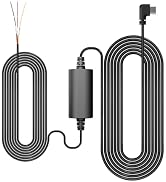
The BOTSLAB hardwire kit, including the Type-C USB cable and power module, essential for enabling 24/7 parking monitoring.
2.4 Initial Setup and Firmware Update
- Insert the included 64GB MicroSD card into the dash camera's SD card slot. Ensure it is inserted correctly until it clicks.
- Power on the dash camera by connecting it to your vehicle's power source (either via the car charger or the hardwire kit).
- Before first use, it is recommended to update the dash camera's firmware to the latest version. This can be done via the BOTSLAB app. Refer to the 'Firmware Updates' section for detailed instructions.
- Format the MicroSD card through the camera's settings menu or the BOTSLAB app to ensure optimal performance.
3. Connecting to the BOTSLAB App
The BOTSLAB app allows you to manage settings, view viu footage, download recordings, and update firmware.
- Download the "BOTSLAB" app from the App Store (iOS) or Google Play Store (Android).
- Register and log in to your BOTSLAB account.
- On the dash camera, enable Wi-Fi.
- On your smartphone, connect to the dash camera's Wi-Fi network. The network name (SSID) and password will be displayed on the dash camera screen.
- Open the BOTSLAB app and follow the on-screen instructions to add your device.
Nota: The dash camera uses 5GHz Wi-Fi for faster transmission. The Wi-Fi range is approximately 3 to 5 meters. Remote access is not supported.

An image of a smartphone showing the BOTSLAB app icon, used for managing dash camera settings and viewenregistraments.
4. Instruccions de funcionament
4.1 Funcionament bàsic
- Encès/apagat: The camera automatically powers on and begins recording when your vehicle starts, and powers off when the ignition is turned off.
- Gravació: Continuous loop recording starts automatically upon power-on.
- Visualització: The 3.18-inch IPS screen displays live footage from both front and rear cameras.
4.2 Funcions d'enregistrament
- Enregistrament en bucle: When the MicroSD card is full, new recordings automatically overwrite the oldest unlocked files.
- Sensor G (enregistrament d'emergència): The built-in G-sensor detects sudden vibrations or impacts (e.g., collisions). In such events, the current video segment is automatically locked and protected from being overwritten.
4.3 Advanced Driver-Assistance System (ADAS)
The ADAS feature provides real-time alerts to enhance driving safety:
- Forward Vehicle Warning: T'avisa si estàs massa a prop del vehicle que tens davant.
- Pedestrian Detection Warning: Notifies you of pedestrians in close proximity.
- Avís de sortida de carril: Avisa si el vehicle surt del seu carril.
- Recordatori de conducció per fatiga: The camera will remind you to take a break every 2 hours of continuous driving.
4.4 24/7 Parking Monitoring
With the hardwire kit installed, the dash camera provides continuous surveillance even when your vehicle is parked. It uses a supercapacitor for reliable power in extreme temperatures (-20°C to 70°C), eliminating fire risks associated with battery-based dash cams. The system features low voltage protection to prevent draining your vehicle's battery.
4.5 GPS and WiFi Functionality
- GPS: Records your vehicle's current speed and GPS position. It also automatically corrects the time by synchronizing with satellites.
- WiFi de 5 GHz: Provides a faster connection to your smartphone for improved live preview, quicker video downloads, and easier sharing of footage via the BOTSLAB app.
4.6 Visió nocturna i WDR
The front dash camera is equipped with a Starvis sensor, a powerful 6-layer F1.5 aperture lens, and Wide Dynamic Range (WDR) technology. This combination balances bright and dark areas in recordings, ensuring clear images and enhanced safety during night driving.
5. Manteniment
5.1 Gestió de targetes SD
- Capacitat: The camera supports MicroSD cards up to 256GB. A 64GB card is included.
- Recomanació: For optimal performance and reliability, use Class 10 or higher endurance MicroSD cards from trusted brands like Samsung or SanDisk.
- Format: Regularly format the MicroSD card (at least once a month) through the camera's settings or the BOTSLAB app to maintain performance and prevent data corruption.
5.2 actualitzacions de microprogramari
Periodically check for and install firmware updates via the BOTSLAB app. Updates often include performance improvements, bug fixes, and new features, such as additional language support.
5.3 Neteja
- Gently wipe the camera lenses with a soft, lint-free cloth to ensure clear recordings.
- Clean the camera body with a dry or slightly damp tela. Eviteu utilitzar productes químics o materials abrasius.
6. Solució De Problemes
| Problema | Possible solució |
|---|---|
| Camera does not power on or turns off after a few seconds. | Ensure the power cable is securely connected. If using the car charger, check the vehicle's 12V socket. If using the hardwire kit, verify correct installation and fuse connections. Test with a different power source if possible. |
| "Storage card abnormal" message appears. | Format the MicroSD card through the camera's settings or the BOTSLAB app. If the issue persists, try a different high-endurance Class 10 or higher MicroSD card from a reputable brand. The included card may have reached its write cycle limit over time. |
| Mala qualitat de vídeo o imatges borroses. | Clean the camera lenses. Ensure the protective film has been removed from the lenses. Check that the camera is securely mounted and not vibrating excessively. |
| Problemes de connexió Wi-Fi. | Ensure you are within 3-5 meters of the dash camera. Restart both the dash camera and your smartphone. Reconnect to the camera's Wi-Fi network. |
| ADAS features are not working. | Ensure ADAS is enabled in the camera settings via the BOTSLAB app. Calibrate the ADAS system if an option is available. Ensure the front camera's view està sense obstacles. |
| Sense funcionalitat de control per veu. | The BOTSLAB G980H Kit model does not include voice control. This feature is available in the G980H Pro model. |
7. Especificacions tècniques
| Característica | Especificació |
|---|---|
| Marca | BOTSLAB |
| Nom del model | G980H Kit |
| Resolució de la càmera frontal | 4K (2160p) |
| Resolució de la càmera posterior | 2K |
| Camp de View (Davant) | 170 graus |
| Camp de View (Posterior) | 150 Degrees (360° rotatable) |
| Tecnologia de connectivitat | Wi-Fi (5 GHz) |
| Característiques especials | ADAS, Integrated GPS, 24/7 Parking Monitoring (with Hardwire Kit), Super Night Vision, WDR |
| Tipus de visualització | LCD |
| Mida de la pantalla | 3.18 polzades |
| Apertura màxima | F1.5 |
| Mida del sensor fotogràfic | 1/2.8 polzades |
| Velocitat de fotogrames | 30 fps |
| Targeta de memòria inclosa | MicroSD de 64 GB |
| Capacitat màxima de memòria | MicroSD de 256 GB |
| Tipus de muntatge | Muntatge del parabrisa |
| Font d'alimentació | Supercondensador |
| Interval de temperatura de funcionament | -20 °C a 70 °C |
| Color | Negre |
8. Garantia i atenció al client
8.1 Informació de la garantia
The BOTSLAB G980H Kit comes with a standard 2-year manufacturer's warranty. Additionally, you can enjoy an extra 6-month warranty extension, totaling 2.5 years of coverage. This includes free replacement for quality-related issues.
8.2 Atenció al client
For any questions, technical assistance, or warranty claims, BOTSLAB offers comprehensive customer support:
- Xat en directe: Access 24-hour online support through the BOTSLAB app: Open App > Register & Log In > Support > Live Chat.
- Suport per correu electrònic: Contacta amb nosaltres a service@botslab.com.
- Weblloc: Visita el nostre oficial website for FAQs and resources: global.botslab.com.
- Comunitat: Join the Botslab Users Group on Facebook for peer support and updates.
Necessary accessories are available through customer service. We provide multi-language menus and user manuals.

An image detailing BOTSLAB's customer service offerings, including quality guarantee, technical support, and return policy.