
1. Producte acabatview
The Offgridtec K25 PRO is a ventilated laptop stand designed to enhance the cooling performance of your device while providing an ergonomic workspace. It features multiple fans, adjustable fan speeds, customizable lighting, and additional USB ports for convenience.

Image: The Offgridtec K25 PRO laptop cooler, showcasing its design and illuminated fans.
2. Contingut del paquet
Si us plau, comproveu el paquet per veure si hi ha els elements següents:
- Offgridtec K25 PRO Laptop Cooler
- Cable de connexió USB
- Manual d'instruccions (aquest document)
3. Instruccions de configuració
- Desempaquetar la nevera: Carefully remove the K25 PRO laptop cooler from its packaging.
- Col·locació del refrigerador: Place the cooler on a stable, flat surface.
- Ajusta l'alçada i l'angle: Utilize the integrated adjustable feet to set the desired height and viewing angle for your laptop. This helps achieve an ergonomic posture.
- Col·loca el teu dispositiu: Carefully place your laptop, notebook, or gaming console onto the cooling pad. Ensure it is centered and stable.
- Connectar l'alimentació: Connect one end of the provided USB cable to the USB input port on the K25 PRO cooler and the other end to an available USB port on your laptop or a compatible USB power adapter (not included). The fans and lights will activate.
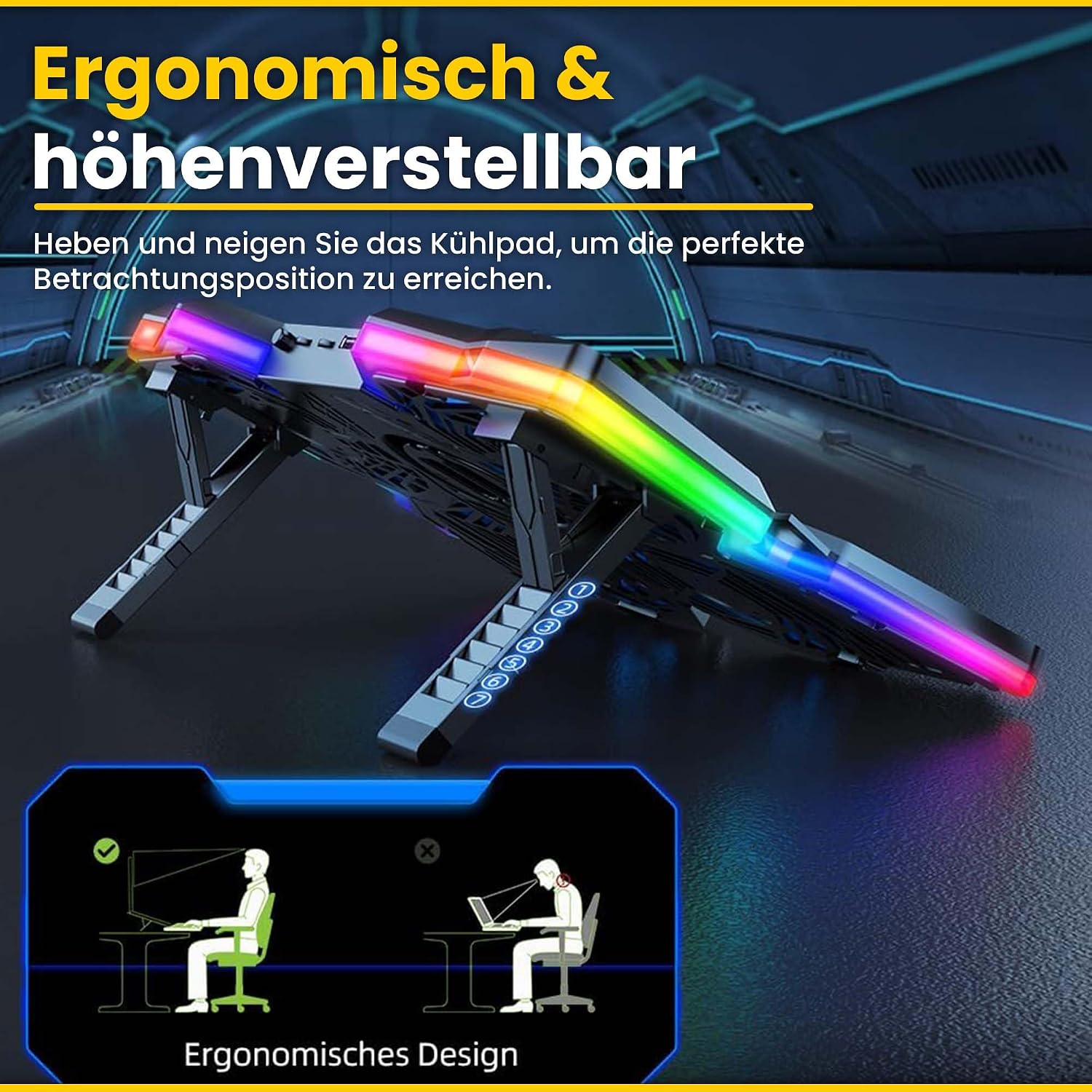
Image: The K25 PRO cooler demonstrating its adjustable height and ergonomic design.
4. Instruccions de funcionament
Once connected, the K25 PRO is ready for operation. You can adjust its settings using the controls located on the unit.

Imatge: Detallada view of the K25 PRO's control panel, indicating the RGB switch, fan speed controllers, and 2.0 USB ports.
- Ajust de velocitat del ventilador: Use the fan speed control wheels (typically located on the side or front) to increase or decrease the fan rotation speed. There are two control wheels, each managing a set of fans.
- Control d'il·luminació RGB: Press the RGB switch button to cycle through different lighting modes or to turn the lighting off.
- Ports USB: The cooler includes two USB ports. One port is used for connecting the cooler to your laptop for power. The second port can be used to connect other USB devices, such as a mouse, keyboard, or USB drive.

Image: The K25 PRO actively cooling a laptop, illustrating its function in preventing overheating.
5. Manteniment
Regular maintenance ensures optimal performance and longevity of your Offgridtec K25 PRO laptop cooler.
- Neteja: Disconnect the cooler from power before cleaning. Use a soft, dry cloth to wipe down the surfaces. For dust accumulation on the fan grilles, use a can of compressed air to gently blow away dust. Do not use liquid cleaners or abrasive materials.
- Emmagatzematge: When not in use for extended periods, store the cooler in a cool, dry place, away from direct sunlight and extreme temperatures.
- Cura del cable: Avoid bending or kinking the USB cable excessively. Store it neatly to prevent damage.
6. Solució De Problemes
If you encounter issues with your K25 PRO cooler, refer to the following common problems and solutions:
- Fans are not spinning / Lights are off:
- Ensure the USB cable is securely connected to both the cooler and a powered USB port on your laptop or adapter.
- Try connecting the cooler to a different USB port or a different power source.
- Check if the fan speed control wheels are set to a minimum (off) position. Adjust them to increase fan speed.
- Fans are noisy:
- Check for any obstructions (e.g., loose cables, debris) that might be interfering with the fan blades.
- Dust accumulation can cause noise. Refer to the "Maintenance" section for cleaning instructions.
- Ensure the cooler is on a flat, stable surface to prevent vibrations.
- Cooling performance is insufficient:
- Ensure all fans are spinning at the desired speed.
- Verify that the laptop's vents are not blocked by the cooler or other objects.
- Clean any dust from the cooler's fans and grilles, as well as your laptop's vents.
7. Especificacions
Technical specifications for the Offgridtec K25 PRO Laptop Cooler:

Image: Diagram illustrating the product dimensions of the K25 PRO cooler (408mm x 287mm).
| Característica | Especificació |
|---|---|
| Model | K25 PRO |
| Dimensions del producte | 408 x 287 x 35 mm (16.06" de llargada x 11.3" d'amplada x 1.38" d'alçada) |
| Mida del ventilador | 120 x 120 x 15 mm (4 fans) |
| Velocitat del ventilador | 1100 rpm (+-10%) |
| Corrent nominal | 1A (+-10%) |
| Producte Voltage | DC 5V |
| Pes | 849 g |
| Material | Metal and Acrylonitrile Butadiene Styrene (ABS) |
| Ports USB | 2 (1 entrades, 1 sortides) |
| Color | Blau |
8. Garantia i Suport
For warranty information or technical support, please contact Offgridtec customer service through their official website or the retailer where the product was purchased. Please have your product model (K25 PRO) and purchase date available when contacting support.
Offgridtec Official Weblloc: www.offgridtec.com
