
1. Introducció
This manual provides detailed instructions for the installation, operation, and maintenance of your Hikity Android 15 Car Stereo. This unit is designed to enhance your driving experience with advanced features such as wireless CarPlay, Android Auto, GPS navigation, and a high-resolution touchscreen. Please read this manual thoroughly before use to ensure proper installation and optimal performance.
2. Contingut del paquet
Verifiqueu que tots els elements que s'enumeren a continuació s'inclouen al vostre paquet:
- Unitat estèreo per a cotxes Android
- Descodificador Canbus
- Antena GPS
- AHD posterior View Càmera
- Micròfon extern
- Cable d'alimentació
- Cables USB (x2)
- Cable d'entrada de càmera
- Cable RCA
- Eina d'instal·lació

Image: Product dimensions, rear port layout, and a visual list of all included accessories.
3. Configuració i instal·lació
3.1 Compatibilitat del vehicle
This car stereo is specifically designed for a perfect fit and integration with:
- Citroen Berlingo (2015-2018)
- Peugeot Partner (2008-2019)

Image: Car stereo integrated into a compatible vehicle dashboard.
3.2 Cablejat i connexions
Refer to the wiring diagram provided with your unit for specific connections. Ensure all cables are securely connected to their corresponding ports. Incorrect wiring can damage the unit or vehicle electronics.

Imatge: Part posterior view of the car stereo with labeled connection ports.
3.3 Instal·lació de la càmera de marxa enrere
La part posterior AHD inclosa view camera provides parking assistance. Connect the camera as follows:
- Connect the red cable (power) to the vehicle's backup light positive ('+').
- Connect the black cable (ground) to the vehicle's ground ('GND').
- Plug the video signal cable into the camera input port on the car stereo.
To activate guidelines: Navigate to Car Info > About > Custom Set. Turn on 'show dynamic trackline' and 'show static trackline'.

Image: Backup camera wiring diagram.

Imatge: Example of backup camera display with parking guidelines.
3.4 Configuració del control del volant
To enable original steering wheel controls:
- Vés a Configuració > Configuració de fàbrica (Password: 1234).
- Seleccioneu Configuració del protocol.
- Trieu el correcte Protocol Box Brand (refer to the label on your Canbus protocol box).
- Follow the on-screen instructions to learn each steering wheel button function.

Image: Steering wheel control learning interface.
4. Instruccions de funcionament
4.1 Pantalla tàctil
The unit features a 9-inch IPS capacitive touchscreen with a resolution of 1280x720, providing clear and vibrant visuals. Use gentle touches for navigation and selections.

Image: High-resolution IPS touchscreen display.
4.2 Wireless and Wired CarPlay & Android Auto
Connect your smartphone seamlessly via Bluetooth or USB cable to access CarPlay or Android Auto. This allows for integrated use of navigation, music, messages, and voice assistants (Siri/Google Assistant) directly from the car stereo display.
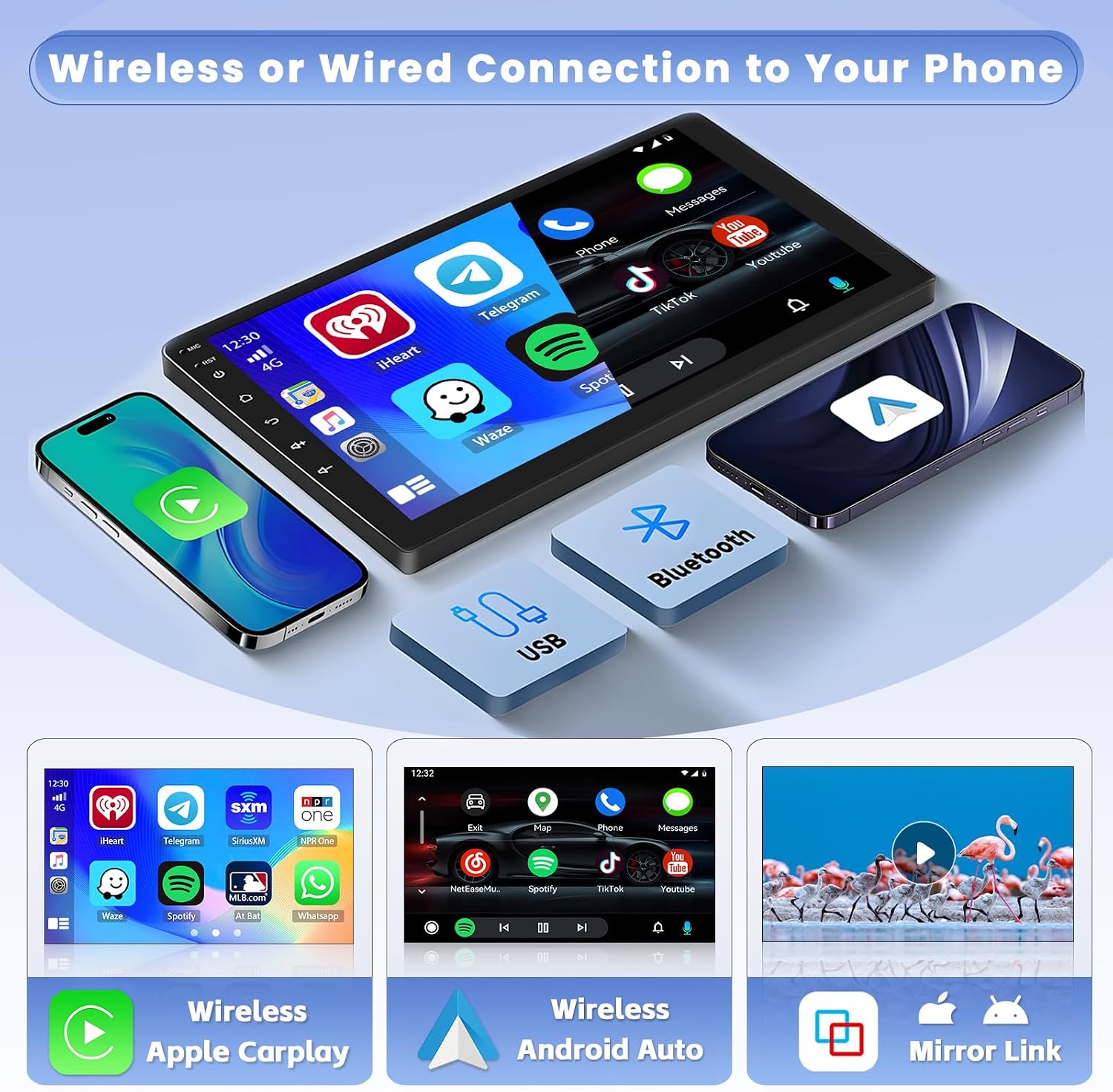
Image: Wireless and wired connectivity for CarPlay and Android Auto.
4.3 Navegació GPS i Wi-Fi
Utilize the built-in GPS for navigation with both online and offline maps. Connect to Wi-Fi or a mobile hotspot to access real-time traffic updates, browse the internet, stream videos, and download applications from the app store.

Image: GPS navigation and Wi-Fi connectivity features.
4.4 Bluetooth 5.0 and Voice Control
Bluetooth 5.0 ensures faster transmission speeds for hands-free calling, phonebook download, and audio streaming. Use voice commands via Siri or Google Assistant for safe operation while driving.

Image: Bluetooth 5.0 hands-free calling and voice control.
4.5 FM/RDS Radio and 32-Band DSP
The unit includes an FM/RDS radio with 30 preset stations to keep you informed and entertained. The pre-installed 32-band DSP (Digital Sound Processor) software allows for precise audio frequency adjustments, optimizing your sound experience.

Image: FM/RDS radio interface and 32-band DSP equalizer settings.
4.6 Interfície d'usuari i personalització
The car stereo offers a user-friendly interface with 59 customizable UI themes. You can personalize your home screen by long-pressing to move frequently used applications for quick access.

Image: Customizable user interface with app icons.
4.7 Pantalla dividida i enllaç de mirall
The split-screen function allows you to run two applications simultaneously, such as GPS navigation and video playback. Mirror Link enables you to display your smartphone's content directly on the car stereo's large screen.
5. Manteniment
Per garantir la longevitat i el rendiment òptim de l'equip de música del vostre cotxe, seguiu aquestes pautes de manteniment:
- Neteja: Feu servir un drap suau i sec per netejar la pantalla i l'exterior. Eviteu productes de neteja o dissolvents abrasius.
- Actualitzacions de programari: Periodically check for and install software updates to ensure the system runs efficiently and has the latest features and security patches.
- Temperatura: Eviteu exposar la unitat a temperatures extremes, tant altes com baixes, durant períodes prolongats.
- Potència: Ensure the vehicle's electrical system is stable to prevent power surges that could damage the unit.
6. Solució De Problemes
Si teniu problemes amb l'estèreo del vostre cotxe, consulteu els següents problemes i solucions habituals:
- Sense energia:
Check all power connections. Ensure the vehicle's ignition is on. Verify the fuse is not blown. - Sense so:
Comproveu les connexions dels altaveus. Assegureu-vos que el volum no estigui silenciat ni al mínim. Verifiqueu la configuració de la sortida d'àudio. - Pantalla tàctil que no respon:
Restart the unit by pressing and holding the power button. If the issue persists, a factory reset might be necessary (note: this will erase personal data). - Pèrdua de senyal GPS:
Assegureu-vos que l'antena GPS estigui instal·lada correctament i que tingui una vista clara view of the sky. Move the vehicle to an open area away from tall buildings or interference. - Problemes de connectivitat Bluetooth/Wi-Fi:
Ensure Bluetooth/Wi-Fi is enabled on both the car stereo and your device. Try restarting both devices. For Wi-Fi, ensure the network password is correct. - CarPlay/Android Auto no es connecta:
Ensure your phone's operating system is up to date. Try a different USB cable if using a wired connection. Restart both the phone and the car stereo.
Per a problemes persistents, poseu-vos en contacte amb l'atenció al client.
7. Especificacions
| Característica | Especificació |
|---|---|
| Marca | Hikity |
| Número de model | Hikity-A7878A3453H1MI2EU26-C304 |
| Tecnologia de connectivitat | Bluetooth, USB, Wi-Fi |
| Tipus de controlador | Android |
| Característiques especials | Android Auto, Integrated Bluetooth, GPS Navigation, FM Tuner |
| Dispositius compatibles | Smartphone |
| Tipus de connector | CVBS, AHD, 3.5 mm jack |
| Mode de sortida d'àudio | estèreo |
| Configuració del canal de so envoltant | 4.0 |
| Codificació de vídeo | MKV, RMVB, AVI, MP4, MDV |
| Pes de l'article | 1.4 quilos |
| Potència de sortida | 45 watts |
| Nombre de canals | 4 |
| Internet Applications | Google TV, Browser, Prime Video, iTunes |
| Mètode de control | Toca |
| Tipus de sortida d'àudio | Bluetooth, FM/RDS |
| Format de mitjans digitals | AVI, MP3 audio, WMA |
| País d'origen | Xina |
8. Garantia i Suport
Your Hikity car stereo comes with a 12 mesos de garantia. We offer lifetime online assistance for inquiries and aim to respond within 24 hours.
For product support, technical assistance, or warranty claims, please contact Hikity customer service through the platform where you purchased the product or refer to the contact information provided in your purchase documentation.
Additionally, a 30-day return/replacement policy is available for eligible purchases.