
1. Introducció
The HPRT MT610 Pro is a compact and lightweight portable thermal printer designed for convenient printing on the go. It features 300 DPI resolution and supports various paper sizes, including US Letter (8.5" x 11"). This printer operates without ink, toner, or ribbons, utilizing thermal paper for printing. It offers versatile connectivity options, including Bluetooth for smart devices and USB for computers.

Image: HPRT MT610 Pro printer displaying supported paper sizes (A5, A4, US Letter) and its 300 DPI resolution capability. A smartphone with the Hereprint app is also visible, indicating wireless connectivity.

Image: A person carrying the HPRT MT610 Pro printer, highlighting its lightweight and portable design (0.53 KG / 1.1 lbs) for travel and on-the-go use.
2. Què s'inclou
Upon unboxing your HPRT MT610 Pro Portable Printer, please verify that all the following items are present:
- HPRT MT610 Pro Wireless Printer
- Cable USB
- Manual del producte (aquest document)
- 10 Sheets Thermal Paper (for initial testing)
- 200 Sheets Thermal Paper (US Letter Size)

Image: A stack of 200 sheets of HPRT 8.5" x 11" thermal paper, indicating the included paper supply.
3. Configuració
3.1 Engegada i càrrega inicials
- Carregueu la impressora: Before first use, connect the printer to a power source using the provided USB cable and a compatible USB power adapter (not included). The indicator light will show charging status.
- Encès: Press and hold the power button located on the printer until the indicator light illuminates.
3.2 Càrrega de paper tèrmic
The HPRT MT610 Pro uses specialized thermal paper. Ensure you are using the correct type of paper for optimal print quality and to prevent damage to the printer.
- Open the Paper Cover: Gently open the paper input cover on the printer.
- Inserir paper: Insert the thermal paper into the input slot with the printable side facing up. Ensure the paper is aligned straight and not creased.
- Ajusta les guies: Adjust the paper guides to snugly fit the width of the paper, preventing skewing during printing.
- Tancar la coberta: Close the paper input cover. The printer will automatically feed a small amount of paper to prepare for printing.

Image: The HPRT MT610 Pro printer with thermal paper loaded and ready for printing, demonstrating the paper path.

Image: Illustrates that the included thermal paper is specifically compatible with the MT610 Pro Thermal Printer and not with laser printers, inkjet printers, or copiers.
4. Instruccions de funcionament
4.1 Connecting via Bluetooth (for Smartphones/Tablets)
- Engegar la impressora: Ensure the HPRT MT610 Pro printer is powered on.
- Descarregar l'aplicació: Scan the QR code provided in the quick start guide or search for "Hereprint" in your device's app store (iOS & Android) and install the application.
- Activa el Bluetooth: Al teu telèfon intel·ligent o tauleta, activa el Bluetooth.
- Connecta't mitjançant l'aplicació: Open the "Hereprint" app. Follow the in-app instructions to search for and connect to your MT610 Pro printer via Bluetooth.
- Imprimeix: Once connected, you can select documents or images within the app to print.
4.2 Connecting via USB Cable (for PCs)
- Engegar la impressora: Ensure the HPRT MT610 Pro printer is powered on.
- Connectar USB: Connect one end of the provided USB cable to the printer and the other end to an available USB port on your computer.
- Instal·leu els controladors: If this is the first time connecting, your computer may prompt you to install drivers. Follow the on-screen instructions or visit the official HPRT website to download and install the latest drivers for the "MT610 Pro" printer.
- Imprimeix: Once drivers are installed and the printer is recognized, you can print documents from any application on your PC by selecting "MT610 Pro" as your printer.
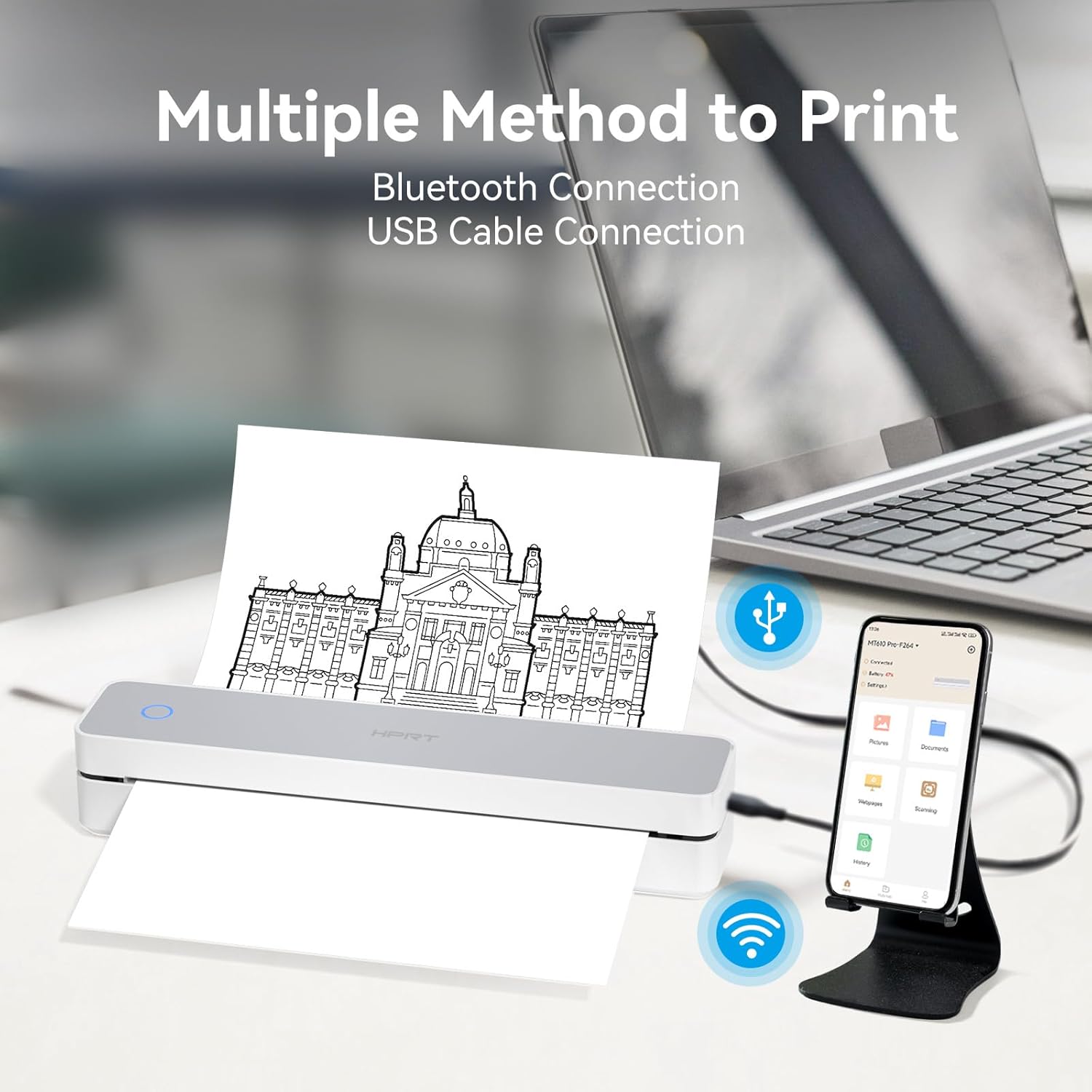
Image: Demonstrates the dual connectivity options of the HPRT MT610 Pro, showing it connected wirelessly via Bluetooth to a smartphone and wired via USB to a laptop.
5. Manteniment
5.1 Neteja de la impressora
Una neteja regular ajuda a mantenir la qualitat d'impressió i allarga la vida útil de la impressora.
- Apagar: Always turn off the printer and disconnect it from the power source before cleaning.
- Neteja el capçal d'impressió: Utilitzeu un drap suau i sense pelusa dampHumitejat amb alcohol isopropílic per netejar suaument el capçal d'impressió tèrmica. Deixeu-lo assecar completament abans d'utilitzar-lo.
- Exterior net: Netegeu l'exterior de la impressora amb un drap suau i sec. Eviteu utilitzar productes químics agressius o materials abrasius.
5.2 Paper Handling and Storage
Proper handling and storage of thermal paper are crucial for print quality and longevity.
- Use Quality Thermal Paper: Always use high-quality thermal paper specifically designed for thermal printers.
- Store Paper Properly: Store thermal paper in a cool, dry place away from direct sunlight, heat, and humidity. Avoid contact with plastics containing plasticizers, which can degrade the thermal coating.
- Avoid Smudges: Thermal paper is designed to be ink-free and smudge-resistant.

Image: Illustrates the benefits of the thermal paper, including being BPA-free, keeping hands clean, and requiring no ink.
6. Solució De Problemes
If you encounter issues with your HPRT MT610 Pro printer, refer to the following common problems and solutions:
6.1 Problemes comuns i solucions
- La impressora no s'encén:
- Ensure the printer is fully charged. Connect it to a power source and allow it to charge for at least 30 minutes.
- Verifiqueu que el botó d'engegada estigui premut i mantingut premut correctament.
- No es pot connectar mitjançant Bluetooth:
- Assegureu-vos que el Bluetooth estigui habilitat al vostre dispositiu intel·ligent.
- Make sure the printer is within range (typically 10 meters or 33 feet).
- Restart both the printer and your smart device.
- Ensure you are using the "Hereprint" app for connection.
- Unable to Connect via USB:
- Verify the USB cable is securely connected to both the printer and the PC.
- Ensure the correct drivers for "MT610 Pro" are installed on your computer.
- Prova un port USB diferent del teu ordinador.
- Poor Print Quality / Blank Pages:
- Check if the thermal paper is loaded correctly with the printable side facing up.
- Ensure you are using thermal paper, not regular paper.
- Netegeu el capçal d'impressió tèrmica tal com es descriu a la secció Manteniment.
- The printer may be low on battery; charge it fully.
- Embussos de paper:
- Ensure the paper is loaded straight and the paper guides are adjusted correctly.
- No sobrecarregueu la safata de paper.
- Remove any jammed paper carefully by opening the cover and gently pulling the paper out.

Image: A comparison highlighting the advantages of HPRT thermal paper, such as being inkless, smudge-free, preventing paper jams, BPA-free, and long-lasting, compared to traditional methods.
7. Especificacions
| Característica | Especificació |
|---|---|
| Model | MT610 Pro |
| Tecnologia d'impressió | Impressió tèrmica |
| Resolució | 300 DPI |
| Connectivitat | Bluetooth, USB |
| Tipus de paper | Thermal Paper (US Letter 8.5" x 11", A4, A5) |
| Ink/Toner Required | No |
| Pes | Aprox. 500 g (1.1 lliures) |
| Compatibilitat d'aplicacions | Hereprint (iOS & Android) |
8. Garantia i Suport
For warranty information, technical support, or service inquiries, please refer to the warranty card included with your product or visit the official HPRT weblloc web. També podeu contactar directament amb el venedor per obtenir ajuda.
HPRT Official Weblloc: www.hprt.com