
Introducció
Thank you for choosing the OMOTON Bluetooth Keyboard. This wireless keyboard is specifically designed for Mac OS devices, including Mac Pro, Mac Mini, iMac, iMac Pro, MacBook Pro, and MacBook Air. It offers multi-device connectivity, a built-in rechargeable battery, and an ergonomic design for comfortable typing. Please read this manual carefully to ensure proper use and optimal performance of your keyboard.
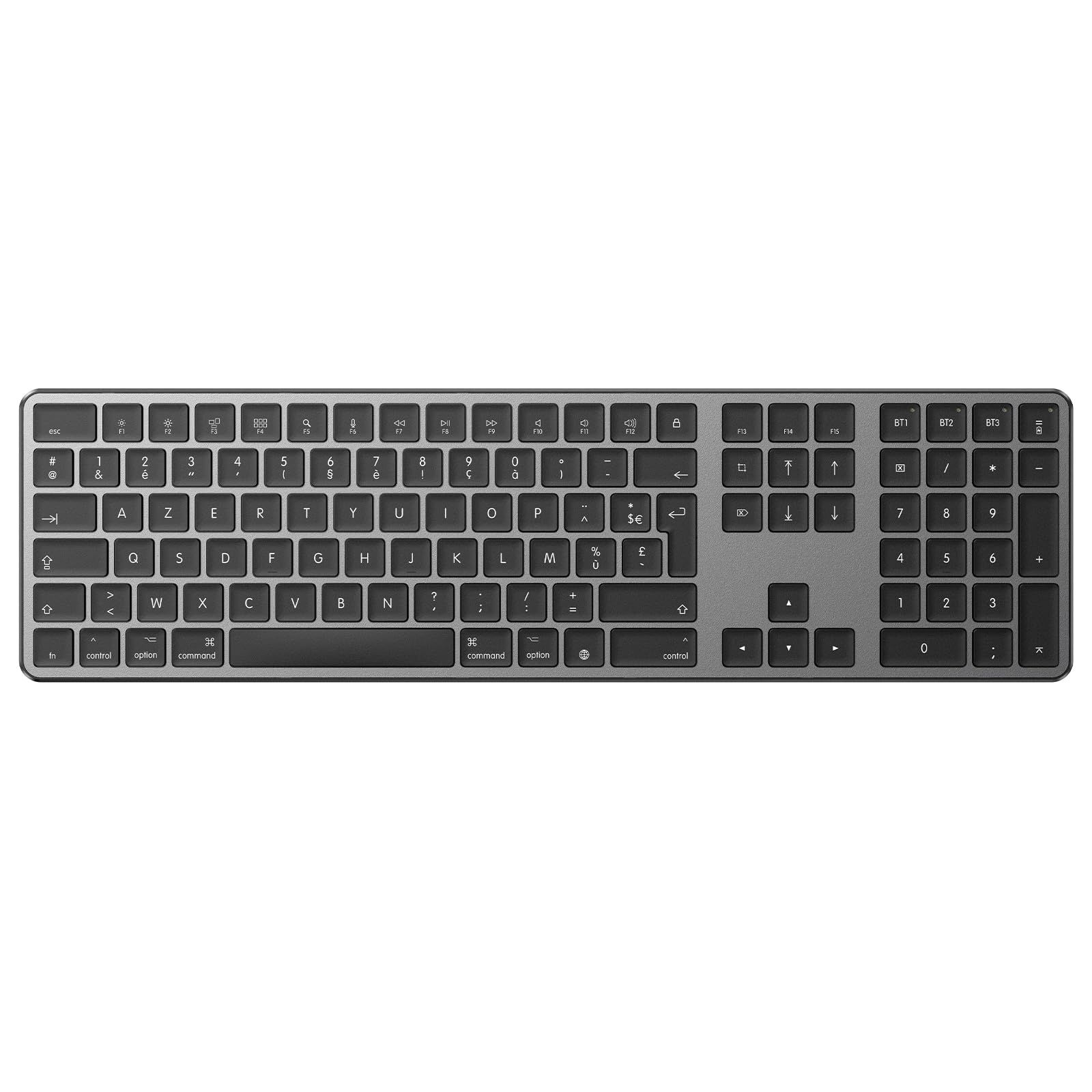
Image: OMOTON Bluetooth Keyboard, a full-size keyboard with a numeric keypad, designed for Mac devices.
Contingut del paquet
Si us plau, comproveu el contingut del paquet en desempaquetar-lo:
- OMOTON Bluetooth Keyboard
- Cable de càrrega USB
- Manual d'usuari (aquest document)
Configuració
1. Encès / apagat
Locate the power switch on the keyboard. Slide the switch to the ON position to turn on the keyboard. Slide it to the OFF position to turn it off when not in use to conserve battery.
2. Càrrega del teclat
The keyboard features a built-in rechargeable lithium battery. Use the included USB charging cable to charge the keyboard. Connect one end of the cable to the keyboard's Type-C charging port and the other end to a USB power source (e.g., computer USB port, USB wall adapter).
- Normalment, una càrrega completa triga entre 2 i 3 hores.
- El llum indicador de càrrega mostrarà l'estat de càrrega.
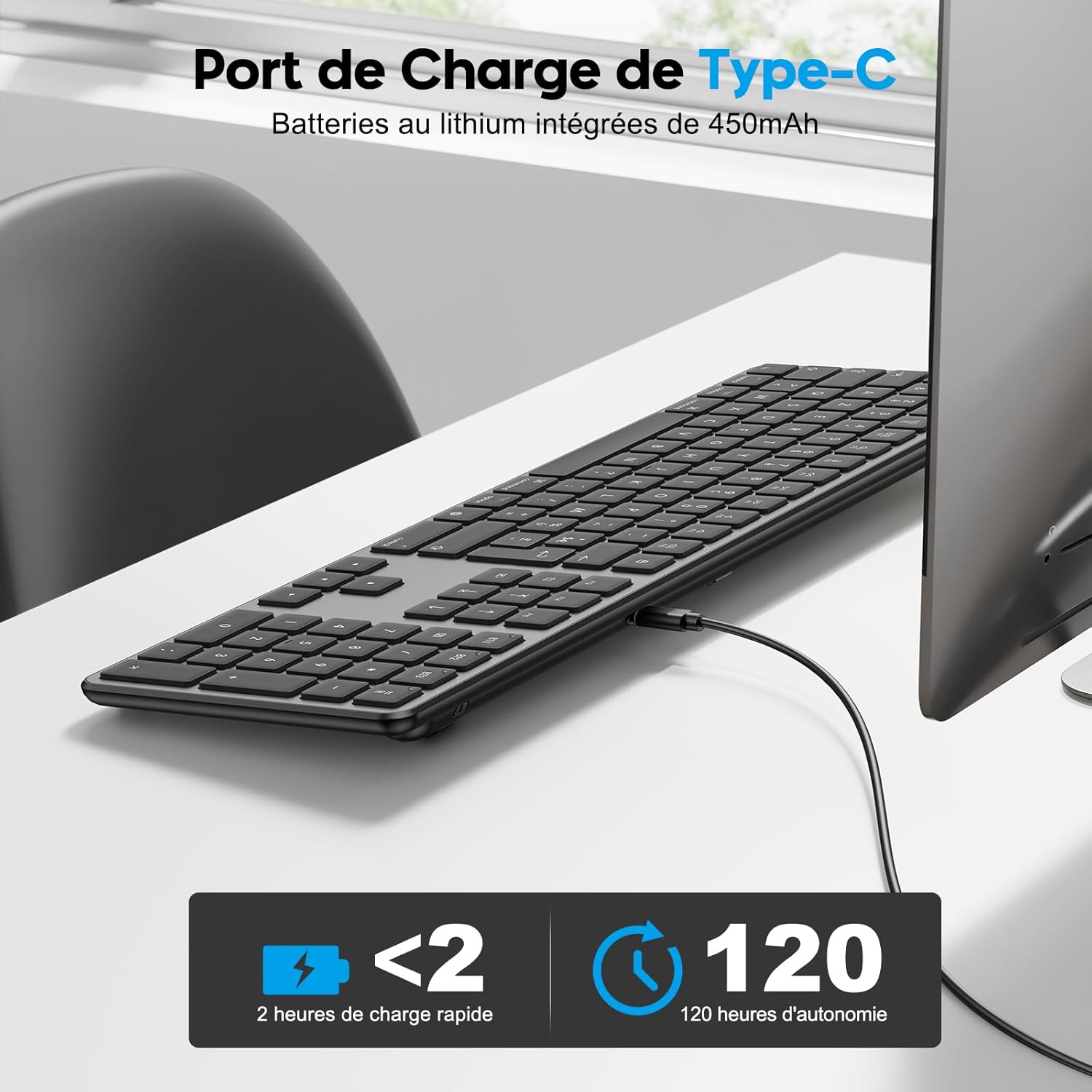
Image: The OMOTON keyboard connected via its Type-C charging port, illustrating the charging process and battery life.
3. Bluetooth Pairing (Multi-Device)
This keyboard supports connection to up to three Bluetooth devices. Follow these steps to pair your keyboard:
- Assegureu-vos que el teclat estigui encès.
- On your Mac device, go to Configuració del sistema (o Preferències del sistema) > Bluetooth and turn Bluetooth On.
- To pair with the first device, premsa llarga el Fn + BT1 keys for a few seconds until the BT1 indicator light starts blinking blue. This indicates the keyboard is in pairing mode.
- On your Mac device, look for "OMOTON Keyboard" in the list of available Bluetooth devices and click to connect. The BT1 indicator will stop blinking once successfully paired.
- To pair with a second device, repeat steps 3 and 4, but long press Fn + BT2.
- To pair with a third device, repeat steps 3 and 4, but long press Fn + BT3.
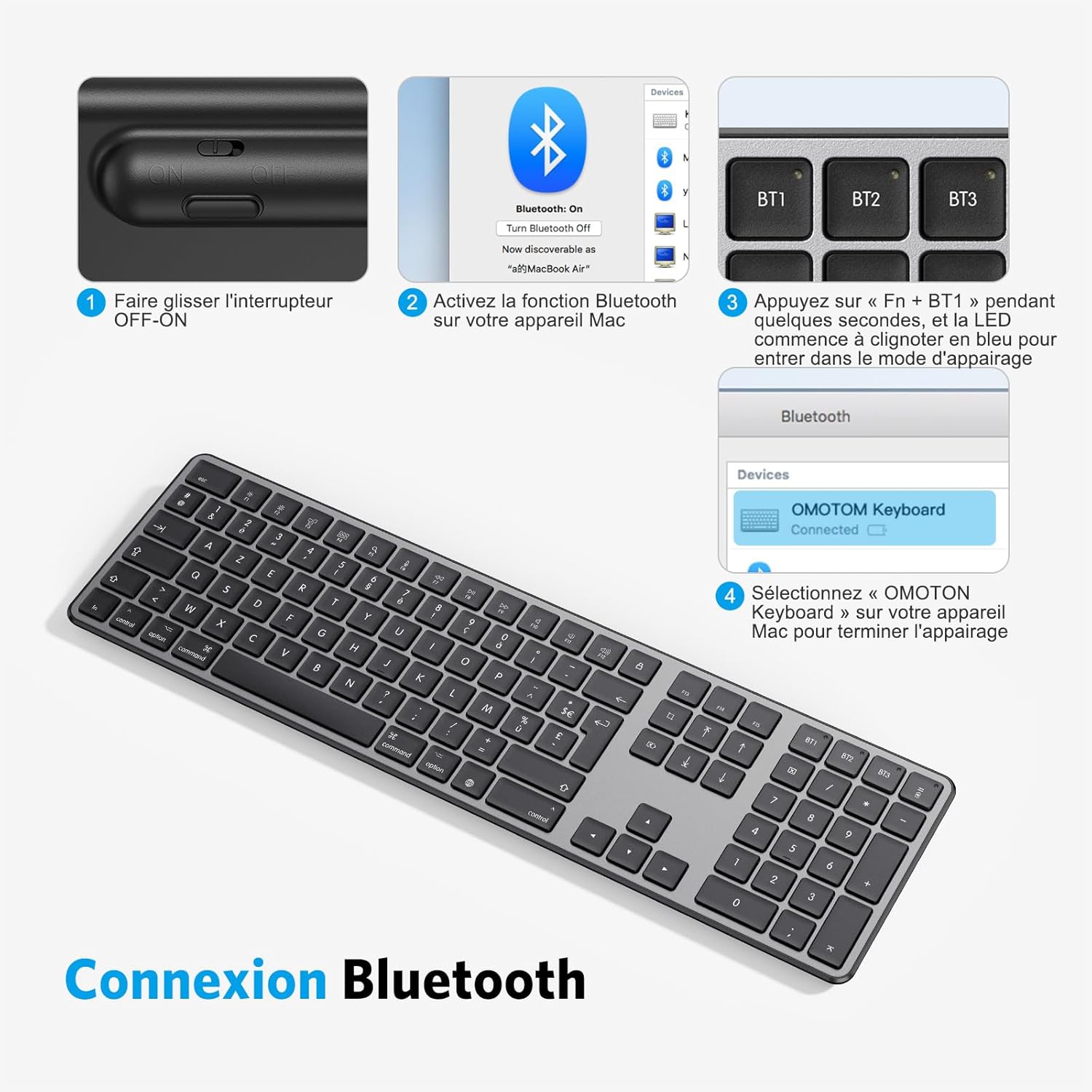
Image: Visual guide showing the steps to connect the OMOTON keyboard via Bluetooth, including turning on the keyboard, activating Bluetooth on Mac, and selecting the keyboard for pairing.
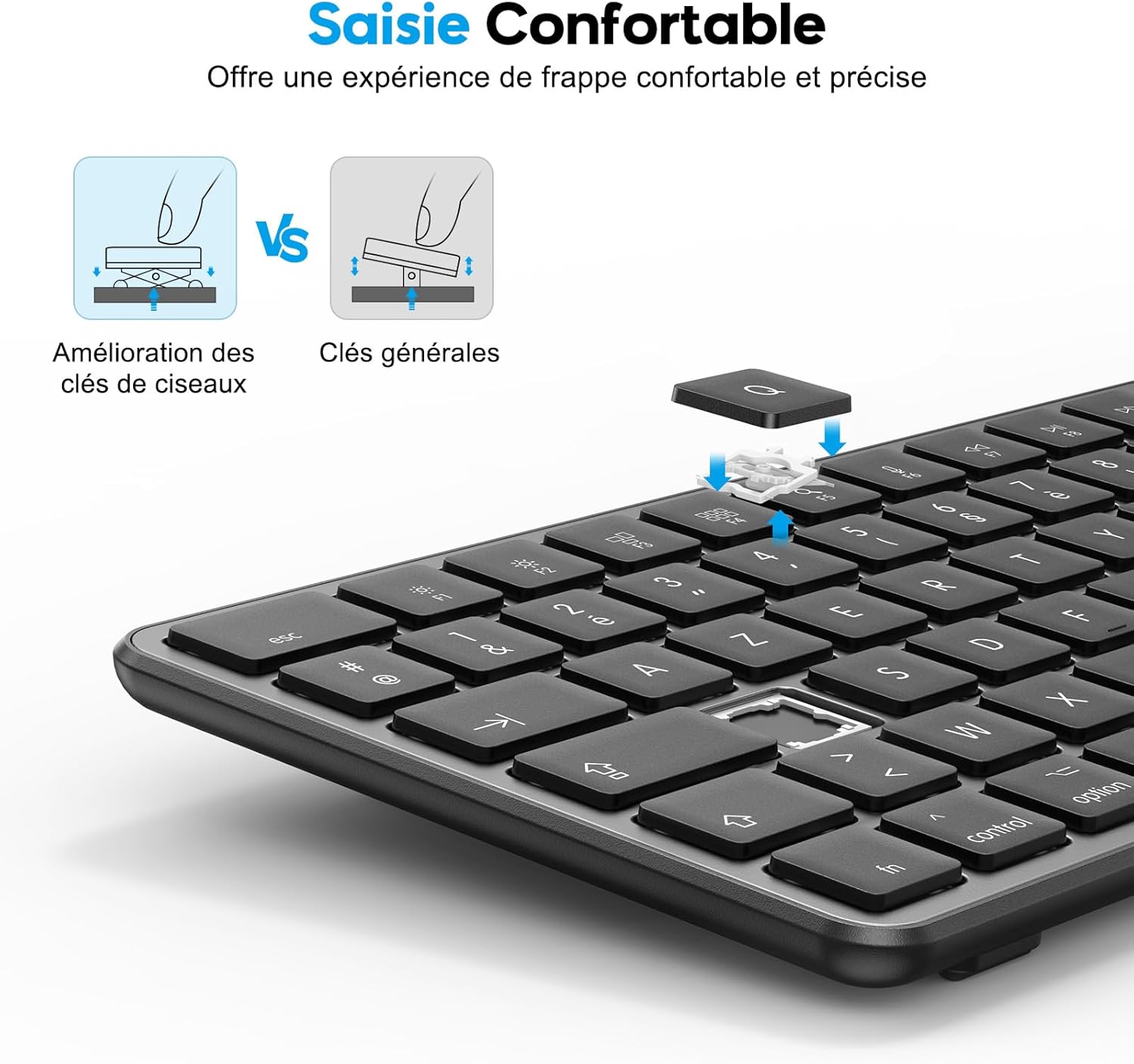
Image: Diagram illustrating the OMOTON keyboard's ability to connect simultaneously to three different devices (laptop, desktop, tablet) via Bluetooth channels BT1, BT2, and BT3.
Funcionament
1. Canviar entre dispositius
Once paired with multiple devices, you can easily switch between them by premsa curta el Fn + BT1, Fn + BT2, o Fn + BT3 keys. The corresponding indicator light will illuminate to show which device is currently active.
2. Using Multimedia Shortcuts
The keyboard features 12 Mac OS multimedia shortcuts for enhanced productivity. These function keys (F1-F12) provide quick access to various system functions. To use them, simply press the desired function key.
- F1: Disminueix la brillantor
- F2: Augmenta la brillantor
- F3: Obriu el control de la missió
- F4: Obriu el Launchpad
- F5: Cerca
- F6: Dictat de veu
- F7: Pista anterior
- F8: Reproduir/Pausa
- F9: Pista següent
- F10: Silenciar
- F11: Disminuir el volum
- F12: Augmenta el volum

Imatge: Detallada view of the OMOTON keyboard's multimedia function keys (F1-F12) and their corresponding Mac OS actions, such as brightness control, media playback, and volume adjustment.
3. Disseny ergonòmic
The keyboard is designed with an ergonomic tilt angle and features non-slip rubber pads to reduce wrist fatigue during prolonged typing sessions. The scissor-switch keys provide a quiet, soft, and comfortable typing experience with pleasant tactile feedback.

Image: Illustration comparing the scissor-key mechanism of the OMOTON keyboard with general keys, highlighting the improved comfort and precision for typing.
Manteniment
1. Neteja
To clean your keyboard, first ensure it is powered off. Use a soft, lint-free cloth slightly dampened with water or a mild cleaning solution. Avoid using harsh chemicals, abrasives, or excessive moisture, as these can damage the keyboard.
2. Informació de la bateria
The keyboard contains a non-removable rechargeable lithium battery. Do not attempt to replace the battery yourself. For optimal battery life, avoid fully discharging the keyboard frequently and store it in a cool, dry place when not in use for extended periods.
Resolució de problemes
El teclat no es connecta per Bluetooth
- Comproveu la potència: Assegureu-vos que el teclat estigui encès i que la bateria estigui prou carregada.
- Torna a emparellar: Delete the keyboard from your Mac's Bluetooth device list and attempt to re-pair it following the steps in the "Bluetooth Pairing" section.
- Bluetooth activat: Verify that Bluetooth is enabled on your Mac device.
- Distància: Ensure the keyboard is within the effective range of your Mac (typically up to 10 meters or 33 feet).
- Interferència: Allunyeu-vos d'altres dispositius sense fil que puguin causar interferències.
Les claus no responen
- Nivell de bateria: Check if the keyboard battery is low and recharge it if necessary.
- Connexió: Ensure the Bluetooth connection is stable. Try switching to another paired device and back, or re-pairing.
- Reinicia: Turn the keyboard off and then on again. Restart your Mac device.
Especificacions
| Marca | OMOTON |
| Model | B0DX1VTYGQ |
| Tecnologia de connectivitat | Bluetooth |
| Dispositius compatibles | Mac, Mac Pro, Mac Mini, iMac, iMac Pro, MacBook Pro, MacBook Air, and other Mac OS devices. |
| Disposició del teclat | AZERTY (French Layout) |
| Nombre de claus | 111 |
| Característiques especials | Rechargeable, Silent Keys, Multimedia Shortcuts |
| Font d'alimentació | Funciona amb bateria (recarregable) |
| Material | Plàstic |
| Color | Gris |
| Components inclosos | Cable USB |

Image: Technical drawing showing the dimensions of the OMOTON keyboard: 434.5mm (17.1in) length and 121mm (4.8in) width, with a thickness of 21.9mm (0.9in).
Garantia i Suport
OMOTON products come with a standard warranty. For detailed warranty information, technical support, or any inquiries regarding your product, please refer to the warranty card included in your package or visit the official OMOTON website. You may also contact OMOTON customer service directly through the retailer where you purchased the product.