
1. Introducció
This manual provides essential instructions for setting up, operating, and maintaining your aiprotablet A30 10.1-inch Android 15 Tablet. Please read this guide thoroughly before using your device to ensure proper function and longevity.
2. Contingut del paquet
Verifiqueu que tots els elements siguin presents al vostre paquet:
- aiprotablet A30 Tablet
- Teclat Bluetooth
- Funda protectora
- Bolígraf
- Ratolí sense fil
- Charging Cables (USB Type-C)
- Adaptador d'alimentació
- Tempered Film (Screen Protector)
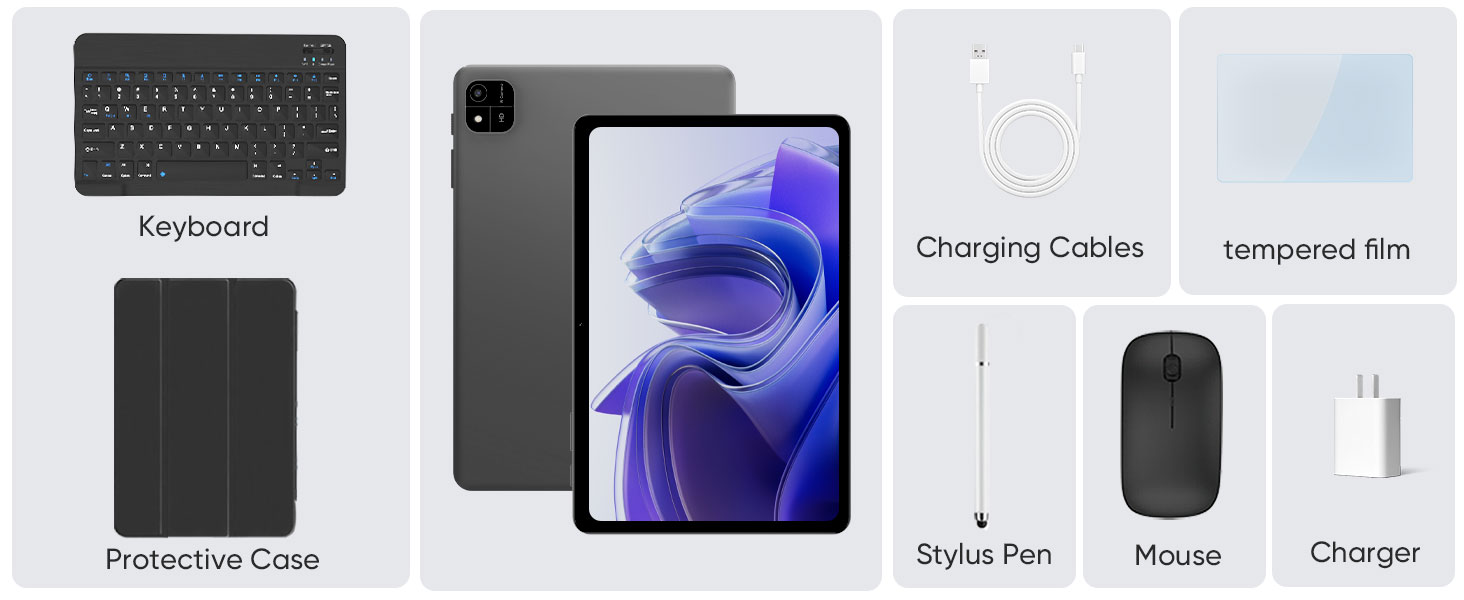
Image: The complete package contents for the aiprotablet A30, showing the tablet, Bluetooth keyboard, wireless mouse, stylus, protective case, charging cable, power adapter, and screen protector.
3. Primers passos
3.1 Engegada/apagada
To power on the tablet, press and hold the power button located on the side until the screen illuminates. To power off, press and hold the power button, then select "Power off" from the options that appear on the screen.
3.2 Initial Setup (Android 15)
Upon first use, the tablet will guide you through the initial setup process. This includes selecting your language, connecting to a Wi-Fi network, setting up your Google account, and configuring basic security settings. Follow the on-screen prompts to complete the setup.
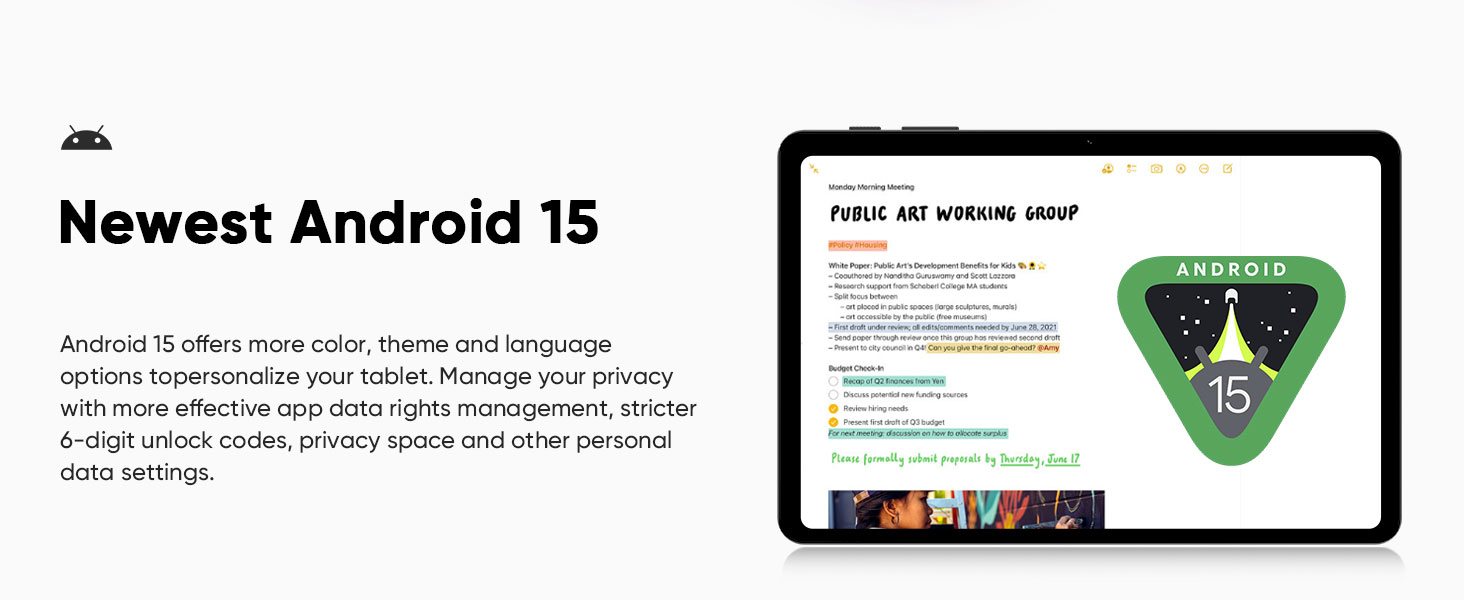
Imatge: Més deview of Android 15 features, including Widevine L1 support, parental controls, GPS navigation, face unlock, split screen functionality, and wireless screen mirroring.
3.3 Connexió a Wi-Fi
- Vés a Configuració > Xarxa i Internet > Wi-Fi.
- Toggle Wi-Fi to On.
- Seleccioneu la xarxa desitjada de la llista.
- Introduïu la contrasenya si us demana i toqueu Connecta't.
The tablet supports 2.4GHz and 5GHz dual-band Wi-Fi for stable and fast network connections.
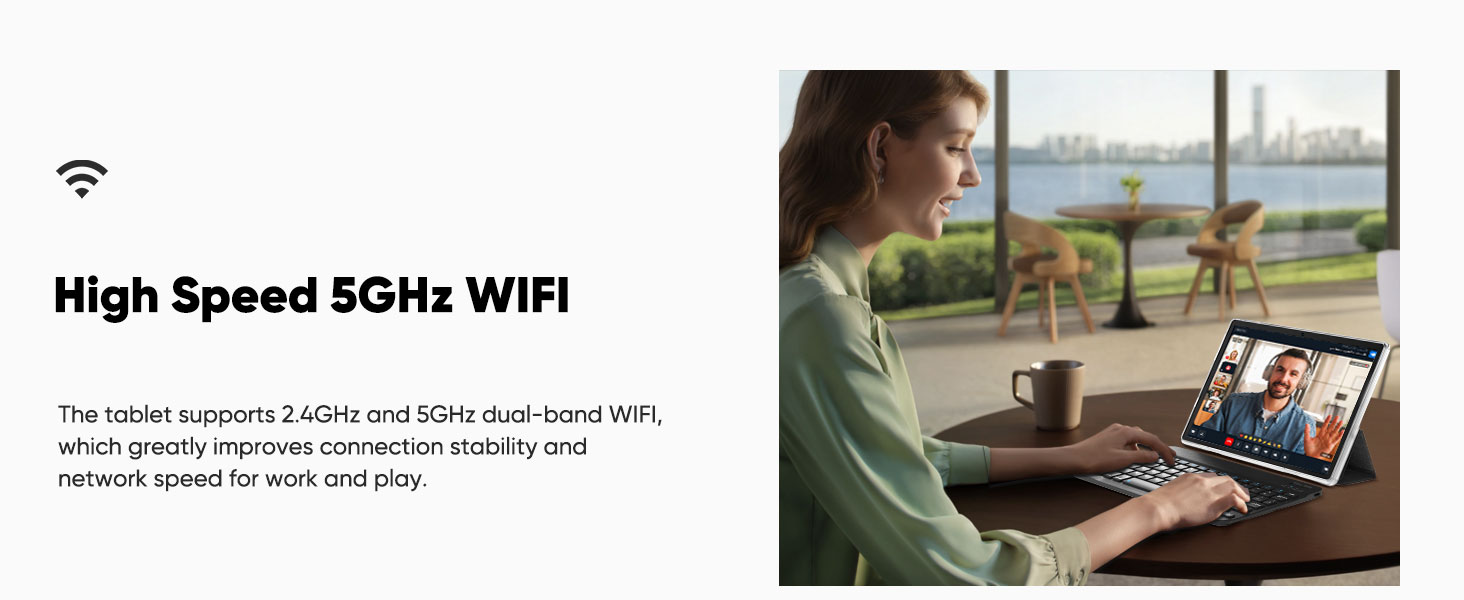
Image: A user working on the tablet with a keyboard, highlighting the high-speed 5GHz Wi-Fi capability for improved connection stability and network speed.
3.4 Connexió d'accessoris Bluetooth
Your tablet comes with a Bluetooth keyboard and a wireless mouse. Follow these steps to pair them:
3.4.1 Bluetooth Keyboard Connection
- Turn the power switch on the keyboard to the ON posició.
- Premeu FN+C on the keyboard. The Bluetooth indicator will start blinking, indicating pairing mode.
- A la tauleta, vés a Configuració > Dispositius connectats > Bluetooth.
- Ensure Bluetooth is enabled. Tap Vincula un dispositiu nou.
- Find "Bluetooth Keyboard" in the list of available devices and tap to pair. Confirm pairing if prompted.
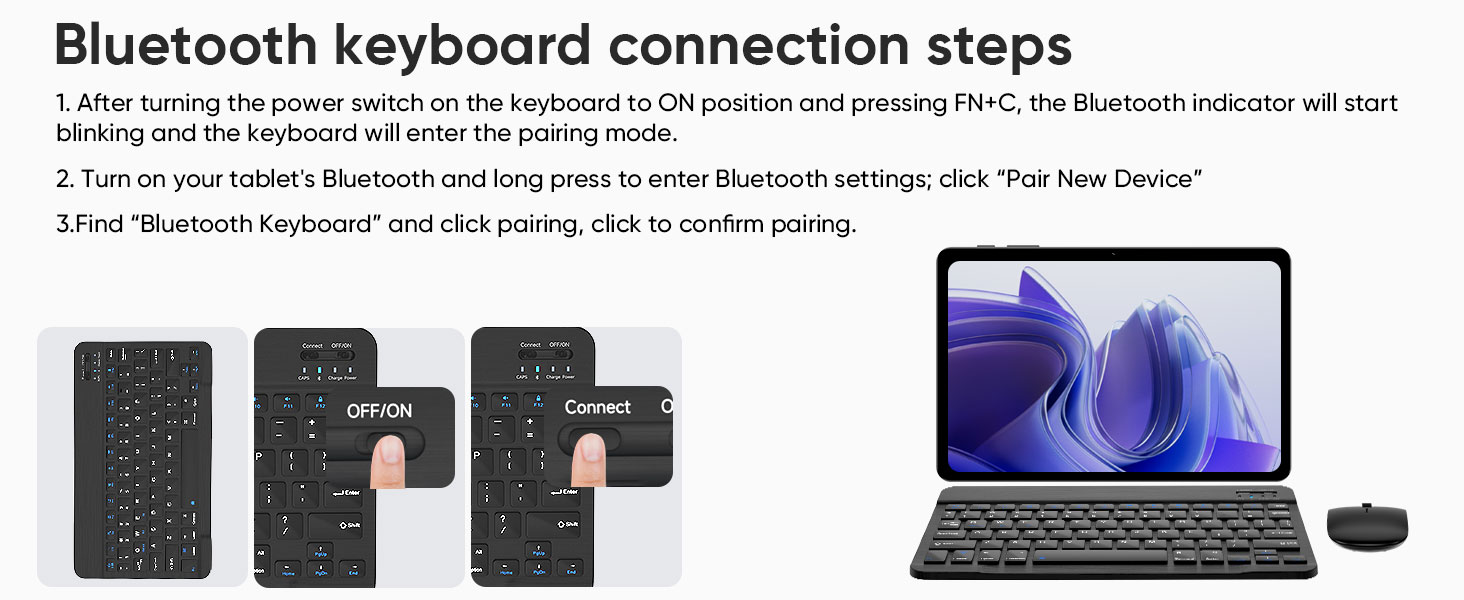
Image: Visual guide demonstrating the steps to connect the Bluetooth keyboard, including turning on the keyboard and pressing FN+C to activate pairing mode.
3.4.2 Bluetooth Mouse Connection
- Open the battery cover on the back of the mouse and insert the required AAA batteries (not included).
- Turn on the mouse. It should automatically enter pairing mode.
- A la tauleta, vés a Configuració > Dispositius connectats > Bluetooth.
- Ensure Bluetooth is enabled. Tap Vincula un dispositiu nou.
- Find "BT5.2 Mouse" (or similar) in the list of available devices and tap to pair. Confirm pairing if prompted.
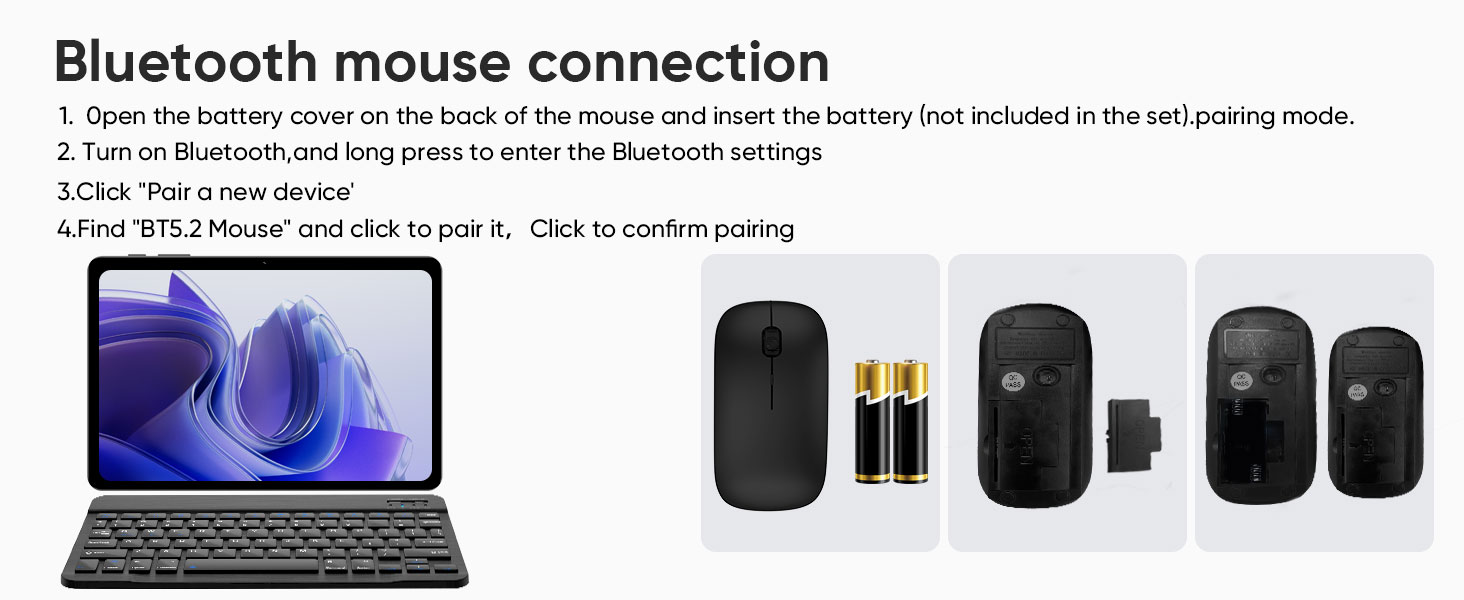
Image: Visual guide for connecting the Bluetooth mouse, illustrating how to insert batteries and the pairing process via the tablet's Bluetooth settings.
4. Com utilitzar la tauleta
4.1 Visualització i elements visuals
The aiprotablet A30 features a 10.1-inch IPS HD display with a resolution of 1280x800 pixels, providing clear and vivid visuals. It supports Widevine L1, enabling high-quality streaming from platforms like Netflix, Prime Video, Hulu, HBO Max, YouTube, and Disney+ in HD/1080P.
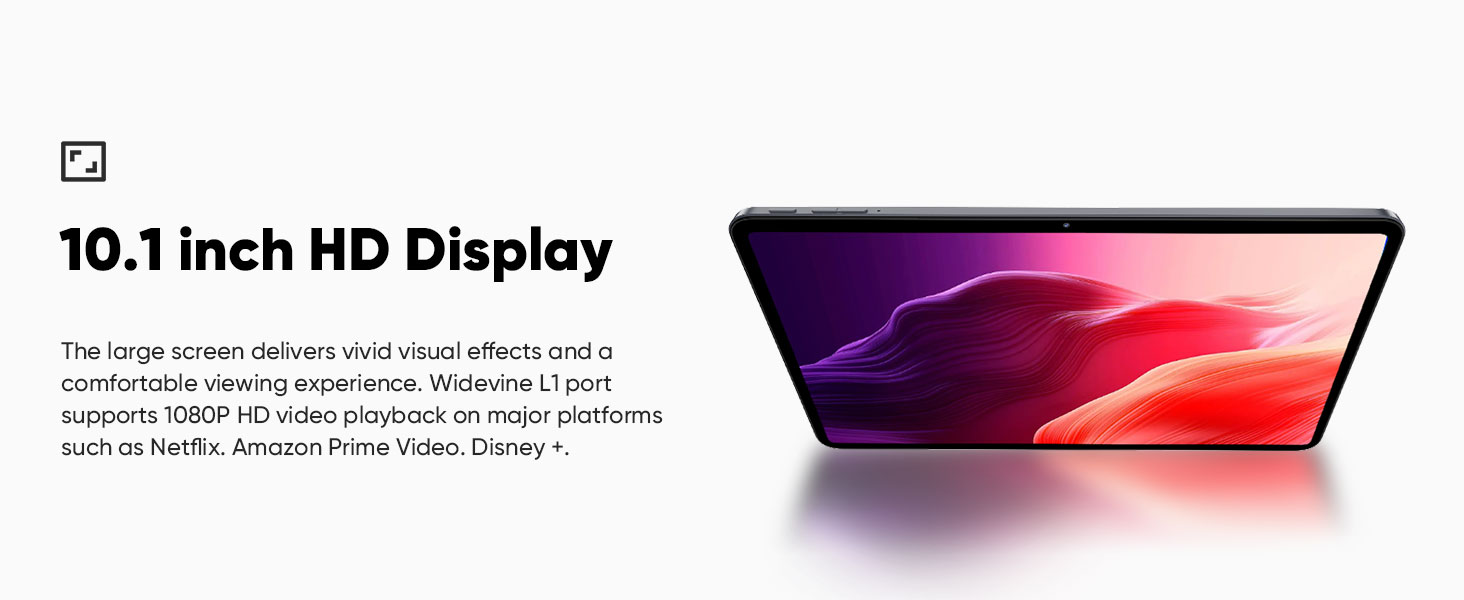
Image: The 10.1-inch HD display showcasing vibrant visual effects, emphasizing the comfortable viewing experience and Widevine L1 support for 1080P video playback.
4.2 Rendiment
Powered by an Unisoc T606 octa-core processor and 12GB RAM (4GB physical + 8GB virtual memory), the tablet delivers smooth performance for multitasking, gaming, and multimedia consumption. It includes 64GB of internal storage, expandable up to 2TB via a Micro SD card (sold separately).
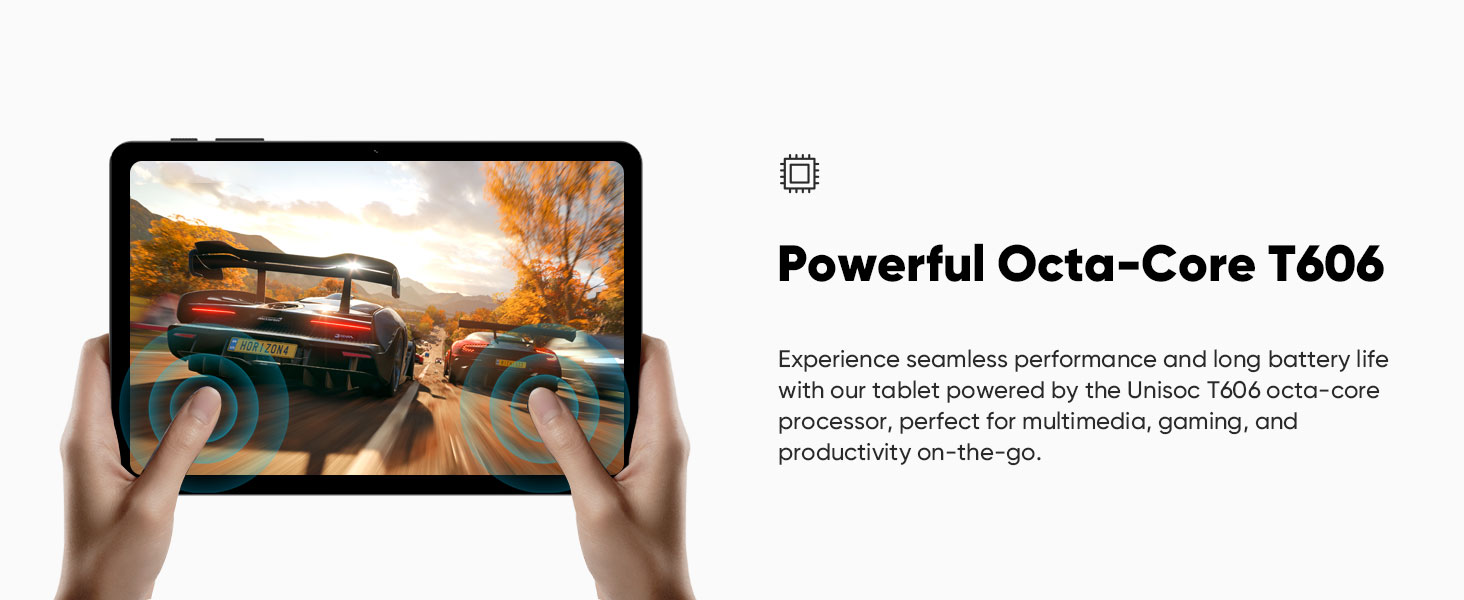
Image: A user playing a racing game on the tablet, demonstrating the seamless performance and long battery life provided by the Unisoc T606 octa-core processor, suitable for gaming and productivity.
4.3 Càmeres
The tablet is equipped with a 5MP front camera and an 8MP rear camera, suitable for video calls, capturing photos, and supporting facial recognition for unlocking the device.
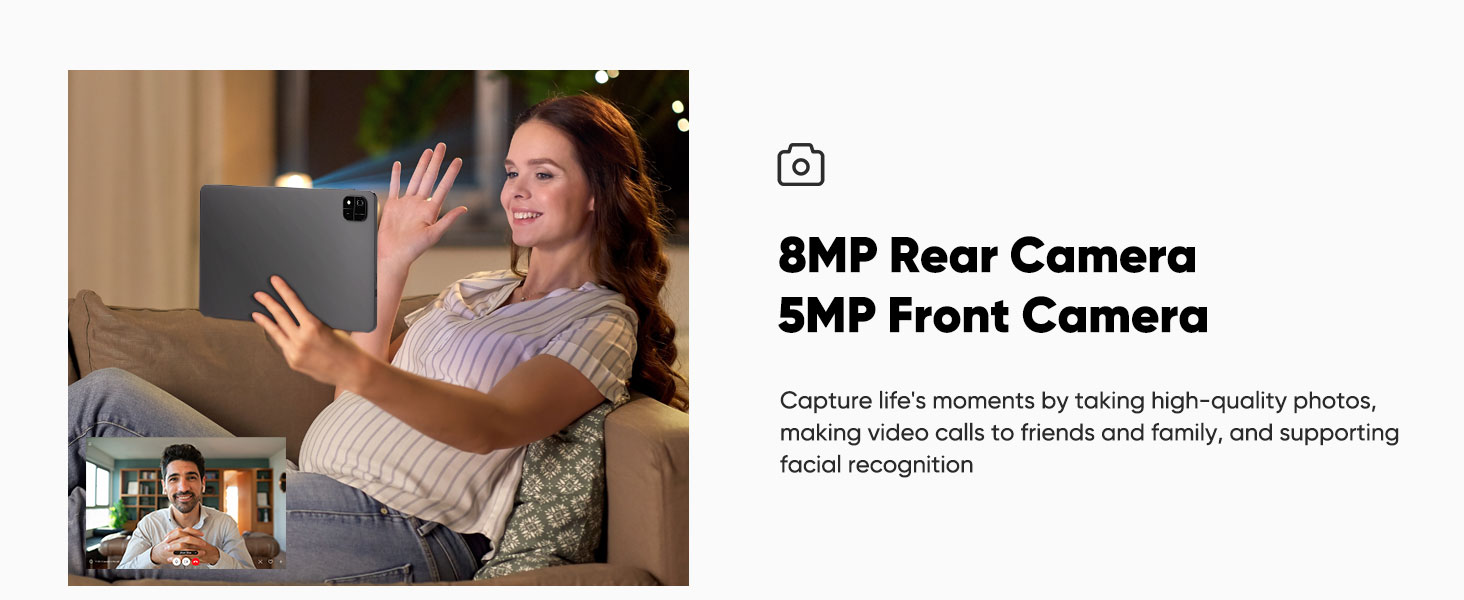
Image: A woman engaged in a video call on the tablet, illustrating the use of the 8MP rear camera and 5MP front camera for high-quality photos, video calls, and facial recognition.
4.4 Àudio
Experience immersive audio with the tablet's dual speakers, featuring volume boost for an enhanced listening experience.
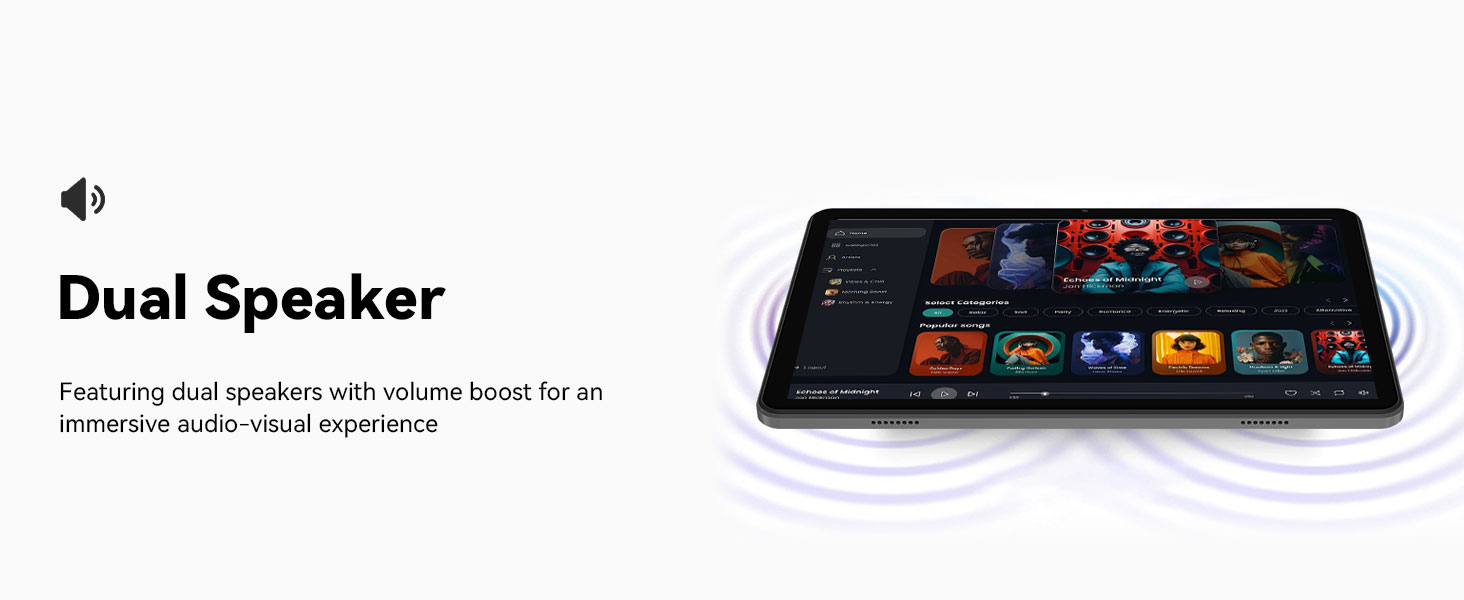
Image: The tablet displaying sound waves from its dual speakers, indicating an immersive audio-visual experience with volume boost.
4.5 Multitasking (Split Screen)
The Android 15 operating system supports split-screen functionality, allowing you to run two applications simultaneously. For example, you can video call a friend while browsing the web or take notes while watching a video.
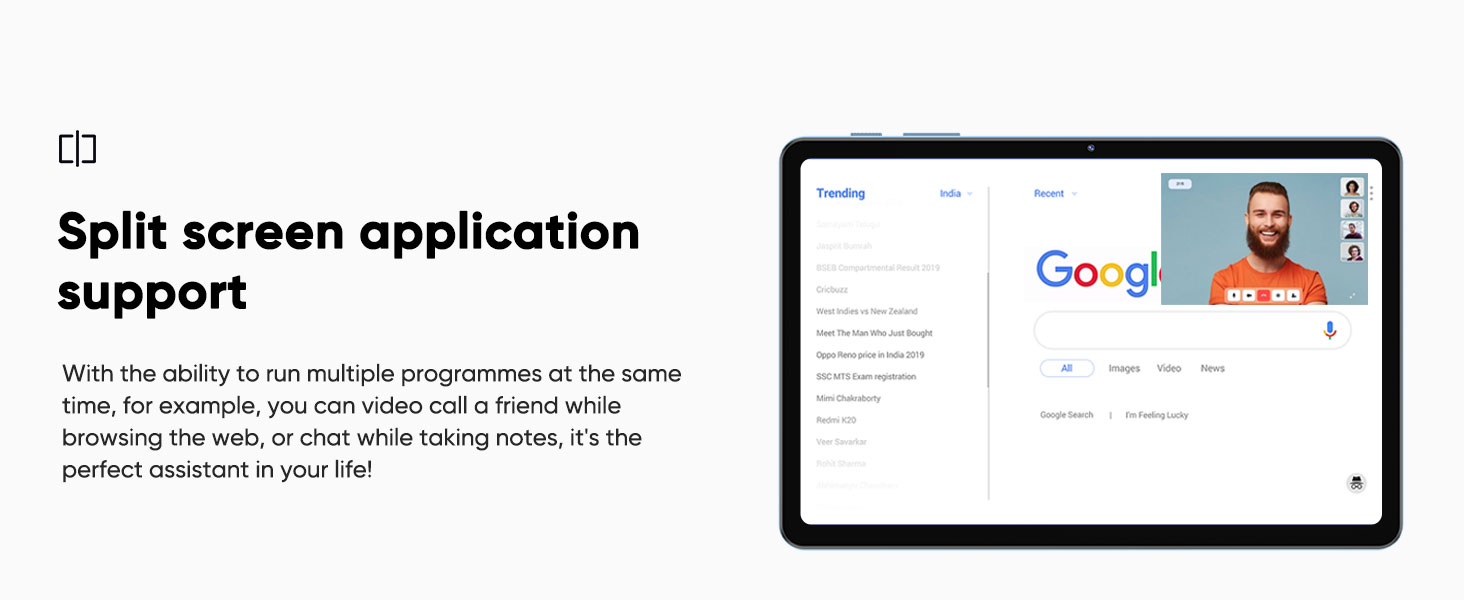
Image: The tablet screen demonstrating split-screen application support, with Google search on one side and a video call on the other, illustrating multitasking capabilities.
4.6 Wireless Screen Casting
Wirelessly cast your tablet's screen to a compatible display (e.g., smart TV) for an enhanced viewing experience. This feature simplifies sharing content without complex cable connections.
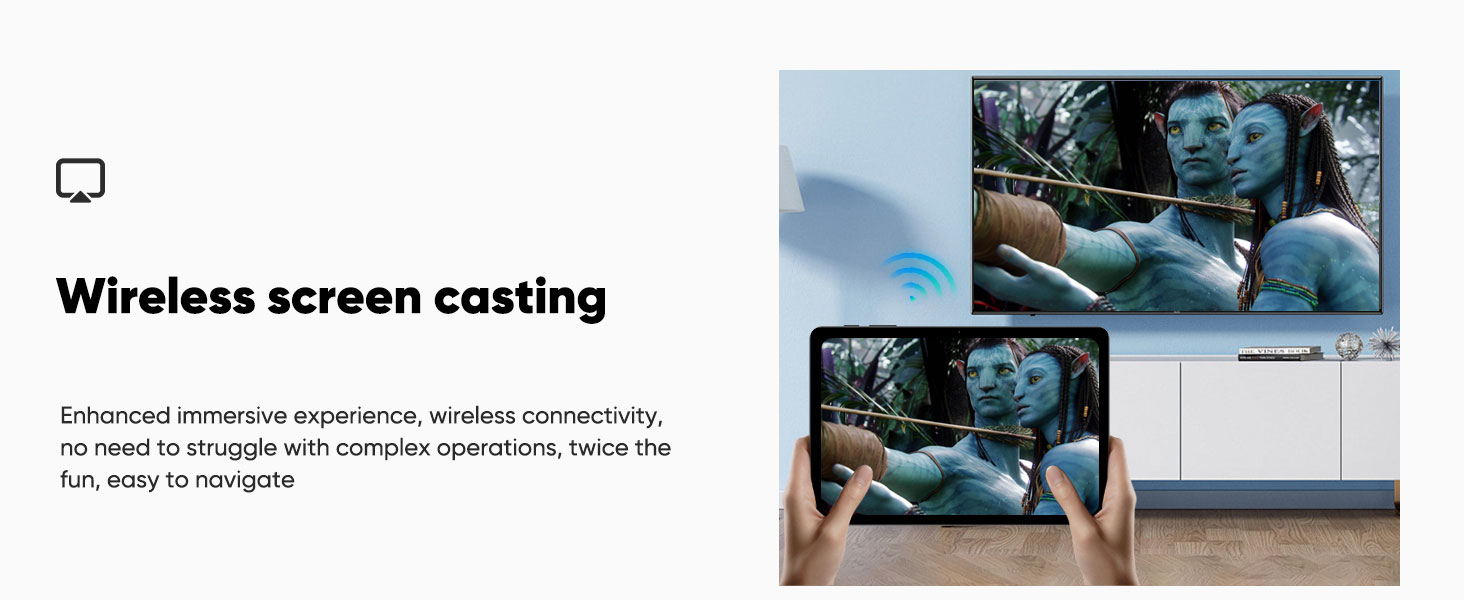
Image: The tablet's screen being wirelessly cast to a television, demonstrating the wireless screen casting feature for an enhanced and easy-to-navigate immersive experience.
4.7 Navegació GPS
The tablet supports GPS positioning, allowing for navigation and location-based services. This can be useful for travel or finding directions.
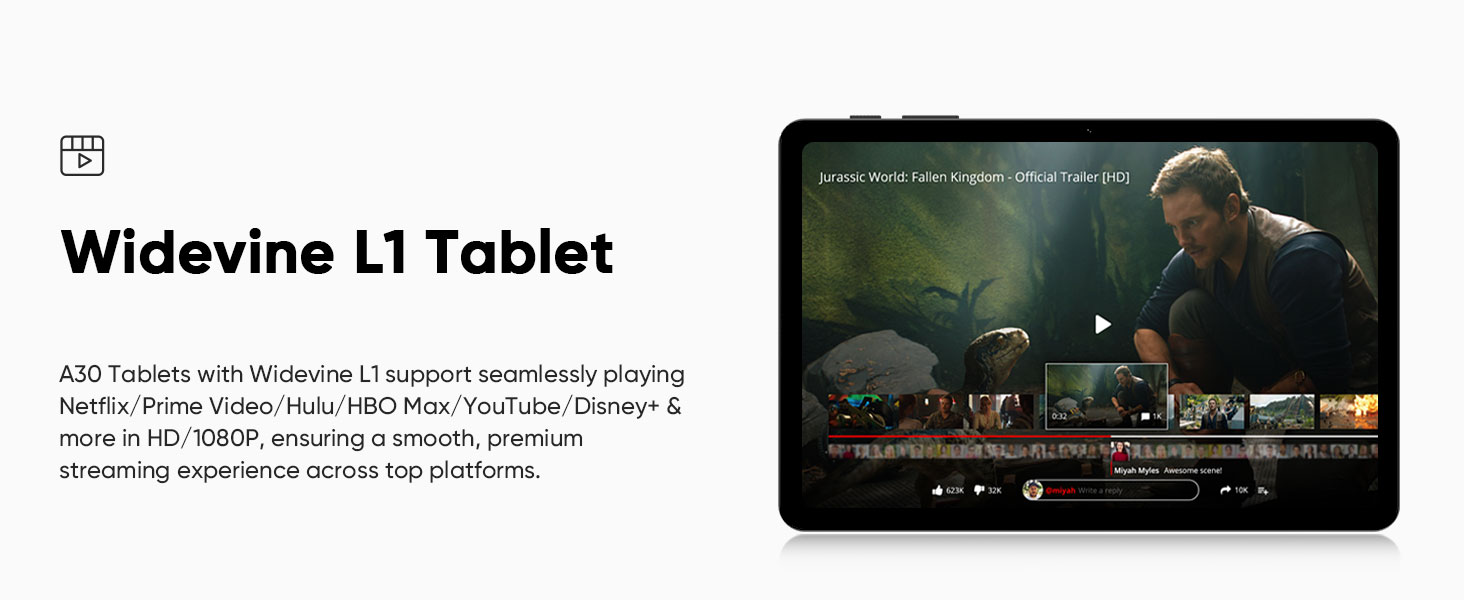
Image: The tablet displaying a navigation map, illustrating its GPS positioning support for use in vehicles or for general navigation.
5. Manteniment
5.1 Càrrega de la bateria
The tablet is equipped with a 6000mAh battery. Use the provided USB Type-C charging cable and power adapter to charge the device. The tablet supports 18W PD fast charging, which can significantly reduce charging time compared to standard 5V2A chargers.
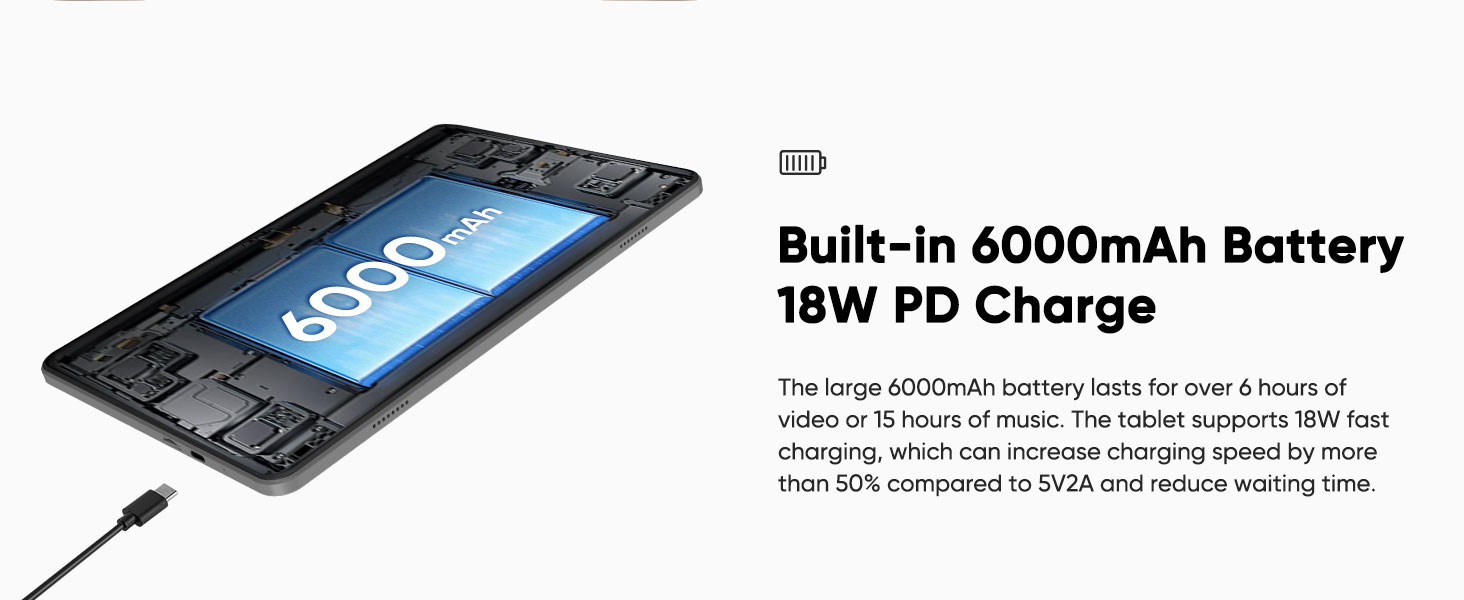
Image: An internal diagram of the tablet highlighting the built-in 6000mAh battery and the USB Type-C charging port, indicating 18W PD fast charging capability.
5.2 Expansió d'emmagatzematge
The tablet has 64GB of internal storage. To expand storage, insert a Micro SD card (up to 2TB, sold separately) into the designated slot. This allows for more space for applications, photos, videos, and documents.
6. Solució De Problemes
- La tauleta no s'encén: Ensure the battery is charged. Connect the charger and try again. If unresponsive, press and hold the power button for 10-15 seconds for a forced restart.
- No es pot connectar a Wi-Fi: Check if Wi-Fi is enabled in settings. Ensure the password is correct. Restart your router and the tablet.
- Accessoris Bluetooth que no s'emparellan: Ensure the accessories are in pairing mode and fully charged. Check the tablet's Bluetooth settings and try re-pairing.
- Rendiment lent: Close unnecessary background applications. Clear cache from apps. Consider performing a factory reset if issues persist (back up data first).
- La pantalla no respon: Restart the tablet. If the issue continues, contact customer support.
7. Especificacions del producte
| Característica | Especificació |
|---|---|
| Nom del model | A30 |
| Sistema operatiu | Android 15 |
| Processador | Unisoc T606 Octa-core (1.6 GHz) |
| RAM | 12 GB (4 GB físic + 8 GB virtual) |
| Emmagatzematge intern | ROM de 64 GB |
| Emmagatzematge ampliable | Fins a 2 TB mitjançant targeta Micro SD |
| Mida de la pantalla | 10.1 polzades |
| Resolució de pantalla | 1280 x 800 píxels (IPS HD) |
| Coprocessador gràfic | Mali-G57 1core @ 850MHz |
| Càmera posterior | 8MP |
| Càmera frontal | 5MP |
| Capacitat de la bateria | 6000 mAh |
| Port de càrrega | USB Type-C (18W PD Fast Charging) |
| Connectivitat sense fil | Wi-Fi 802.11ac (2.4GHz/5GHz), Bluetooth 5.0 |
| Dimensions (LxWxH) | 9.65 x 6.02 x 0.25 polzades |
| Pes de l'article | 1.16 lliures |
8. Informació de seguretat
- Do not expose the tablet to extreme temperatures, direct sunlight, or moisture.
- Feu servir només carregadors i accessoris aprovats.
- Eviteu deixar caure la tauleta ni sotmetre-la a impactes forts.
- Keep the tablet away from children and pets.
- No intenteu desmuntar ni reparar la tauleta vosaltres mateixos. Poseu-vos en contacte amb personal de servei qualificat.
9. Garantia i Suport
For warranty information, technical support, or service inquiries, please refer to the official aiprotablet website or contact their customer service directly. Details can typically be found on the manufacturer's packaging or weblloc.