
Introducció
The Ruko F11GIM2 4K Drone is an advanced unmanned aerial vehicle designed for capturing high-quality aerial photography and videography. Featuring a 2-axis gimbal with Electronic Image Stabilization (EIS), it delivers stable and clear 4K footage. With extended flight times and robust digital transmission, this drone is suitable for various aerial exploration and content creation needs.
Què hi ha a la caixa
- Ruko F11GIM2 Drone
- Control remot
- Bateria de vol intel·ligent (x2)
- Maleta de transport
- Cable USB-Type C
- RC Cables (various types for phone connection)
- Hélices de recanvi
- Spare Joysticks
- Coberta de la càmera
- Clau Allen
- Manual d'usuari
- Cargols (x12)
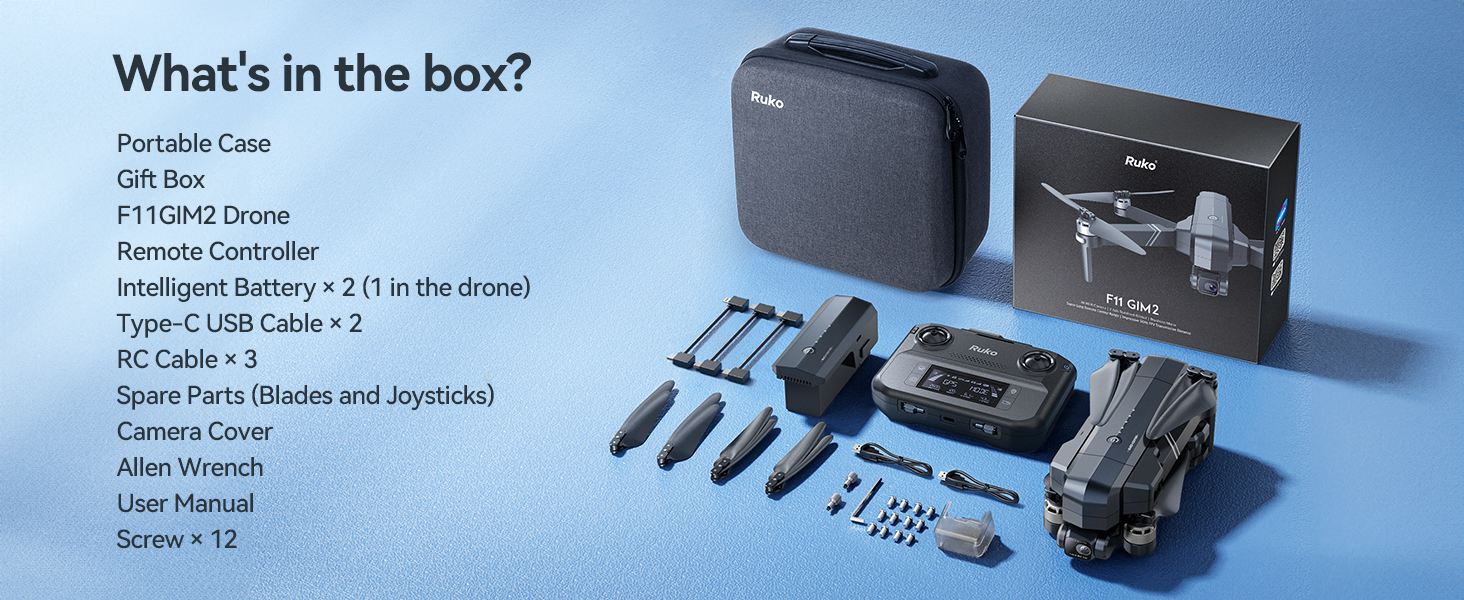
Image: The Ruko F11GIM2 4K drone and its complete set of accessories, including the remote controller, batteries, and various cables, neatly organized within its portable carrying case.
Configuració
1. Càrrega de la bateria
Ensure all intelligent flight batteries are fully charged before first use. Connect the USB Type-C cable to the battery and a compatible 5V/3A wall charger (not included). The LED indicators on the battery will show the charging progress. A full charge typically takes 5 hours.

Image: A Ruko F11GIM2 intelligent flight battery connected to a USB-C cable and a wall charger for recharging. The battery features an on/off button and LED power level indicators.
2. Preparació del dron
- Desplegueu els braços del dron.
- Traieu el protector del gimbal de la càmera.
- Insert a charged Intelligent Flight Battery into the drone until it clicks securely.
- Press and hold the power button on the drone to turn it on. The drone will perform a self-check.
3. Configuració del comandament a distància
- Pull up the phone holder on the remote controller.
- Connect your smartphone to the remote controller using the appropriate RC cable (USB-C, Lightning, or Micro-USB).
- Press and hold the power button on the remote controller to turn it on.

Image: A user holding the Ruko F11GIM2 remote controller with a smartphone mounted, displaying the drone's real-time video feed and flight data, set against a scenic mountain backdrop.
4. App Connection & Calibration
Download the Ruko Mini app from your device's app store. Launch the app and follow the on-screen instructions to connect to the drone. Perform compass calibration as instructed by the app before your first flight. This ensures accurate navigation and stable flight.
Operació del dron
1. Controls bàsics de vol
- Enlairament/Aterratge: Use the one-key takeoff/landing button in the app or on the remote.
- Altitude/Direction: Control with the left joystick.
- Forward/Backward/Sideways: Control with the right joystick.
- Modes de velocitat: Switch between Normal, Cine, and Sport modes using the dedicated switch on the remote.
2. Modes de vol intel·ligents
The Ruko F11GIM2 offers several intelligent flight modes for enhanced creativity and ease of use:
- Control de creuer: Maintain a steady flight speed for smooth cinematic shots.
- Vol de punt de referència: Set custom flight paths in the app for precise and repeatable aerial routes.
- Mosca circular: Easily capture perfect circle shots while keeping your subject centered.
- Segueix-me: The drone automatically follows the remote controller or a designated subject.

Image: The Ruko F11GIM2 drone flying over a scenic coastline, illustrating the cruise control feature for stable and effortless aerial photography.

Image: The Ruko F11GIM2 drone executing a pre-programmed waypoint flight along a winding coastal road, demonstrating its precise navigation capabilities.

Image: The Ruko F11GIM2 drone performing a 'Circle Fly' maneuver around two individuals standing on a cliff overlooking the ocean, capturing a dynamic aerial shot.
3. Funcionament de la càmera
The 4K camera with 2-axis gimbal and EIS ensures stable and clear footage. Use the dedicated buttons on the remote controller or the app interface to:
- Take 4K photos.
- Record 4K/30fps video.
- Adjust the lens angle (80 degrees adjustable).
- Utilize 5x digital zoom.

Image: The Ruko F11GIM2 drone in flight, showcasing its 4K gimbal EIS camera system designed for smooth and stable footage, with mountains in the background.
Video: A tutorial demonstrating the first flight procedures for the Ruko F11PRO 2 drone, covering pre-flight checks, takeoff, and basic maneuvers.
Manteniment
- Neteja: Regularly clean the drone body, camera lens, and propellers with a soft, dry cloth.
- Substitució de l'hèlix: If propellers are damaged, replace them immediately using the provided spare propellers and Allen wrench. Ensure correct propeller installation (A and B types).
- Cura de la bateria: Guardeu les piles en un lloc fresc i sec. No les sobrecarregueu ni les descarregueu massa.
Resolució de problemes
- El dron no s'encén: Assegureu-vos que la bateria estigui completament carregada i inserida correctament.
- El comandament a distància no es connecta: Ensure both drone and remote are powered on and within range. Re-pair if necessary.
- Mala transmissió de vídeo: Check USB connection to phone. Ensure no strong interference sources are nearby.
- Vol inestable: Perform compass calibration again. Check propellers for damage or incorrect installation.
Especificacions
| Característica | Detall |
|---|---|
| Marca | Ruko |
| Nom del model | F11GIM2 |
| Resolució de captura de vídeo | 4K/30fps |
| Resolució de fixes efectius | 8.3 MP (4K Photo) |
| Temps de vol | Up to 32 minutes per battery (64 minutes with 2 batteries) |
| Flying Range | Up to 16404ft (5KM) |
| Resistència al vent | Nivell 6 |
| Característiques especials | 2-axis Gimbal, EIS Anti-shake, Auto-Landing, 5x Digital Zoom, 80° Adjustable Lens, Brushless Motors, Built-in Remote ID Module (FAA Compliant) |
| Tecnologia de connectivitat | USB |

Imatge: Una imatge detallada view of the Ruko F11GIM2 intelligent flight battery, highlighting its dimensions (4.06" L x 1.83" W x 1.89" H) and specifications including 11.1V, 2500mAh, 6.8oz weight, and 27.75Wh capacity.
Garantia i suport
For warranty information, technical support, or service inquiries, please refer to the contact details provided in your product packaging or visit the official Ruko website. Ruko is dedicated to providing high-value products supported by good customer support.

Image: Ruko customer support contact information, including a phone number (+1 (888) 892-0155) and email (service@rukotoy.com), with operating hours for Monday-Friday and Saturday-Sunday.