
1. Configuració
1.1 Unboxing
Carefully unpack all components from the box. Ensure all items listed in the package contents are present.

El paquet normalment inclou:
- 1 x Quieter 4C Mini PC
- 1 x adaptador d'alimentació (12V/2A)
- 1 x Muntatge VESA
- 1 x Manual d'usuari
- 1 x UL Plug
1.2 Connexió de perifèrics
Connect your monitor, keyboard, and mouse to the MeLE Quieter 4C Mini PC. The device supports triple 4K display output via two HDMI ports and one full-function USB-C port.

The Mini PC features:
- USB-A 3.2 Gen1 (5Gbps) ports
- USB-A 3.2 Gen2 (10Gbps) ports
- USB-A 2.0 (480Mbps) ports
- Full-function USB-C port (Power Input, USB 10Gbps, DisplayPort)
- 2x HDMI 2.0 ports (4K@60Hz)
- Port Gigabit Ethernet
- Jack combinat d'àudio de 3.5 mm
- Micro-SD (TF) Slot
- Ranura de bloqueig de seguretat Kensington
1.3 Instal·lació del suport VESA
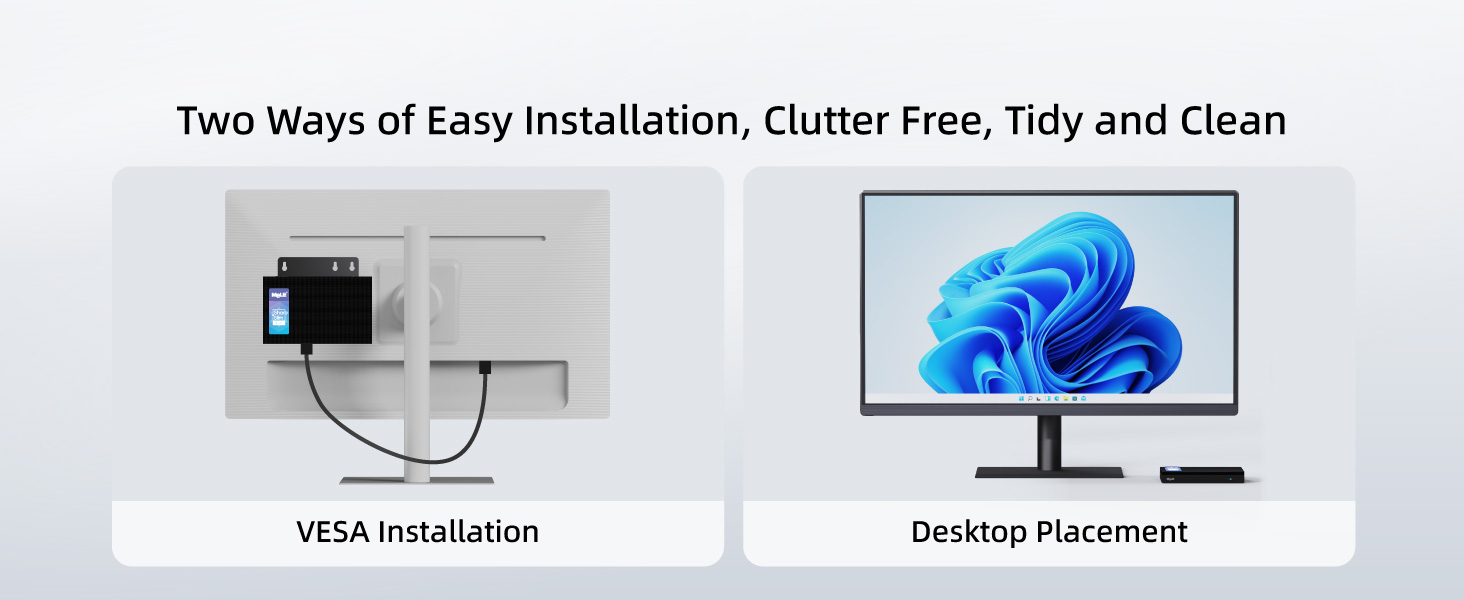
The MeLE Quieter 4C Mini PC can be installed in two ways: desktop placement or VESA mounting. For VESA mounting, follow these steps:
- Attach the VESA mount to the back of your monitor using the provided screws.
- Secure the Mini PC to the VESA mount.
2. Instruccions de funcionament
2.1 Encès/Apagat
To power on the Mini PC, press the power button located on the front panel. The power button will illuminate when the device is on. To power off, use the standard Windows shutdown procedure.
2.2 Configuració de la BIOS
The BIOS allows for advanced configuration, including enabling Auto Power On. To access and modify BIOS settings:
- Turn on your Mini PC and repeatedly press F7 to open the boot menu, or Suprimeix to enter the BIOS directly.
- Select "Enter Setup" and press Entra.
- Navigate to "Advanced" → "Customer Exclusive Functions" → "Auto Power On" and set it to "Enabled".
- Select "Save & Exit" → "Save Changes and Exit" → "Yes" (or press F4 to save and exit quickly).
2.3 Sistema operatiu
The MeLE Quieter 4C Mini PC comes pre-installed with Windows 11 Pro. It also supports other operating systems such as Linux and Ubuntu.

2.4 Configuració de múltiples pantalles
The Mini PC supports up to three 4K displays simultaneously. Connect your monitors to the two HDMI ports and the full-function USB-C port for an extended desktop experience.

3. Manteniment
3.1 Neteja
The MeLE Quieter 4C features a fanless design, which helps prevent dust accumulation. To clean the exterior, use a soft, dry cloth. Avoid using liquid cleaners directly on the device.
3.2 Expansió d'emmagatzematge
The Mini PC offers expandable storage options:
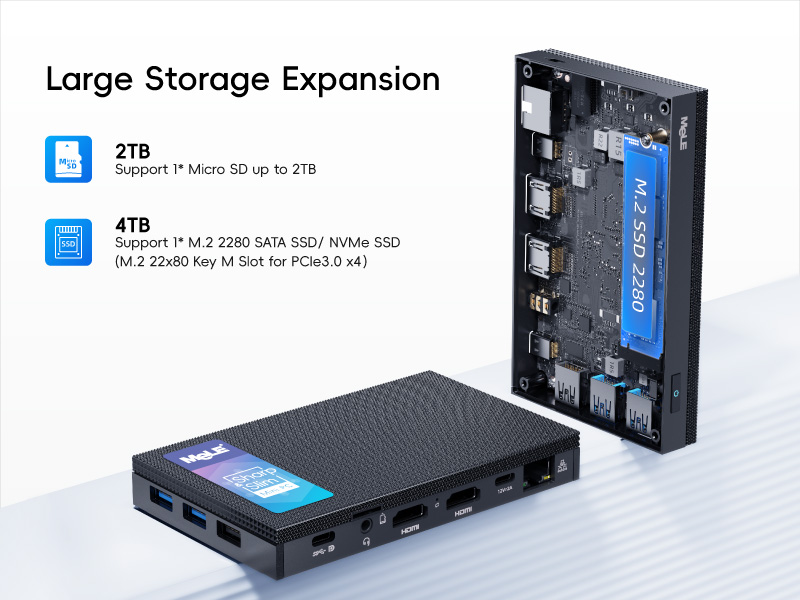
- Micro SD card slot: Supports up to 2TB.
- Internal M.2 2280 SSD slot: Supports up to 4TB (both NVMe and SATA M.2 SSD).
4. Solució De Problemes
4.1 Problemes de connectivitat de xarxa
If you experience problems with network connectivity, you may need to reset your network settings. This will reinstall all network adapters and reset networking components to their original settings.
- Click Start, then select Settings.
- Go to Network & Internet.
- Click Advanced network settings.
- Click Network reset.
- Click Reset now, then choose Yes to confirm. Your computer will restart automatically.
After the restart, you will need to reconnect to your Wi-Fi network.
4.2 Overheating Concerns
The MeLE Quieter 4C features a fanless passive cooling system. While this ensures silent operation and dust resistance, the surface temperature of fanless Mini PCs can reach 55°C to 70°C. This is normal and meets safety standards (IEC62368-1:2018). Ensure adequate airflow around the device and avoid placing it in enclosed spaces.
5. Especificacions
| Característica | Detall |
|---|---|
| Processador | Intel Celeron N150 (4 Cores, 4 Threads, up to 3.6 GHz) |
| RAM | 16 GB de RAM DDR5 |
| Disc dur | SSD M.512 de 2 GB |
| Gràfics | Gràfics Intel UHD integrats |
| Resolució de pantalla màxima | 3840x2160 (4K) |
| Tipus sense fil | 802.11ac (Wi-Fi 5), Bluetooth 5.1 |
| Sistema operatiu | Windows 11 Pro (also supports Linux, Ubuntu) |
| Ports | USB-A 3.2 Gen1, USB-A 3.2 Gen2, USB-A 2.0, Full-function USB-C, 2x HDMI 2.0, Gigabit Ethernet, 3.5mm Audio Jack, Micro-SD Slot |
| Entrada de potència | 12V/2A (PD 3.0 technology, 12V to 20V) |
| Refrigeració | Refrigeració passiva sense ventilador |
| Pes de l'article | 16 unces |
| Dimensions del paquet | 6.5 x 4.2 x 2.5 polzades |
6. Garantia i assistència
6.1 Informació de la garantia
MeLE offers a lifetime guarantee on its products, ensuring quality and reliability. For specific terms and conditions, please refer to the warranty card included with your product or visit the official MeLE weblloc.
6.2 Atenció al client
For technical assistance, troubleshooting, or any product-related inquiries, please contact MeLE customer support. Contact information can typically be found in the included user manual or on the official MeLE weblloc.