
1. Introducció
The MEETION DirectorD-KB is a wireless ergonomic keyboard designed for comfortable and natural typing. It features a scientific wave key design and a built-in firm wrist rest to support your hands during extended use. This keyboard offers broad compatibility with Windows and macOS devices through a 2.4GHz wireless connection.

Image: The MEETION DirectorD-KB Wireless Ergonomic Keyboard positioned on a wooden desk, showcasing its wave-curved design and integrated wrist rest.
2. Contingut del paquet
Assegureu-vos que tots els elements siguin presents al paquet:
- 1 x MEETION DirectorD-KB Wireless Ergonomic Keyboard
- 1 x Manual d'usuari
- 1 x USB-A 2.4GHz Wireless Receiver
- 1 x adaptador USB-C
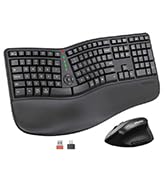
Image: Contents of the MEETION DirectorD-KB package, including the keyboard, user manual, USB-A receiver, and USB-C adapter.
3. Instruccions de configuració
3.1. Instal·lació de la bateria
- Localitzeu el compartiment de la bateria a la part inferior del teclat.
- Obriu la tapa del compartiment de la bateria.
- Insert two AAA batteries (not included) into the compartment, ensuring correct polarity.
- Tanqueu bé la tapa del compartiment de la bateria.

Image: The underside of the keyboard showing the battery compartment for two AAA batteries and details on power saving features.
3.2. Connexió del receptor
- Locate the USB-A 2.4GHz wireless receiver, typically found in the slot inside the keyboard's battery compartment or in the accessory pouch.
- For devices with a USB-A port: Plug the USB-A receiver directly into an available USB-A port on your computer.
- For devices with a USB-C port: Attach the provided USB-C adapter to the USB-A receiver, then plug the combined unit into an available USB-C port on your computer.
- The keyboard is plug-and-play and should connect automatically.
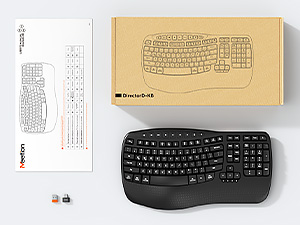
Image: Step-by-step guide on connecting the USB-A receiver with the USB-C adapter to a computer's USB-C port.
3.3. Encès
After installing batteries and connecting the receiver, slide the power switch on the keyboard to the 'ON' position. The keyboard is now ready for use.
4. Instruccions de funcionament
4.1. Disseny ergonòmic i reposacabells
The keyboard features a wave-shaped key layout and a firm, integrated wrist rest. This design guides your hands and wrists into a natural, relaxed typing position, reducing strain during long typing sessions.

Image: A user's hands resting comfortably on the integrated wrist rest while typing on the ergonomic keyboard.
4.2. Adjustable Tilt
Utilize the adjustable tilt legs on the underside of the keyboard to find your preferred typing angle. Different angles can further enhance comfort and reduce wrist fatigue.

Imatge: Side profiles of the keyboard demonstrating three different adjustable tilt angles for personalized comfort.
4.3. Dual System Layout (Windows/macOS)
The keyboard supports both Windows and macOS layouts. To switch between operating systems:
- Premeu FN + Q per a la disposició de Windows.
- Premeu FN + W per a la maquetació de macOS.
4.4. Tecles multimèdia
The keyboard includes dedicated and combined multimedia keys for quick access to functions like volume control, media playback, and more.
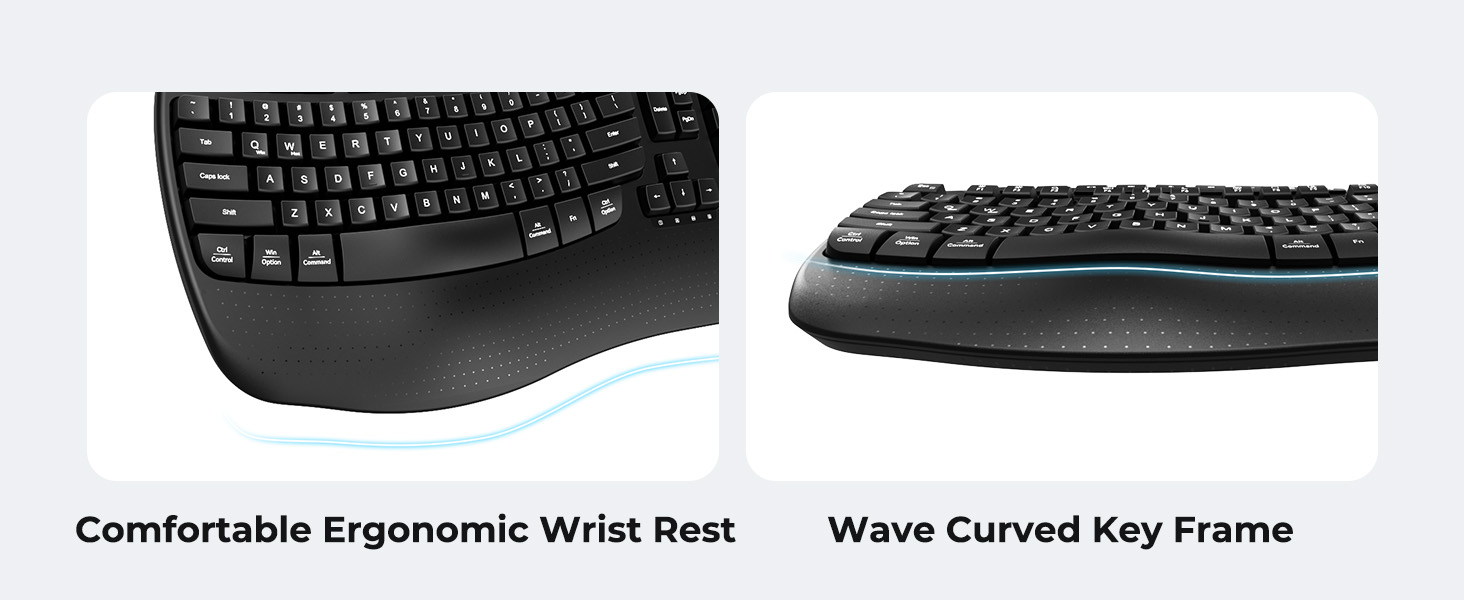
Image: A visual representation of the independent and combined multimedia keys available on the keyboard.
4.5. Intelligent Power Saving
The keyboard features an auto-sleep mode to conserve battery life. After 20 minutes of inactivity, it will enter hibernation. To wake it up, simply press any key.

Image: Close-up of the keyboard's indicator lights, showing status for Num Lock, Caps Lock, FN Lock, and low battery warning.
5. Manteniment
Per garantir la longevitat i el rendiment òptim del teclat, seguiu aquestes pautes de manteniment:
- Neteja: Feu servir un drap suau i sec per netejar la superfície del teclat. Per a una neteja més profunda, netegeu lleugeramentamp Es pot utilitzar un drap amb sabó suau, assegurant-se que no entri líquid a les tecles ni als components interns.
- Eviteu líquids: Do not expose the keyboard to excessive moisture or spill liquids on it.
- Emmagatzematge: Guardeu el teclat en un lloc fresc i sec, allunyat de la llum solar directa i de temperatures extremes.
- Substitució de la bateria: Replace batteries promptly when the low battery indicator appears to maintain consistent performance.
6. Solució De Problemes
If you encounter issues with your MEETION DirectorD-KB keyboard, refer to the following common solutions:
- El teclat no respon:
- Comproveu si el teclat està encès.
- Ensure the batteries are correctly installed and not depleted. Replace if necessary.
- Verify that the USB receiver is securely plugged into your computer's USB port (or via the USB-C adapter).
- Prova de connectar el receptor a un port USB diferent.
- Reinicieu l'ordinador.
- Connexió amb retard o intermitent:
- Ensure the keyboard is within the effective range of the receiver (typically up to 10 meters).
- Minimize interference from other wireless devices by moving them further away.
- Avoid placing the receiver near large metal objects.
- Les tecles no funcionen correctament:
- Check for any physical obstructions under the keycaps.
- Ensure the correct operating system layout (Windows/macOS) is selected using FN+Q or FN+W.
7. Especificacions
| Característica | Detall |
|---|---|
| Marca | REUNIÓ |
| Número de model | DirectorD-KB |
| Tecnologia de connectivitat | 2.4G Wireless (USB-A, USB-C Adapter) |
| Dispositius compatibles | Laptop, PC (Windows XP/7/8/10/11 & macOS X 10.6 or later) |
| Disposició del teclat | QWERTY |
| Nombre de claus | 113 |
| Característiques especials | Ergonomic, Hotkeys and Media Keys, Integrated Stand, Wave Keys, Wrist Rest |
| Dimensions del producte (L x A x A) | 17.39" x 9.43" x 1.81" |
| Material | Plàstic |
| Font d'alimentació | Alimentat per piles (2 x AAA, no incloses) |
8. Vídeo oficial del producte
Vídeo: Presentació oficial del producte en vídeoasing the features and ergonomic design of the MEETION DirectorD-KB Wave Ergonomic Wireless Keyboard. (Duration: 0:39)
9. Garantia i Suport
This MEETION DirectorD-KB Wireless Ergonomic Keyboard comes with a 1-year manufacturer's warranty.
For further assistance, troubleshooting, or warranty claims, please visit the official MEETION store or contact customer support.
Official MEETION Store: MEETION Store on Amazon