
Introducció
This guide provides essential information for operating your Samsung Galaxy Z Flip 6. It covers initial setup, daily usage, advanced features, and troubleshooting to help you maximize your device's capabilities. This manual is designed for both new users and those familiar with Samsung devices.
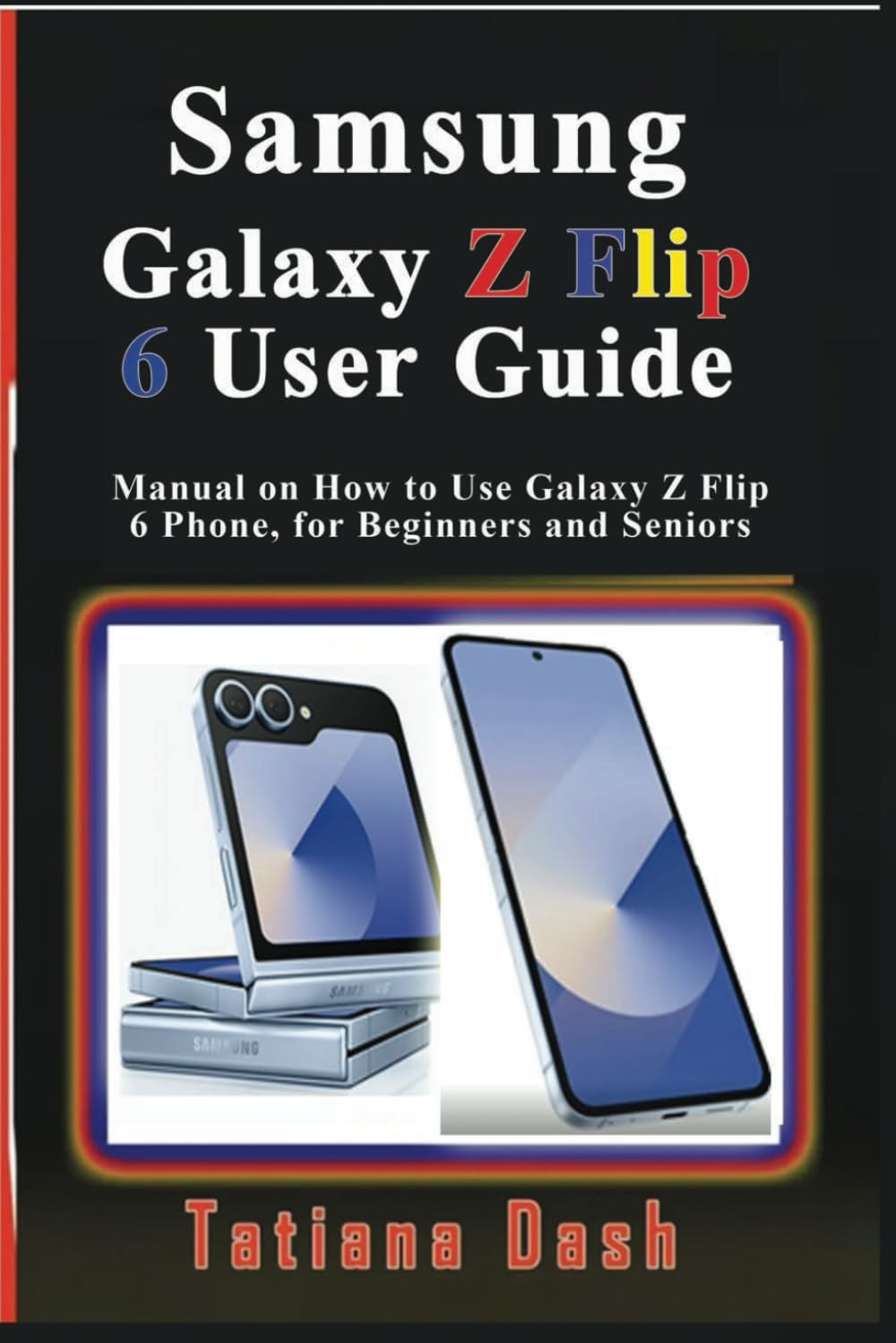
Image: Front cover of the Samsung Galaxy Z Flip 6 User Guide, a paperback book.
1. Configuració
This section details the initial steps to get your Galaxy Z Flip 6 ready for use.
1.1 Device Activation and SIM Installation
- Inserting Physical SIMs: Locate the SIM tray on the side of your device. Use the provided ejection tool to open the tray. Place your Nano-SIM card(s) into the tray with the gold contacts facing down. Reinsert the tray firmly.
- Configuring eSIM: Navega a Configuració > Connexions > Gestor de SIM. Seleccioneu Afegeix eSIM and follow the on-screen instructions to scan a QR code or enter activation details provided by your carrier.
1.2 Connexió a Wi-Fi
- Vés a Configuració > Connexions > Wi-Fi.
- Activa/desactiva el Wi-Fi On.
- Seleccioneu la xarxa desitjada de la llista i introduïu la contrasenya si se us demana.
1.3 Transferència de dades
Use Samsung Smart Switch to transfer data from your old device. Install Smart Switch on both devices and follow the prompts for wireless or wired transfer.
2. Operating Your Galaxy Z Flip 6
This section covers the daily operation and key features of your device.
2.1 Seamless Navigation
- Pantalla d'inici: Customize with widgets and app shortcuts. Swipe left or right to access additional screens.
- Calaix d'aplicacions: Llisca cap amunt des de la pantalla d'inici per accedir a totes les aplicacions instal·lades.
- Notificacions: Feu lliscar el dit cap avall des de la part superior de la pantalla fins a view notificacions i configuracions ràpides.
- Gestos: Utilize swipe gestures for navigation (e.g., swipe up from the bottom for home, swipe up and hold for recent apps).
- Foldable Display Features: The device adapts its interface when folded or unfolded. Apps can seamlessly transition between the main screen and the cover screen.
2.2 Flex Mode Functionality
Flex Mode allows the device to be partially folded, enabling unique multitasking and interaction. When partially folded, the screen content often splits, with controls on the bottom half and content on the top.
- Multitasca: Use two apps simultaneously, one on each half of the folded screen.
- Cover Screen Customization: Personalize the external display with widgets, clock styles, and quick access to notifications.
- Hands-Free Photography/Videography: Prop the phone on a surface in Flex Mode to capture photos and videos without a tripod.
2.3 Característiques de la IA del Galaxy
Your Galaxy Z Flip 6 integrates advanced AI capabilities to enhance productivity and communication.
- Traducció en temps real: Translate calls, messages, and live conversations directly on your device.
- Note Summarization: Use AI to summarize lengthy notes or documents for quick review.
- Browsing Assistance: Get AI-powered summaries of web pages or find specific information more efficiently.
2.4 Photography
Explore various camera modes and editing tools to capture and enhance your photos.
- Modes de càmera: Access modes like Night, Portrait, Pro, and Flex Mode photography.
- Advanced Editing: Utilize built-in tools for cropping, color correction, filters, and AI-enhanced adjustments.
2.5 Personalization & Customization
Tailor your device to your preferences.
- Themes & Wallpapers: Change the visual appearance of your device.
- Ginys: Add interactive elements to your home screen for quick information and control.
- Configuració de la pantalla: Adjust brightness, screen resolution, font size, and always-on display options.
3. Maintenance and Device Care
Proper care ensures optimal performance and longevity of your Galaxy Z Flip 6.
3.1 Optimització de la bateria
- Modes d'estalvi d'energia: Activate power saving features in Configuració > Cura de la bateria i el dispositiu > Bateria.
- Ús de l'aplicació: Monitor and restrict background activity of power-intensive applications.
- Configuració de la pantalla: Reduce screen brightness and shorten screen timeout duration.
3.2 Gestió d'emmagatzematge
- Comprova l'emmagatzematge: View storage usage in Configuració > Cura de la bateria i el dispositiu > Emmagatzematge.
- Esborra la memòria cau: Regularly clear cache data from apps to free up space.
- Delete Unused Files: Remove unnecessary photos, videos, and applications.
3.3 Actualitzacions de programari
Ensure your device's software is up to date for security patches and performance improvements. Go to Configuració > Actualització de programari.
4. Seguretat i Privacitat
Protect your device and personal information.
- Seguretat biomètrica: Set up fingerprint scanning and face recognition for quick and secure unlocking.
- Passwords & PINs: Use strong passwords or PINs for device lock and sensitive applications.
- Configuració de privadesa: Manage app permissions, location services, and data sharing options in Configuració > Privadesa.
5. Característiques d'accessibilitat
Customize your device to meet individual needs.
- Vision Assistance: Adjust font size, contrast, color correction, and use screen readers.
- Hearing Assistance: Enable sound notifications, hearing aid support, and live captioning.
- Dexterity & Interaction: Configure interaction controls, assistant menu, and tap duration.
6. Resolució de problemes i preguntes freqüents
Aquesta secció aborda problemes comuns i ofereix solucions.
6.1 Problemes comuns i solucions
| Problema | Solució |
|---|---|
| Problemes de connectivitat (Wi-Fi/Bluetooth) | Restart your device. Toggle Wi-Fi/Bluetooth off and on. Forget and reconnect to the network/device. Check router settings. |
| App Crashes/Freezing | Forçar el tancament de l'aplicació (Configuració > Aplicacions > [Nom de l'aplicació] > Força d'aturada). Clear app cache and data. Update the app. Reinstall the app. |
| Rendiment lent | Clear recent apps. Free up storage space. Restart the device. Check for software updates. |
| La bateria s'esgota ràpidament | Review ús de la bateria en Configuració > Cura de la bateria i el dispositiu. Reduce screen brightness. Disable unnecessary features (GPS, always-on display). |
7. Consells i trucs
Discover ways to enhance your Galaxy Z Flip 6 experience.
- Hidden Shortcuts: Explore advanced settings and developer options for additional customization.
- Aplicacions recomanades: Utilize the Galaxy Store and Google Play Store to find apps that complement your device's features.
- Accessoris: Consider official Samsung accessories for enhanced protection and functionality.
8. Especificacions
Key specifications for the Samsung Galaxy Z Flip 6 User Guide (Paperback).
| Característica | Detall |
|---|---|
| ASIN | B0F3D94G93 |
| Editor | Publicat independentment |
| Data de publicació | 1 d'abril de 2025 |
| Llengua | Anglès |
| Longitud d'impressió | 64 pàgines |
| ISBN-13 | 979-8316412082 |
| Pes de l'article | 5.3 unces |
| Dimensions | 6 x 0.15 x 9 polzades |
9. Garantia i Suport
For information regarding the warranty of your Samsung Galaxy Z Flip 6 device, please refer to the official documentation provided with the phone or visit the Samsung official support website. This user guide itself does not come with a separate warranty.
For technical support related to the Galaxy Z Flip 6, please contact Samsung customer service or visit an authorized service center. For inquiries about this user guide, please contact the publisher.