
TONTRU 97k-rgb
TONTRU Wireless Mechanical Keyboard T70 (97-Key) User Manual
Model: 97k-rgb
1. Producte acabatview
The TONTRU T70 is a versatile 97-key mechanical keyboard designed for various computing environments. It features tri-mode connectivity, hot-swappable switches, RGB backlighting, and a multifunction knob for enhanced user control.

Imatge 1.1: De dalt a baix view of the TONTRU T70 keyboard, highlighting its 97-key layout and colorful keycaps.
2. Contingut del paquet
Verifiqueu que tots els elements siguin presents al paquet:
- TONTRU T70 Wireless Mechanical Keyboard
- Cable USB-C
- 2.4GHz USB Receiver (often stored in the keyboard's receiver compartment)
- Manual d'usuari (aquest document)
3. Configuració i connexió inicial
The keyboard supports three connection modes: 2.4GHz Wireless, Bluetooth 5.1, and USB-C Wired. No drivers are required for basic functionality.
3.1. Connexió amb cable (USB-C)
- Locate the USB-C port on the keyboard (typically on the back edge).
- Connecteu el cable USB-C proporcionat al teclat i l'altre extrem a un port USB disponible de l'ordinador.
- The keyboard will automatically switch to wired mode. The charging indicator light may illuminate.
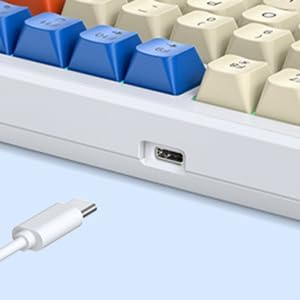
Image 3.1: USB-C port for wired connection and charging.
3.2. Connexió sense fil de 2.4 GHz
- Locate the 2.4GHz USB receiver. It is often stored in a compartment on the keyboard itself.
- Connecteu el receptor USB a un port USB disponible de l'ordinador.
- Turn on the keyboard using the power switch (usually on the back or side).
- Premeu Fn + 4 to activate 2.4GHz wireless mode. The indicator light for 2.4G mode should blink.
- If the connection is not established automatically, press and hold Fn + 4 for 3 seconds to initiate pairing. The indicator light will blink rapidly and then become solid once connected.
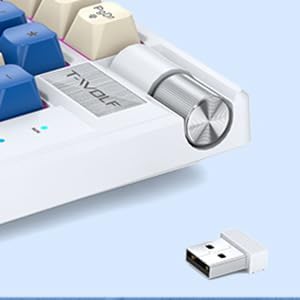
Image 3.2: Location of the 2.4GHz USB receiver and multifunction knob.
3.3. Connexió Bluetooth 5.1
The keyboard supports pairing with up to three Bluetooth devices.
- Enceneu el teclat amb l'interruptor d'alimentació.
- Premeu Fn + 1, Fn + 2, o Fn + 3 to select a Bluetooth channel. The corresponding indicator light will blink.
- Press and hold the selected Bluetooth channel key (Fn + 1/2/3) for 3 seconds until the indicator light blinks rapidly. This indicates pairing mode.
- On your device (PC, laptop, tablet), enable Bluetooth and search for new devices.
- Select "TONTRU T70" (or similar name) from the list of available devices to connect.
- Un cop connectat, l'indicador lluminós es mantindrà fix.
- Per canviar entre dispositius Bluetooth emparellats, només cal que premeu Fn + 1, Fn + 2, o Fn + 3.

Image 3.3: Visual representation of the three connectivity modes.
4. Instruccions de funcionament
4.1. Pom multifunció
The rotary knob located on the top right of the keyboard has dual functionality:
- Canvi de mode: Long-press the knob for three seconds to toggle between RGB Lighting Mode and Volume Mode.
- Mode d'il·luminació RGB:
- Rotate the knob: Adjust RGB brightness.
- Tap the knob: Switch between different RGB lighting effects.
- Mode de volum:
- Rotate the knob: Adjust system volume (up/down).
- Tap the knob: Mute/unmute audio.

Image 4.1: Multifunction knob controls for lighting and volume.
4.2. Modes d'il·luminació RGB
The keyboard features 20 dynamic RGB backlight options. Use the multifunction knob (in Lighting Mode) to cycle through effects and adjust brightness.
The keyboard also supports 100% anti-ghosting for accurate key registration during fast typing or gaming.
4.3. Commutadors intercanviables en calent
The TONTRU T70 comes with pre-installed linear red switches. The hot-swappable PCB allows for easy replacement of switches and keycaps without soldering. This enables customization of the typing experience.

Image 4.2: Hot-swappable switches with keycaps removed.
Per substituir els interruptors:
- Traieu suaument la tapa de les tecles amb un extractor de taps de tecles (no inclòs).
- Feu servir un extractor d'interruptors (no inclòs) per extreure amb cura l'interruptor de la placa de circuit imprès.
- Alineeu els pins del nou interruptor amb els forats de la placa de circuit imprès i premeu fermament fins que encaixi al seu lloc.
- Torneu a col·locar la tapa de les tecles.
5. Bateria i càrrega
The keyboard is equipped with a 2000mAh rechargeable battery. The low-power chipset ensures extended wireless use.
- Càrrega: Connect the keyboard to a USB power source using the provided USB-C cable. The charging indicator light will show charging status.
- Durada de la bateria: A full charge provides weeks of wireless use, depending on usage and RGB lighting settings.
- Nivell de bateria: The manual does not specify a direct method to check the exact battery percentage on the keyboard itself. Some operating systems may report Bluetooth device battery levels.

Image 5.1: The keyboard features a 2000mAh rechargeable battery.
6. Compatibilitat
The TONTRU T70 keyboard is universally compatible and works with:
- Sistemes operatius Windows
- Portàtils
- dispositius Android
- Other devices supporting USB, 2.4GHz wireless, or Bluetooth connectivity.
No specific drivers are needed for operation.
7. Manteniment
- Neteja: Feu servir un drap suau i sec per netejar la superfície del teclat. Per a una neteja més profunda, traieu les tecles i feu servir aire comprimit per eliminar les restes.
- Emmagatzematge: Guardeu el teclat en un lloc fresc i sec, allunyat de la llum solar directa i de temperatures extremes.
- Exposició líquida: Avoid exposing the keyboard to liquids. In case of accidental spills, immediately disconnect the keyboard, power it off, and allow it to dry completely before use.
8. Solució De Problemes
8.1. El teclat no respon
- Comproveu la potència: Ensure the keyboard is powered on and has sufficient battery charge. Connect via USB-C to confirm.
- Mode per cable: Verify the USB-C cable is securely connected to both the keyboard and the computer.
- Sense fil de 2.4 GHz:
- Ensure the USB receiver is properly plugged into a working USB port.
- Premeu Fn + 4 to select 2.4G mode.
- If the indicator light blinks slowly, press and hold Fn + 4 for 3 seconds to re-pair the receiver.
- Mode Bluetooth:
- Assegureu-vos que el Bluetooth estigui habilitat al vostre dispositiu.
- Premeu Fn + 1/2/3 to select the correct paired channel.
- If not connecting, press and hold the selected Fn + 1/2/3 for 3 seconds to enter pairing mode and re-pair with your device.
- Try removing the keyboard from your device's Bluetooth list and re-pairing.
8.2. Keys Sticking or Not Registering
- Netegeu al voltant i sota les tecles afectades per eliminar qualsevol residu.
- If using hot-swappable switches, ensure the switch is fully seated in the PCB. Try removing and re-inserting the switch.
- Test the keyboard in wired mode to rule out wireless interference.
8.3. RGB Lighting Not Working or Incorrect
- Assegureu-vos que el teclat estigui encès.
- Check the multifunction knob is in RGB Lighting Mode (long-press to switch modes).
- Rotate the knob to adjust brightness; tap to change lighting effects.
8.4. Multifunction Knob Not Functioning
- Ensure the knob is not obstructed and can be pressed down.
- Long-press the knob for 3 seconds to switch between RGB Lighting Mode and Volume Mode. Confirm the mode by observing the indicator lights or keyboard behavior.
9. Especificacions
| Model | 97k-rgb |
| Connectivitat | Sense fil de 2.4 GHz, Bluetooth 5.1, USB-C amb cable |
| Disseny de claus | 97-Key Compact (with Numpad and Arrow Keys) |
| Interruptors | Red Mechanical (Hot-Swappable) |
| Il·luminació de fons | RGB (20 Modes) |
| Anti-fantasma | 100% |
| Capacitat de la bateria | 2000 mAh |
| Dimensions del producte | 15.9 x 5.6 x 1.5 polzades (404 x 141.9 x 37.5 mm) |
| Pes de l'article | 2.11 lliures |
| Fabricant | Huizhou T-WOLF Intelligent Technology Co.,Ltd |

Image 9.1: Keyboard dimensions.
10. Garantia i Suport
For warranty information and technical support, please refer to the contact details provided with your purchase or visit the official TONTRU weblloc. Conserveu el rebut de compra per a reclamacions de garantia.
Ask a question about this manual
Ask about setup, troubleshooting, compatibility, parts, safety, or missing instructions. Manuals+ will review the question and use this page’s manual context to help answer it.