
1. Introducció
Thank you for choosing the LEFFOT M1 Plus Android 14.0 TV Box. This device is designed to transform your television into a smart entertainment hub, offering stunning 4K UHD visuals, powerful performance, and a wide range of connectivity options. This manual provides detailed instructions for setting up, operating, and maintaining your TV box to ensure an optimal user experience.
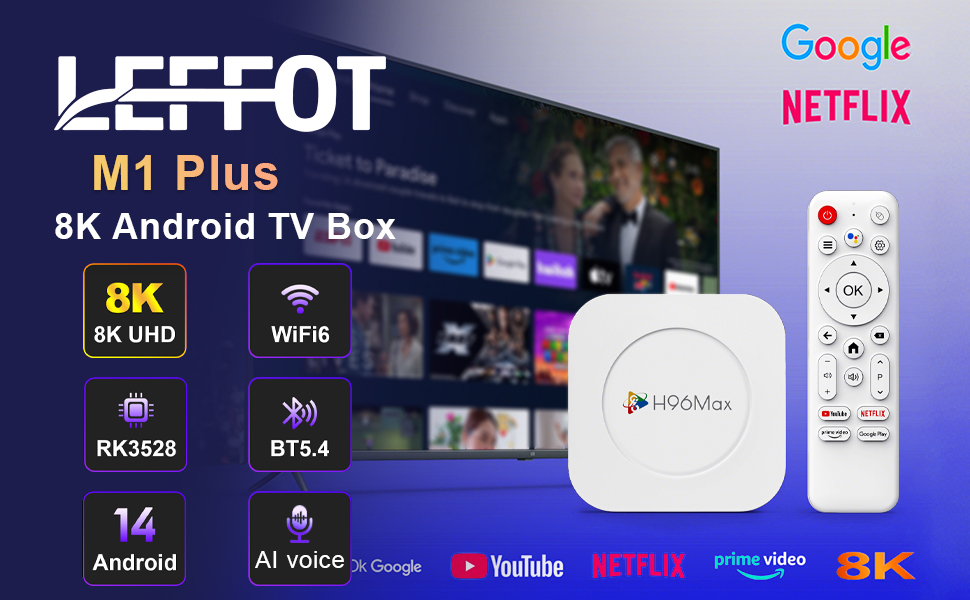
Imatge 1.1: acabatview of the LEFFOT M1 Plus Android TV Box highlighting its core features like 8K UHD, WiFi 6, BT 5.4, Android 14, and AI voice control.
2. Informació de seguretat
Llegiu atentament totes les instruccions de seguretat abans d'utilitzar el dispositiu. Si no seguiu aquestes instruccions, podeu patir descàrregues elèctriques, incendis o danys al dispositiu.
- Utilitzeu només l'adaptador d'alimentació subministrat.
- No exposeu el dispositiu a l'aigua, la humitat ni a temperatures extremes.
- Assegureu-vos una ventilació adequada al voltant del dispositiu per evitar el sobreescalfament.
- No intenteu desmuntar ni reparar el dispositiu vosaltres mateixos. Poseu-vos en contacte amb personal de servei qualificat.
- Mantingueu el dispositiu allunyat de la llum solar directa i de les fonts de calor.
3. Contingut del paquet
Verifiqueu que tots els elements siguin presents al paquet:
- LEFFOT M1 Plus Android TV Box
- Control remot
- Cable HDMI
- Adaptador d'alimentació
- Manual d'usuari (aquest document)
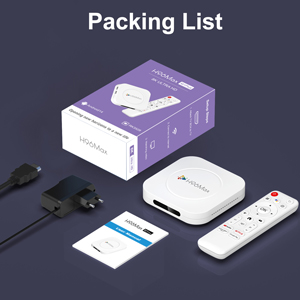
Image 3.1: The package contents including the TV box, remote control, power adapter, and HDMI cable.
4. Producte acabatview
Familiarize yourself with the components and ports of your LEFFOT M1 Plus TV Box.
4.1. Device and Remote

Image 4.1: The LEFFOT M1 Plus TV Box (left) and its accompanying remote control (right).
4.2. Ports i interfícies
The TV box features various ports for connectivity:
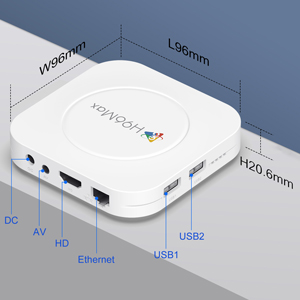
Imatge 4.2: Detallada view of the TV box's ports: DC (power), AV (audio/video out), HD (HDMI), Ethernet, USB1, and USB2.
- DC: Port d'entrada d'alimentació.
- DE: Analog audio/video output (for older TVs).
- HD: HDMI output for connecting to your TV.
- Ethernet: RJ-45 port for wired network connection.
- USB1 & USB2: USB ports for connecting external devices like USB drives, keyboards, or mice.
5. Configuració
Follow these steps to set up your LEFFOT M1 Plus TV Box:
- Connectar-se al televisor: Connect one end of the provided HDMI cable to the "HD" port on the TV box and the other end to an HDMI input port on your television. Note the HDMI input number (e.g., HDMI 1, HDMI 2) on your TV.
- Connectar l'alimentació: Plug the power adapter into the "DC" port on the TV box, then plug the adapter into a wall outlet.
- Encès: The TV box should automatically power on. If not, press the power button on the remote control.
- Selecciona l'entrada de TV: On your TV, use the remote control to select the corresponding HDMI input source you connected the TV box to.
- Assistent de configuració inicial: Seguiu les instruccions que apareixen a la pantalla per completar la configuració inicial, inclosa la selecció d'idioma, la zona horària i la connexió de xarxa.
6. Instruccions de funcionament
Navigate and use your TV box effectively.
6.1. Navegació bàsica
- Use the directional (Amunt, Avall, Esquerra, Dreta) buttons on the remote to move between menu items and applications.
- Premeu el botó OK button to select an item or confirm an action.
- Premeu el botó Enrere botó per tornar a la pantalla anterior.
- Premeu el botó Casa button to return to the main home screen.
6.2. Accessing Applications
From the home screen, you can access pre-installed applications or download new ones from the Google Play Store. Navigate to the desired app icon and press OK per llançar-lo.

Image 6.1: The Android 14.0 TV Box home screen displaying popular streaming applications.
6.3. Control per veu
The LEFFOT M1 Plus supports voice control via Google Assistant. To use this feature:
- Ensure your remote control is paired and has working batteries.
- Premeu el botó Assistent de veu button (often a microphone icon) on your remote.
- Speak clearly into the remote's microphone. You can ask to open apps, search for content, or control playback.

Image 6.2: Demonstrating the convenient voice control feature using the remote and Google Assistant.
6.4. Media Playback and Display Features
Enjoy high-quality media with advanced features:
- 8K UHD: The device supports up to 8K*4K@23fps and 4Kx2K@60fps resolution with HDR10 for vibrant and detailed visuals.
- Airplay, DLNA, WiFidisplay: Easily cast content from your mobile devices to your TV screen.

Image 6.3: Experience crystal-clear 8K resolution with the LEFFOT M1 Plus.

Image 6.4: The TV box supports various connectivity options and display technologies like Airplay, DLNA, and WiFidisplay.
6.5. Escenaris d'ús
The LEFFOT M1 Plus TV Box is versatile for various uses:
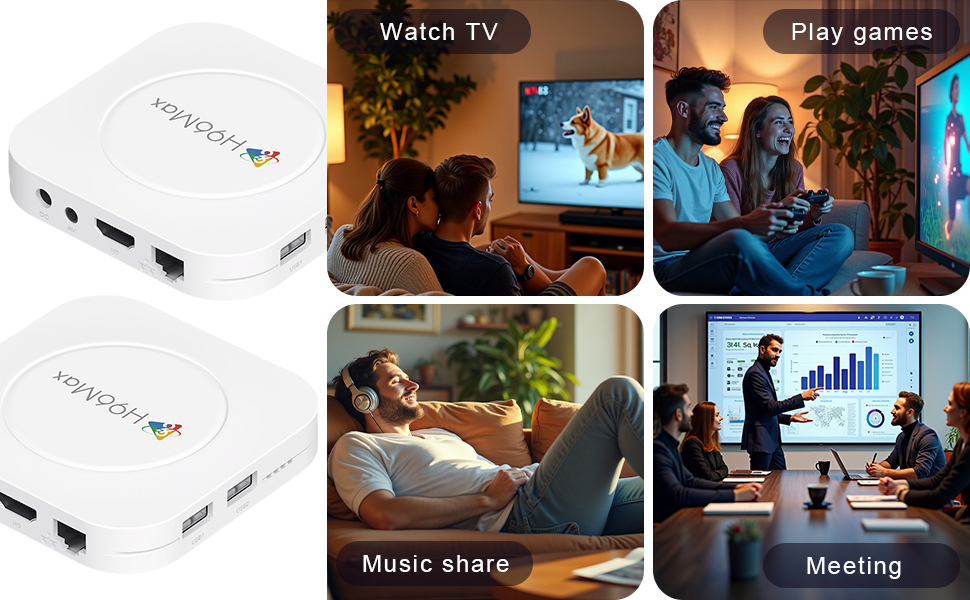
Image 6.5: The TV box can be used for watching TV, playing games, sharing music, and even for business presentations.
7. Connectivitat
7.1. Connexió Wi-Fi
The device supports 2.4G & 5G dual-band Wi-Fi 6 for fast and stable wireless internet.
- Vés a Configuració > Xarxa i Internet.
- Enceneu Wi-Fi.
- Seleccioneu la vostra xarxa Wi-Fi de la llista.
- Enter the password if prompted and select Connecta't.

Image 7.1: The TV box features advanced Wi-Fi 6 technology for faster and more reliable connections.
7.2. Connexió Ethernet
For a wired connection, plug an Ethernet cable into the "Ethernet" port on the TV box and the other end into your router/modem.
7.3. Connexió Bluetooth
The device supports Bluetooth 5.4 for connecting peripherals like headphones, game controllers, or speakers.
- Vés a Configuració > Dispositius connectats > Vincula un dispositiu nou.
- Posa el teu dispositiu Bluetooth en mode de vinculació.
- Select your device from the list and follow the on-screen prompts to pair.
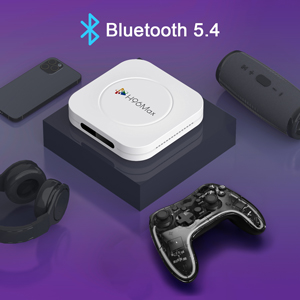
Image 7.2: The TV box supports Bluetooth 5.4 for seamless connection with various external devices.
8. Solució De Problemes
Consulteu aquesta secció per conèixer els problemes comuns i les seves solucions.
| Problema | Causa possible | Solució |
|---|---|---|
| Sense poder | L'adaptador de corrent no està connectat o està defectuós. | Assegureu-vos que l'adaptador de corrent estigui connectat correctament al dispositiu i a una presa de corrent que funcioni. Proveu una altra presa de corrent. |
| Sense senyal a la televisió | Entrada HDMI incorrecta seleccionada al televisor; cable HDMI fluix o defectuós. | Verify TV input matches the HDMI port used. Check HDMI cable connections. Try a different HDMI cable or port. |
| Problemes de connexió Wi-Fi | Incorrect password; router too far; interference. | Re-enter Wi-Fi password. Move device closer to router. Restart router and TV box. |
| El comandament a distància no respon | Piles baixes; comandament a distància no emparellat. | Replace batteries. Re-pair the remote control if it's a Bluetooth remote (refer to device settings). |
| Les aplicacions es bloquegen o tenen un rendiment lent | Too many apps running; low storage; software glitch. | Close background apps. Clear app caches. Restart the TV box. Consider a factory reset if issues persist (data will be lost). |
9. Especificacions
Key technical specifications of the LEFFOT M1 Plus Android TV Box:
- Sistema operatiu: Android 14.0
- CPU: RK3528 Quad Core ARM Cortex-A53
- GPU: Mali-450 MP2
- RAM: 4 GB
- ROM: 32 GB
- Sortida de vídeo: Supports 4Kx2K@60fps, 8K*4K@23fps, HDR10
- Wi-Fi: 2.4G & 5G Dual-band Wi-Fi 6
- Ethernet: 100M
- Bluetooth: BT 5.4
- Ports: HDMI, USB (x2), DC, AV, Ethernet
- Característiques especials: Airplay, DLNA, WiFidisplay, Voice Control
- Dimensions: 3.78 x 3.78 x 0.81 polzades (96 x 96 x 20.6 mm)
- Pes: 4.3 unces (aprox. 122 g)
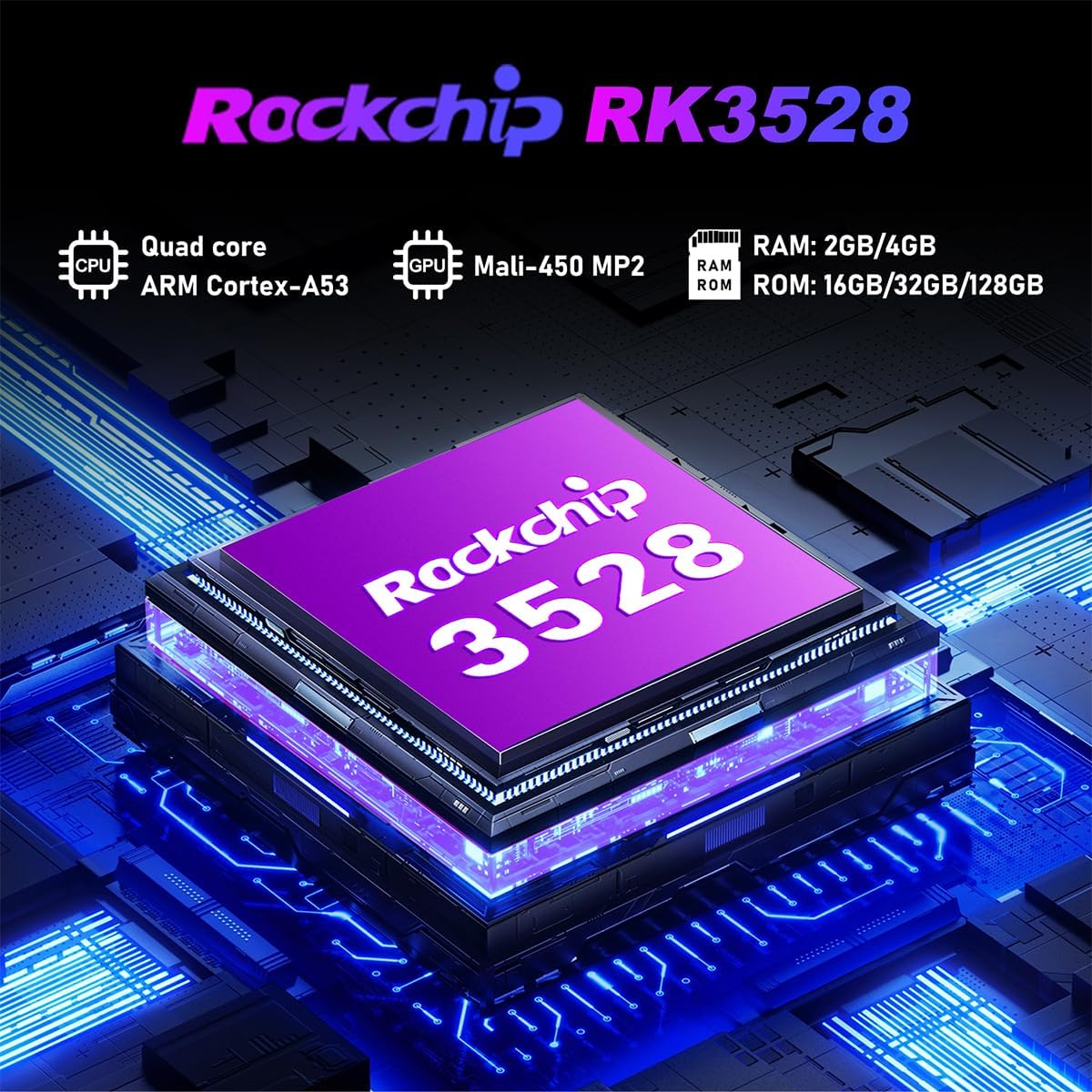
Imatge 9.1: Detallada view of the Rockchip RK3528 processor, highlighting its quad-core CPU, Mali-450 MP2 GPU, and memory configurations.
10. Manteniment
To ensure the longevity and optimal performance of your TV box:
- Neteja: Feu servir un drap suau i sec per netejar l'exterior del dispositiu. No utilitzeu netejadors líquids ni aerosols.
- Ventilació: Ensure the ventilation holes are not blocked. Do not place the device on soft surfaces that may obstruct airflow.
- Emmagatzematge: Quan no l'utilitzeu durant períodes prolongats, desconnecteu l'adaptador de corrent i guardeu el dispositiu en un lloc fresc i sec.
11. Garantia i Suport
LEFFOT products are designed for reliability and performance. This product comes with a standard manufacturer's warranty. Please refer to the warranty card included in your package for specific terms and conditions.
For technical support, troubleshooting assistance, or warranty claims, please contact LEFFOT customer service through the retailer where you purchased the product or visit the official LEFFOT weblloc per obtenir informació de contacte.
Si us plau, conserveu el comprovant de compra per motius de garantia.